

The battle for handheld PCs is the next evolution in gaming. Handheld gaming has made a comeback thanks to Nintendo’s Switch and Valve’s Steam Deck. Sony released the PlayStation Portal, and Logitech released their G-Cloud handheld device. While streaming handhelds isn’t very popular and there is a huge crowd of detesters (me included), it doesn’t change the fact that portable gaming is coming back, just not in the traditional sense we all grew up with, like the Game Boy, DS, or PSP. Those days are still long gone.
Lenovo of all people threw their hat into the ring, and I think people are taking them less seriously than ROG. While the handheld is brand new, there is a lot of potential, and Lenovo is actively listening to their community, taking a page out of Valve’s book that’s essential for the handheld PC gaming space: Ignore the player base, and your product is dead in the water. Specs-wise, the Legion Go is a direct competitor to the ROG Ally. It sports the same APU, the AMD Z1 Extreme, the same amount of RAM, 16GB, but differs with unique controls and a massive 8.8″ 144Hz screen. This is a huge game changer for the handheld PC space that has sported 7″ displays up until now, thanks to Nintendo pushing this size with the Switch OLED. Lenovo takes ideas from everyone in this space—Valve, Nintendo, and ROG—and creates their own take on the portable PC, but it’s not without its flaws.

Unboxing
The unboxing experience for Legion Go is similar to the Steam Deck. It comes inside its own carrying case but needs a retail-friendly box around that as this is sold on store shelves, unlike the Steam Deck. The Legion case is bigger but of about the same quality, holds the controller mount, and allows you to charge the system through the case, which is a nice change, but it takes one step back by not having a spot for the charger. This will be a recurring theme with Lenovo. One step forward, but one step back into something else. The system is the heaviest of them all, weighing in at nearly 2 pounds, or 864 grams, with controllers attached. It’s a heavy beast, but that large display and removeable controllers come at a cost. Outside of the unboxing, that’s where things start getting complicated.
Windows 11 Headaches
This is a Windows 11 device, and it’s not a portable gaming console. This is marketed as a portable PC, and it shows. Setting this thing up is exactly like setting up any Windows 11 gaming laptop or desktop, including all the problems and pains. Bloatware, display-changing issues, controller issues, and everything in between. This is not a pick-up-and-play device like the Steam Deck or Switch. There’s no proprietary OS running in the background doing all the heavy lifting for you. The first complication is Lenovo’s choice of using a 2K display for hardware that can’t run any current AAA games at that resolution. This leads to the need to rely on AMD Interger Scaling technology to make the games look good. Most casual gamers picking this up will get frustrated as running games natively at 1280×800, just like the Steam Deck, looks like a blurry mess, but most higher-end games can’t run anything higher than this if you want a decent frame rate. Interger scaling will allow you to essential upscale by pixel “quadrupling” in this case to make the image much less blurry, and it works really well here.

This is done in the AMD Adrenalin driver software and can be done system-wide or on a game-by-game basis. You can tell it’s working if you open up the Lenovo Space side panel (another page from Valve) and select one of the smaller resolutions. The screen will shrink down into a window. When you want to play a game at 1280×800, you select it in the side panel, and the game usually needs to be in fullscreen bordered mode for this to work. If you want to play a game in native resolution, you don’t need to change it in the side panel before launching.
There’s also an issue with Lenovo Legion Space, which is a terrible piece of software that doubles as a game launch hub. It’s not Steam, but it’s needed to change some settings for the system. Drivers are also not easily updated, like with the Steam Deck, where they are delivered with regular Steam updates. You need to go onto the Lenovo site and manually check or use their auto-check software, just like a laptop. Other qualms include needing to navigate Windows with a touchscreen and using an onscreen keyboard, but thankfully there is a touchpad on the right controller that also has vibration feedback. It doesn’t compete with the Steam Deck’s dual touchpads, but having one at all is a nice addition, and it works just fine with no issues.

Another issue I ran into was the low volume output of the speakers. They are upfiring speakers, unlike the Steam Deck, and I needed the Fxsound software to increase the volume and make the overall soundscape sound better. I also had to adjust settings in the Realtek audio driver software. This isn’t a good thing, and these power user adjustments need to be done by Lenovo through some sort of overlay on top of Windows. Legion Space needs to make huge strides to even compete with SteamOS. I also had to use BloatyNosy to remove Windows 11 bloatware and background processes to get more frames out of games. Windows 11 is not an optimized portable experience by any means.
Controllers. Yay or Nay?
You can use Steam Big Picture Mode and have the Legion auto-start this on bootup, which helps, but there’s an issue with the controllers, which Lenovo calls TrueStrike Controllers. They took an obvius note from Nintendo and created their own Joy-Cons, essentially. They feel good, they are much more ergonomic than Joy-Cons, and they have great-feeling joysticks, but some of the ideas behind them don’t make sense. They put the system functions buttons where your menu, start, and select buttons usually go. Thankfully, the Legion Space software lets you swap these, but this was a dumb move on their part. The left function button opens Legion Space, and you have to wait for it to load every time. Accidental presses were really frustrating.
These controllers are read as Xbox controllers or Xinput in Windows. Sadly, there is no Xbox menu button outside of a button combination, and there’s no way to map one as the rear buttons can’t be mapped. Lenovo blocked access to these, which are only usable in “FPS” mode with the right controller in the controller stand. This essentially turns it into a mouse, as the stand has feet that allow you to slide it around. There is a mouse sensor on the bottom of the controller and a switch to change to FPS mode. This can also double as a desktop mouse, but Steam has default desktop controls that work only in controller mode. The FPS mode feels like a gimmick, but it works and is really responsive, and it’s a nice middle ground for those who don’t like using controllers for FPS games and want a mouse on the fly. Again, this is one step forward and another backward. These extra buttons on the back feel a little hollow and cheap-sounding, but they work fine.

Another step forward is having detachable controllers to use the system as a standard Windows tablet, but then they detach and attach very poorly. The switch in the back feels clumsy and cheap, and the controllers slide down rather than up on a full rail like the Switch. This means you need to hold the system awkwardly to slide them up, and they don’t click in a satisfying way. They kind of “clunk” in, and you’re never quite sure if they snapped in or not.
The Legion also has a built-in kickstand similar to the Switch OLED, which is nice and has two charging ports. One on top and the other on bottom, so you can orient the cable however you need. If you have the system on the kickstand, you can still charge it at the top, so this is really nice. This kickstand is also required if you want to use the controllers attached, just like the Switch.
The Games Are What Matter the Most
At the end of the day, we want to just play games, right? They are great on Legion Go, and you can squeeze a higher resolution out of some games. Nothing but smaller indie and older games will run at the full 1600p, but many do at 1200p, and they look fantastic. The upside of the Steam Deck is its compatibility with Windows. All games just work and don’t need tweaking. This is why Microsoft would be smart to release a stripped-down handheld version of Windows 11, as the compatibility is already there. We just need an easier console-like experience to navigate to the actual game. Many games that would get sub-60fps reached so or beyond on Legion Go. Either with higher graphics settings or the exact same—just more frames per second.
The other upside to being a Windows device is playing games with any type of anti-cheat system in place. They all just work. Games like Destiny 2 and Genshin Impact work because the Legion is not an unsupported Linux system. A lot of the same tweaks on PCGamingWiki will also work, as will mods from Nexus Mods. You can also just use the Vortex mod manager and run everything like you would on a regular desktop PC. With a keyboard and mouse, modding is a breeze, and this is one thing I avoided on the Steam Deck.
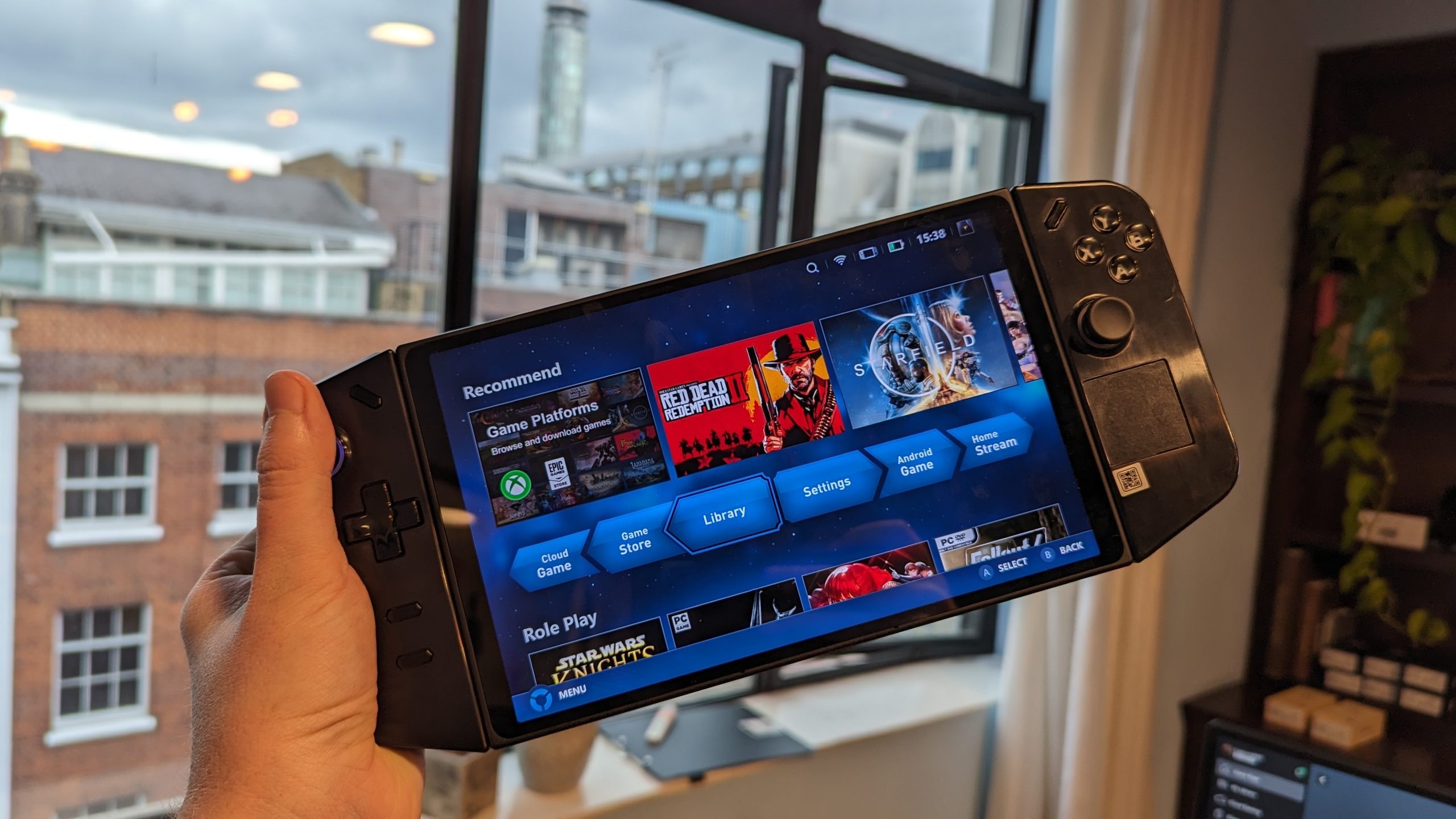
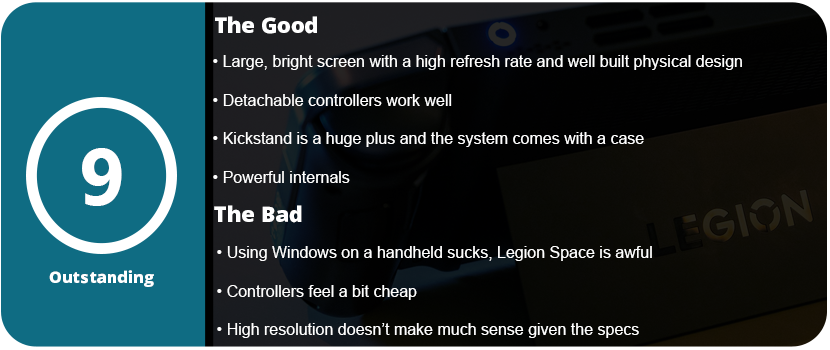
Overall, the Legion Go is a fantastic handheld PC that brings new ideas and pushes the envelope for hybrid machines. With the power of the ROG Ally that we already had and the compatibility of Windows combined with Switch-like hardware, there is a lot here to like. While the detachable controllers aren’t of the highest quality and aren’t as intuitive to use as the Switch, they offer a hybrid way of gaming and are still fun to use. The gigantic, vibrant screen looks great at 144 Hz as well. There’s a lot here to like with little to dislike, and most of the problems lie within Windows and aren’t the Legion’s fault.


 thebinarymessiah.com
Try multiplayer. A lot of fun !