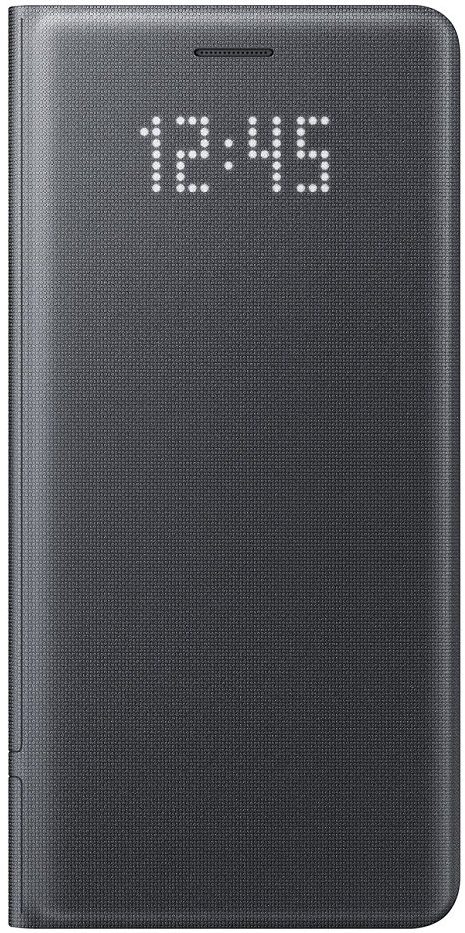
I recently reviewed the S-View case for the Note 7, and it didn’t turn out too well. I then turned to the LED wallet case, as it looked more sturdy and had a unique LED grid on the front cover that no other case I have seen has. What’s awesome about this case is that the LED functionality isn’t battery-powered, but it uses the NFC on your phone to run and takes less than 1% of the battery per hour to operate.
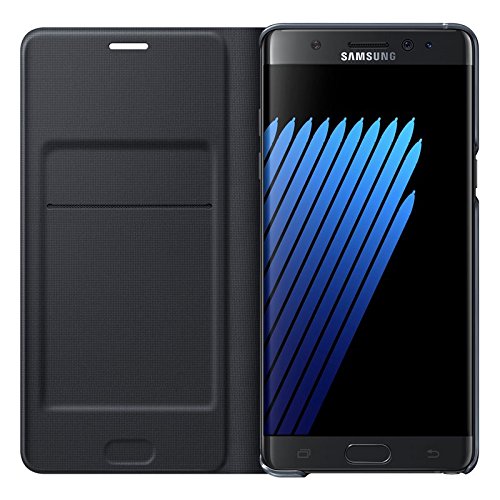
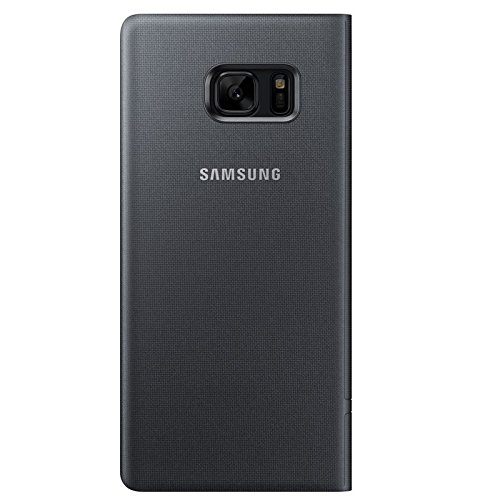
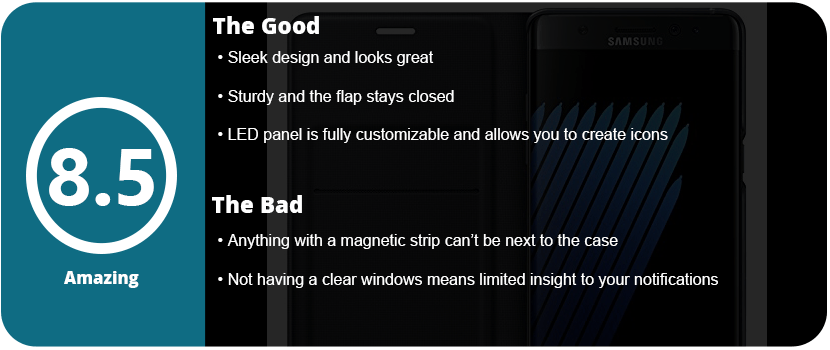
Samsung didn’t stop there, as there are software features that tie into this LED cover. For starters, the case itself is sleeker and better-looking than the S-View cover. It has a nice fabric feel to it, and the sides around the edge of the phone are transparent, so you can see the beautiful edge of your phone (especially the coral blue). The flap of the case has more weight to it, so it doesn’t just pop open even when laying flat, which is what mainly sold me on this case. It feels more sturdy, and a drop should survive in this thing.
Software-wise, the case allows you to see the time on the front as well as notification pictures. These LED (or 8-bit) pictures can be set to certain contacts, or you can draw your own with the S-Pen. Yes, this was a wonderful feature that tied other features of the phone into the case, which was great. Lastly, you can set icons for each and every app you have, which is very convenient. Now, unlike the S-View, you can’t directly see who’s calling or what the notification is. The LED panel is touch-sensitive, so you can swipe to answer or reject calls, and you can talk with the cover closed. These minor gripes don’t really concern me, as I knew what I was getting into when buying the case: There’s no window. You also can’t put credit cards in this wallet, as the magnet will wipe your strip. All you can put in are punch cards, driver’s licenses, and club cards that don’t have magnetic strips. That’s no big deal to me, as I like carrying my wallet and don’t plan to use this pocket anytime soon.
Overall, the LED wallet is so awesome that it turns heads and looks stylish and unique at the same time while protecting your large investment. I am planning on eventually picking up Samsung’s third case, the Clear View, to see which of the three is the best.
Monitors aren’t something I buy very often; in fact, I’ve only ever bought one type, and that was the Dell S2740L, and that was 3 years ago. It was my first real monitor that didn’t come with a setup and was fantastic, but it was time to upgrade to something more modern and bigger. I’m not going to lie; I’m not very savvy with monitors or TVs. I don’t buy them often enough to do constant research or keep up with trends. I usually go into a store with a budget and research on my phone as needed. I started out by looking for other 27″ monitors that just looked super clear and crisp, had a minimal design, and maybe some fancy settings. I first looked at the Asus MX279H because it had a fantastic-looking screen and was LED. I want to move away from LCD, and it’s a fading technology. I then noticed larger screens that were around the same price, but then there were ultrawide displays that were over $500. There was a $400 29″ LG monitor with AMD Freesync, but the 21:1 ratio was a little off-putting as almost everything is made for 16:9.
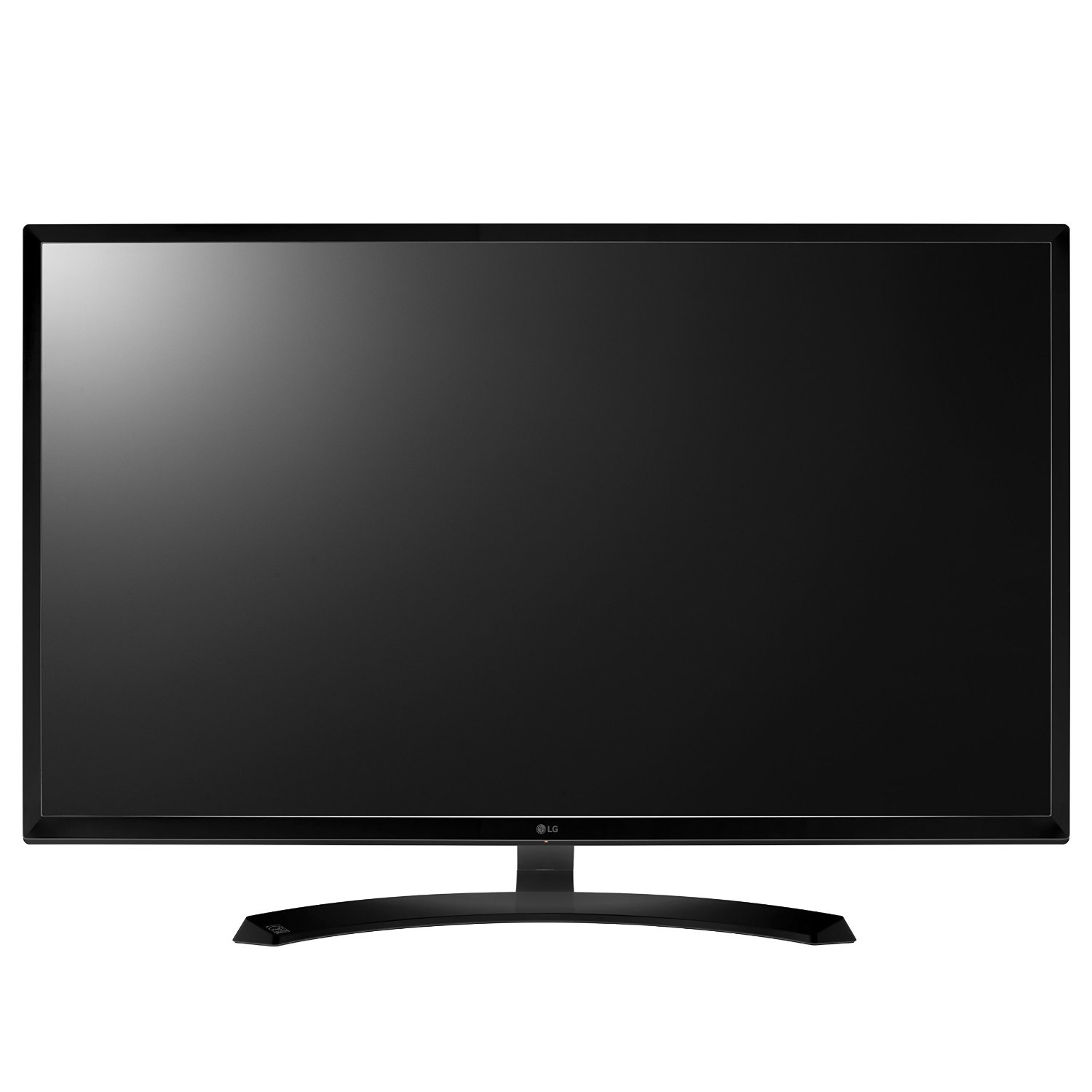
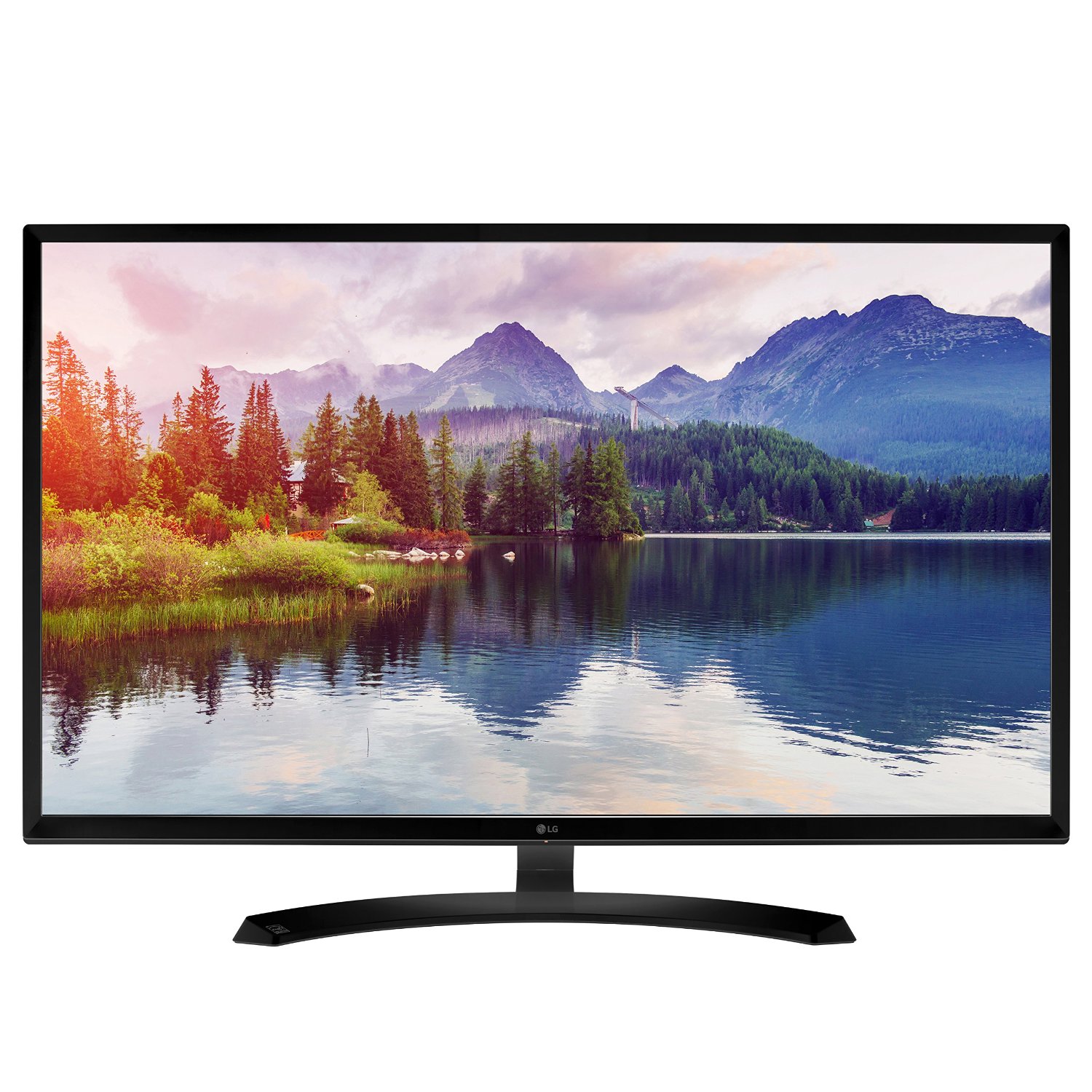
That was my major dilemma: do I sacrifice dual monitors for an Ultrawide or just get another 27″ monitor? My next thought was that I just want a 1080p monitor, as most gaming above requires multiple GPUs, and I don’t have the money or setup for that. So here I was looking at 1080p monitors that were bigger than 27″. I never thought in a million years I would ever get a 32″ monitor, as that is the size of most entry-level flat screens. Three years ago, a 32″ monitor was close to $1,000. I was also switching to a new brand; I don’t own anything from LG. So, I settled on the 32MP58, and no, I didn’t know what IPS was at the time, but it’s for the most true-to-life color you can get. Comparing an LED monitor to an LCD is a huge difference, and the size is perfect for gaming.
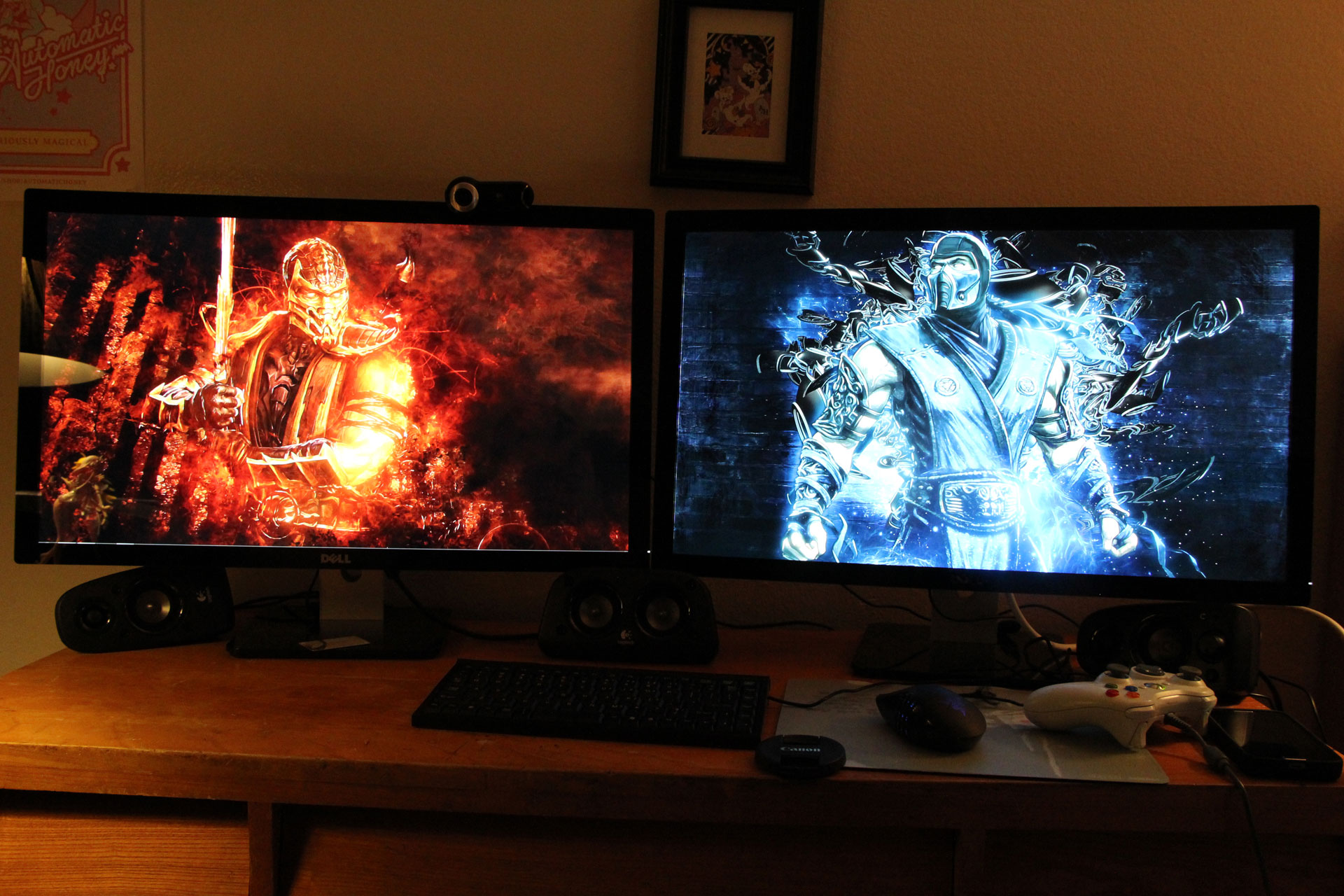
So, I took my new monitor home, took down one of the 27″ Dells, and plopped it down. It takes up a lot of desk real estate, so be prepared to have a large desk or nothing else on it. I had to slide my other 27″ Dell all the way to the edge of the desk to make them both fit. I can now use the LG for gaming and video and the Dell for tasks like web browsing and file management.
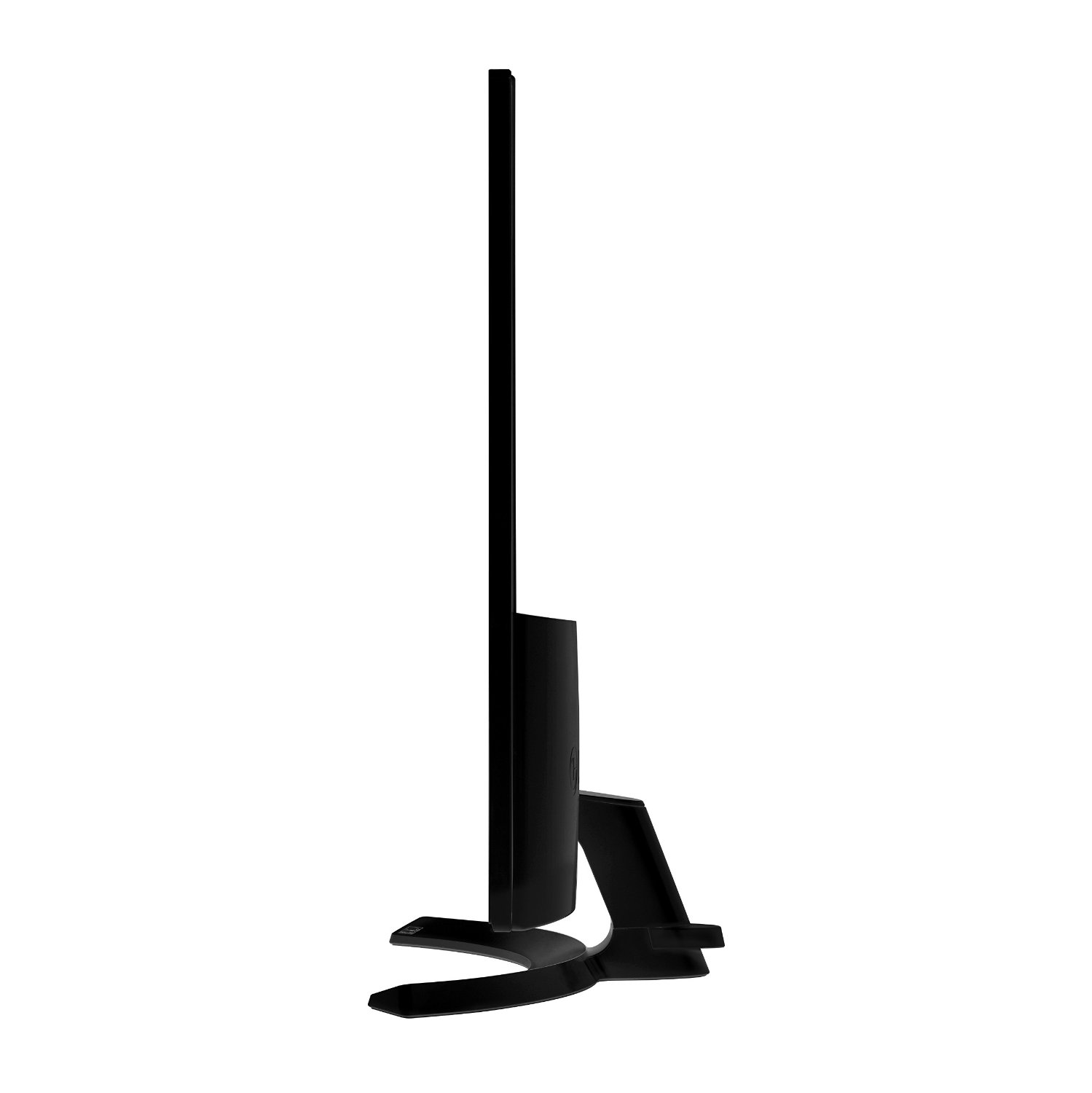
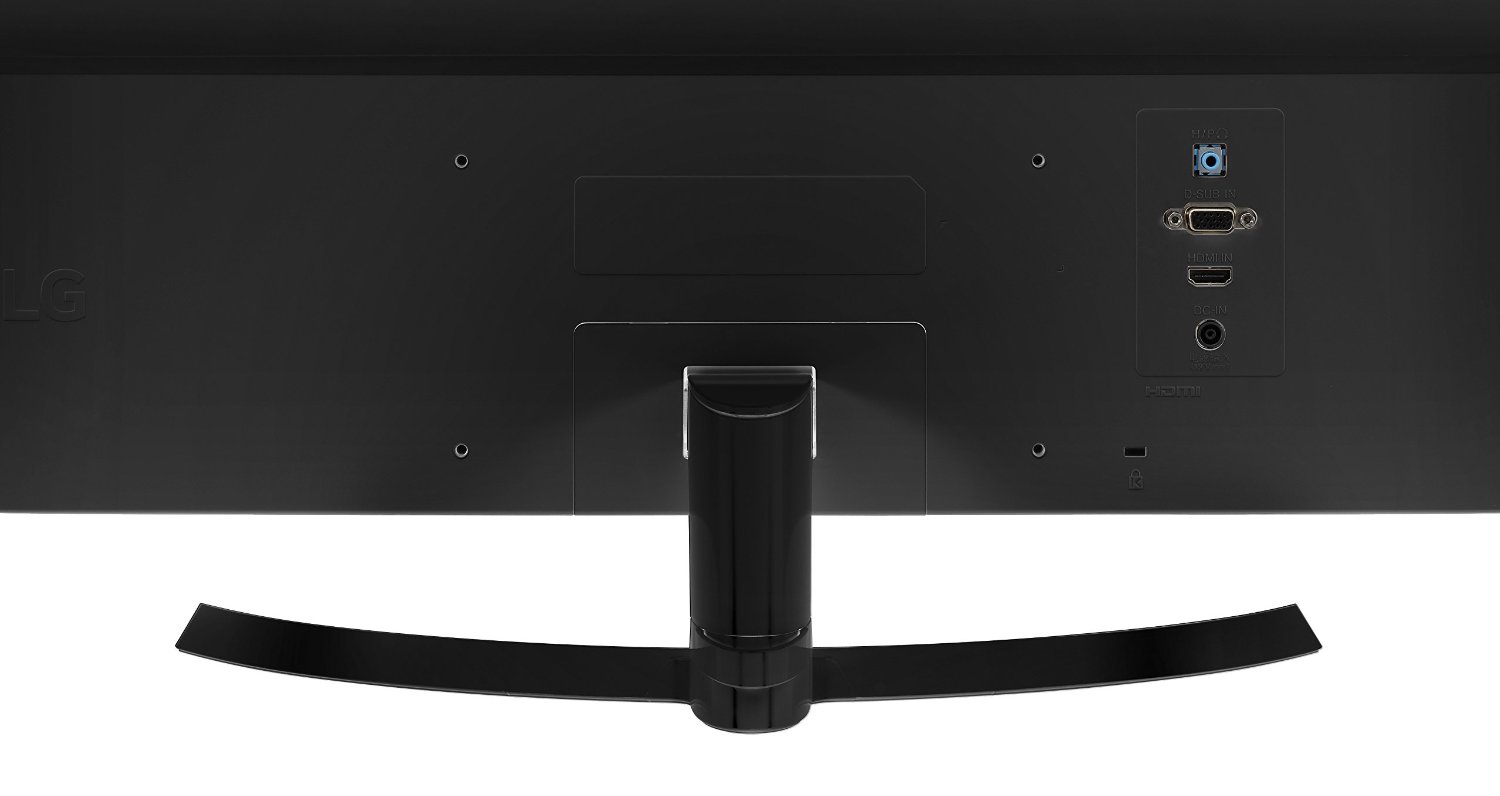
The setup was easy enough, and I’m shocked this monitor is VGA or HDMI—both extremes. Either go fully digital or full analog. I don’t know why, in 2016, anything has VGA anymore, but it’s there. I was surprised to not see DVI-I or DVI-D at all, which I had my Dell monitors set up as. Either way, most new GPUs come with two HDMI ports and two DVI ports. After installing the curved stand (which is minimal and sleek), I plugged it in, and on it went.
The monitor detected the video right away and turned it right on. The OSD button is a four-way switch underneath the power light, which is awkward and weird. There are many settings, and most of these are universal across all of LG’s newest monitors. I chose the gaming preset, and for the most part, this monitor needs very little adjustment. I used Windows Color Calibration, and nothing needed adjusting. I then did a little research on some LG-exclusive settings, like SuperResolution. It sounds awesome on paper, but this is for anything that doesn’t render or display natively in 1080p and needs upscaling. This is great for older game consoles but not necessary for PC games, as it just makes everything overly sharp and ugly. There are so many settings on this monitor, such as adjusting every single color under the sun, not just RGB. There’s a great black stabilizer that keeps everything from getting too dark and washed out, which is a nice feature. I also found this to be an extremely bright monitor, and as the sun went down, I had to change it from the already bright 75 down to around 47. 100 brightness is just not ideal and not needed at all.
There are other features like response time for fast-moving objects (games in 60FPS or 60FPS movies) and some other features, but mostly not many need to be touched, and that’s how it should be. There’s no software involved with this monitor like there is for Dell, which is just fine as most people don’t like that kind of thing. So settings-wise and physical design-wise, there isn’t much to complain about. I wish this was an edge-to-edge display, but the bezel is embossed, which isn’t awful, but the back is bulky. There’s also a headphone jack in the back that allows audio to stream through and can be controlled via the monitor OSD, which is also awkward and bizarre. I also have to mention that this is a very wobbly monitor if your desk isn’t quite stable. I had to push my two monitors together to keep each one balanced. If you have a wobbly monitor issue, you need to buy a stand that has braces for each side.
Overall, the games and video looked amazing on this monitor. Some of the best picture quality I have seen on any monitor to date. With my older Dell and this side-by-side, I can see the difference, and even the size makes a huge difference. Should you go larger than 32″? Maybe 34″, but that might be pushing it. I won’t be purchasing another monitor anytime soon, probably not for a few years, but I am very happy with this purchase, and $300 is quite fair for what you get. With a sharp and crystal-clear display, beautiful colors, and great physical design, you can’t go wrong here.
Gaming keyboards are just as important as mice; the buttons are probably the most important thing of all, and the gimmicks and extra stuff come last. The second most important thing in a gaming keyboard is ergonomics and how it’s designed physically. Some keyboards have large desktop footprints with giant wristpads, strange key shapes, and proprietary key layouts. I spent over a week shopping around for the right keyboard to replace my Alienware TactX keyboard. Not that it broke or I hated it; I absolutely love the TactX keyboard; I just wanted something new and different. First on my list was the key type. Did I want Cherry MX keys or a membrane? The TactX keyboard is an excellent Cherry MX keyboard, but it’s very loud and “clacky,” and the key height is very high. I loved how far apart each key was, but I was ready for something new.
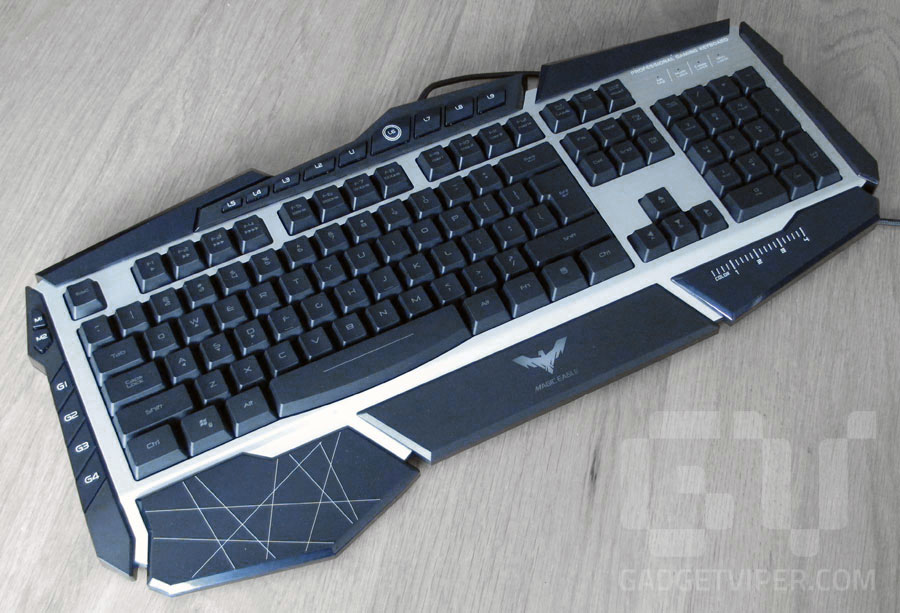
Havit Lammergeier: My first choice but only available online
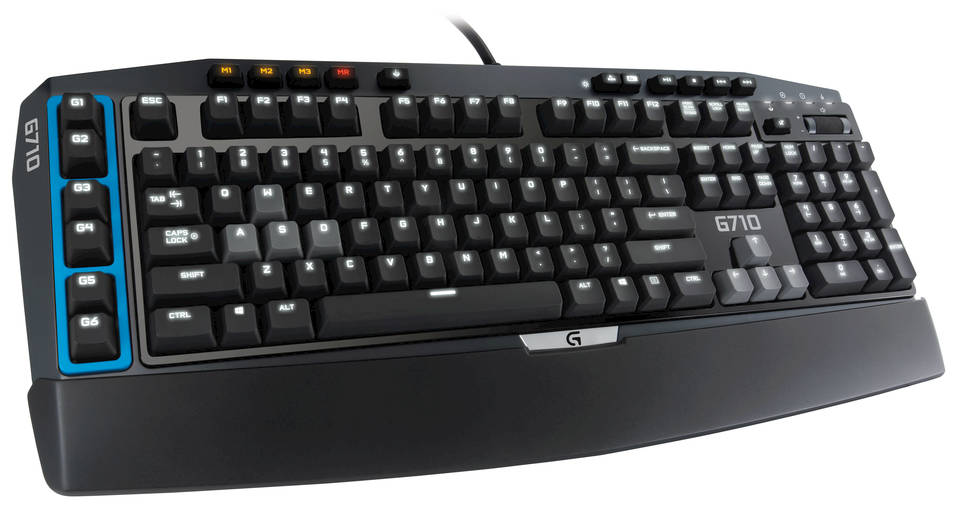
Logitech G710: A solid Cherry MX keyboard, but I didn’t like the design of the buttons
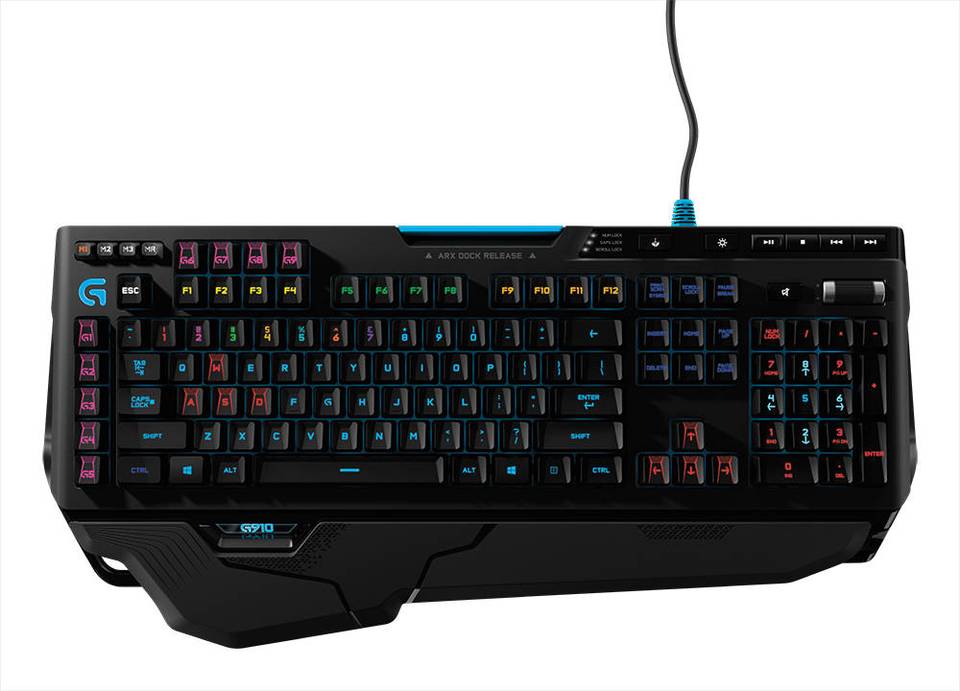
Logitech G910: A beast of a keyboard, but I still didn’t quite like the design.
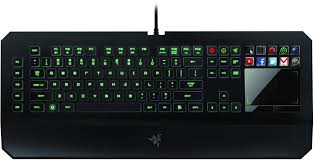
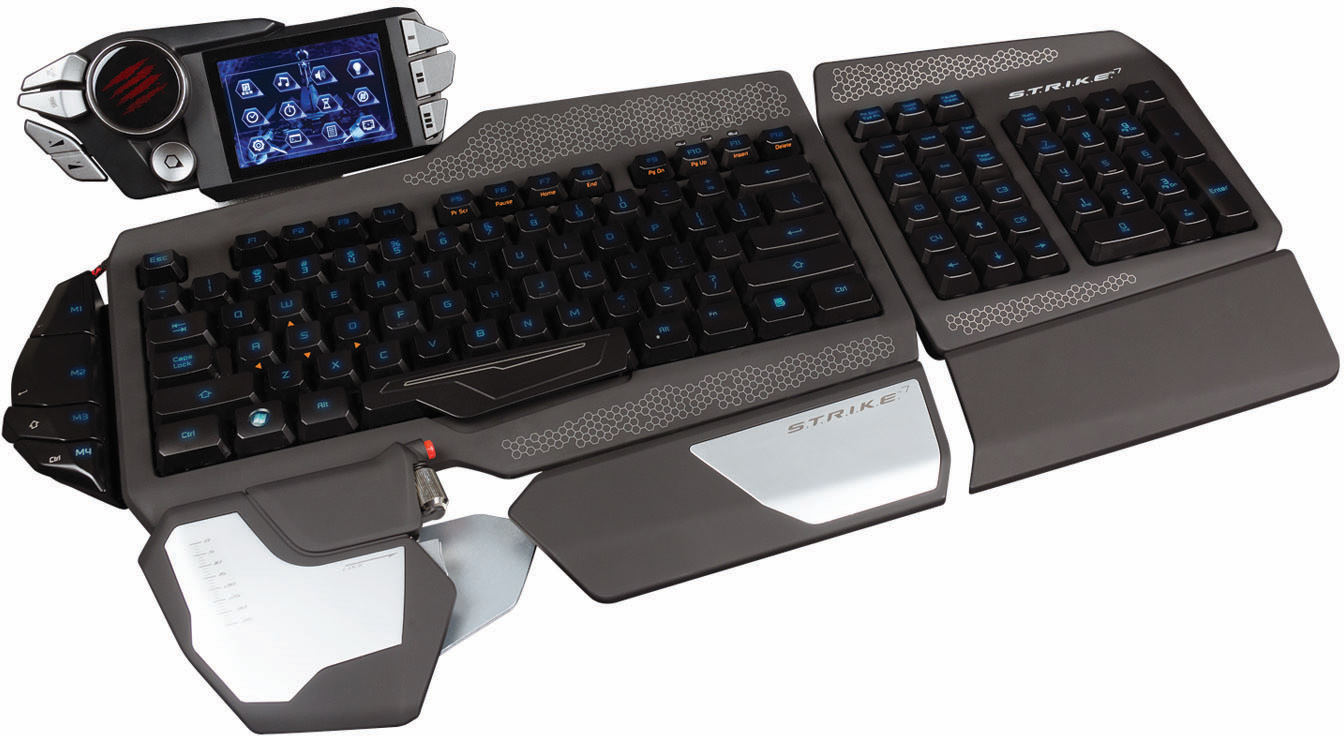
My first pick was the Havit Lammergeier, which had a wonderful design and Cherry MX keys, but it’s only available online. Remember, any decent gaming keyboard is going to start at around $100. I also thought about the Razer Deathstalker Ultimate, but at $250, it was ridiculously expensive, had a laptop-style keyboard setup, and the Razer touchscreen has been abandoned and hasn’t been updated in a while. My next thought was the Corsair Chroma series with its nice LED lighting, simple design, and Cherry MX keys. However, it was just too simple for me. I wanted something a little more flashy, something with a unique layout. I also looked at Logitech keyboards, but they were also very simple in design and seemed overpriced for what they didn’t offer. After this, I looked at Cyborg keyboards, as the S.T.R.I.K.E. 7 was nearly $300 and had a lot of amazing features. After testing it and looking up extensive reviews, I found that the software is shoddy and the hardware is cheap. I personally fiddled around with one, and it didn’t seem like it was made of $300 material.
Razer Deathstalker Ultimate: One of the most expensive keyboards on the market, but has cheap feeling mechanical laptop keys and the touch screen has been abandoned.
Cyborg S.T.R.I.K.E. 7: The most expensive and elaborate keyboard on the market. It feels cheap, the keys aren’t great, and the software is shoddy.
Corsair K70: A great feeling Cherry MX keyboard, but with a very simplistic design and a giant wristpad
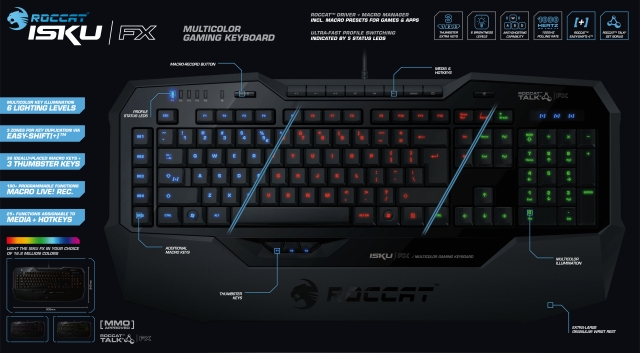
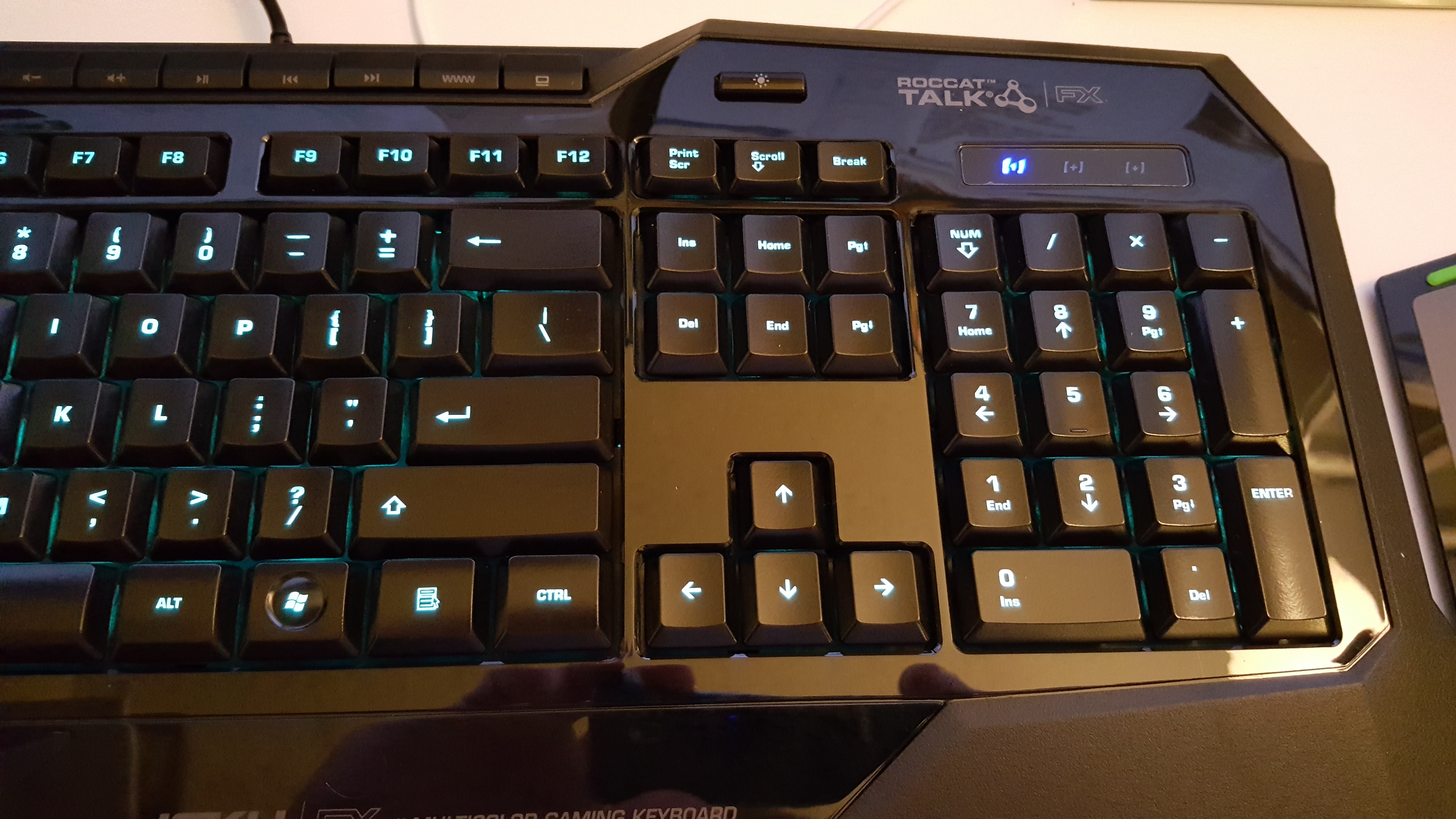
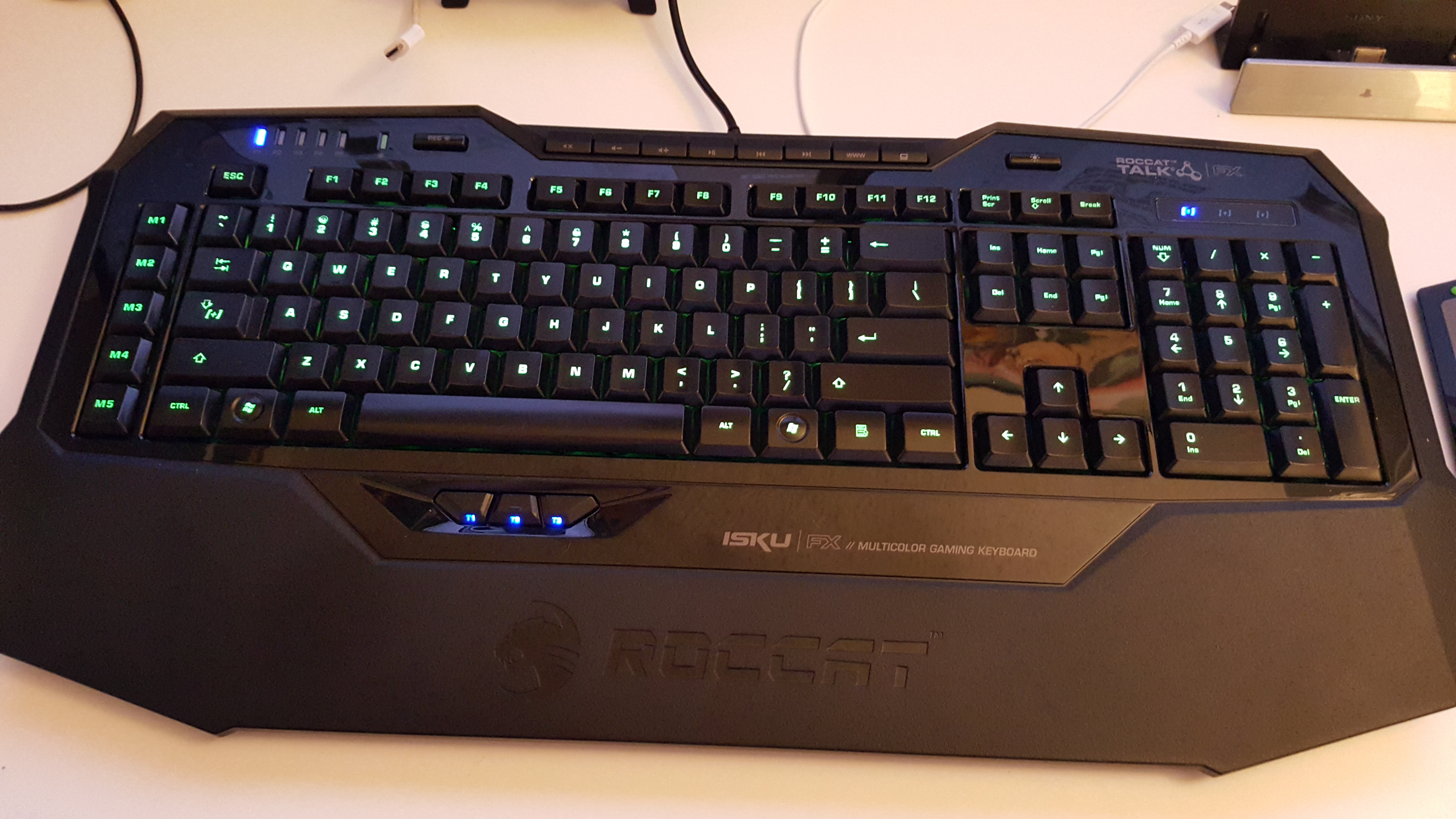
With the S.T.R.I.K.E. 7 being the most expensive keyboard on the market right now, I went and looked at some lesser-known brands such as Roccat, Gearhead, Mionix, Thermaltake, Azio, and TTe Sports. While these brands don’t make terrible products, they just aren’t the #1 brand that everyone knows, such as Razer, Logitech, Corsair, or Mad Catz/Cyborg. Several of these brands offered Cherry MX keyboards, but they just didn’t feel right; something about them felt cheap, loose, or just awkward. I then went over to the Roccat Isku keyboards, but they only offer membrane keyboards, and I was hesitant. I tapped away on a few keys and noticed how soft yet responsive they were. I continued tapping away at an Azio Levertron Mech5 keyboard right next to it with Cherry MX keys and realized how much better the Isku keyboard felt. The design was simple yet somehow unique and sleek, but all these Cherry MX keyboards looked crazy, futuristic, and had so many buttons, switches, and gizmos that it could make your head spin. With the $100 price tag, I grabbed the Isku FX keyboard specifically since it was compatible with AlienFX and had customizable LEDs.
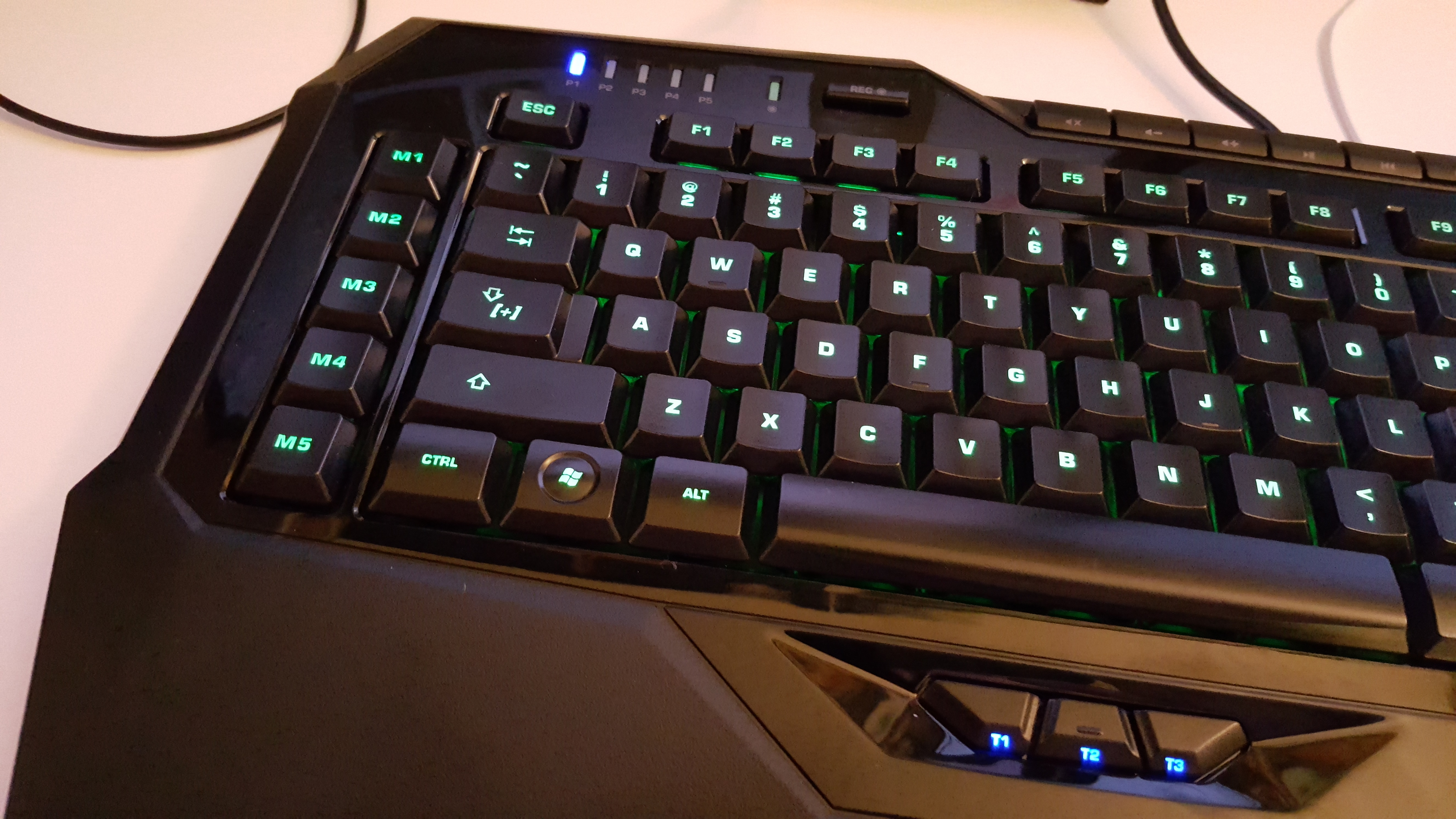
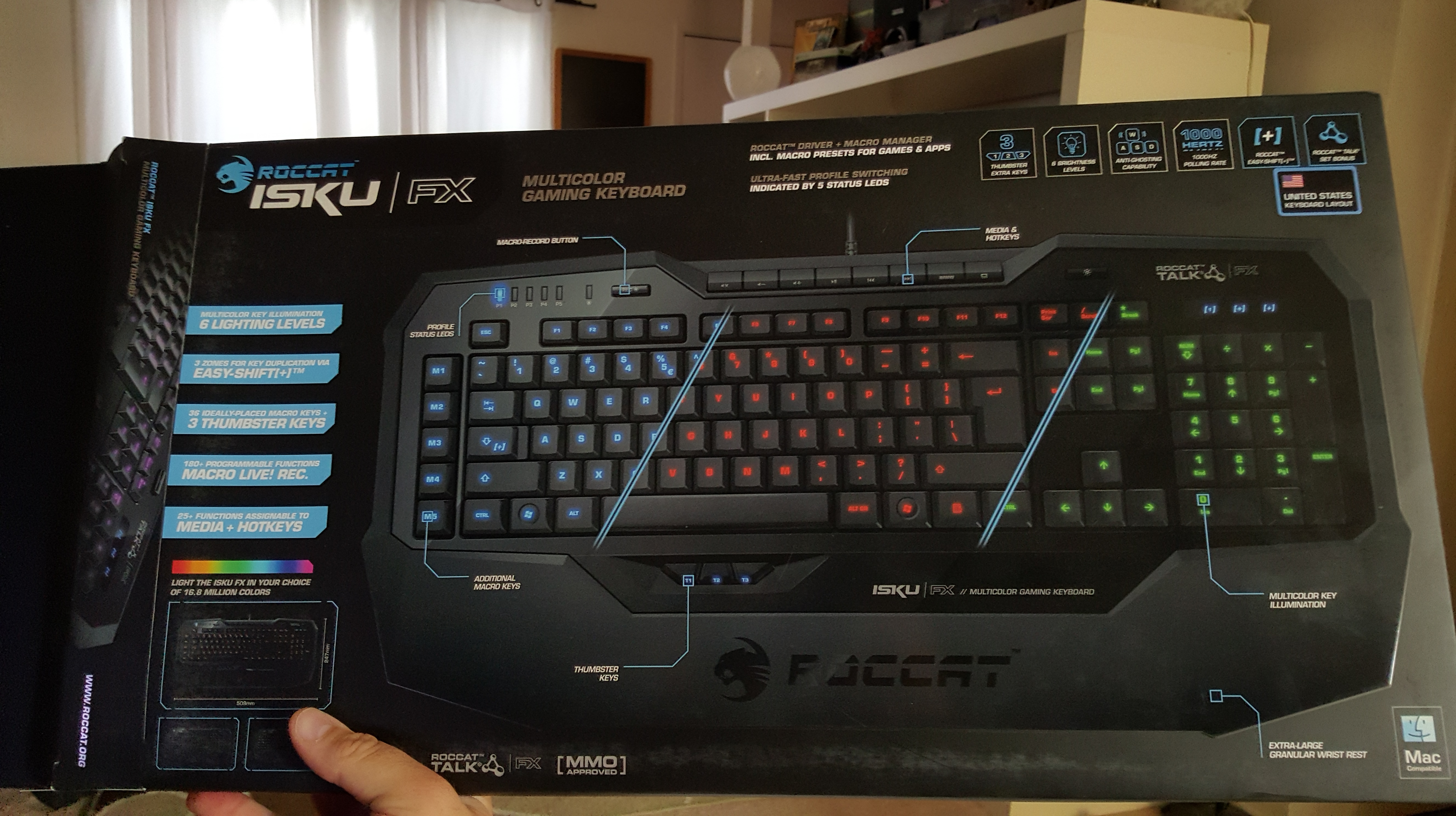
Right out of the box, the software was extremely easy to install. No CDs were included (who needs them these days?). So just a quick driver download was needed on the website. The software was installed on Windows 10 64-bit with no hitches at all; after I opened the software, it prompted me to do a firmware update on the keyboard, which went smoothly. This was probably the easiest hardware driver I have ever had to install; even Razer’s software can have problems from time to time. Once the software was opened, it looked overwhelming. The Isku is designed for people who love macros and keyboard shortcuts. There is a dedicated row of shortcuts on the far left, but the Isku has a special Easy Shift+ key function that can double all your shortcuts. On the bottom of the keyboard, there are three “Thumbster” keys that allow you to do whatever you want with them. These are great for reloading in games, crouching, or switching to your favorite weapons. They are located just right, but I feel you will need to have larger hands to reach them.
The Isku FX allows up to five profiles to be switched on the fly; this is for people who may have a lot of shortcuts for different games. Blue LEDs are at the top left to tell you which profile you are on, and no, there is no dedicated profile switch key; that’s what all these macro buttons are for. Next to the profile LEDs is a live recording button. Press the button, and a guy with a gravelly voice will walk you through the macro recording process. This is great and takes away those confusing menu screens to record macros; however, that option is still here. At the very top are your media keys, a browser button, and a button for My Computer, but again, you can change these if you want. Next to these is a button to turn the LED lights on and off, which is a nice feature. The rest of the keyboard is a pretty standard affair.
As for the rest of the software, the macro options are insane, and it even lets you program buttons by milliseconds of when they activate. It’s crazy. Another tab allows you to use the F keys as more macros if the 16 before weren’t enough. Another tab allows you to alter the “Easy Zone” keys, which are around WASD, to completely change what they do normally or add a secondary macro via the Easy Shift+ key. This is great if you are playing an MMO with a mouse and don’t want to use the top number keys or switch to the keypad. This is also useful if you are using a program that has a lot of shortcuts; now you can have them all right next to each other. The Advanced Control tab allows you to change the lighting effects, enable AlienFX, and select various other options. The Roccat software also comes with an achievement system, which is odd, but it’s here. There are 16 achievements in total; I have yet to unlock any, but it’s very interesting and kind of strange.
The keys feel fantastic, and I can’t stress this enough. Membrane keys are usually shoddy, but these click very quietly, have a lot of response, and don’t feel mushy. I felt the keys were a little closer together than most Cherry MX keys, but not by much, and I quickly got used to this and forgot all about it. I also like how I don’t have to press the keys down so far, as people with smaller hands tend to cramp up on Cherry MX keys.
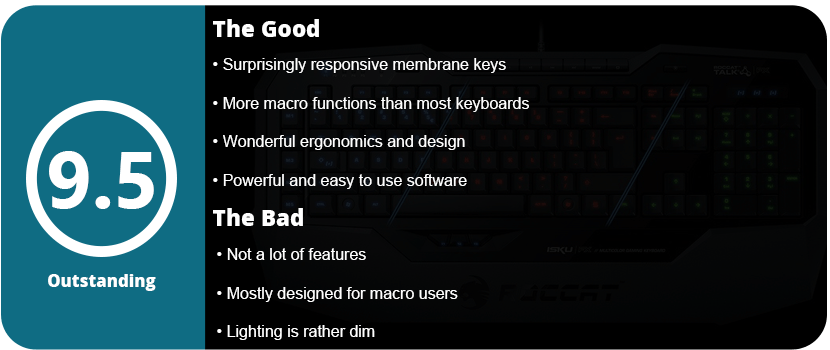
Overall, the Roccat Isku FX keyboard is amazing, and surprisingly so for a membrane keyboard. If you are on the fence about membrane keyboards or are a hardcore Cherry MX fan, I suggest giving this keyboard a shot. Out of several membrane keyboards I tried, this was the only one that felt decent, so I understand the hate behind those kinds of boards. The software is some of the best out there for hardware, and there are so many customization options it will make you dizzy. Even if you don’t use macros, this is a wonderful keyboard, has great lighting effects, and is well worth the price.
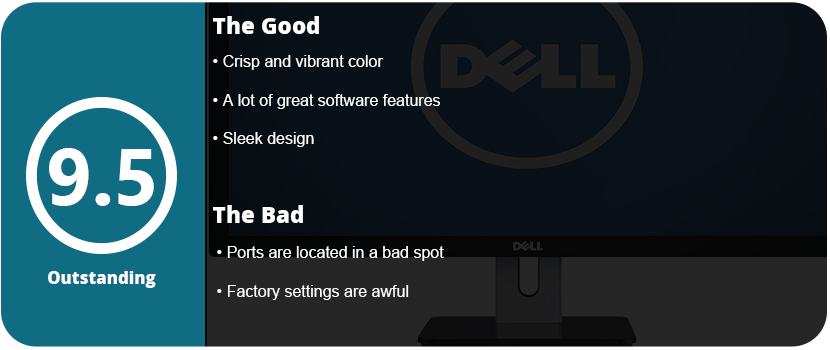
A good monitor doesn’t just look good, and every monitor looks different to other people. You need features, stability, and clarity. A very bright monitor isn’t exactly good. The models in the store are in torch mode, which means the contrast and brightness are set all the way up. This is to make the monitors look bright and vivid, yet when you come home with them, they aren’t. The Dell S2740L is all of the above. Crisp, vivid, and full of features. When I saw the install disc, I rolled my eyes. Some crappy buggy software is thrown in as a gimmick or to “help” control the 2 USB slots that are underneath the unit. I was surprised that the software auto-controls the presets for when each program is opened. This shocked me. You can drag exes into the window and decide what preset you want for them. You can also turn it off, but I prefer this method. The monitor is crystal clear through both DVI and HDMI. However, the factory settings are terrible. Turning the image enhancer on makes everything look like it was overly sharpened in Photoshop. I actually thought something was wrong with the monitor; I had to switch out the DVI cables to see. Once that was off, the monitors looked so crisp and clear.
The software allows you to arrange grids on each monitor you have. When you drag a window into that region, it will auto-resize it for you. This is great if you are dragging and dropping around folders or switching between programs a lot. The software also allows you to easily make separate settings for each monitor. Even with great software, a monitor can still suck. This monitor was tested on movies and games, and the colors just popped. They were so bright and colorful. Once you get used to the brightness, you can start turning it down bit by bit to save energy. There is an energy meter when you turn the brightness and contrast down. Eventually, you can get it down to 60% without it bothering you.
One thing that did annoy me is that the ports are too hard to get to. They are directly underneath the unit in the back, so you need to crouch down, pull the monitor towards the edge of the desk, and fiddle around until you get the plugs in. This was a bad spot for the USB ports as well; why couldn’t they be on the side? One thing you may wonder about is the gap between multiple monitors. It isn’t seamless like an edge-to-edge display, but it isn’t so bad either because the monitor is completely flat without a plastic bevel to bother you. There aren’t many issues here except the initial setup, and the ports are in weird spots.
For the price, this is a damn good monitor, and I highly advise you to get a 2. I have two myself, and they are gorgeous. I can’t explain how beautiful this monitor is unless you get one yourself. This may be one of the sharpest 27″ monitors out there.
I loved my Razer Naga MMO mouse, and it has lasted almost two years without a hitch. I also love my Cyborg R.A.T. 9 mouse, but I am getting bored with it and want to move on. The Razer Mamba is the other high-performance, high-tech gaming mouse out there. Bottom line: This is the best money you can buy. While being cheaper than the R.A.T. 9 by $20, it does more hardware-wise but less software-wise in a way. I don’t want to turn this into a Razer Mamba vs. Cyborg R.A.T. 9 review, but I can’t help but compare two of the best gaming mice out right now.
The first thing you will notice is the epic box the mouse comes in. It’s on a stand like a holy relic, and inside are drawers with your cord, charger base, manuals, battery, and cover. It’s a slick-looking box and is just asking you to buy it, and hey! You get a free sticker. When you plug it in, you need to download the firmware updater and software, which is easy. Once your firmware is updated on both the base and the mouse, you can check out the beefy software. But first, let’s see what this mouse does hardware-wise.
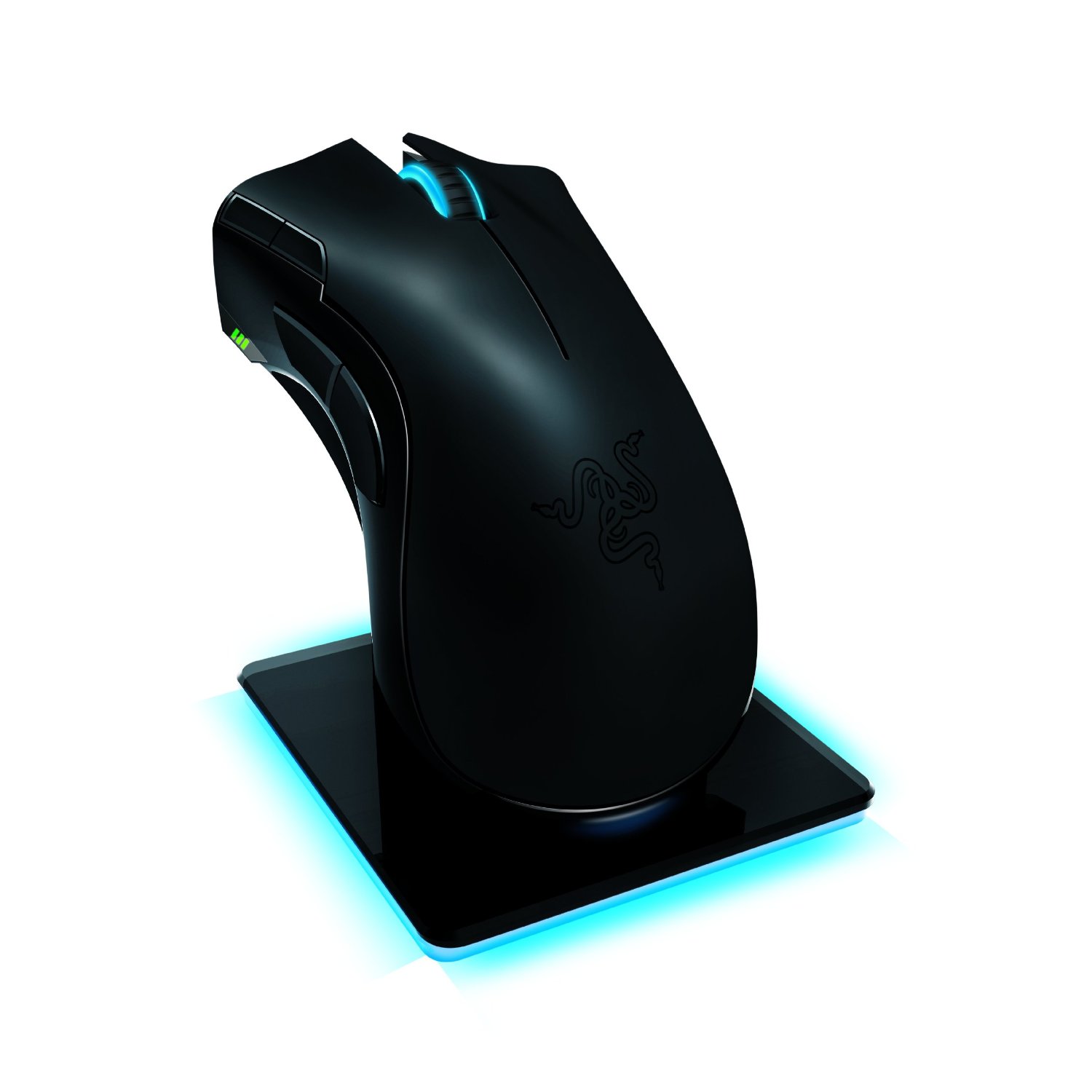
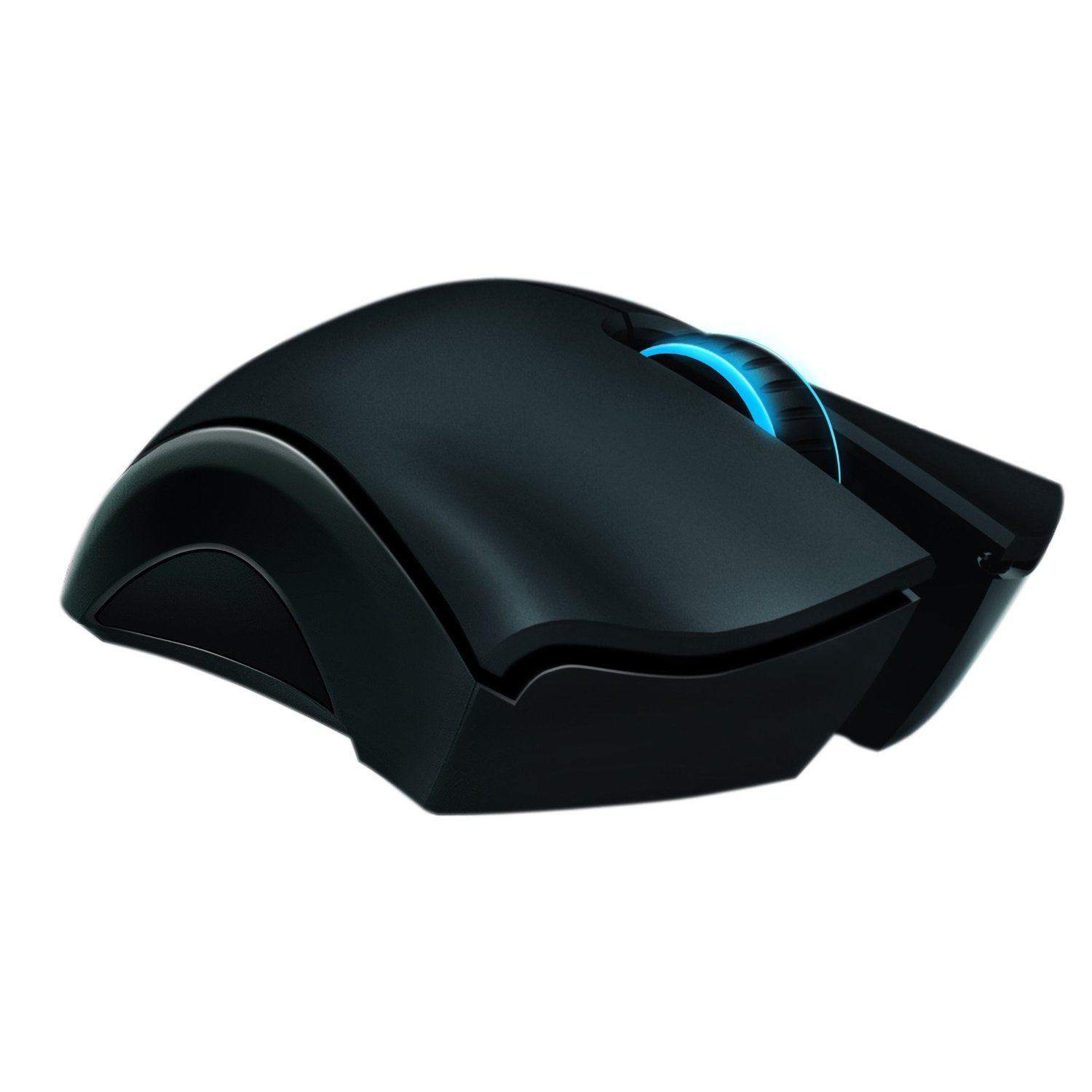
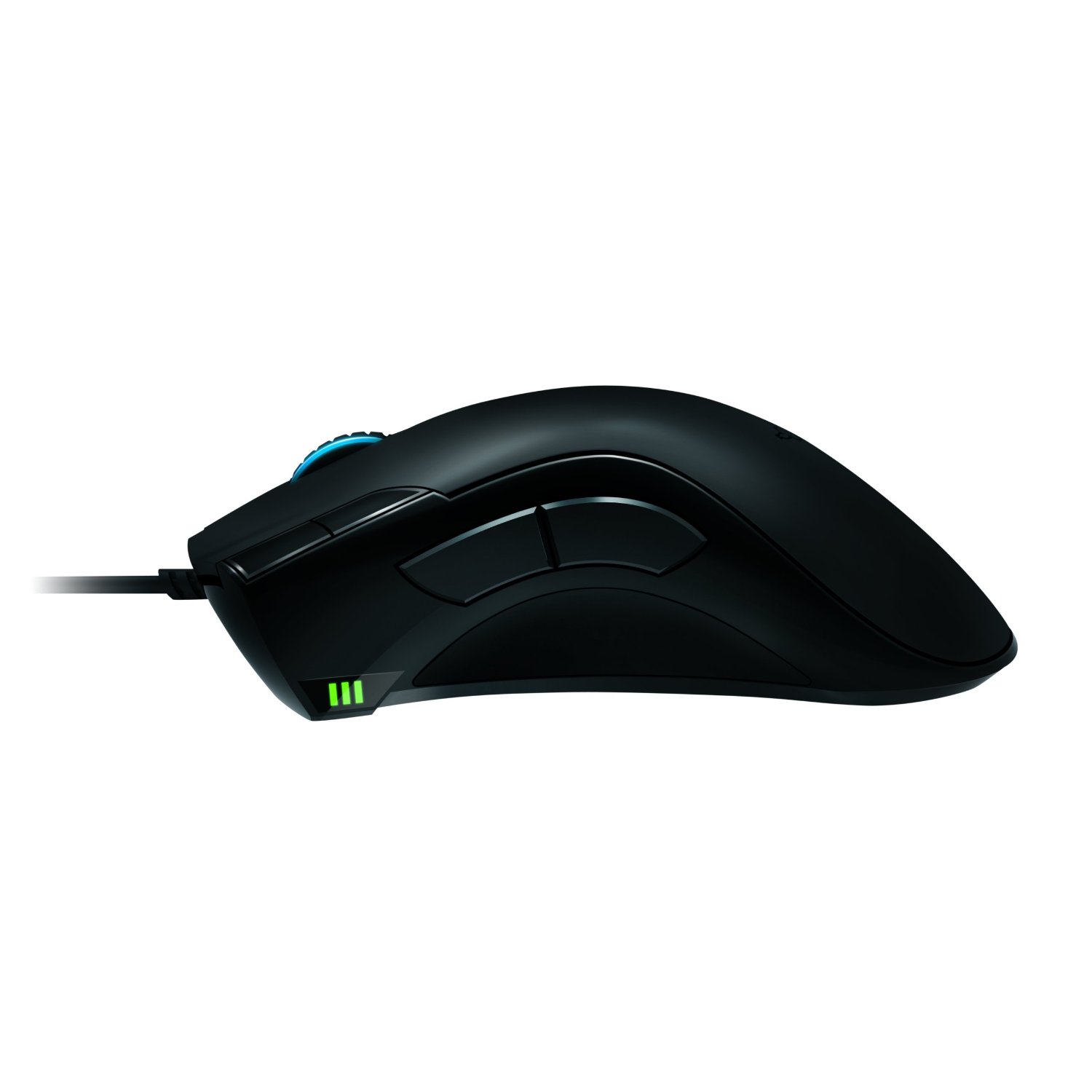
The mouse has the usual Razer ergonomics that you’re used to with the Naga or the DeathAdder, but it feels concave just right on the thumb side. There are two big buttons just above your thumb for easy access, as well as two others near your left-click button. Below that, you have a battery indicator as well as a sensitivity indicator (they are the same), which wireless mice do not have. Underneath, there is a lot going on with a battery, wireless switch, connectivity button, and USB release button. Thankfully, none of this interferes with the smooth glide of the mouse.
This mouse has a 4G dual sensor that detects the type of surface you are on and can adjust on the fly. It also has lift detection for gamers that use low DPI and like to lift their mouse constantly (which is annoying to watch, by the way). You will also notice the wheel lights up, which is nice, but sadly, the Razer logo does not light up. What makes up for it is the awesome charging base that does light up, and this mouse uses a full-color spectrum that you can rotate or just use one color. In the dark, the base looks amazing and has a nice ambient effect.
My favorite feature of the mouse is that it can go from wired to wireless by just unplugging the cable from the dock to the front of the mouse. The 6′ braided cable is sturdy and gives you great length, but you can also charge while in wired mode. There isn’t an easily swappable battery, so once it dies in wireless, you have to stop and plug it in, which I find pretty annoying, but you get used to it. The battery lasts 16 hours when all the performance features are off, like the mouse light, polling, and the calibration sensor. With everything on, you get about 7-9 hours, which isn’t too bad.
The software is a great suite that allows you to use macros, profiles, adjust performance, and fine-tune your mouse. This mouse has a whopping 6400 DPI, which is ultra-sensitive, but you can change this on the fly in several ways. Press a button and use the mouse wheel to adjust, or use buttons for preset DPI. Acceleration and a 1000 Mhz polling rate give you ultimate silky smooth precision for both low DPI gamers and high DPI gamers.
Overall, the mouse performs like silk, and I played a shooter with ease and was a lot better using this mouse. I do have a few complaints about not being able to use Windows functions like volume control and media playback via macros. The software is slow and unresponsive in wireless mode and will sometimes freeze and crash. This can probably be fixed with a patch, but it shouldn’t happen at all. I couldn’t even get On-the-Fly Sensitivity to work in wireless mode. Like I stated earlier, the battery life is low unless you turn most features off and only have one battery. The charging base is huge and not very portable, so if you need something on the go, you will probably choose wired. Other than that, this is an excellent mouse, and gamers, as well as Razer fans, should own it.













 thebinarymessiah.com
Try multiplayer. A lot of fun !