The Galaxy Tab S2 was the best tablet I have ever owned. It’s sleek, powerful, includes a familiar Samsung Android OS, has a beautiful screen, and I never had a single issue with the tablet. That was three years ago, and I felt it was time to upgrade. While I understand that the Tab S3 isn’t the dramatic change that the S2 was from the original Tab S, to me at least, it’s a marginal difference to justify an upgrade, especially if you are growing tired of your S2 or realize, like I did, that Samsung is no longer supporting it.
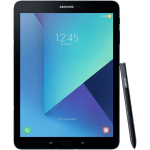
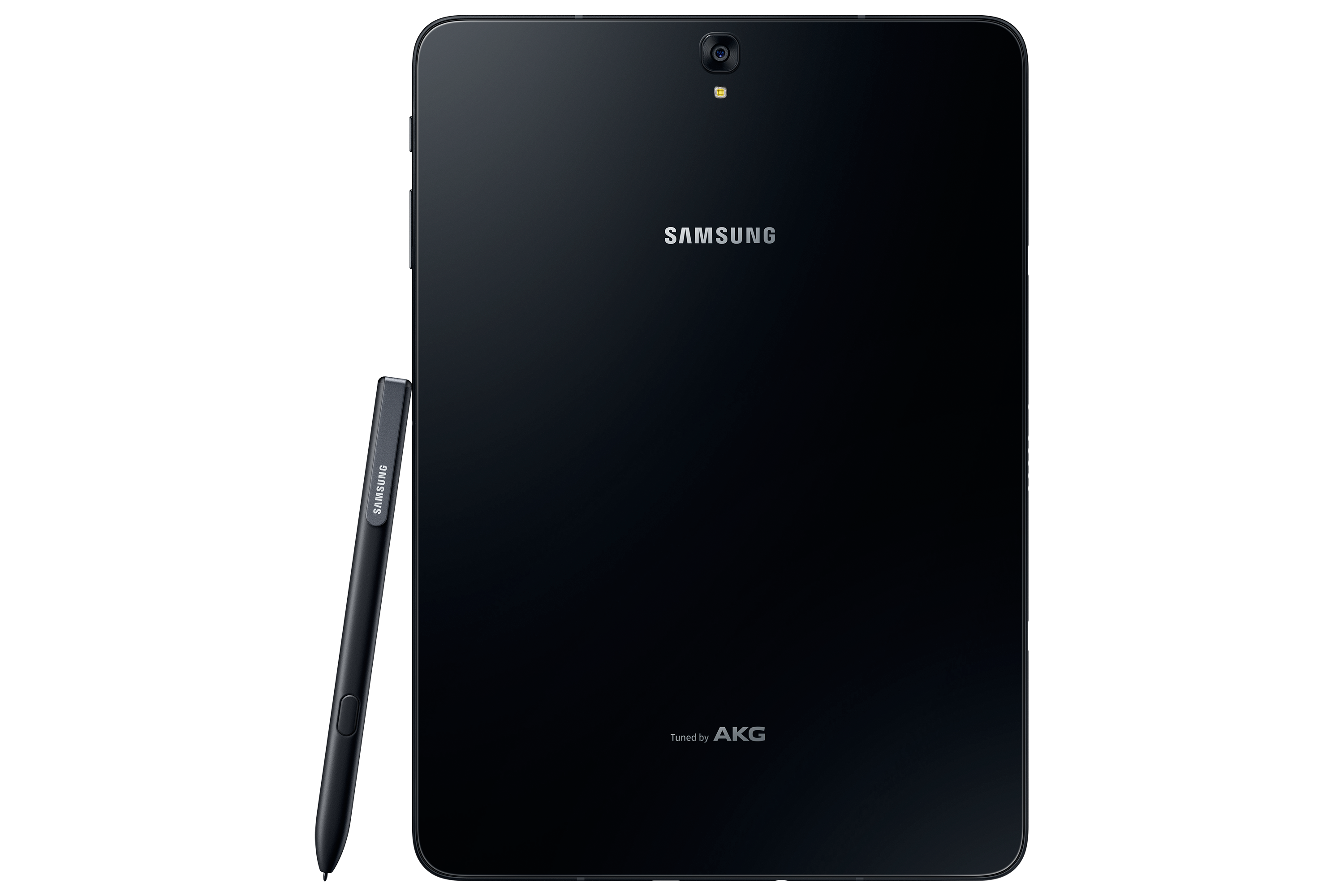
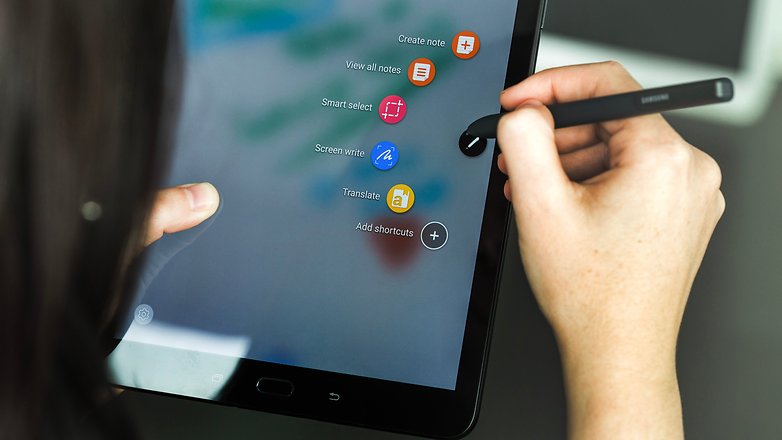
When I took the tablet out of the box, the differences were noticeable right away. While it’s shaped the same way, is the same size, and looks familiar, it’s made completely out of glass, so that plastic feeling is gone. It’s also half the weight and thickness of the S2, which is insane as the S2 was the thinnest tablet around for the longest time. The Tab S3 also includes the S Pen for the first time since the Note 10.1 tablet. The S Pen is large and full-sized, unlike the pens for the Note phone series, and it doesn’t go into the tablet. This is a bit of an issue because you always have a loose pen floating around unless you buy a case for the tablet that can hold the pen.
Once I turned on the tablet, it was a familiar experience. The Nougat OS is exactly like the S2, with a few added features. Sadly, I noticed that Samsung themes are absent from this tablet as well and seem to be exclusive to the newer Samsung phones. I did notice that everything ran a bit smoother and was more responsive overall.
The biggest change of all would be the sound and screen. The S3 features four speakers for surround sound by AKG, which sounds fantastic. As I was playing games or watching videos, I could hear the sound differential change with each speaker, which was a huge change from the S2’s stereo speakers. The screen features HDR, which was the first tablet to do so. Watching HDR videos on Netflix or just high-res videos, in general, look fantastic on this screen and almost look better than on Samsung’s high-end phones. I can’t stress enough how great everything looks on this tablet; these two features alone are worth the upgrade.
Let’s get under the hood of this beast. While there are more powerful tablets on the market, the Tab S3 is one of them. The S3 boasts the Snapdragon 820 SOC with a quad-core CPU running at 2.15 GHz. We get 4GB of LPDDR4 RAM and an Adreno 530 GPU. It’s not the biggest leap over the S2, and it disappointed a lot of people, but as a whole, it’s a worthy upgrade and still more powerful than the S2. It has a 13 MP rear camera and a 5 MP front-facing camera, which is just fine. Who really takes photos with their tablet? I took maybe a dozen with my S2 over the last 2 and a half years, and it never got used. Thankfully, the S3 has a flash on the back this time, so your photos will turn out a bit better.
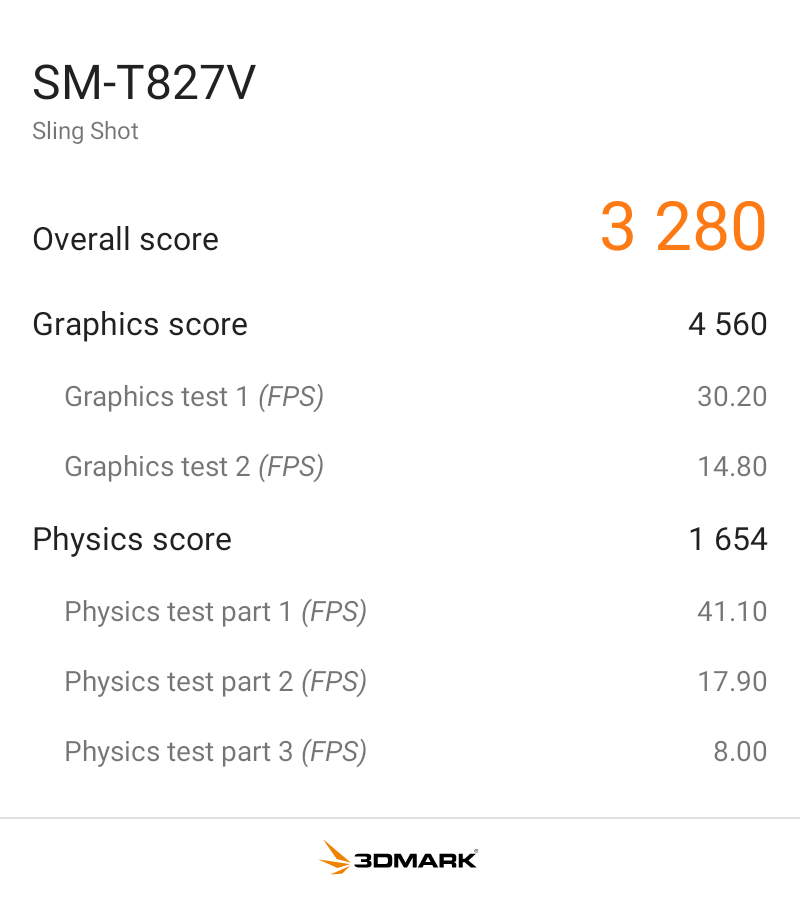
I benchmarked the S3 with 3DMark Sling Shot Extreme, and it did fairly well with the Vulkan and OpenGLES 3.1 APIs. As you can see, when the system is pushed fairly hard, it can maintain a solid 30FPS, so it’s ready for games for the next few years.
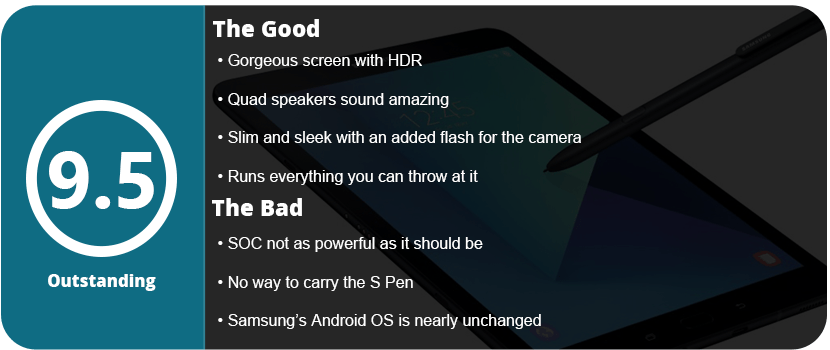
Overall, the Tab S3 is a fantastically powerful and feature-packed tablet. It’s a worthy upgrade from the S2, or if you want an all-new tablet, this is a great one to jump into. With a gorgeous screen, HDR support, a versatile S Pen, quad speakers, and a slim design, there’s nothing wrong here at all. While the SOC isn’t as powerful as I’d have hoped, it’s not enough to deter me from recommending it.
Razer has been the spokesperson for PC gaming hardware for years now, and there seems to be a divide in their products. Some live and die under Razer, and some can’t stand them. I personally have mixed feelings. I’ve only ever used their wireless mice, and I had bad experiences with both. The Razer Mamba cut out constantly, and the material it was made out of slowly fell apart. The Ouroboros was a better-designed mouse, but the laser and software were just plain awful. I then acquired a Razer Firefly mousepad, only to have it die on me in a month. I also owned the Razer Kabuto and Vespula mousepads, only to have both of them slowly disintegrate over the course of a few months. I eventually gave in and bought a Man O’ War headset to be pleasantly surprised by the quality and durability of the product. So, it was time to buy another keyboard, and I realized I had never bought a Razer keyboard before. What could go wrong?
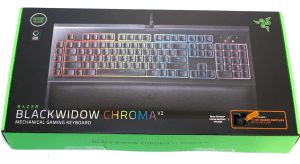
I felt a little lost choosing a Razer keyboard, as there are so many of them. There are the smaller Tournament Editions of the standard keyboards, membrane keyboards, and keyboards with their own version of Cherry keys. I saw mobile keyboards, Chroma keyboards, and licensed keyboards. I started off by knowing I wanted a Chroma keyboard that supported the latest Synapse 3, as I hate Synapse 2 as it is. I had a choice between Blackwidow X and Chroma V2. The Chroma V2 just seemed like a better keyboard all-around, had a wrist rest, and felt better ergonomically.
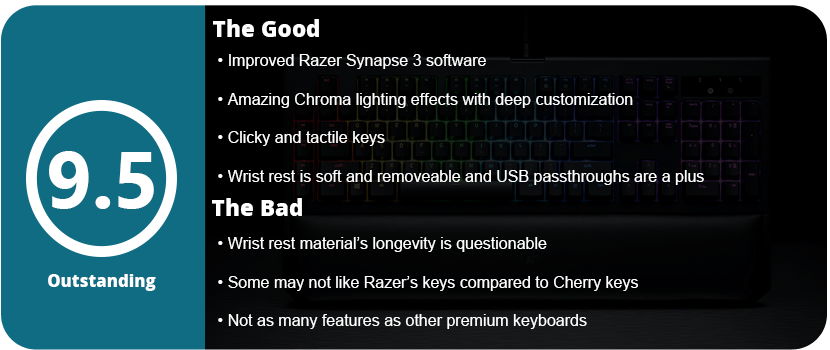
Once I plugged the keyboard up, I noticed it had three plugs. One for USB passthrough, and then a 3.5mm jack. I didn’t bother with the jack as I have a headset and a speaker and never used standard headphones, but the passthrough was nice. What I do like about Razer products is that you don’t have to go download drivers and firmware updates. Once you plug in your device, Synapse will recognize it and download everything for you. This is one thing Razer has above most other hardware companies.
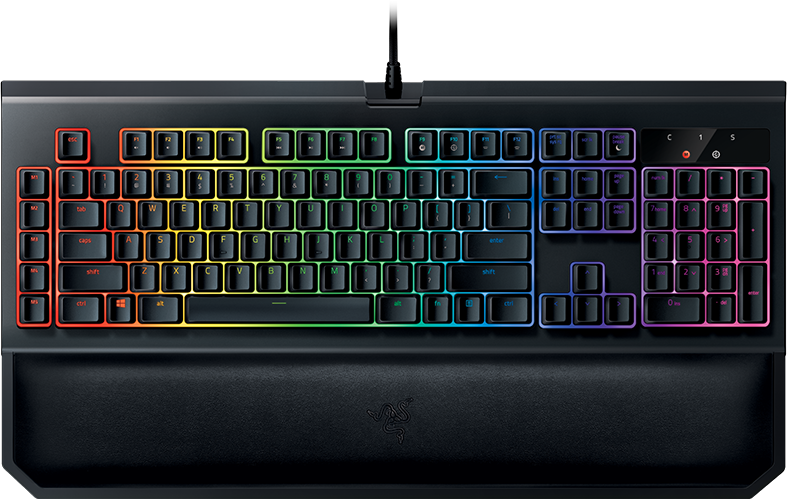
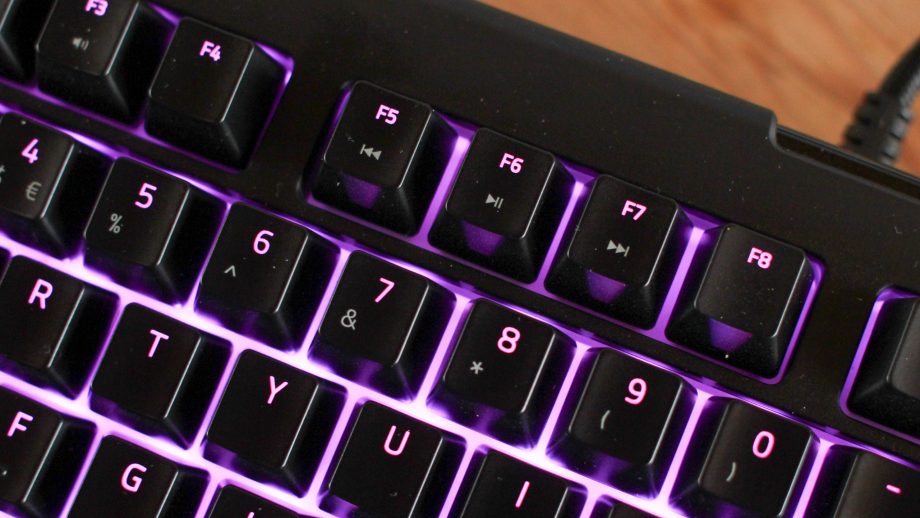
Once I plugged it in and started fiddling with Synapse 3, I was surprised at how much customization the Chroma lights have. You can literally change every key individually, which is amazing and something I have never seen before. Razer really has a leg up in the lighting department over all other keyboards. The standard effects were really nice, with fire being my favorite. Sadly, Synapse 3 is still in beta as of this review, and chromosome profiles cannot be imported. So, for now, you have to make your own. The Chroma V2 doesn’t have insane customization button-wise like other keyboards, but I bought this as I have learned my lesson, and gimmicks on keyboards are mostly useless and just drive up the price. There are 5 macro keys on the side, media controls, an on-the-fly macro recording feature, and a gaming mode that disables the Windows key.
These features are all fine and all I will ever really use. I prefer lighting on keyboards over other features, and this keyboard has all that. Now, as for actually using it, the keys are a little different than what I’m used to. While they are clicky, they don’t require as much force as Cherry keys, and the clearance is higher than standard membrane keys. They are clicky but feel a little soft, which is weird at first. The wrist rest feels nice and soft and is magnetic, so you can just remove it from the keyboard whenever you want. I am going to question the material of the pad, as it feels soft but seems like cheap vinyl that will crack and fade over time.
Overall, the Blackwidow Chroma V2 is a fantastic keyboard and the best one I have owned. It may not have as many gimmicks or features as other keyboards, but its quality and overall usefulness are at the top. From the amazing Chroma lighting to the magnetic wrist rest and great-feeling keys, as well as the USB and 3.5mm passthrough, the Chroma V2 has a few tricks, and I doubt anyone would be disappointed.
I never knew that mini soundbars existed, and I only came across this as my current PC setup required me to have a low-profile speaker as my monitors take up my entire desk space. I searched around and found this little gem, but I knew it was a risky purchase as, for one, it’s from Insignia, which is known for sub-par products, and the price was surprisingly low. I already knew that without a dedicated subwoofer, this probably wouldn’t sound the best.
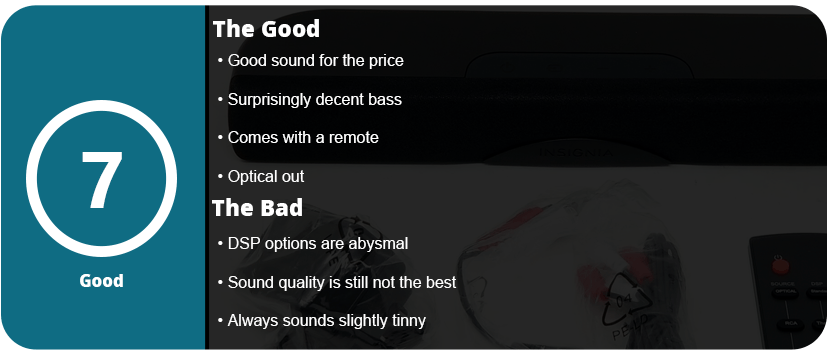
I was actually quite surprised when I plugged everything in. This little guy has both analog and digital output, as well as Bluetooth and even a remote. For starters, stick with digital optical out if you have the ability, as it sounds much better. Second, the DSP installed is awful. Standard is the best, but Theater and News make the soundbar sound like a tinny $5 pair of headphones; it’s just garbage. The soundbar is quite loud and has surprisingly decent bass. I can feel the bass as I type on my keyboard, which is cool.
While the pre-built DSP is awful, any software DSP you use will make this thing sound the same. It’s just not meant to be anything but standard. The quality overall is decent for $40, but it still sounds slightly tinny, and there is no way to adjust the bass or treble. It does its job well, and the games sound fine as well as the music, but if you aren’t short on space, get a full-size PC speaker setup. This would also make a great soundbar for a kid’s room or just for music.
Overall, and for $40, this isn’t that bad of a soundbar. Yes, the DSP stinks, and any form of equalization makes this thing hurt your ears, but it has a remote, does BlueTooth, and has decent bass. I can’t really complain.
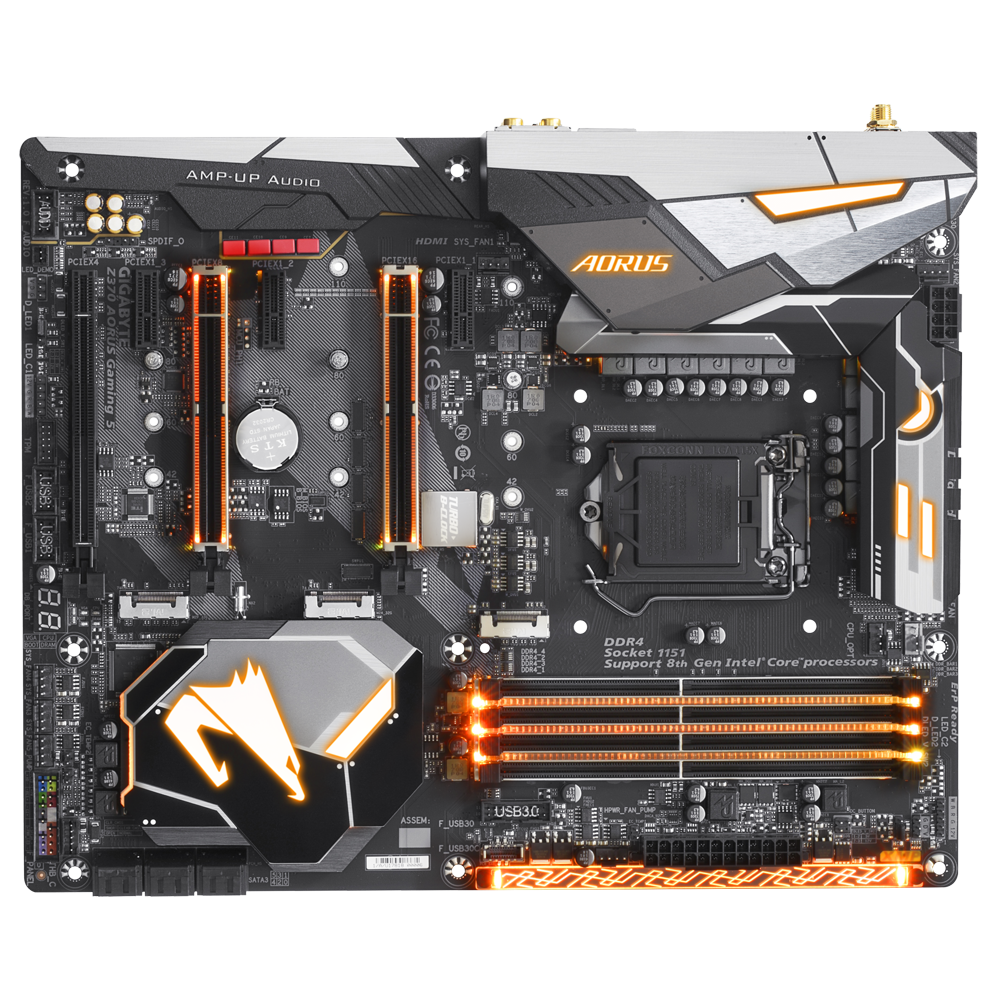
For the first time ever, I finally had a chance to build my own gaming PC the way I wanted. Building gaming PCs isn’t cheap, and I don’t just go for budget builds. I get the latest and greatest, or not at all, because I want to future-proof my system and I want quality products. Searching for a motherboard started with the first priority of having a wireless LAN, as nothing in my house is connected through a wired LAN to save on cable space. I also wanted to acquire everything at my local Fry’s Electronics, and this was the only 300 series motherboard with wifi. The price was a little more than I wanted to spend, coming in at $200, but this motherboard boasts a plethora of features, some of which I will probably never use.
Let’s start out with just how it looks. This is a sexy motherboard with raised accents, gorgeous lighting, and a sleek layout of all ports and plugs. As I started slapping in my parts, the first of which is the CPU, and then bolting it to the tower, I started noticing just how much was on this thing. From the top of my head, there are 6 SATA ports, 3 M2 PCI-E ports, several fan ports, temperature, USB headers, RGB ports, 2 16x PCI-E 3.0 ports, and 3 PCI-E x4 ports. There’s enough here for a powerhouse of a system, and I loved putting this thing together.
All of my fans were able to plug into the same row, which was nice, but the SATA ports being right on top of each other caused retention clamps to get in the way, and it was a bit of a struggle. When I installed my Intel Optane M2 card, I noticed the M2 lanes disabled two whole SATA ports each. With this installed, I’m limited to only 4 SATA ports, and if I wanted to put an M2 SSD in here, it would drop me down to 2 SATA ports. This is an unfortunate thing, but most people won’t be using M2 ports anyway.
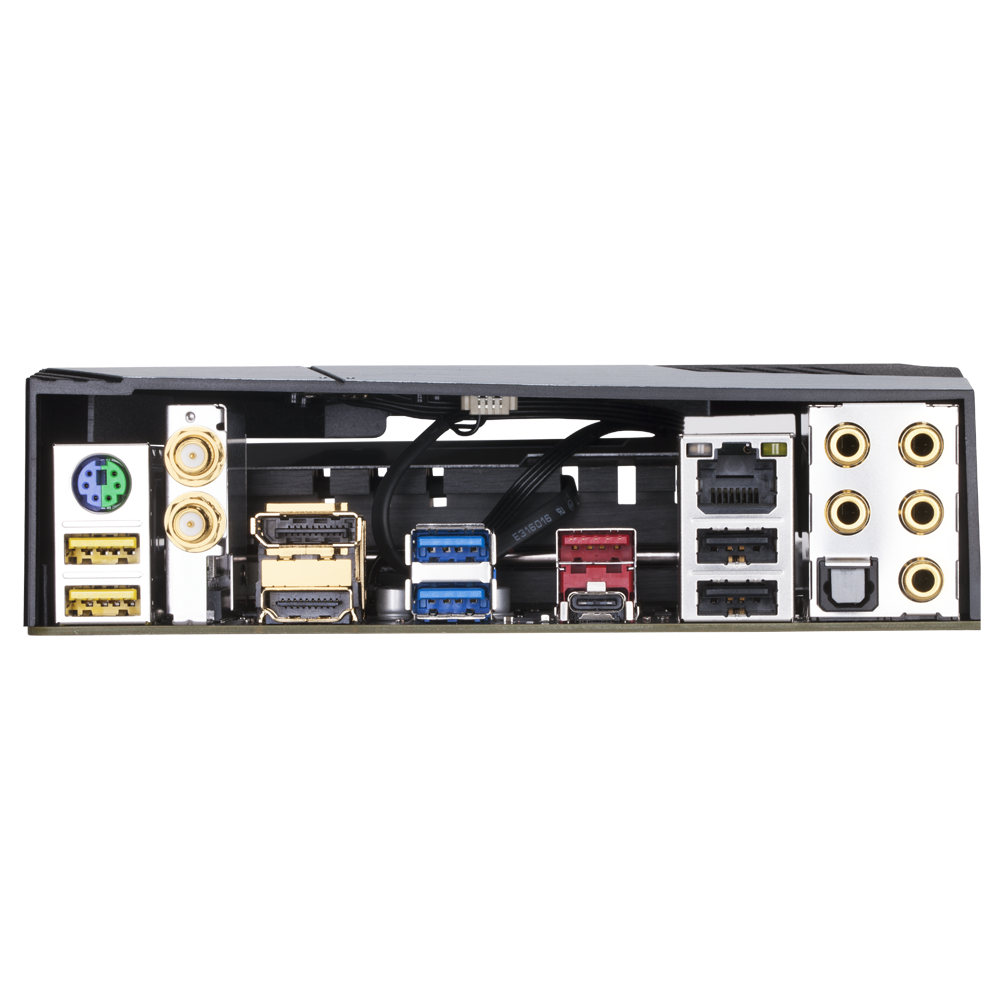
The back of the motherboard features a decent array of ports, such as USB 3.1, which I honestly don’t know what supports that, HDMI, a display port, USB-C, 7.1 audio jacks, 2 wifi antenna coaxial ports, 2 USB 3.0, 2 USB 2.0, and LAN. It’s not the largest motherboard input setup, but it’s enough to get the job done. If you need more USB ports, most cases come with front USB headers, or you can buy a 5.25″ USB bay drive or even a PCI-E USB card. I could also go on about the black caps, audio capacitors, and all that boring stuff, and to be honest, it means nothing to me. I know it means the board will last longer and won’t be subject to power issues, but most newer motherboards have all these features.
There’s also a dual BIOS feature for overclockers and various fail-safes in the software. There’s a quick flash feature, and you can even restore the BIOS to default settings if an OC goes belly up. Once you get into Bios itself, there are so many options that I don’t know where to start. The M.I.T. is your first screen, and unless you have a K-series CPU, there’s nothing much for you to do here as it’s all for overclocking. You can change the BLCK clock, startup speed, change the integrated graphics speed and splice it, and various other features. I have the non-K 8700, so I couldn’t use most of this.
There are sections to overclock your RAM, which is actually quite complicated, plus various other settings that allow you to change the basic RGB lights, wake devices, and other little minor settings. What’s nice is that there is an easy mode that displays just the basics and what most people will use. You can even access Speed Fan 5 and change all your fan settings right in the BIOS. It’s rather robust, but it’s very basic-looking and rather bland.
Gigabyte boards come with loads of software, and to be honest, they aren’t that great. They feel outdated and basic, and some don’t even work. There’s a Gigabyte App Center, which I actually like as it detects updates for all of your drivers, but there are so many apps, and most of them I found useless. I wanted to be able to use the 3D OSD, which is a customizable OSD for various information that you can select, but I couldn’t get it to appear on screen in any game. There are various cloud storage apps that I found pointless, power management, and EZ Tune, which allows you to OC your CPU and RAM from within Windows, which was pretty handy, but it’s very basic and doesn’t have the details that the BIOS had. You can flash the BIOS and even export and import straight from the app; you can change the USB DAC, EZ RAID setup, GPU tuner, which is basic, and Smart HUD, which I couldn’t even figure out how to use.
There are a couple of neat apps, such as TimeLock, which allows you to set timers to lock down your computer or shut it down. There’s an app that allows you to backup files and recover them, which is pretty cool and useful; however, there are better-dedicated programs out there for that. SIV is the System Information Viewer, which allows you to control your fans with Smart Fan 5. I just set this to performance and let it go, as it did its job well. You can click on each fan in your system and set it to auto-stop or change its various speeds. There is a game boost app and an app that allows you to upload files from your phone, control your computer from your phone, and even OC remotely. The app is awful, feels like it was made 7 years ago, and seems pretty useless. There’s a BIOS fast boot feature and a blue light killer that would completely mess with your picture setup, and that’s about it. I kept maybe five of the dozen or so apps. This is an overly bloated software suite that needs serious updating and trimming.
This motherboard has a plethora of features and so many options for overclockers and anyone wanting to fine-tune their BIOS and control all of their hardware. The bloated and dated software is a huge disappointment, but there are a few gems in there, for sure. Having the M.2 slots take up 2 SATA lanes each is disappointing, and there aren’t as many rear ports as most people would like, but the addition of wifi and built-in lighting make up for it in the long run.
Specs:
Support for 8th Generation Intel® Core™ i7 processors/Intel® Core™ i5 processors/ Intel® Core™ i3 processors in the LGA1151 package
L3 cache varies with CPU
(Please refer “CPU Support List” for more information.)
Chipset
Intel® Z370 Express Chipset
Memory
4 x DDR4 DIMM sockets supporting up to 64 GB of system memory
Support for 11ac wireless standard and up to 433 Mbps data rate * Actual data rate may vary depending on environment and equipment.
Expansion Slots
1 x PCI Express x16 slot, running at x16 (PCIEX16) * For optimum performance, if only one PCI Express graphics card is to be installed, be sure to install it in the PCIEX16 slot.
1 x PCI Express x16 slot, running at x8 (PCIEX8) * The PCIEX8 slot shares bandwidth with the PCIEX16 slot. When the PCIEX8 slot is populated, the PCIEX16 slot operates at up to x8 mode.
1 x PCI Express x16 slot, running at x4 (PCIEX4) * The PCIEX4 slot shares bandwidth with the M2P_32G connector. The PCIEX4 slot operates at up to x2 mode when a PCIe SSD is installed in the M2P_32G connector.
3 x PCI Express x1 slots * The PCIEX1_3 slot shares bandwidth with the SATA3 1 connector. When the PCIEX1_3 slot is populated, the SATA 3 1 connector becomes unavailable. (All of the PCI Express slots conform to PCI Express 3.0 standard.)
Storage Interface
Chipset:
2 x M.2 connectors (Socket 3, M key, type 2242/2260/2280/22110 SATA and PCIe x4/x2 SSD support) (M2M_32G, M2A_32G)
1 x M.2 connector (Socket 3, M key, type 2242/2260/2280 PCIe x4/x2 SSD support) (M2P_32G)
6 x SATA 6Gb/s connectors
Support for RAID 0, RAID 1, RAID 5, and RAID 10 * Refer to “1-8 Internal Connectors,” for the installation notices for the M.2 and SATA connectors.
Intel® Optane™ Memory Ready
Multi-Graphics Technology
Support for NVIDIA® Quad-GPU SLI™ and 2-Way NVIDIA® SLI™ technologies
Support for AMD Quad-GPU CrossFire™ and 3-Way/2-Way AMD CrossFire™ technologies
USB
Chipset+ASMedia® USB 3.1 Gen 2 Controller:
1 x USB Type-C™ port on the back panel, with USB 3.1 Gen 2 support
1 x USB 3.1 Gen 2 Type-A port (red) on the back panel
Chipset:
1 x USB Type-C™ port with USB 3.1 Gen 1 support, available through the internal USB header
6 x USB 3.1 Gen 1 ports (4 ports on the back panel, 2 ports available through the internal USB header)
6 x USB 2.0/1.1 ports (2 ports on the back panel, 4 ports available through the internal USB headers)
Internal I/O Connectors
1 x 24-pin ATX main power connector
1 x 8-pin ATX 12V power connector
1 x CPU fan header
1 x water cooling CPU fan header
4 x system fan headers
1 x 3 Amp fan/water cooling pump header
1 x system fan/water cooling pump header
2 x digital LED strip headers
2 x digital LED strip power select jumpers
2 x RGB (RGBW) LED strip headers
3 x M.2 Socket 3 connectors
6 x SATA 6Gb/s connectors
1 x front panel header
1 x front panel audio header
1 x S/PDIF Out header
1 x USB Type-C™ port, with USB 3.1 Gen 1 support
1 x USB 3.1 Gen 1 header
2 x USB 2.0/1.1 headers
1 x Trusted Platform Module (TPM) header (2×6 pin, for the GC-TPM2.0_S module only)
1 x Thunderbolt™ add-in card connector
1 x Clear CMOS jumper
2 x temperature sensor headers
Back Panel Connectors
1 x PS/2 keyboard/mouse port
2 x SMA antenna connectors (2T2R)
1 x DisplayPort
1 x HDMI port
1 x USB Type-C™ port, with USB 3.1 Gen 2 support
1 x USB 3.1 Gen 2 Type-A port (red)
4 x USB 3.1 Gen 1 ports
2 x USB 2.0/1.1 ports
1 x RJ-45 port
1 x optical S/PDIF Out connector
5 x audio jacks (Center/Subwoofer Speaker Out, Rear Speaker Out, Line In, Line Out, Mic In)
I/O Controller
iTE® I/O Controller Chip
H/W Monitoring
Voltage detection
Temperature detection
Fan speed detection
Water cooling flow rate detection
Overheating warning
Fan fail warning
Fan speed control * Whether the fan (pump) speed control function is supported will depend on the fan (pump) you install.
Colors: Gray Joy-Con version, Neon Blue+Red Joy-Con version, Red Joy-Con version
Strange Tidings
I wasn’t a believer. I saw the Switch as a gimmicky train wreck straight into financial debt as Nintendo revealed the system last year. The concept was neat, the first home console was built into a tablet which felt like the last 2 Nintendo consoles smushed into one. The only issue that still remained was graphical power and online play as Nintendo is notoriously known for not doing well in these two departments.
Fast forward over a year later and I have one sitting next to me. To be honest, it was a spontaneous purchase during Black Friday weekend, as there were more and more games coming out that I really wanted to play. It was still a gamble, as there’s a huge divide on the Switch. Nintendo fanboys refuse to admit faults in the system, and naysayers refuse to admit the originality and fantastic games that are available, as few as there are.
First Impressions
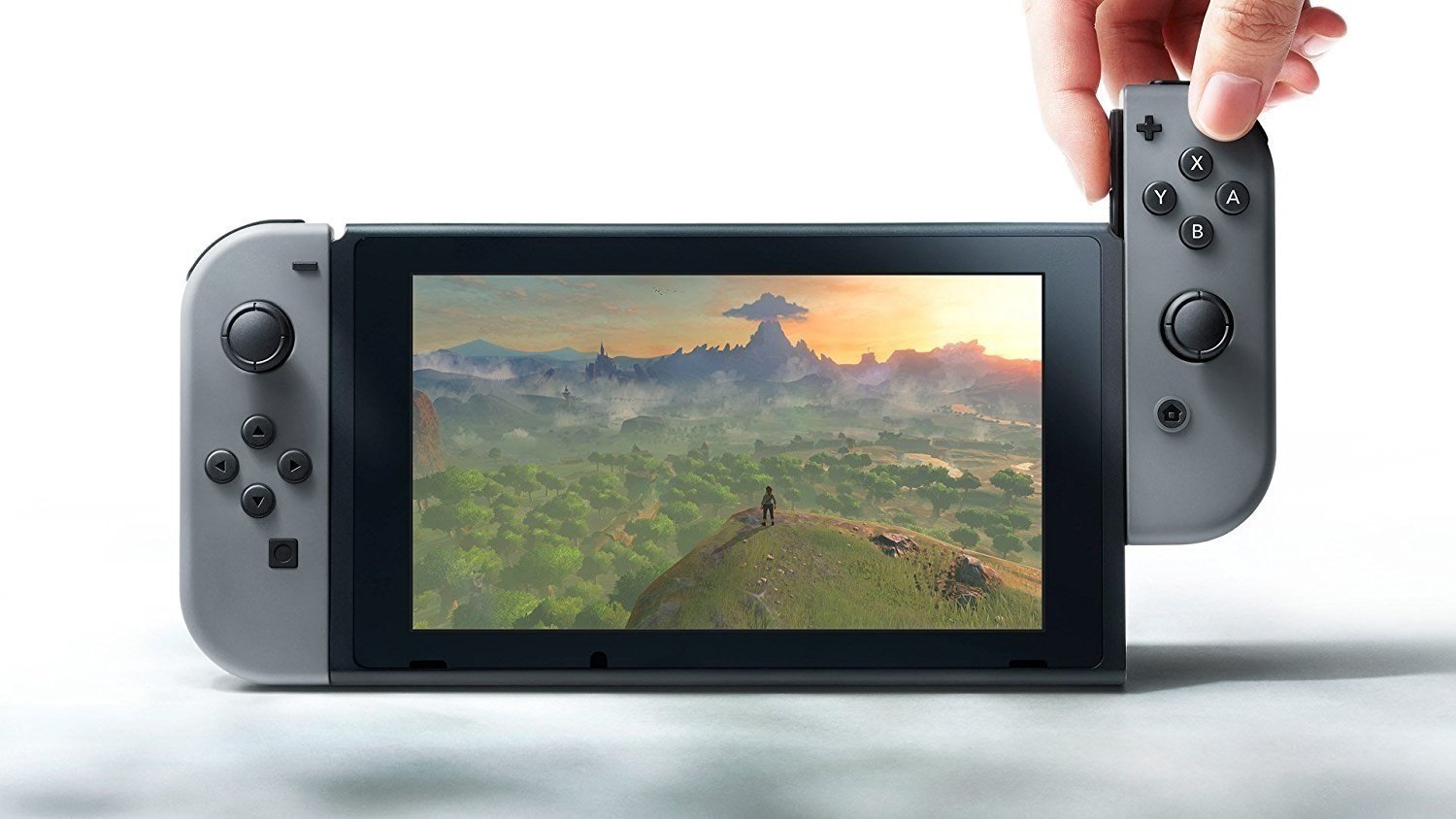
As I opened the box, I was actually surprised by how much smaller the system was than I originally thought. I thought it was going to be some hefty, unwieldy thing with controllers slapped on it. The tablet is just slightly bigger than any standard 7″ Android tablet on the market (Nvidia Shield K1, for example) and looks sleek, ergonomic, and not too heavy, really. The buttons are nicely laid out on top of the unit, along with volume control, power, the card slot, and a headphone jack. There’s a USB-C charger at the bottom as well as a kickstand. They seemed to have thought of everything and didn’t overthink too much else, which is surprisingly nice. The system is meant to be used in landscapes only, so this helped solidify their design ideas.
Once I popped the Joy-Con controllers out, I was also surprised. These things are surprisingly small and light, but they also feel nice and have great ergonomics. These could have easily been messed up and killed the system, but it feels like the Wii Remote mixed with 3DS buttons, which is a good thing. It’s also designed with offset thumbsticks like the Gamecube controller, which is a huge plus here. The aligned sticks on the Wii U pad were uncomfortable. The design is also meant to be symmetrical, so each controller can be used separately. The left Joy-Con then turns the directional buttons into face buttons, but the only small complaint is that the left stick is closer to the edge of the controller while the right is further in, so playing Mario Kart, for example, made me want the right Con so my hand didn’t cramp. There’s also an issue with the screenshot button (which works amazingly well and just like it should) not turning into the Home button.
Joy-Cons: Is the Name a Premonition?
The controller frustrations aren’t really all of that; the cons are interchangeable with a grip that turns these things into an actual controller; they slide right in, but the release button on the back is small and hard to get a grip on without pressing buttons, and having to take them off to slide them on the tablet in docked mode to charge is annoying. Then you have the side rails with the SR and SL buttons for playing with the controller landscape or separately for motion controls. These rails go on easily but are a pain to get off, and I’ve scraped and cut my fingers pulling them off. They are tight and require more strength than needed to get them off. The easiest mode to get these out of is tablet mode. Sliding them on the side of the tablet is easy enough, as is getting them off. I just wish there wasn’t so much configuring for each game, as with Skyrim, I had to slide the side rails off to put on the grip as I was tired of holding them for motion controls. Then I had to slide them off the grip and onto the tablet when I went and played in the bedroom.
Switch: The New DS
Speaking of tablet mode, this is the main attraction of this system. Nintendo wanted the power of a home console in your hands, and this is the first time it’s been done correctly. The PSP started this by being sold as a portable PlayStation home experience, but it didn’t have the power or the controls to do this correctly. Sony sold that same idea with the Vita, and while it did have both, the pirating from the PSP caused developers to back away. Nintendo has never sold their portable systems as home experiences, but here we have it. The games play in 720p while undocked, which is a bit disappointing seeing as tablets can display up to 2K resolution these days, but a lot more power would have to be built in, causing bulkiness, less battery life, and more cost. It still looks clean and crisp in this mode, and most people won’t notice.
The Big Screen
Docking the console is easy enough, but there was another problem here. There’s no click, no satisfying “snap” of the system connecting to the charge port, and no sound or feedback of any kind. The system kind of just flops in the dock and rests there. The only indication is the green light flashing on the dock, and that’s it. This could have been done much differently, with better feedback. While docked, games usually run in 1080p, but with some graphical hits like frame rate cuts or aliasing. The Switch is intended to perform better in docked mode as the CPU isn’t underclocked to save battery life, but there are varying theories about how all that extra power is used to render the picture in higher resolution and is not really performing better. It’s something Nintendo needs to iron out, and even eight months later, it’s still a tad bit of an issue. Battery life is also not that great in portable mode. You will maybe squeeze 4 hours out of the system on a game that doesn’t push it to its limits. I haven’t been able to time it just yet, so I will update this as time goes on to see if I can get 4+ hours.
Under the Hood
Let’s take a look at what runs this device first. For starters, the system has 4GB of RAM in the form of LPDDR4, which is what is seen in phones. I was surprised to not see X RAM, which is much faster, but it’s a good start. The system has an Nvidia Tegra X1 chipset, which is seen in the newest Shield device from Nvidia. It has an 8-core CPU running at 1.20GHz, and the GPU is Maxwell-based, running at 768MHz docked and 384 undocked. It also has a 6.2-inch screen in 720p. As you can see, it’s a very powerful portable device, but clearly doesn’t have any power close to the other competitors, but can easily be seen as the most powerful tablet on the market. Why Nintendo chose off-the-shelf parts instead of custom hardware is very interesting; it is definitely easier to program for. The SD slot can hold up to 2TB (which isn’t available yet) in microSDXC format.
Software
Let’s talk about the software. The Switch features a much more streamlined UI than the Wii U. No longer is there a huge ring of bubbles with Miis running everywhere. We get a clean and minimalist UI that just shows a row of “blocks” that are your games. Near the bottom, you can select settings, Joy-Con arrangement, eShop, and brightness. I love this UI, and it’s even better than the 3DS UI. This is designed to be easy to navigate with the touchscreen in portable mode. Another nifty feature is being able to “archive” games, so when you’re done with them, you can delete the game data, but it will keep all your saves to free up HDD space. If you run out of the 24GB (8 are taken up with OS), you can insert a microSD card, which is something that was much needed on the Wii U and really hurt sales. 24GB is plenty for physical games, but if you have a large digital collection, you can move screenshots and those games onto that SD card, which is awesome.
So, Is It Worth It?
Overall, the Switch is well worth the $300 purchase if you like all the games available. If you’re just a Nintendo player or just like one genre of game, then you should stay away. This is a great system that is revolutionary in its own right and takes a traditional home console and takes it on the go, but with the usual sacrifices that Nintendo is willing to make. It’s not very powerful (for a home console), the Joy-Cons are cumbersome to configure, the battery life isn’t too great, and the graphical difference between docked and undocked varies way too much and needs to be ironed out. There’s also the lack of games mentioned, which has been an issue since the Wii. The ones that are available are fantastic; there aren’t a lot of games that are downright awful on this system, with Nintendo’s own games being some of the best games in years, period.
To Nintendo’s credit, people are giving this system a harder time than it deserves. The Wii U deserved all the backlash it got; it was a terrible console that was terribly marketed and executed. The Switch is actually trying to be something completely new with some of Nintendo’s past and, best of all, ideas at play. With the support of more third-party developers (as we’re seeing as the year comes to a close), Nintendo could be back on track as the best video game company out there. Only time will tell, but they don’t have long.
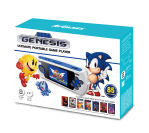
Manufacturer: AtGames Release Date: August 2017 MSRP: $59.99
When it comes to playing classic games on a portable system, I usually stick with the real deal or use my PSP to emulate them. I just so happened to come across a portable Sega Genesis emulator, and it seemed fairly solid. It had licensed and original games ranging from Sonic the Hedgehog 2 to Mortal Kombat and Altered Beast. This was a spur-of-the-moment buy, and I didn’t do much research.
I can’t say I don’t regret my purchase, but I did at first. When you open the box, you don’t get any fancy packaging like you would from a first-party company. It’s the game player in a cardboard tray, a loosely packed USB cable, and a manual tossed in. I realized it was probably a Chinese knock-off, but still of some sort of quality.
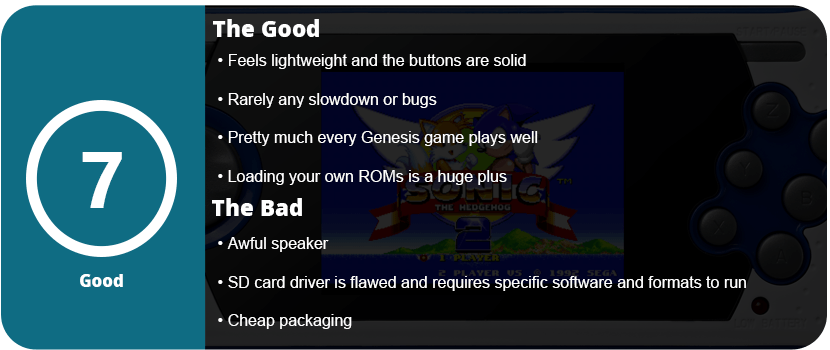
The system itself is extremely light, and some would say it feels cheap. We are used to the weight of portable systems like the PSP, GBA, or even DS. This has no moving parts and only needs a small battery. It has a 2.8″ 4:3 screen, which is perfect for these older games as widescreen was not a thing at home at the time. The D-Pad rolls rather than rocks, which are nice for fighting, and it includes A, B, and C buttons as well as X, Y, and Z, which are used for a fighting game. There’s a start button and a menu button, as well as an on and off switch. All the essentials are there, and the buttons feel quite nice, and I was pleased.
The screen itself is of surprisingly decent quality. The game looks great, and I didn’t experience only washed-out visuals like on some cheaper players. The biggest issue, hardware-wise, is the speaker, as it’s really bad. If you only turn the volume up about 3/4’s, it’s not so bad, but all the way up, it sounds blown out and tinny. Thankfully, these older games don’t need surround sound or anything, but a slightly better speaker would have been nice. Thankfully, it sounds way better with headphones on, and the sound is quite nice and can get pretty loud. Shame on you, AtGames, for such an easy oversight.
Software-wise, the menu lacks any flair. It looks like a third-party emulator menu with a list of games and a box shot next to it. You can flip through the 85 games, and they play! Surprisingly, at great speed, I had no slowdown or any crashing as of yet. The major software issue was with the SD card and loading your own ROMs.
It states to put a “game” folder on the SC Card and use.bin Genesis ROMs. That’s easy enough; however, no matter how many different cards I used, the system would not read the files. I tried formatting it as exFAT, FAT, FAT32, etc., and Google didn’t really come up with much. I found a small comment somewhere stating that Windows 10 does not format the cards properly and doesn’t play nice with this player. I had to download drive partitioning software, and it finally read the cards. This is just absolutely absurd and a huge oversight by AtGames. Clearly, their SC Card driver is awful, and 99% of users who buy this system won’t know how to do this.
With that said, it loads games on the SD cards, and I didn’t run into any issues. There are a few games that won’t play on here, but they are more obscure titles, but all your popular go-to ones will.
Overall, this is a decent player if you’re a hard-core Genesis fan. Albeit, you can emulate these games on your PC or even a PSP and a DS if you have the hardware for it. However, when you get a Genesis kick, it’s not to pull out a dedicated player and pump out some time real quick or pull it out of your backpack while on break or something. Maybe their 2018 model will fix these major issues, but the hardware itself is pretty nice.
Samsung has been one of the top leaders in the mobile department for a long time, and for good reason. They continue to push their products with new ideas and reinvent them. They aren’t scared either, as every 2–3 generations we see an entirely different device. While the Note7 was a fantastic piece of hardware, it was seriously flawed, and the Note8 is already a huge jump forward from that device. It shares similarities with the S8+ that was released earlier this year, and that’s actually a good thing.
You will notice it looks identical to the S8+ outside of the more rectangle edges, and the screen is a smidge bigger. It features the same galaxy black design and gorgeous infinity display. From this point, it seemed not much different than the S8+ I had earlier, so I wasn’t too surprised, but new owners upgrading from older phones will be more amazed.
It’s still quite a beautiful-looking phone. However, the key feature of the Note series is the S-Pen. It hasn’t changed at all from the Note 7, and that’s not a problem at all. It still feels light and easily fits in the hand. The Bixby button is located a little further down, but if you hated it on the S8, you won’t like it here.
Note8 using Live Focus
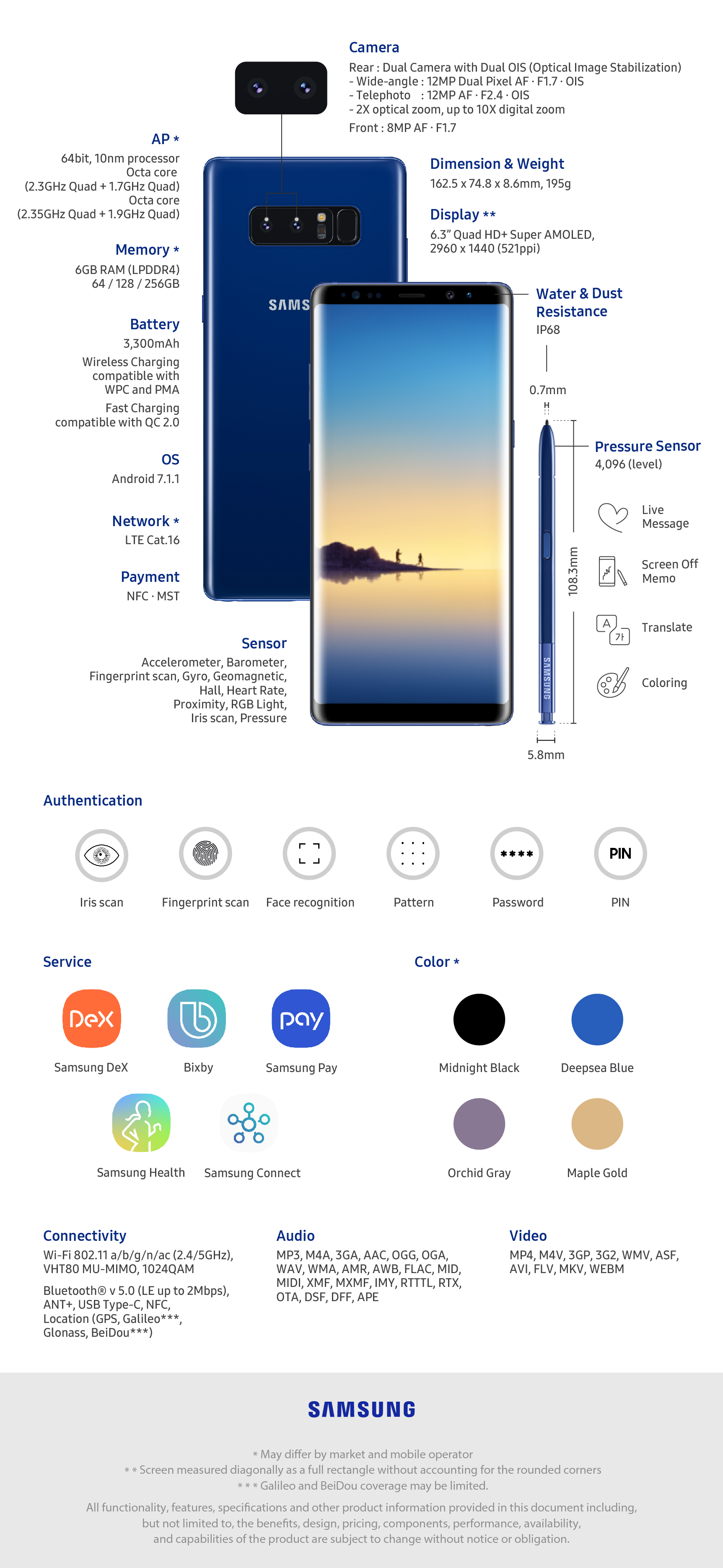
The Note8 does feature the same Snapdragon 835 chipset as the S8, but it has 6GB of RAM instead of 4, so apps do load a bit faster, but the biggest addition to this phone is the camera this time around. It features a 12MP dual-lens setup that allows Bokeh to focus on fantastic-looking images. It’s the first time Samsung has had a dual-camera setup on their phones, and it’s the best smartphone camera around, hands down.
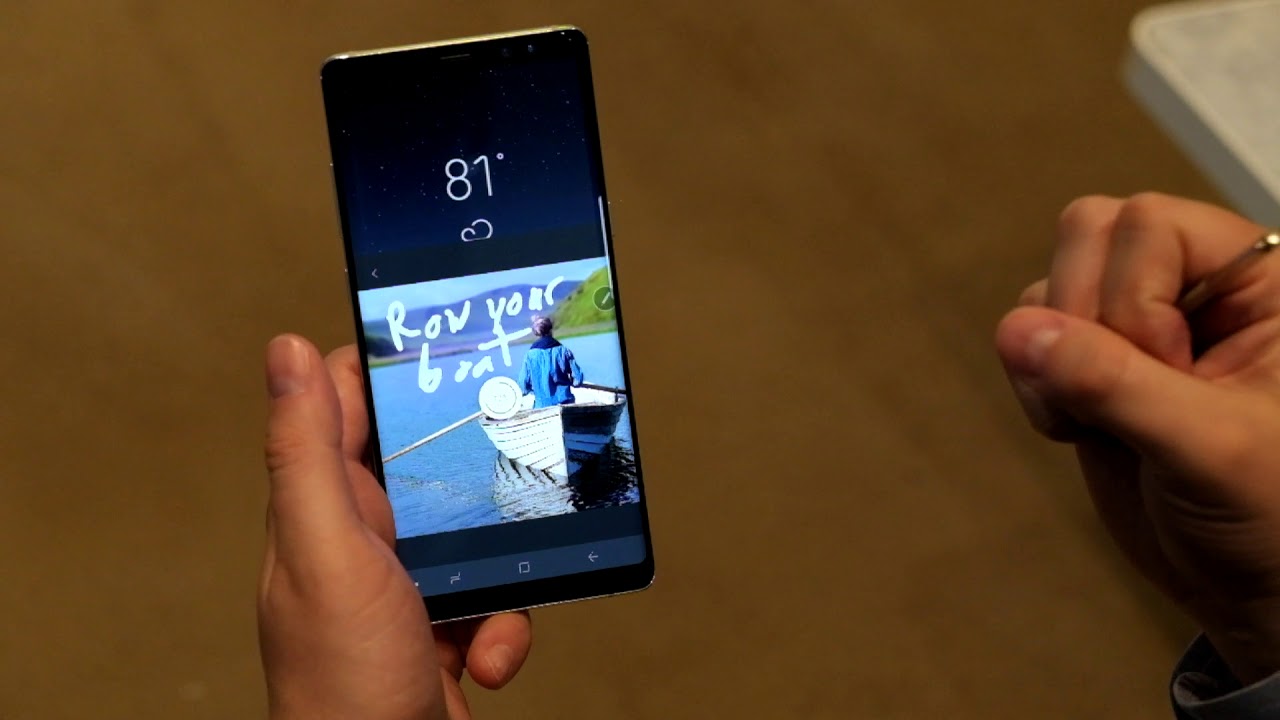
Outside of what we saw with Nougat on the S8+, the UI is the same, and there’s only one extra software feature, and that would be Live Messages using the S-Pen. When you write, you can choose between glowing, sparkly, or other inks that turn into a GIF as you write. It’s a neat feature and a great piece to add to the Note 8’s S-Pen suite. Bixby is also rather used this time around, being a little more of an AI assistant and not an obtuse nuisance. Most people may still prefer OK Google over this, but I liked being able to hold down a physical button and ask Bixby questions. It just seemed faster and more reliable.
The screen is one of the main reasons I stick with Samsung, and they don’t disappoint, with this screen being slightly better than the S8 screens. 4K content looks fantastic at 60FPS on here, and playing games never looked better.
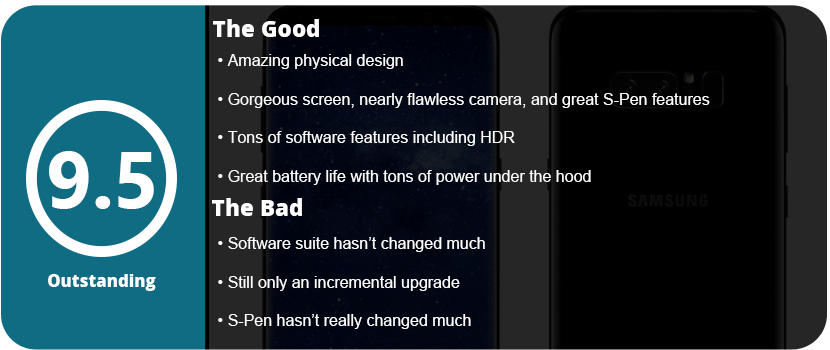
Bottom line: you can’t go wrong with the Note8, especially with the great battery life I have been getting. It has only needed one charge in a single day, even for heavy use. From the camera, screen, S-Pen, larger RAM, and many other features packed in here, the Note8 is a beast of a phone and the best you can get on the market right now.
It took many years to acquire, but the PSOne with a screen attachment has been one of my top must-have consoles since it came out. Growing up as a kid, my parents didn’t have the $100 for the console and the $130 for the screen add-on. The Combo Pack was released for $200 and seemed insane, but the PS2 was out and cost $300 at the time of release. $130 for a 5″ TFT LCD screen might seem like a lot, but this did more than just display games. It had an amazing brightness range and clear stereo speakers that could be quite loud when turned up all the way. It also easily screwed onto the back of the unit and had a headphone jack, AV in, and even AV out, so you could just plug it up to your TV without taking the screen off. The power cable also plugs directly into the screen, so there was a lot of foresight on Sony’s part.
What makes the screen so awesome compared to any other console out there is that you can take it with you. Using a 7.5-volt car adapter and bringing it into your bedroom or on the go allows you to make playing the PS1 a more immersive and personal experience. The LCD screen makes the games look better than they do on current or older TVs. It’s like Sony found a perfect balance and knew how the PS1 would render and output, so they made the perfect screen for it. All the games display clearly and sharply, and the screen is quite vivid, so I can easily see the $130 price point during release.
As for the system itself, what can I say? It’s the PlayStation 1! While the system’s first iterations had many flaws, such as overheating, cheap laser assemblies, and various other issues, the PSOne is sleek, slim, and just the basic unit, which is all we need. Sony went for a rounded style with this system, and it looks great. The only downside is that you can’t use most wireless controllers because the receivers are too large and can’t fit a memory card on top. The system is lightweight, even with the screen attached, and would easily fit into a backpack. The PS1 has an amazing library—probably some of the best out there. The PS1 wiped the floor with the Nintendo 64 due to a more diverse and massive library. The Nintendo 64 has some memorable games, but the overall experience just couldn’t top the PS1. With pre-rendered and live-action cutscenes, thanks to the CD format, it was a whole new experience. From the classic start-up jingle to the amazing feeling of the DualShock controller, and even down to the black underside of the discs, the PS1 was a behemoth and was unstoppable.
Would I recommend the current going price for a full PSOne combo pack at $100? Yes, go out and get it now. If you’re a PlayStation fan or just want to check out the classic library, this is the perfect unit to pick up. For some advice, make sure when you buy the unit that the power and tray buttons work. These are large buttons and can easily be stuck or get grimed down inside. Also, make sure the hinges on the screen aren’t loose. Many units have cracked hinges with screens that won’t stay up, and most importantly, make sure the LCD backlight isn’t dead. I bought a unit from a local store only to have the backlight die on me the second I turned it on when I got home. Of course, make sure both speakers are working and that there isn’t any rattling or distortion. Make sure to ask the sellers these questions, or look for this if you find one in person.
Well, this is a strange thing. I usually choose high-end, well-known brands over generic or start-up brands, but I needed something more simple as I’m not a macro type of person. Sure, I have a few fancy keyboards like the Roccat ISKU FX, Cyborg Strike 5, and even an Alienware keyboard, but I realized that the price hike is just for more keys than I don’t use. With Cyborg going out of business and their entire keyboard and mouse catalog havingn’t been updated in years, I decided to downsize and just go for something simple. I picked my favorite features for keyboards, and those were backlighting and great key feedback. After sorting through various keyboards on Amazon, I came across Pictek. They are a small German gaming company that is just starting up, but everyone is raving about their products, and I can see why.
When I got the box, I was a little worried. It’s just a generic blank cardboard box with two pieces of poorly fitted foam and a small fold-out piece of paper. I had to tell myself this isn’t Razer or Mad Catz, who can spend big budgets even on packaging. After picking up the keyboard, my worries went away, as it was very heavy and made of solid aluminum. The only plastic on this thing is the keys, which are awesome. The design itself is super sleek and doesn’t look low-budget. The palm rest is textured and raised off the keyboard, while there are various LEDs around the keyboard. The most important part is the keys, and they feel amazing. You would expect this type of quality from a $150 Razer or Corsair keyboard, but it isn’t any of those.
The lighting effects are awesome and better than any other keyboard I have owned. Yes, they are pre-set, but you get nine of them, and they all do awesome things. One preset will light up the whole keyboard every time you press a key, and another will make the keyboard dark, and each key you press stays lit up for just a few seconds and goes dark again. There are presets that light up keys for Call of Duty, League of Legends, and various game genres, which are just amazing. These are awesome ideas that the bigger companies haven’t thought of yet, and it’s a real shame. There is no proprietary software that can be good or bad, depending on how you see it. There is a way to set some macros, but you need the fold-out paper to figure it out. The keyboard settings are not intuitive at all, which is the only downside to this amazing product. But all of the things you would normally think have been done. Brightness settings for the backlight as well as speed, multimedia keys, and everything else are spaced nicely.
With that said, I have to give serious kudos to Pictek for being more than just another gimmicky generic keyboard company. The thing is even water-resistant, which is something you would expect from a $150 keyboard. They actually pushed out a quality keyboard with amazing lighting effects and functionality. Just don’t expect fancy packaging, software, or anything else out-of-the-ordinary that other bigger companies might do.
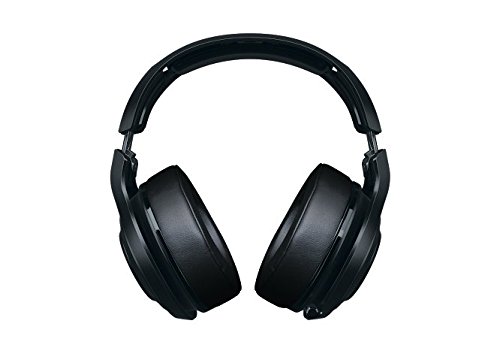
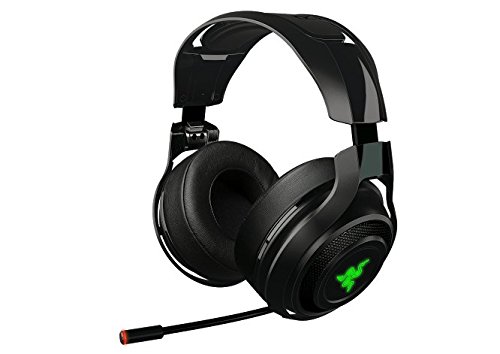
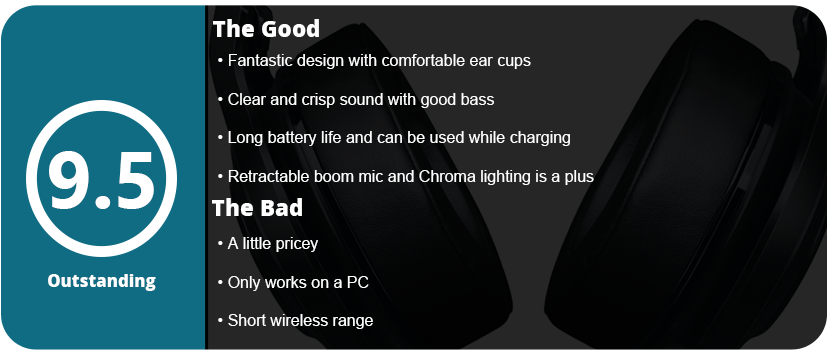
I’m not normally a headset person. I prefer to use good speakers, but with the recent move of my son into his own room, which is right next to my computer area, I had no choice. I normally shy away from Razer due to my poor experiences with their mice, software, and the Firefly. However, I know and have heard that Razer makes great headsets, so I gave the Man O’ War a try. What I was looking for was wireless, surround sound, good battery life, and a lot of software features, and thankfully, I got all of those with this headset.
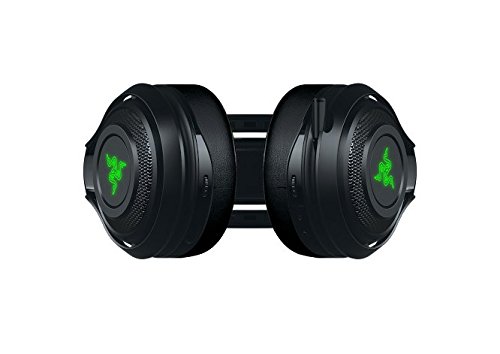
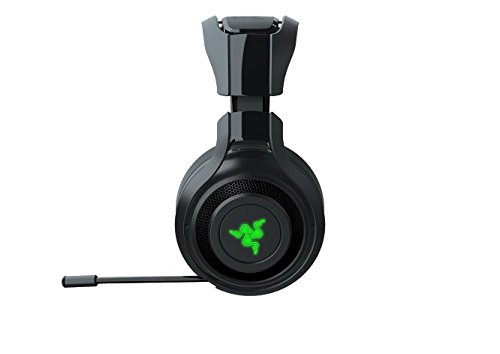
The box comes with everything you would need or don’t need. On top of the USB charging cable, you get a 6-foot extension dock, which is neat if your computer is on the other side of the room. It is also useful if you want to use the headset plugged in, but with the 14-hour battery life, this item was needed for me. The USB dongle is located on the headset cup, which is a really cool feature and keeps you from losing it. The headset itself looks amazing, with large cups, comfortable foam, and Razer logos that use Chroma through Synapse. One feature I really like is the retractable mic rather than being removable. It tucks away and is out of your face if you don’t need it, which I will rarely use.
The software is simple enough to install, and once that is done, you are greeted with a calibration setup for the 7.1 surround sound. Being able to adjust each channel for your own ears is an awesome feature, as some people hear differently or one channel may sound slightly off. The default settings were good enough for me. There are many enhancements available, such as bass boost, normalization, voice clarity, mixer, equalizer, and other features. The features are pretty robust, and I was able to tune my headset to the perfect listening environment. After wearing the headset for an hour, I didn’t get a headache and didn’t have sore ears, and this is all due to the headband being just strong enough to keep it on your head and the cup foam being very soft. The worst I get is that my ears get a little hot after a couple of hours, but this is normal for any set of ear cans.
Playing music sounds fantastic with these, but playing games is even better. I booted up Battlefield 1, turned on surround sound, and was blown away. I could hear each direction of every bullet, shout, explosion, and scream. It helped drag me into the experience more, and I forgot this was what I was missing out on with headsets. I had one back in 2009 for consoles, and now I remember why I missed it so much. It’s an experience you can’t get without spending thousands on high-end speakers and subs. Playing various other games allowed me to hear ambient sound effects, background noises, and other effects that I had never noticed before. It’s a great experience and, clearly, one you can only get with good headphones.
After using this set for 3 days, I have to say that I am completely satisfied. They don’t hurt my ears or head, they sound amazing, the software works, and the chroma lighting is just a small touch to add to that great pile. It’s a shame these aren’t for consoles, as console owners are really missing out. I should be happy with these until they break or die on me, and from the looks of it, that could be quite some time.






















 thebinarymessiah.com
Try multiplayer. A lot of fun !