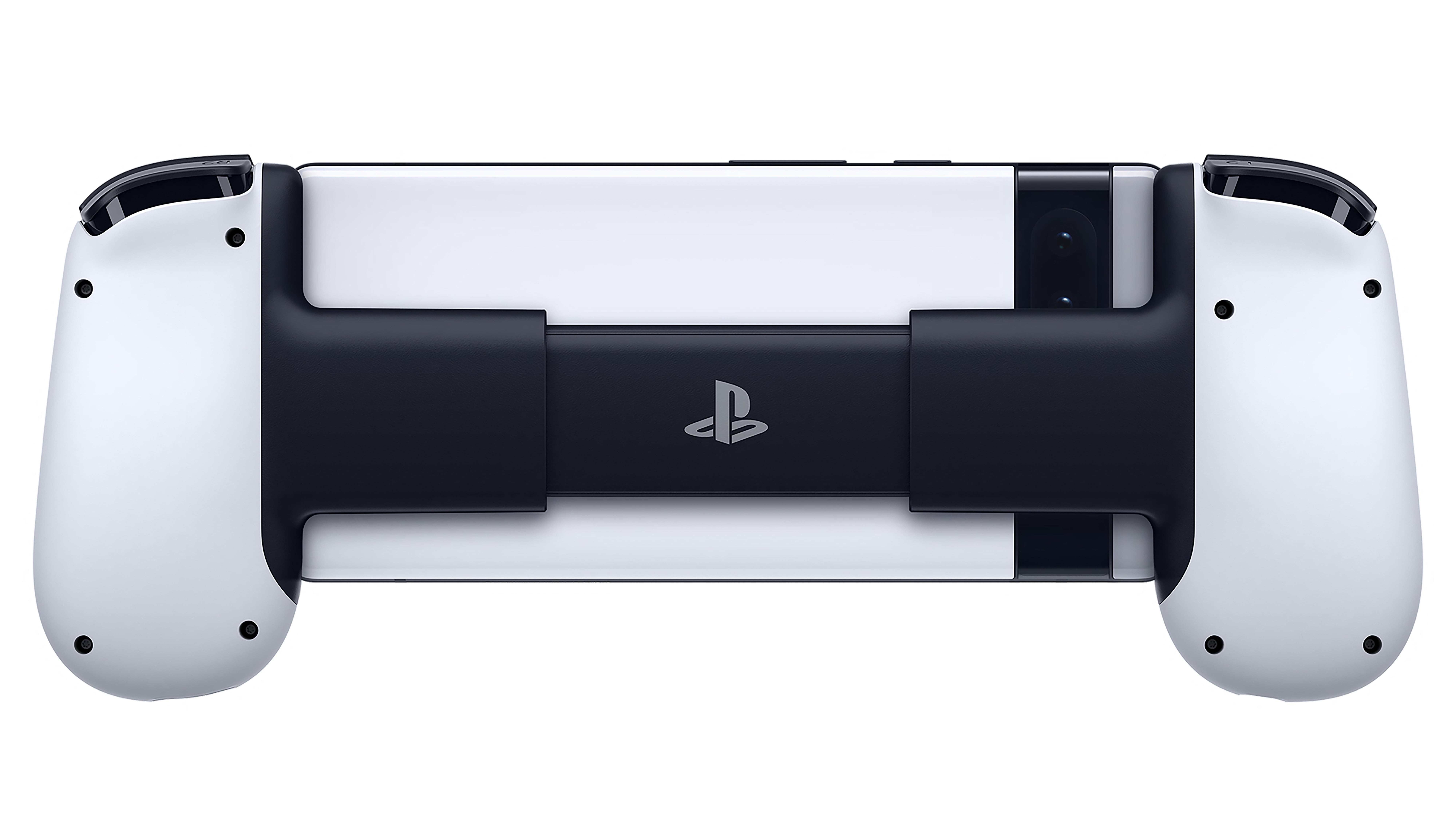
Phone controllers have come a long way. Gone are the days of clip-style controllers or external clips that snap on to Xbox controllers. We finally get dedicated, high-quality telescoping controllers that feel like a premium console controller. The Backbone has been at war with the Razer Kishi for a couple of years now, and so far, the Backbone has remained king of the phone controllers. The licensing partnership with PlayStation just drives home how much they want console gamers on their phones.
The backbone feels incredibly sturdy in the hands. The buttons are precisely where they should be, and the thumb sticks have a great feel. The software is actually quite interesting, and it is one of the better game launcher apps that supports Backbone natively. With a full list of controller-compatible games, you can launch them from the app without any issues. Here, you can also adjust a few settings and check for firmware updates. It’s miles better than Razer’s app for the Kishi.
This is the single best dedicated mobile controller I have ever used. We have made significant progress since the early 2010s, when Wish and AliExpress offered subpar controllers. Even the Moga controllers were pretty bad. Remember the iPega series of Chinese controllers? The PG-9023 was one of the most popular controllers up until Moga started taking over the market, and then PS4 and Xbox One controllers took over. This controller feels as though it could have been designed by Sony itself. The buttons feel premium; they don’t have obnoxiously loud clicks; the analog sticks aren’t stiff or overly sensitive; and the hand ergonomics are just right.
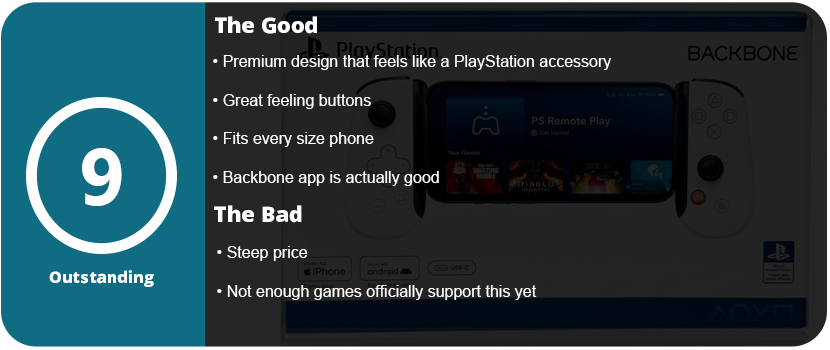
The backbone can fit phones as large as they come, and it doesn’t have the Kishi’s weird folding design. It doesn’t fold down as far, but it’s small enough to fit into a bag without taking up much room. Overall, the Backbone One is a fantastic controller, made even more so with the PlayStation branding. This fits right alongside all of your PS5 accessories.
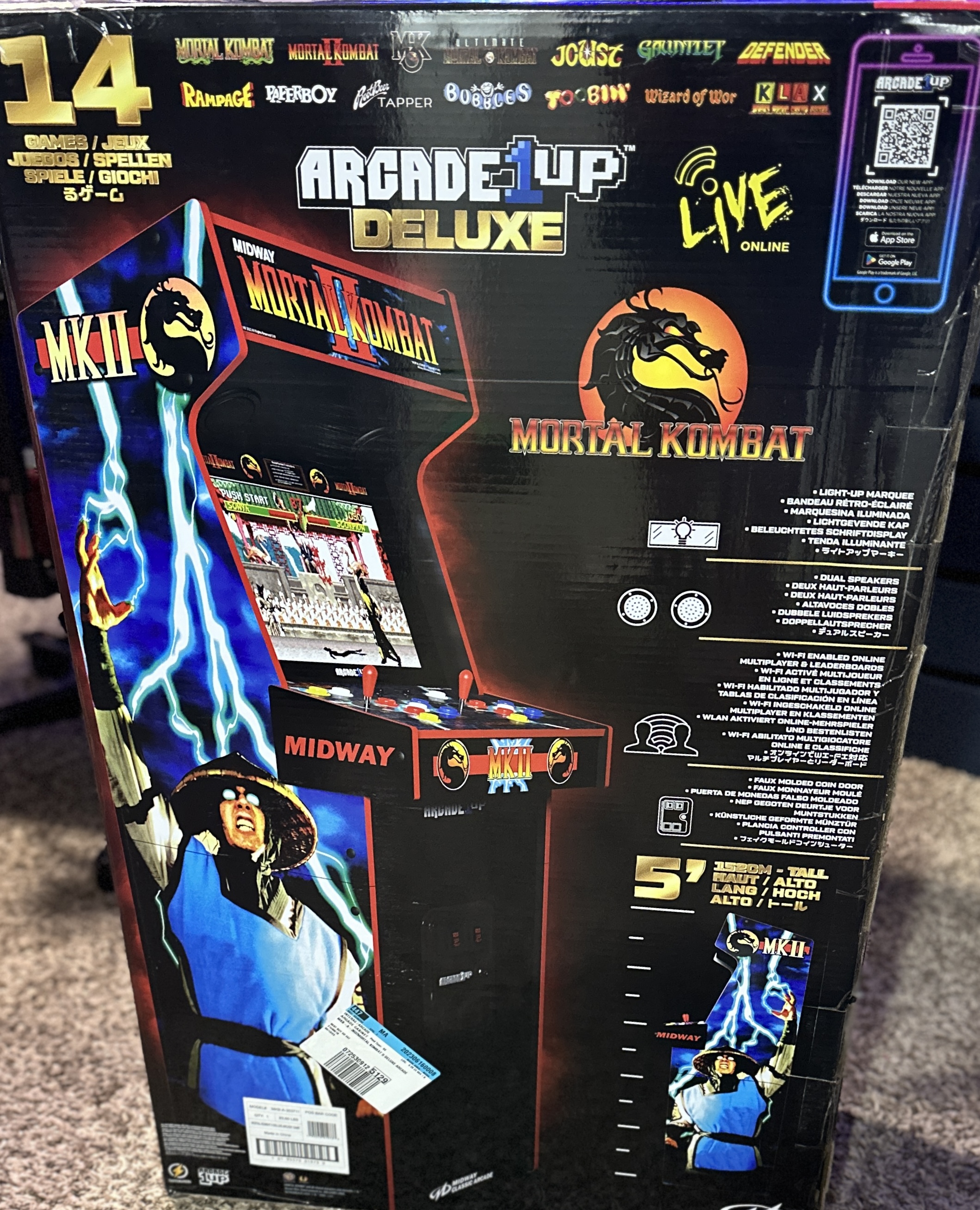
1UP Arcade has done an excellent job bringing scaled-down cabinet replicas to our house. Some negative arcade enthusiasts may criticize these cabinets, but their quality has improved over time, and for the majority of us, they are the only affordable, suitable, and accessible options. I had the original Mortal Kombat II Costco arcade cabinet, but it severely malfunctioned beyond repair, having no sound or control input anymore. Replacing the board would have cost nearly as much as a new cabinet, so I decided to buy the upgraded version.
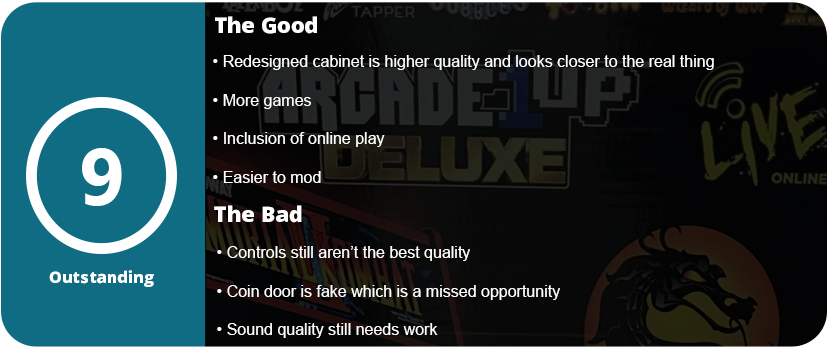
This cabinet isn’t just an upgrade; it’s Mortal Kombat II 2.0. 1Up has completely redesigned the entire cabinet from the ground up, incorporating more Midway games, online play, and numerous improvements over the years. For starters, there is no need for the silly riser anymore. While the artwork was nice, it made the cabinet not look as authentic as it could. Additionally, the cabinet features top-mounted downfiring speakers, and the marquee seamlessly integrates with the side panels instead of appearing as a flat banner across the top. The screws now have black screwhole covers, so I had to buy black screws for the original cabinet because this wasn’t thought of. There is a faux coin door in the front, and overall, it looks a lot closer to the original design.
I made slight improvements to the buttons and joysticks, but I still replaced them with Suzzo Happs and Cherry microswitches. The LCD is of much higher quality, with better color and contrast. I also modified my system to add a subwoofer at the bottom of the cabinet for more bass. While the stereo speakers sound better than the original mono speaker cabinet, there is no bass. I installed a low-cost soundbar on the top of the previous cabinet, but it merely amplified the audio rather than suppressing the internal speaker. With the subwoofer added, the cabinet rumbles and shakes, becoming as loud as a regular arcade cabinet, and it’s glorious. This is a cheap option, and you can add any old PC subwoofer you have lying around.
This time around, installation takes longer due to a more solid design with more wood and cross beams to support the rear, control panel, and marquee area. It feels significantly more solid, and as I assembled it, I noticed that it also weighs more. This is a sturdy cabinet that can take a good knocking and rough play, while the original had thinner wood and felt more delicate. Playing the actual games is what matters most, and there’s no disappointment here. All four MK games play just like they did in the arcades and feel great. The addition of the other Midway games is a huge bonus, and you can upload and track your high scores, which adds replay value to these games.
Overall, while I’m no arcade expert, I can safely say that this cabinet is worth the full purchase to replace your old one. You can either gift it to a friend or your kids, or sell it and purchase this new cabinet instead. It is easier to mod, has higher-quality parts all around, and the bonus of online play, software updates, and more games outside of Mortal Kombat adds to that value.
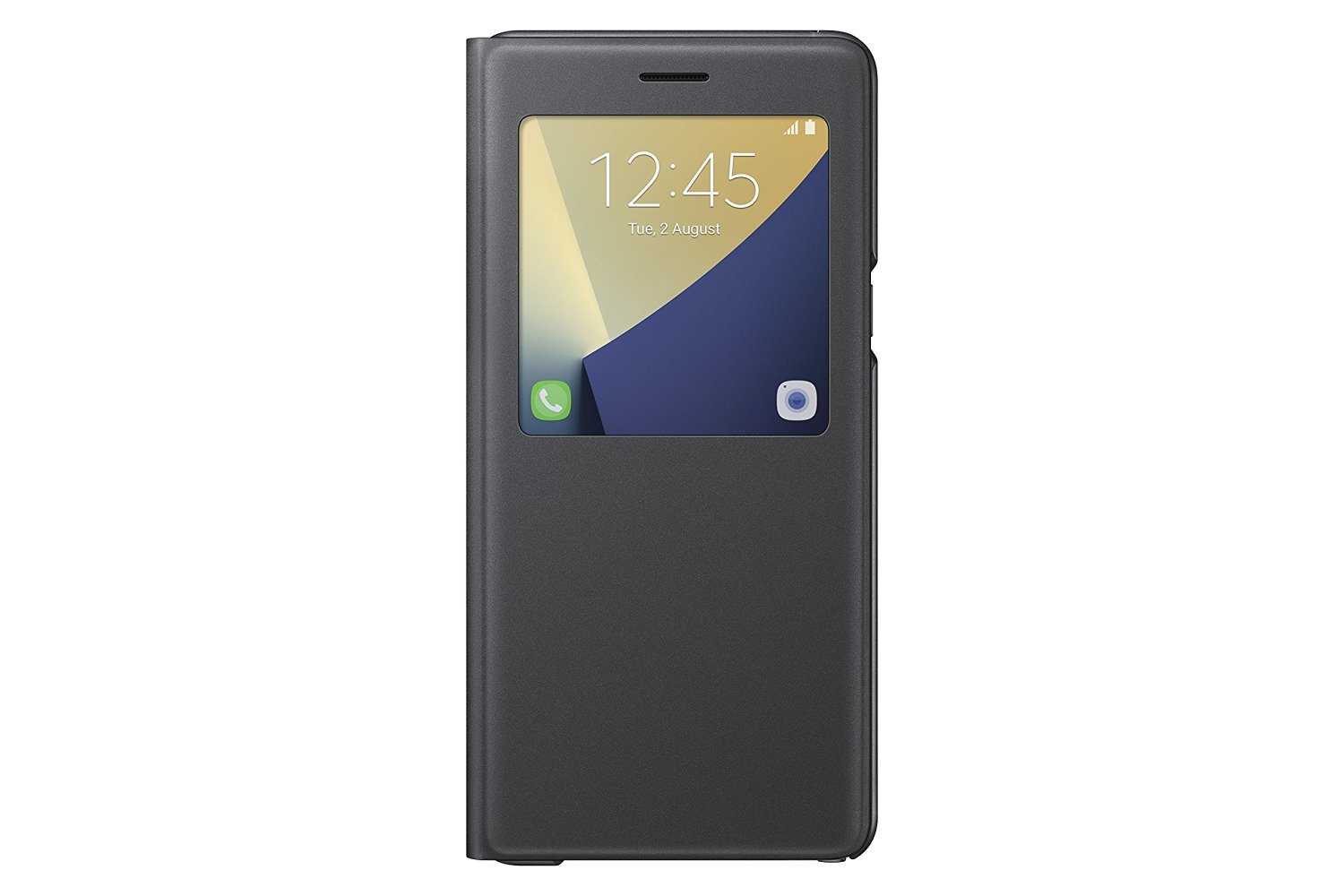
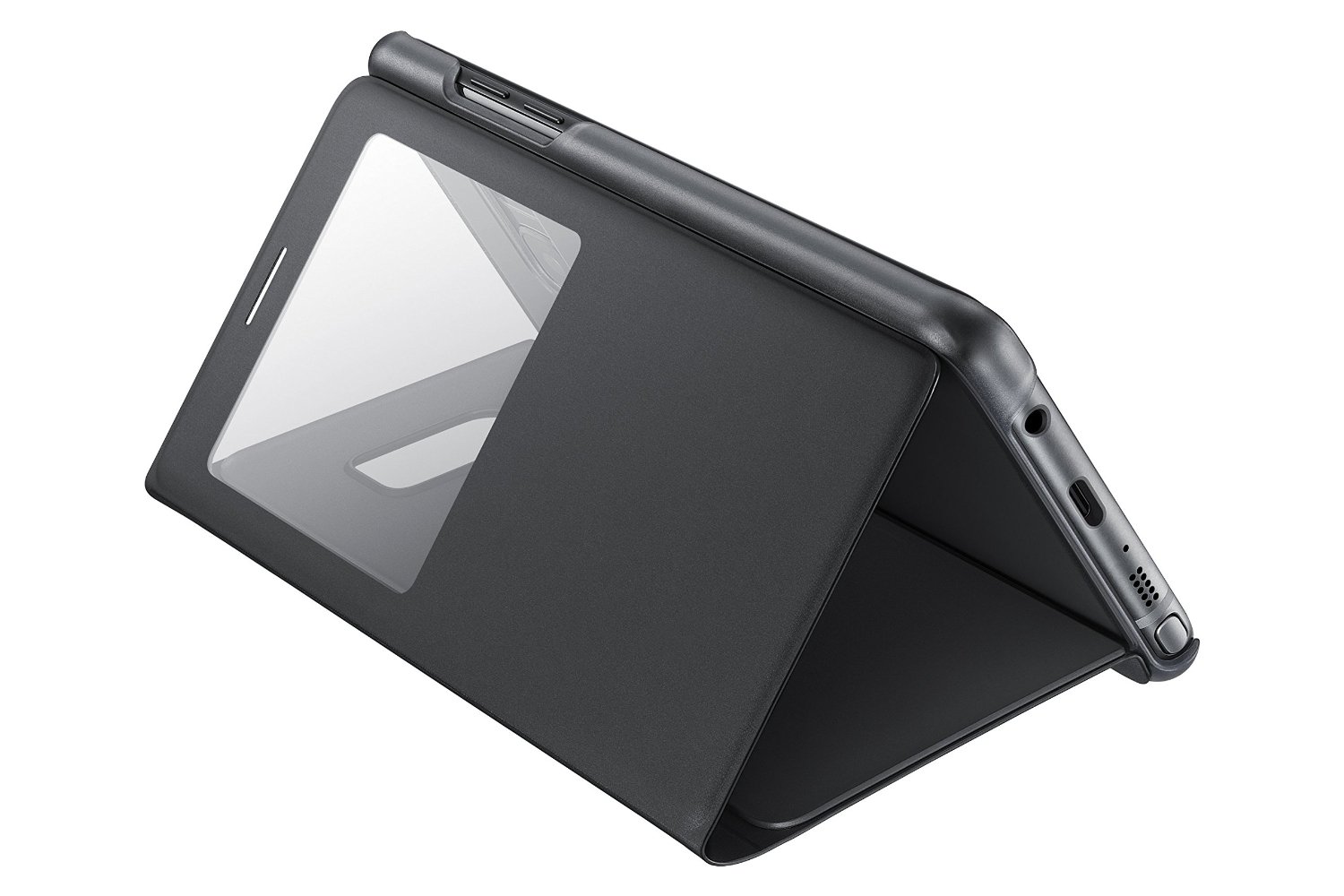
Official cases by phone manufacturers are sometimes the best bet, and Samsung always pushes the bar when it comes to accessories. They may be pricey, but they offer unique experiences you can’t get from third parties. Samsung has had a line of unique cases for some time, and the S-View cover makes a comeback with the Note 7. The case is new and improved over previous versions, but it’s still not quite the perfect case.
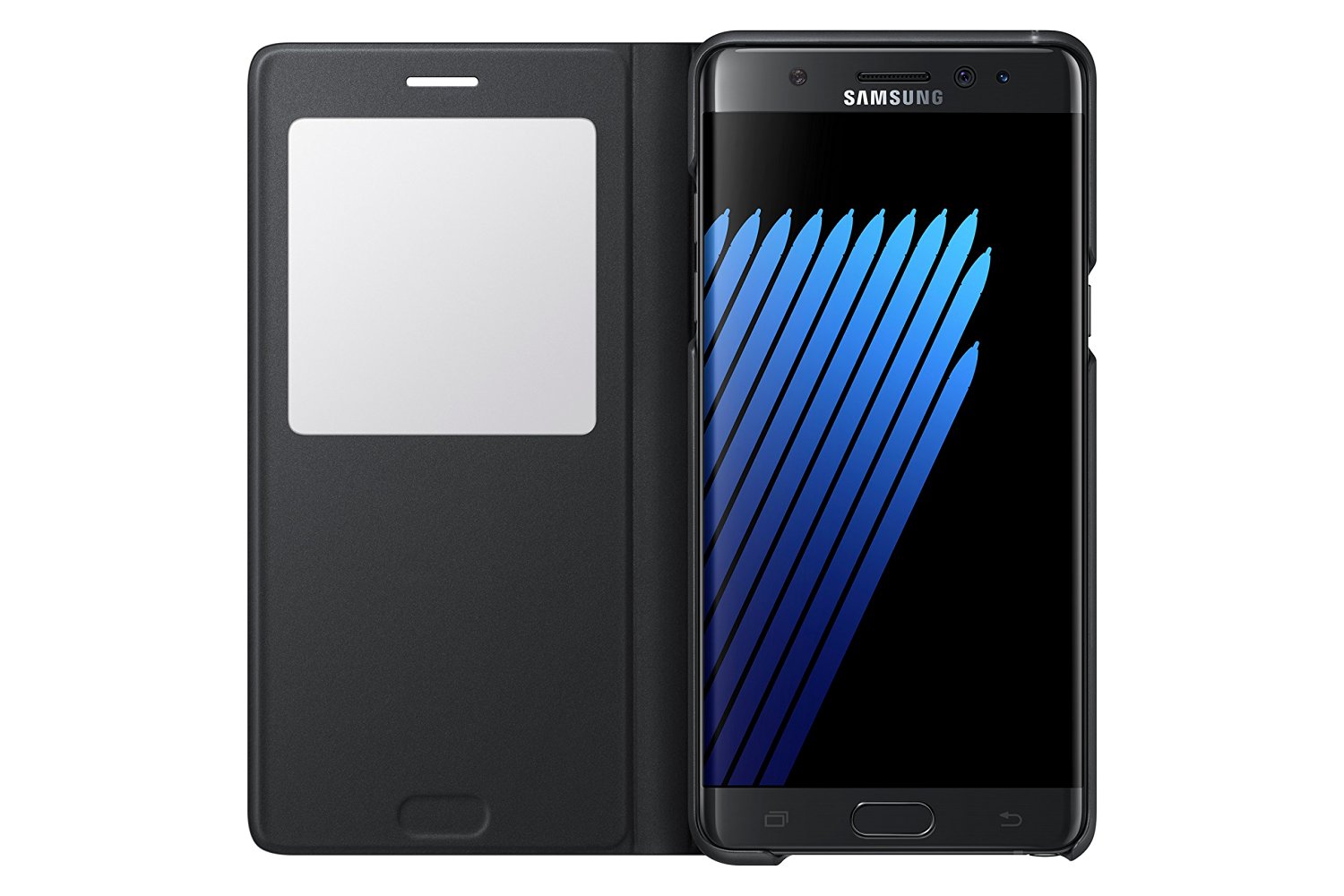
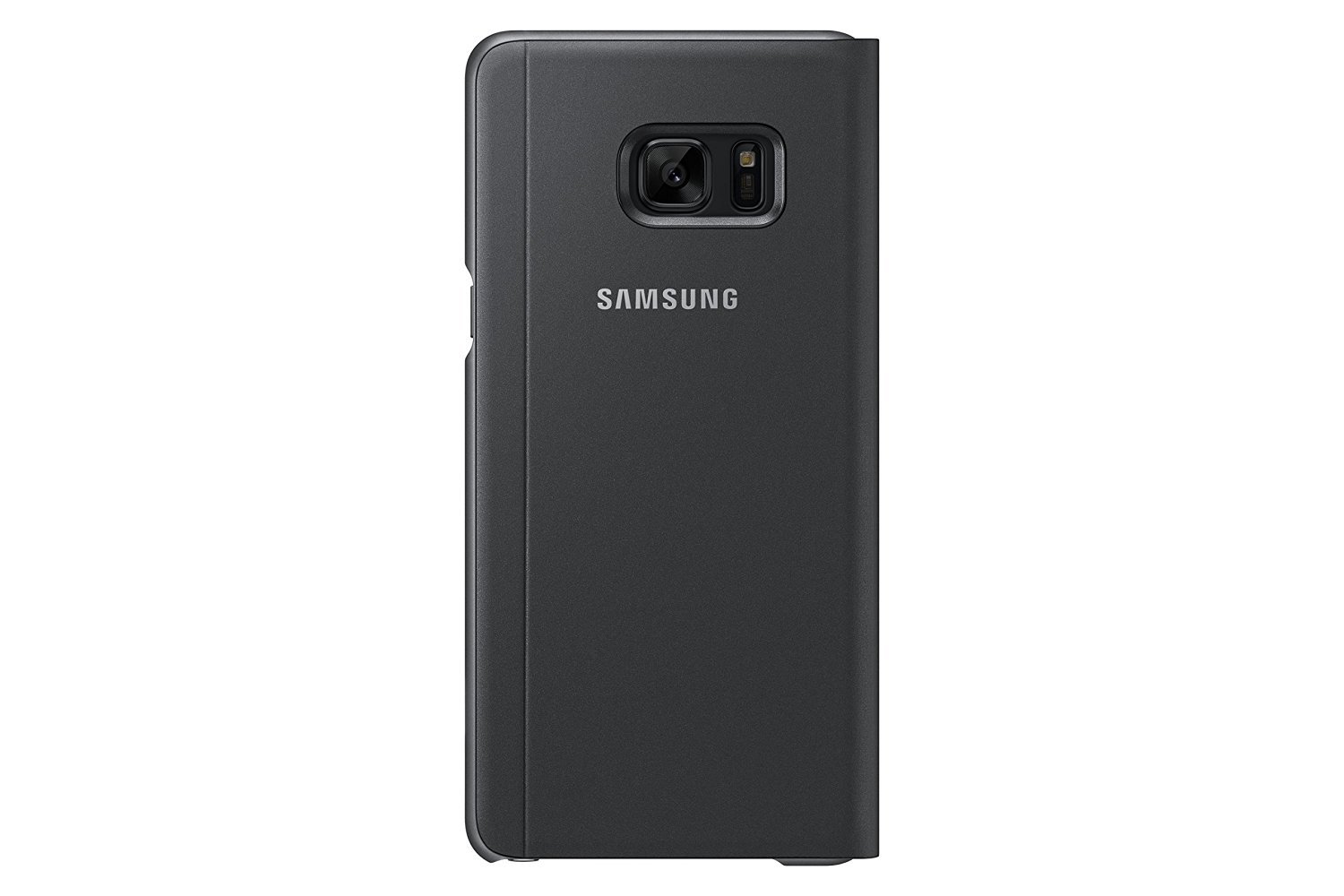
The case has a hardback that the phone snaps into and translucent edges that protect the aluminum sides of the phone. Right off the bat, I didn’t quite like this, as you can’t see the color of the phone inside as the edges are nearly black, blocking out the color. This won’t be a big deal to some, but I love the look of the rose gold edges on my coral blue Note 7, and it’s a must. The material is nice and feels good in your hand, but when you flip the cover over, that’s when things go downhill.
There isn’t a magnetic clasp or any way to keep the cover from flapping open constantly, and it feels cheap. The window is just a square piece of plastic, and after so many months, it could easily be scratched up to the point of not being able to see through it. The volume buttons were nicely labeled on the spine, and they pressed easily enough; however, the case just didn’t feel solid enough.
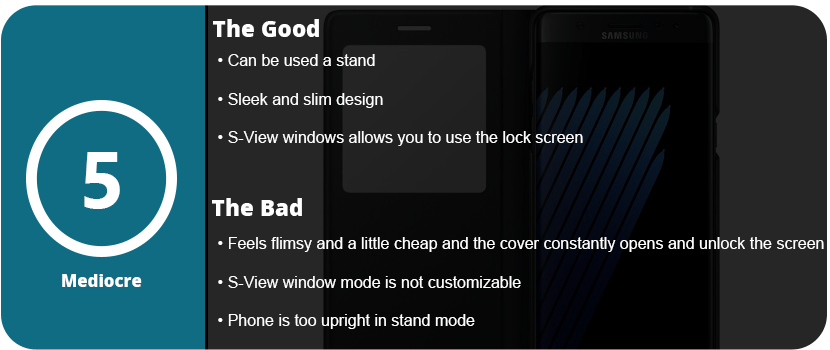
I did some drop tests on it, and it did protect the phone, but if it lands just right and that front flap opens, the screen is shattered. It felt like it wouldn’t protect the phone and was kind of flimsy. The actual use of the S-View window is nice, as you can access everything you normally would on your lock screen, but you must open the cover to actually see the apps, which was a bit annoying. You also can’t customize what’s seen on the window with just two icons you can switch out.
Overall, the S-View cover can’t only be recommended to people who don’t really worry about protecting their phone or already like the S-View cover. I returned this to T-Mobile and got the LED wallet cover instead, which is much better. If there was some way to keep that flap closed, I could see this being better. The only upside is that you can use the phone as a stand, but I felt the phone was too upright and was only ideal when laying down.
Speakers are something I’m extremely picky about. I have only bought a couple of sets in my life, and I love every set I get. However, my current setup was a Logitech stereo system with a small subwoofer, and that was 6 years ago. It was pretty good and did the job for the longest time, but it was time to move on.
I’ve never bought anything from Creative Labs, so this is a first-time experience with their products. It was either these or the Razer Leviathan, but there was a $70 difference between the two. Sure, Razer has snazzy features like an LCD display and a giant subwoofer, but it didn’t sound that great for a $200 soundbar. I wanted something wireless, so my only other option in the store, which was sub-$200, was this set from Creative Labs. For $130, I was really hesitant, and they are just satellite speakers. Usually, you need a separate subwoofer for good audio, but when I took them home, I realized I was dead wrong.
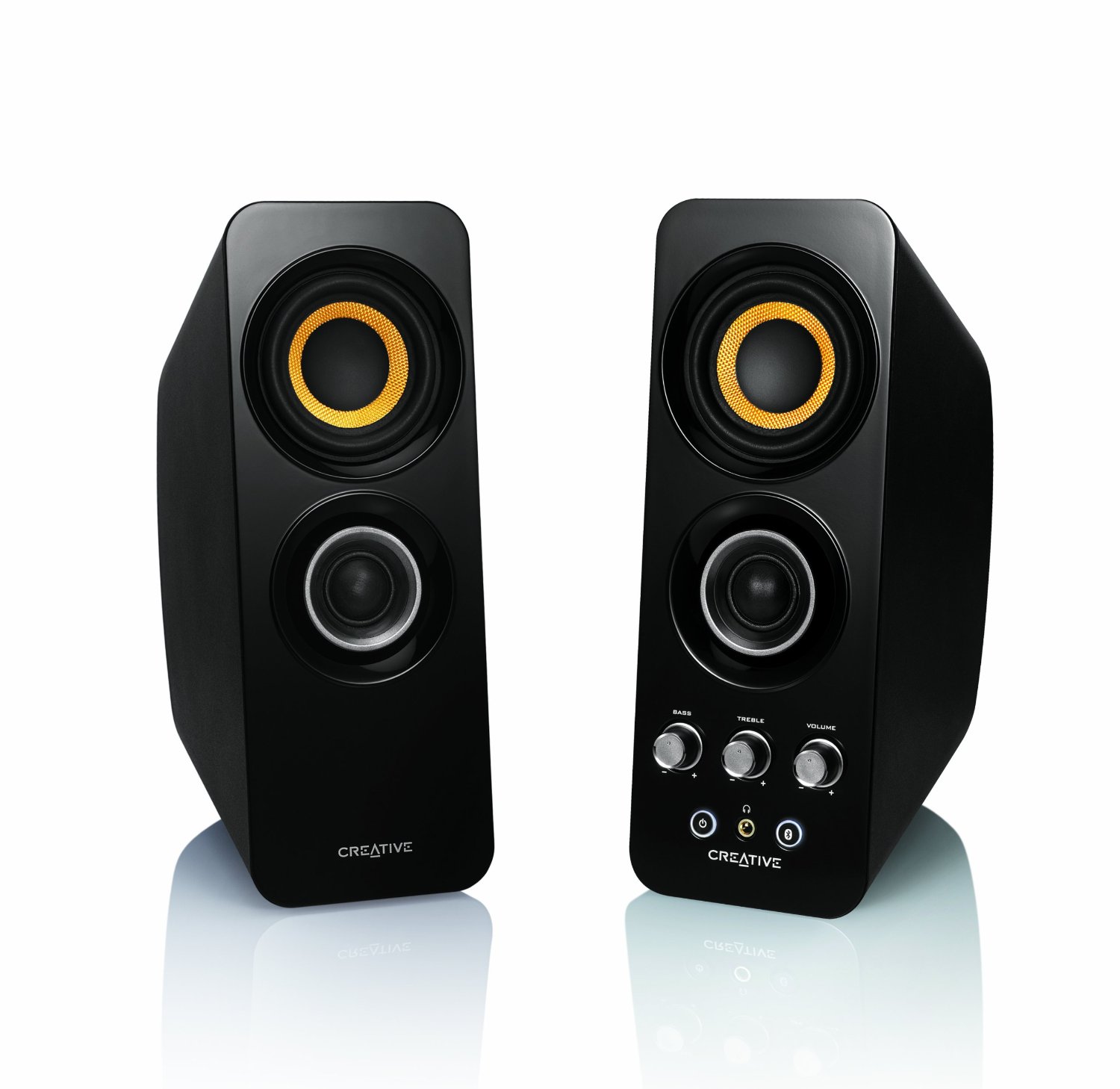
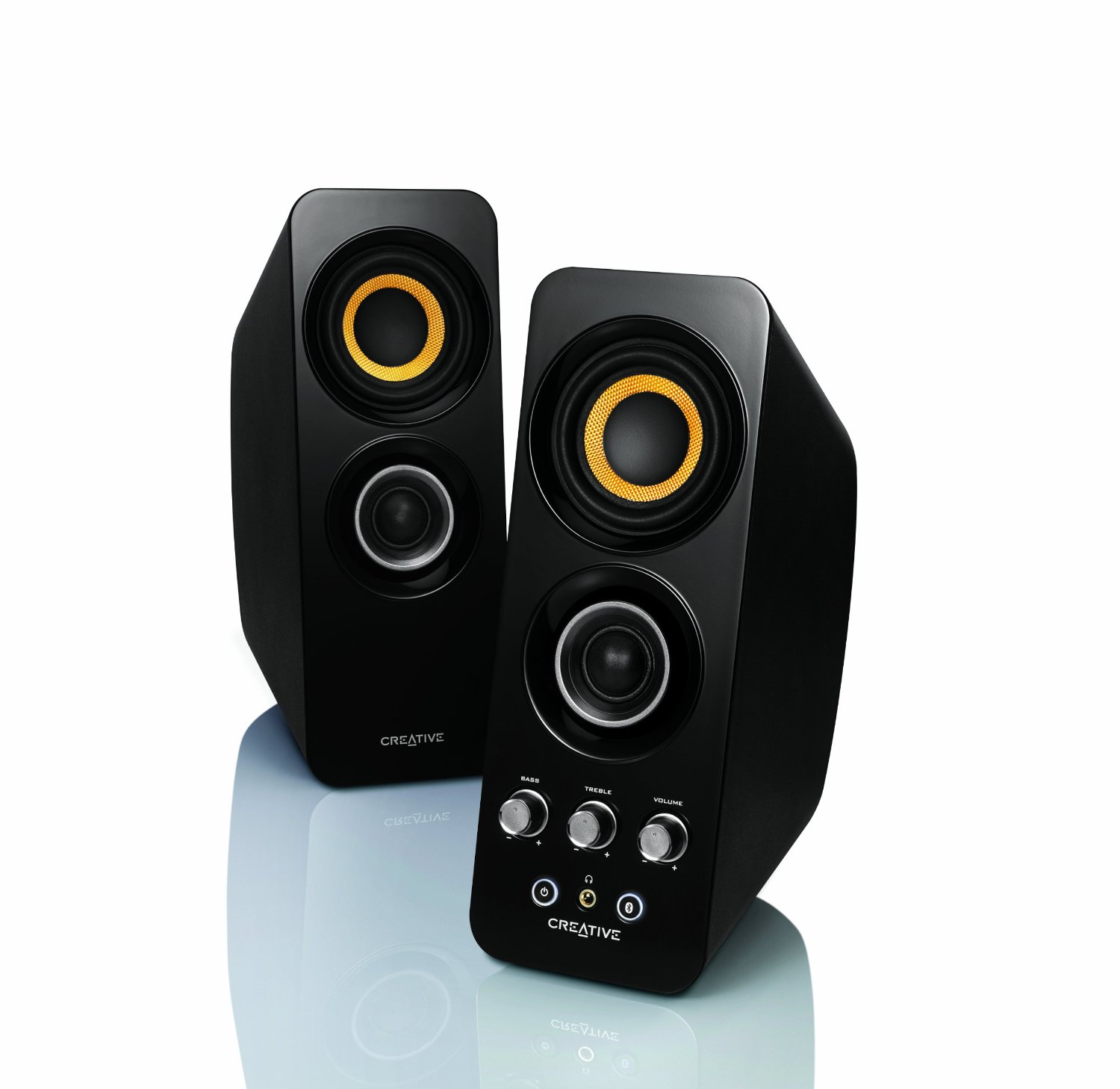
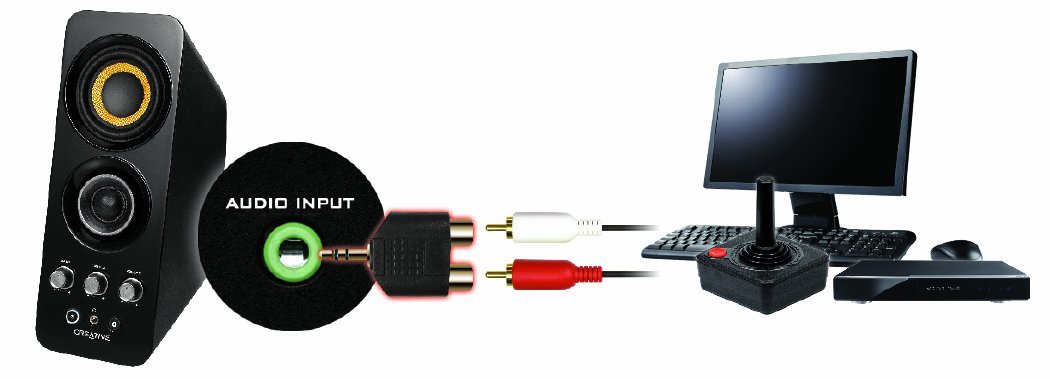
Plugging them up wasn’t all that much of a pain, but don’t let “wireless” throw you off. No speakers are truly wireless, as you need a power source. The left speaker also needs to connect to the right, but this could have been avoided with each speaker connecting to each other through Bluetooth and then having their own separate power cables. So two power cables, or one power cable and an RCA connection? Pick one. There’s also an option to use a 3.5mm jack for your PC, which I chose. While the Bluetooth pairing works great and is quick and simple, the sound card audio manager doesn’t detect Bluetooth speakers, so I couldn’t use my sound equalizer. I had to go through a 3.5mm jack, which kind of defeats the purpose of having Bluetooth speakers. I understand it was mainly designed for phones, as it has an NFC function on the right speaker to wake it up.
Outside of this small annoyance, I realized the RCA cable connecting the speakers is rather short. I had to buy an RCA extension cable to run the speakers on either side of my desk. The power cable was longer, which was kind of weird because it was reversed on my old Logitech set.
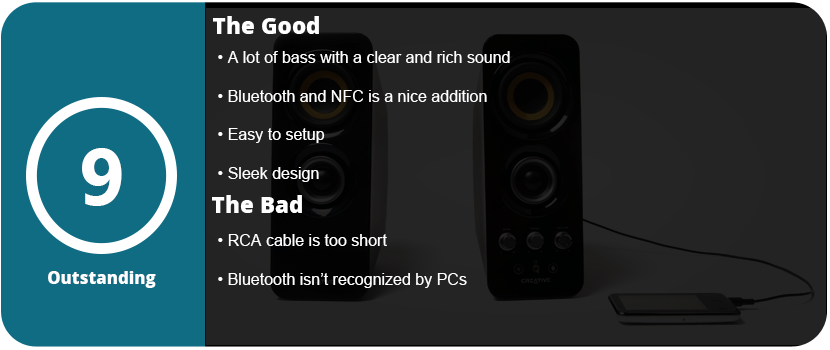
Once you get them plugged in and on, the sound is fantastic. These are the best stereo speakers I have heard, as the sound is rich, clear, and vibrant, and there are a lot of basses. These bad boys have bass speakers built into each satellite to pack a serious punch. After playing music for 90 minutes and turning it off, I noticed my head was buzzing from the bass. Playing video games also sounds rich and booming and provides a quasi-theater experience.
Outside of the two small issues I had, I have to say this purchase was well worth it. I don’t buy speakers very often (maybe once every 5 years) if they continue to work, so I should be happy with this for a long time. They are a great price, and having Bluetooth and a headphone jack in the front adds to their value. I also love controlling the bass and treble right upfront, like in the good old days, and not to mention the speakers look sleek and beautiful. I think I’ll be looking into more Creative Labs products.
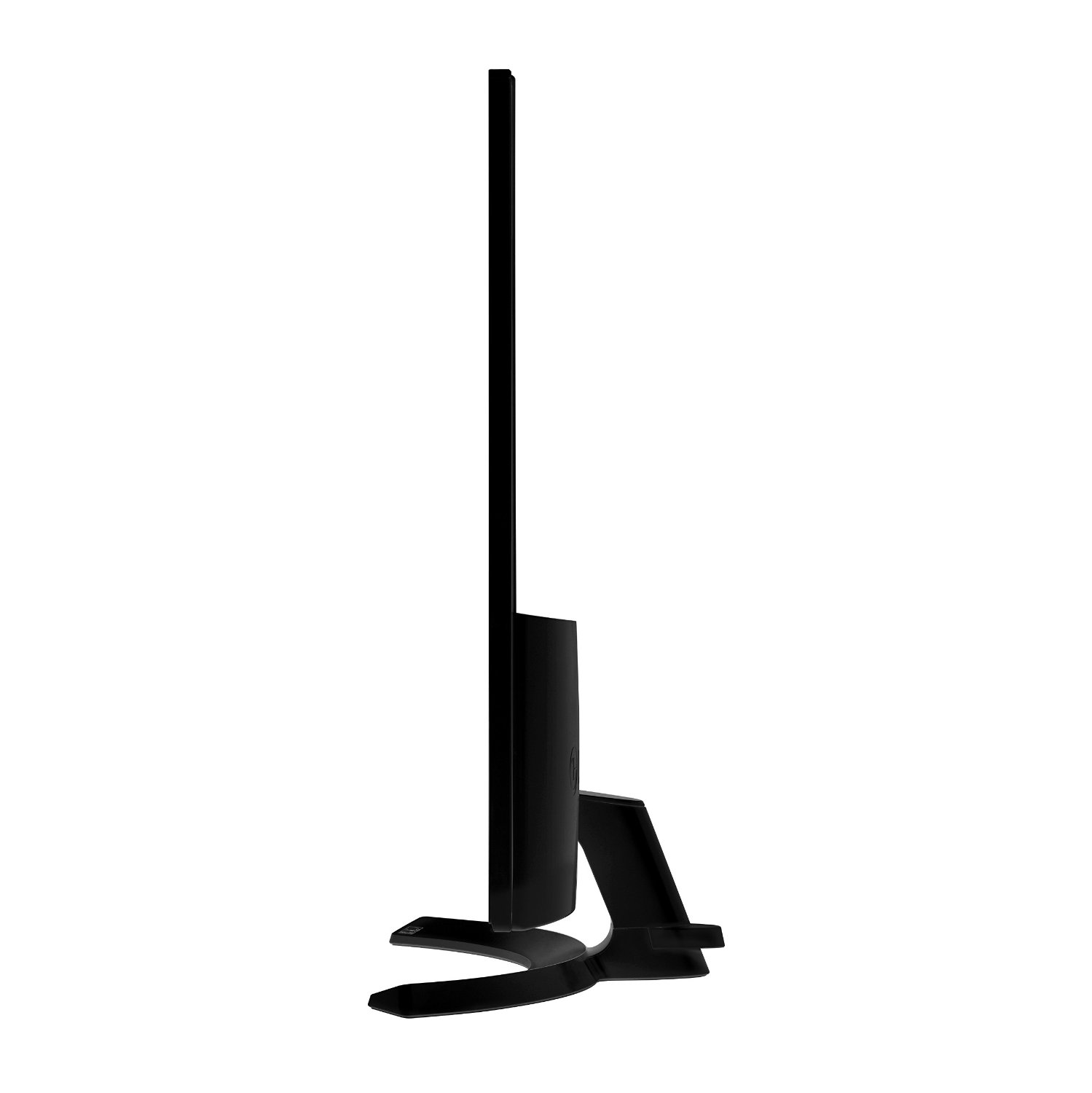
Monitors aren’t something I buy very often; in fact, I’ve only ever bought one type, and that was the Dell S2740L, and that was 3 years ago. It was my first real monitor that didn’t come with a setup and was fantastic, but it was time to upgrade to something more modern and bigger. I’m not going to lie; I’m not very savvy with monitors or TVs. I don’t buy them often enough to do constant research or keep up with trends. I usually go into a store with a budget and research on my phone as needed. I started out by looking for other 27″ monitors that just looked super clear and crisp, had a minimal design, and maybe some fancy settings. I first looked at the Asus MX279H because it had a fantastic-looking screen and was LED. I want to move away from LCD, and it’s a fading technology. I then noticed larger screens that were around the same price, but then there were ultrawide displays that were over $500. There was a $400 29″ LG monitor with AMD Freesync, but the 21:1 ratio was a little off-putting as almost everything is made for 16:9.
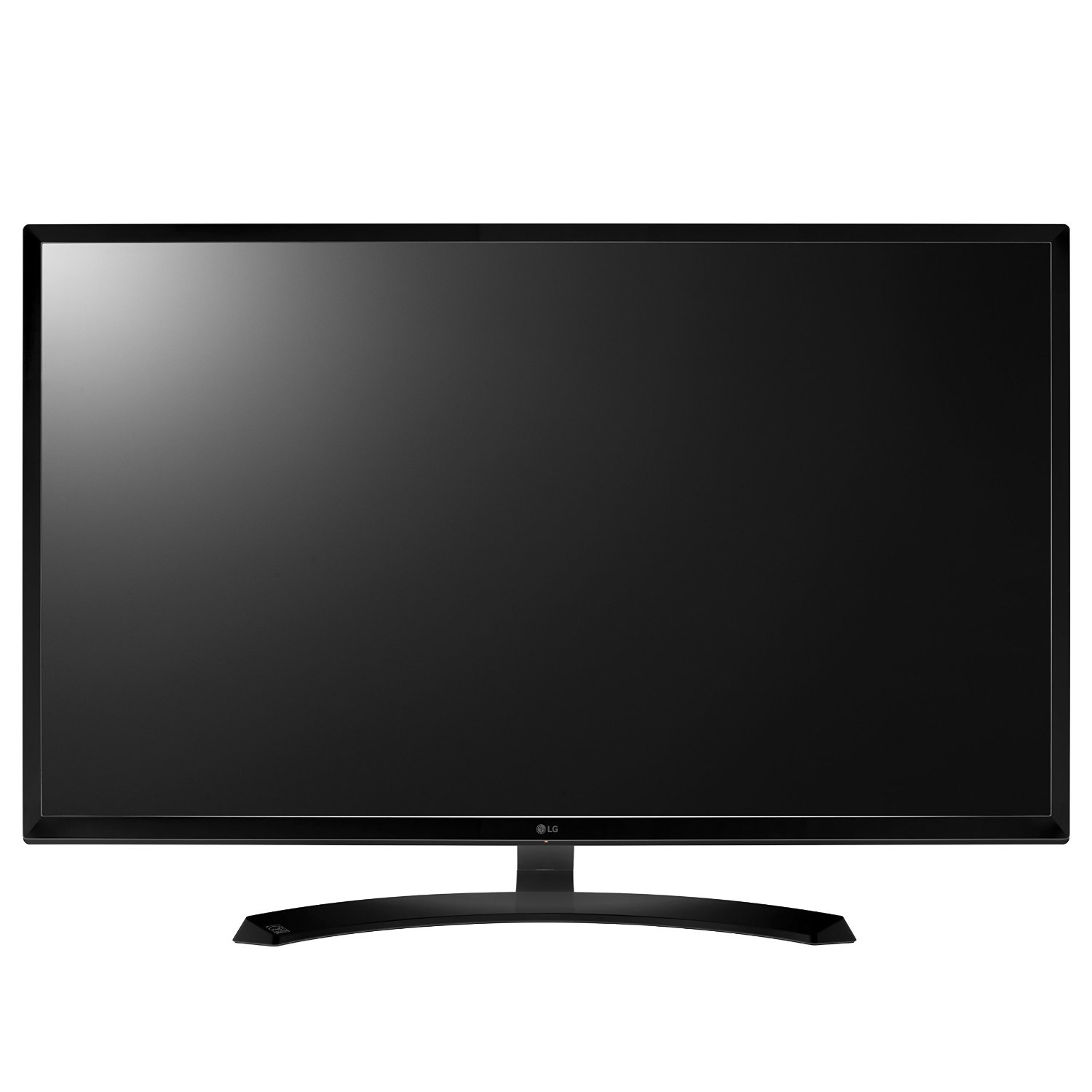
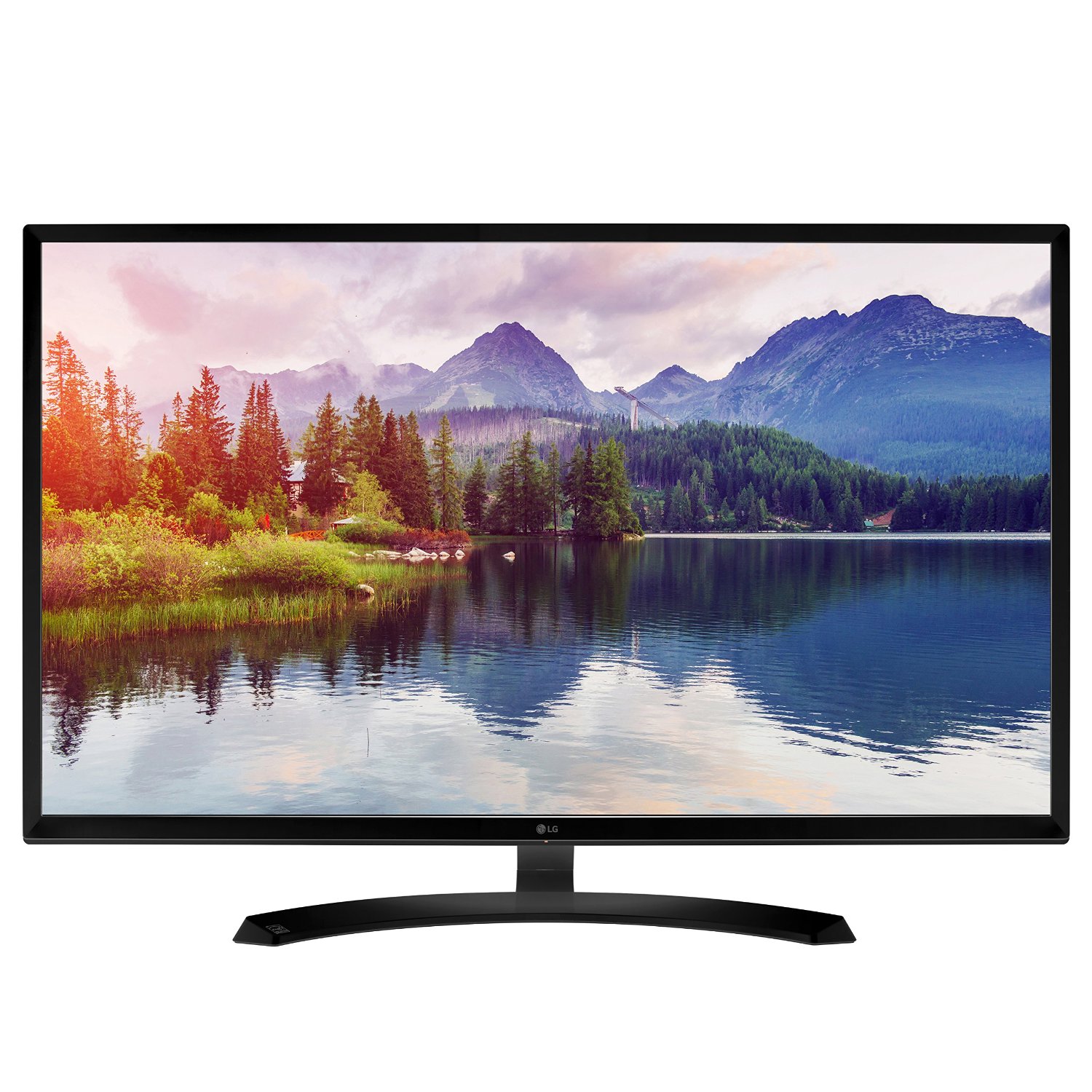
That was my major dilemma: do I sacrifice dual monitors for an Ultrawide or just get another 27″ monitor? My next thought was that I just want a 1080p monitor, as most gaming above requires multiple GPUs, and I don’t have the money or setup for that. So here I was looking at 1080p monitors that were bigger than 27″. I never thought in a million years I would ever get a 32″ monitor, as that is the size of most entry-level flat screens. Three years ago, a 32″ monitor was close to $1,000. I was also switching to a new brand; I don’t own anything from LG. So, I settled on the 32MP58, and no, I didn’t know what IPS was at the time, but it’s for the most true-to-life color you can get. Comparing an LED monitor to an LCD is a huge difference, and the size is perfect for gaming.
So, I took my new monitor home, took down one of the 27″ Dells, and plopped it down. It takes up a lot of desk real estate, so be prepared to have a large desk or nothing else on it. I had to slide my other 27″ Dell all the way to the edge of the desk to make them both fit. I can now use the LG for gaming and video and the Dell for tasks like web browsing and file management.
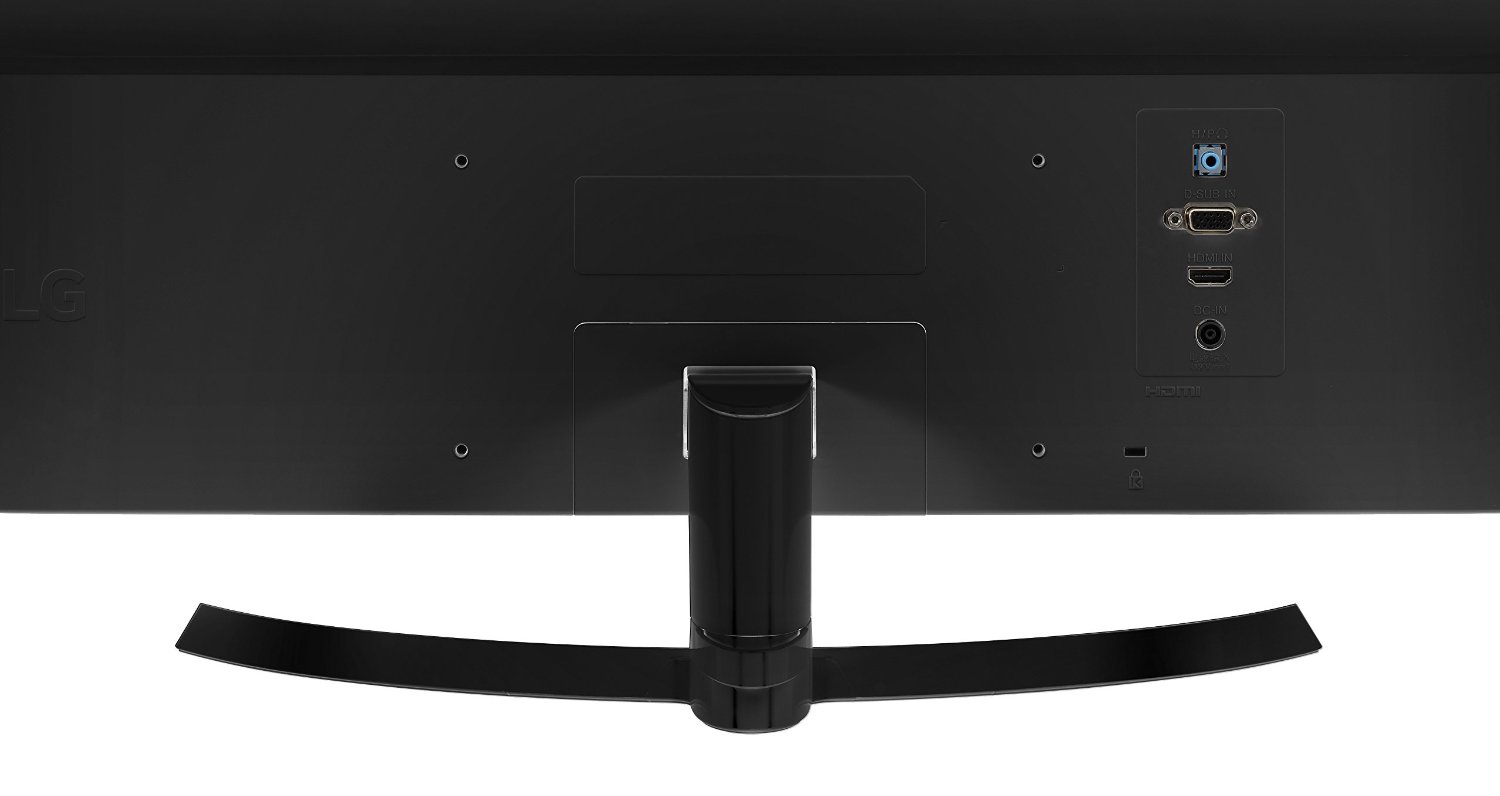
The setup was easy enough, and I’m shocked this monitor is VGA or HDMI—both extremes. Either go fully digital or full analog. I don’t know why, in 2016, anything has VGA anymore, but it’s there. I was surprised to not see DVI-I or DVI-D at all, which I had my Dell monitors set up as. Either way, most new GPUs come with two HDMI ports and two DVI ports. After installing the curved stand (which is minimal and sleek), I plugged it in, and on it went.
The monitor detected the video right away and turned it right on. The OSD button is a four-way switch underneath the power light, which is awkward and weird. There are many settings, and most of these are universal across all of LG’s newest monitors. I chose the gaming preset, and for the most part, this monitor needs very little adjustment. I used Windows Color Calibration, and nothing needed adjusting. I then did a little research on some LG-exclusive settings, like SuperResolution. It sounds awesome on paper, but this is for anything that doesn’t render or display natively in 1080p and needs upscaling. This is great for older game consoles but not necessary for PC games, as it just makes everything overly sharp and ugly. There are so many settings on this monitor, such as adjusting every single color under the sun, not just RGB. There’s a great black stabilizer that keeps everything from getting too dark and washed out, which is a nice feature. I also found this to be an extremely bright monitor, and as the sun went down, I had to change it from the already bright 75 down to around 47. 100 brightness is just not ideal and not needed at all.
There are other features like response time for fast-moving objects (games in 60FPS or 60FPS movies) and some other features, but mostly not many need to be touched, and that’s how it should be. There’s no software involved with this monitor like there is for Dell, which is just fine as most people don’t like that kind of thing. So settings-wise and physical design-wise, there isn’t much to complain about. I wish this was an edge-to-edge display, but the bezel is embossed, which isn’t awful, but the back is bulky. There’s also a headphone jack in the back that allows audio to stream through and can be controlled via the monitor OSD, which is also awkward and bizarre. I also have to mention that this is a very wobbly monitor if your desk isn’t quite stable. I had to push my two monitors together to keep each one balanced. If you have a wobbly monitor issue, you need to buy a stand that has braces for each side.
Overall, the games and video looked amazing on this monitor. Some of the best picture quality I have seen on any monitor to date. With my older Dell and this side-by-side, I can see the difference, and even the size makes a huge difference. Should you go larger than 32″? Maybe 34″, but that might be pushing it. I won’t be purchasing another monitor anytime soon, probably not for a few years, but I am very happy with this purchase, and $300 is quite fair for what you get. With a sharp and crystal-clear display, beautiful colors, and great physical design, you can’t go wrong here.
Mousepads aren’t something that most hardcore PC gamers should overlook. A great gaming mouse is only half the battle, as the surface you move it on affects everything. I used the Razer Vespula for over 2 years and loved it, but I was ready for something bigger, with no wrist pad, and cool-looking.
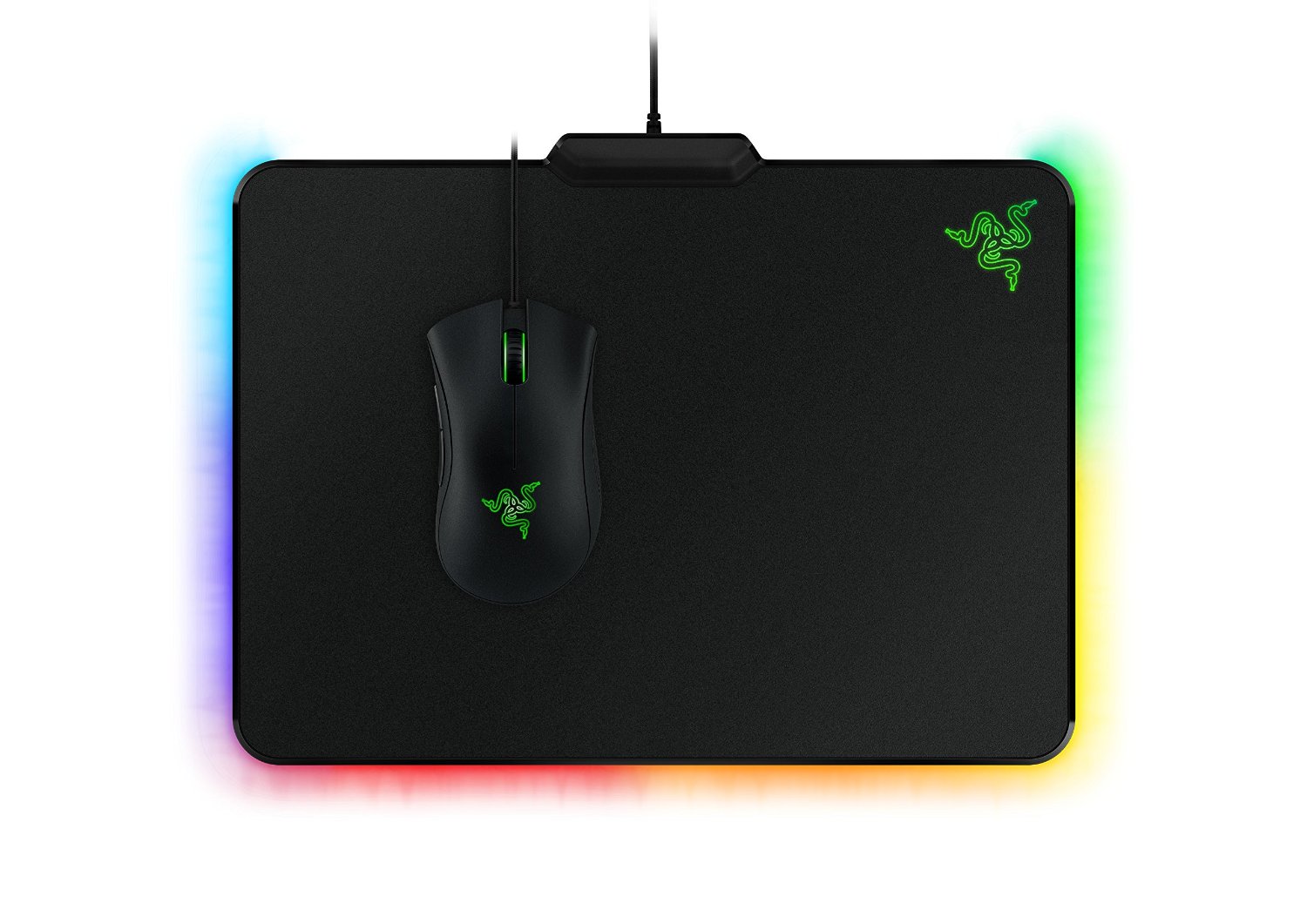
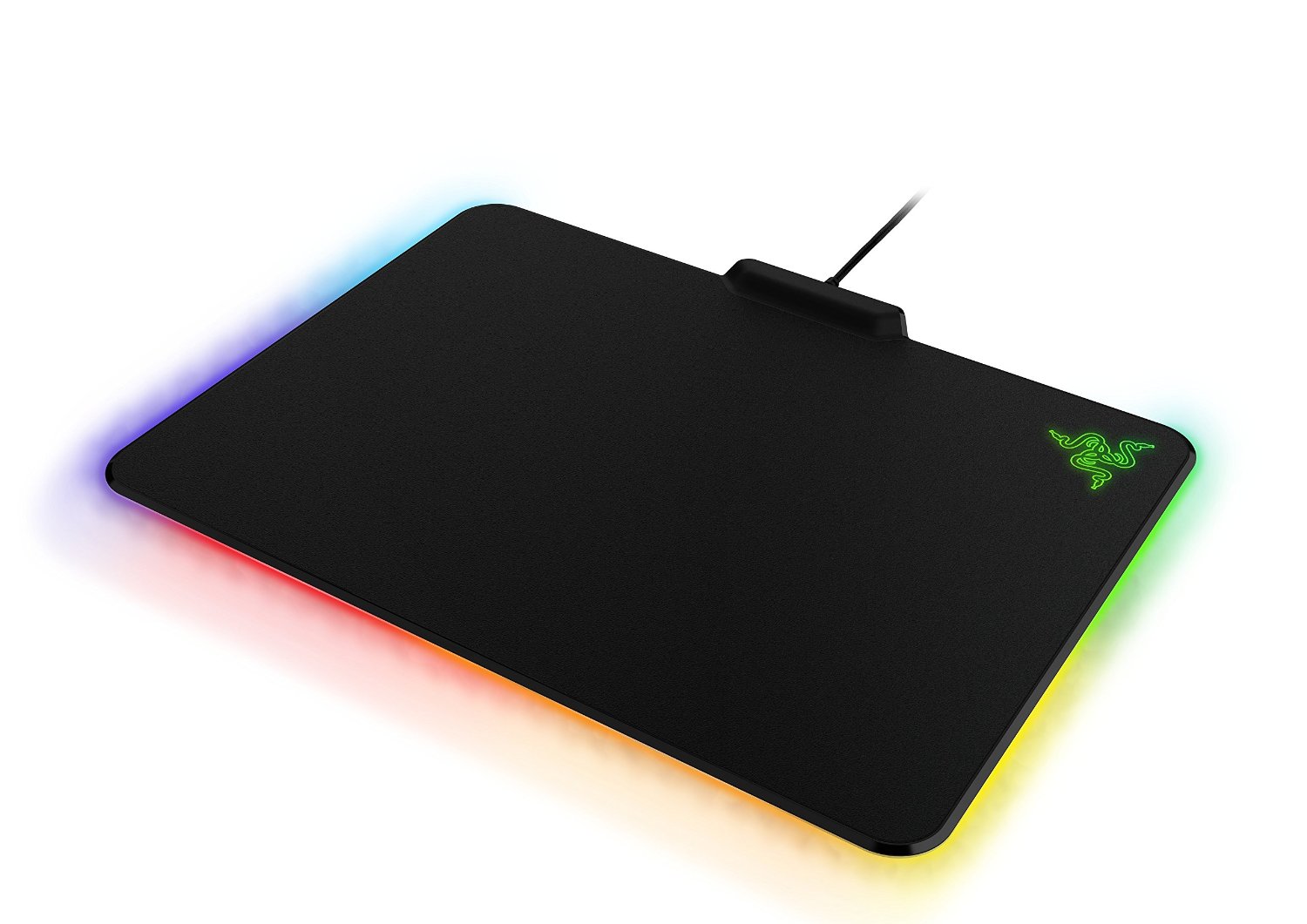
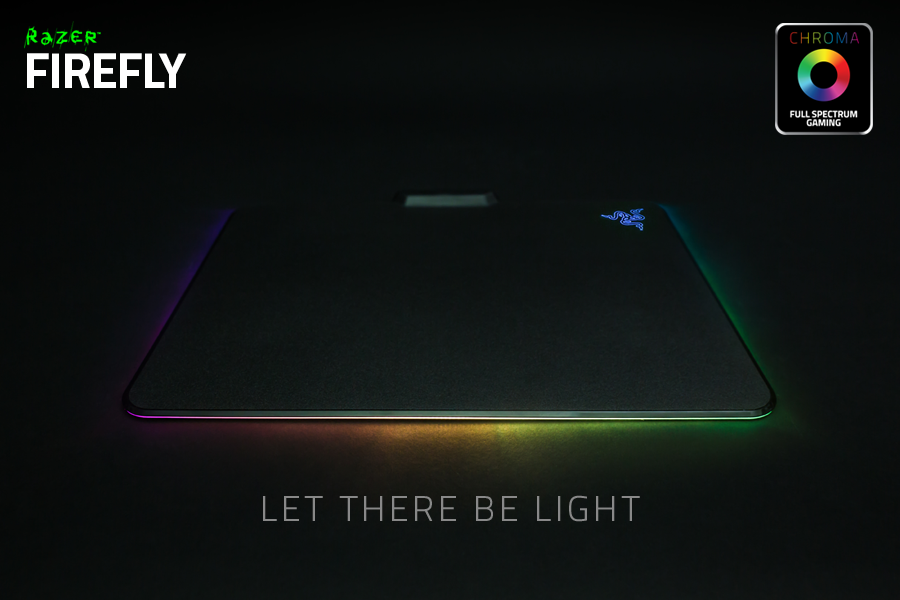
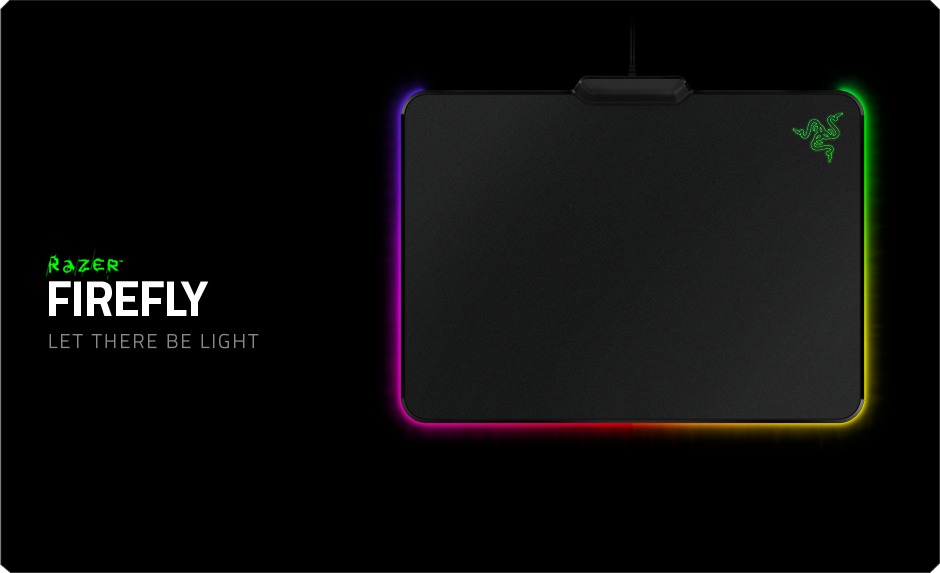
There are various types of mouse pads, from size to surface type. Most are made for low DPI or high DPI, and some mousepads can fit your entire desk. I was looking for something bigger, a little less smooth, and flashy, and the Firefly was perfect. My initial thoughts were that the chroma effects were a gimmick and that it was a crappy mousepad. After initial testing, I was dead wrong. This is the nicest mousepad I have ever used, and the lighting effects are just icing on the cake. It’s very minimal, with a Razer logo in the top right corner, an LED bar along the bottom and sides, and then a small bar at the top where the power cord goes. Yes, this is probably the only powered mousepad in existence, and while some may naysay this, it’s needed for the LED lights. If you’re on a Mac or gaming laptop, this may be an issue due to the few USB ports. However, my PC has 8 USB ports in the back and 2 in the front, so it doesn’t make a difference for me.
When I first opened the box and felt the slightly rough surface, I was worried it would be too rough and drag my mouse down. I am currently using a Logitech G700S with a 2900 DPI setting. After setting the mouse down, it was actually perfect. It made me realize just how smooth the Vespula was, and I needed that little extra grit. The playing surface is perfect and not too small or big. However, the $60 price tag is for those cool LED lights, right?
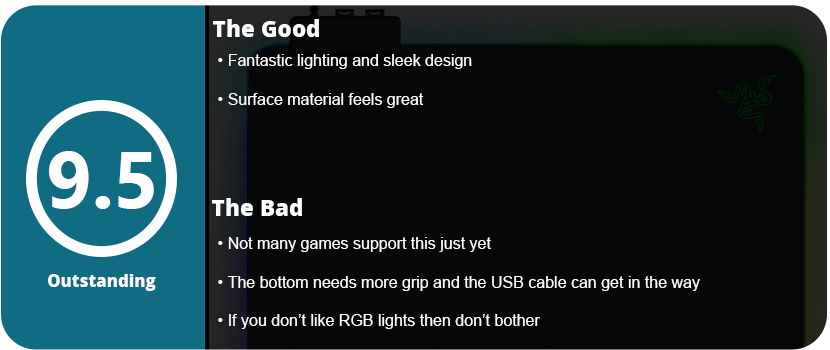
They are worth it. Razer’s Chroma SDK doesn’t support much right now, but the effects you can change in Razer Synapse 2.0 are enough for just a light bar, and the ambient glow it gives off when on a surface is fantastic and cool. I currently only have seen Rise of the Tomb Raider and Overwatch support (that I own); the pad with Overwatch only uses an orange glow at startup. Right now, I use the Audio Visualizer app in the Chroma store that flashes the bar with sound, which is just fantastic. Hopefully, over time, the Chroma features will be embraced by developers and not abandoned like their touchpad or Hydra devices.
My only complaint is that the bottom of the mat isn’t sticky enough, and I’m having to reset the position of the mat at least once an hour during heavy gaming. A small gripe and nothing that I feel deters the price point. The USB cable is going to be hated, person by person. I don’t mind it, and the cord is long enough to reach almost anywhere. However, if you don’t care for LED lighting, I can’t recommend this for just a really good mousepad either.
It’s been a long time coming, but I have held off for years on larger tablets. This is mainly due to battery life and power, but most importantly, the screen. Sure, the iPads have decent screens, but I wanted something amazing that all my larger content could look sharp on—something akin to a PC monitor. I have had my seven-inch Nexus tablets for a few years now, and they were great for reading comics and books and playing tablet-style games. I have used various other tablets, like the Samsung Galaxy Tab 3, but it was just awful and slow.
After purchasing the Note 5, I took a look at all of Samsung’s newest hardware. The sleek, paper-thin design of the Tab S2 caught my eye, but I was wary that it was weak and had an awful screen. I heard great things about the Tab S and Note Pro 10.1, so I took a further look. To my surprise, the Tab S2 was powerful and sported Samsung’s very popular Super AMOLED screens that I have grown to love over the years, starting with my Galaxy S4.
Some naysayers may gripe about tablets being steamrolled phones (this was said a lot about the original iPad), and honestly, Microsoft is the only company that has put a PC OS onto a tablet. Apple needs to get OSX working on an iPad, and Google needs to seriously think about getting Chrome OS onto tablets, but that’s a debate for a different time. Right now, tablets have been nearly perfected, and it’s okay to have larger versions of their phone counterparts. Think about it: What do we use tablets for? Movies, reading, and the overall enjoyment of a large screen. First, I would like to help people on the fence about tablets and think about these five things when buying one.
1. For the Movie Lover
There are dozens of movie apps on Google Play right now, and anyone who watches Netflix in bed or out of the house should be a tablet owner. This also goes for anyone who uses Hulu or any other streaming app. This is also great for people who love ripping or downloading movies and loading them directly from the device.
2. Productivity
If you’re a busy student or work in a place that requires a lot of note-taking, then a tablet is great for you, but why not a laptop? Tablets are ultra-light, ultra-portable, and do only what you want them to do. There’s no hassle of things going wrong with your laptop, such as crashes, BSODs, or anything like that.
3. Gamer
Of course, most games are fine on phones, but there are so many great tablet games that you are missing out on. This War of Mine, Talisman, The Witcher Adventure Game, Baldur’s Gate II: Enhanced Edition, Star Wars: Knights of the Old Republic, Desktop Dungeons, Bard’s Tale, and many more games are better suited for larger screens. Not to mention that any gamer loves playing on bigger screens.
4. Reader
Tablets became popular due to ebooks. This is what put tablets on the map, thanks to devices like the Amazon Kindle. There are many great book apps, with Amazon’s Kindle being the most popular. With millions of books available, the list is endless. Laying down and reading on a tablet is more convenient, as you can do other things in between reading. Take a break and watch a YouTube video or two, video chat with a friend for a little, and go back at it. Tablets are just great to relax with, thanks to all the things you can do with them. I personally love reading manga and comics.
5. Artist
Most artists naysay digital art, especially on tablets, but they are great for getting ideas out of your head quickly before they are forgotten. There are many great styli out there for tablets, and while you won’t be able to pump out masterpieces like on your Cintiq tablet at your desk, it can save you from frustration for not being able to get a good idea out.
With that said, these are the people that tablets are aimed at. I nay-said tablets a long time ago, thinking I was just fine with my phone, but realized the potential I was missing out on.
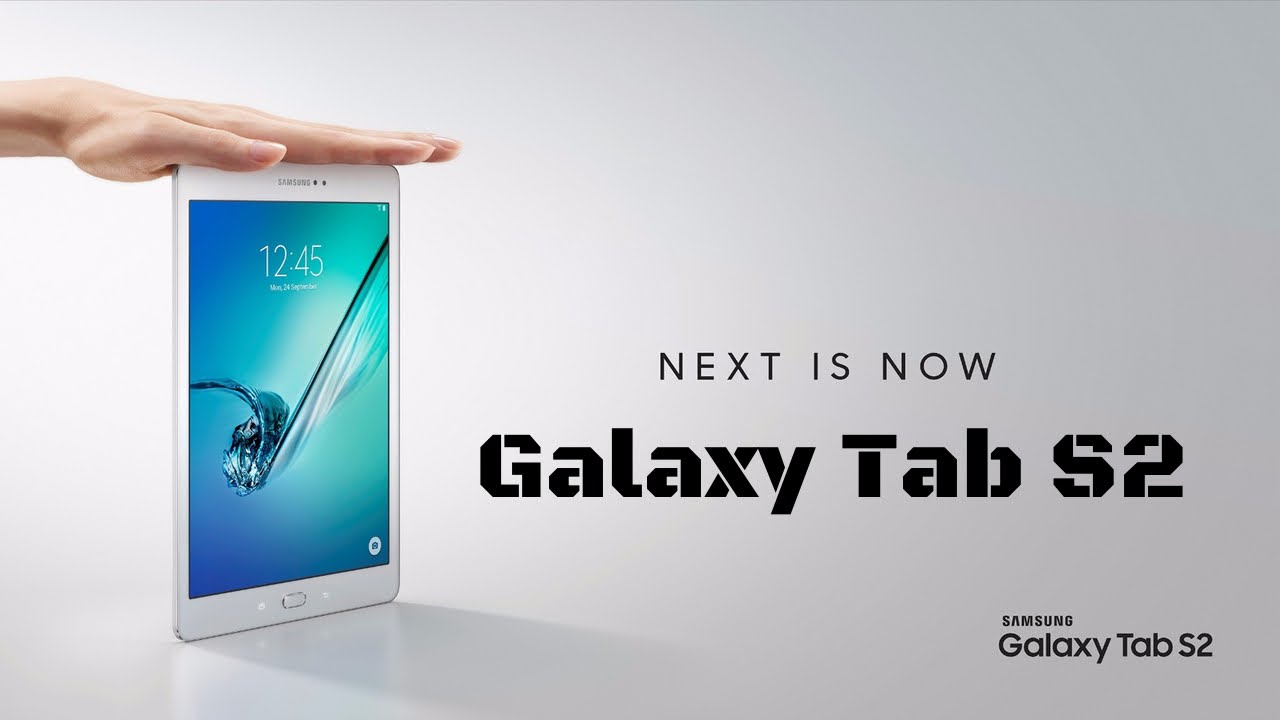
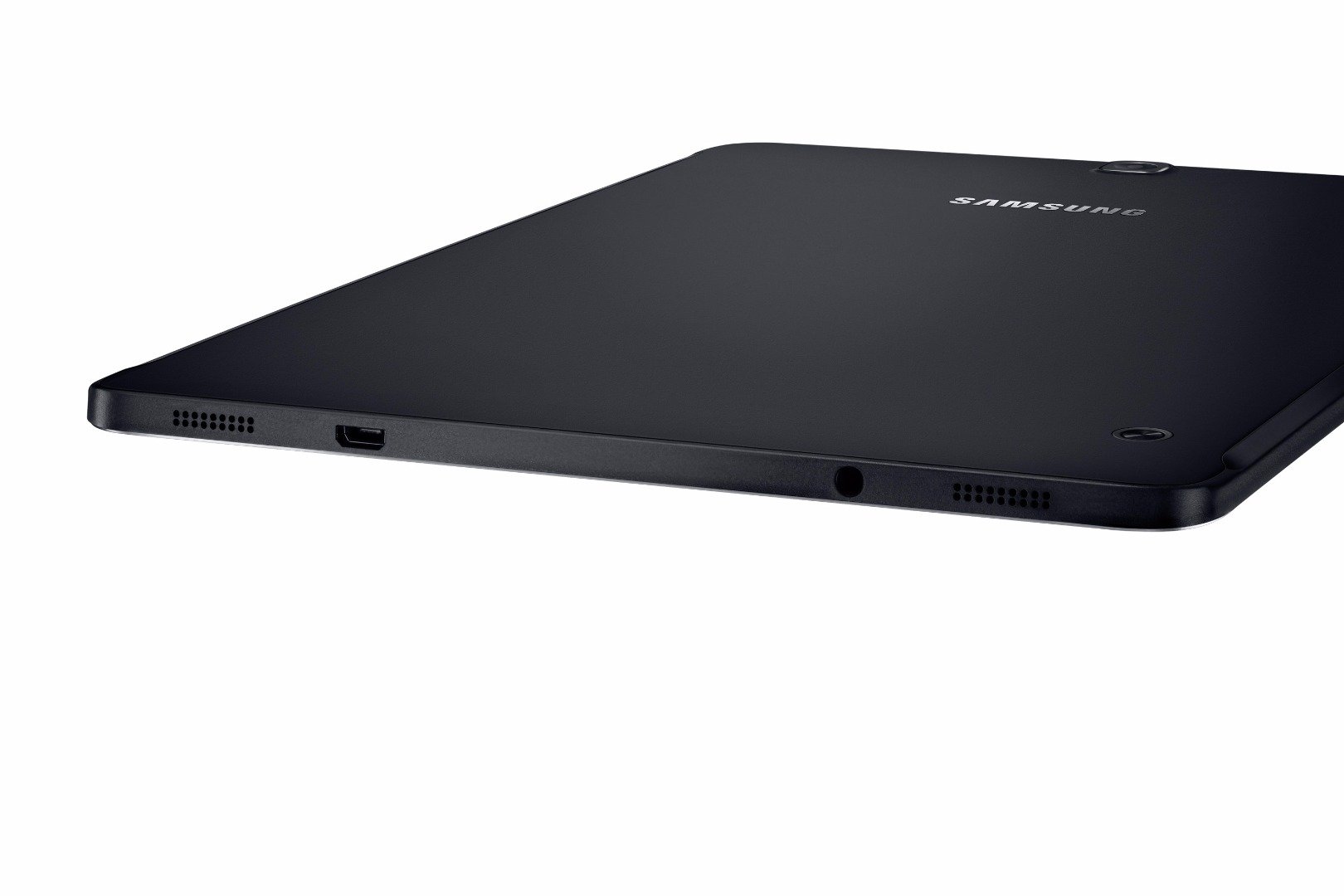
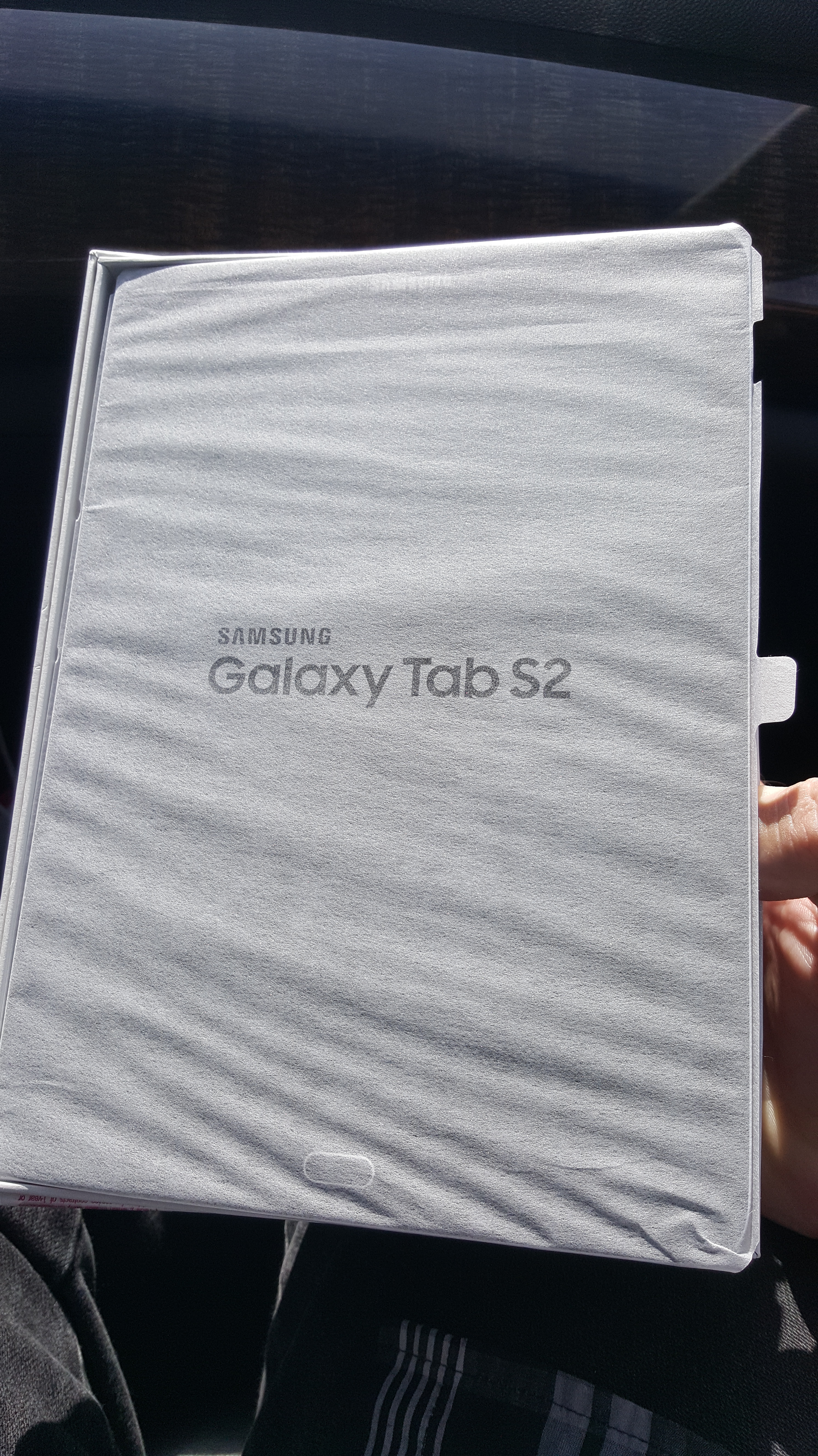
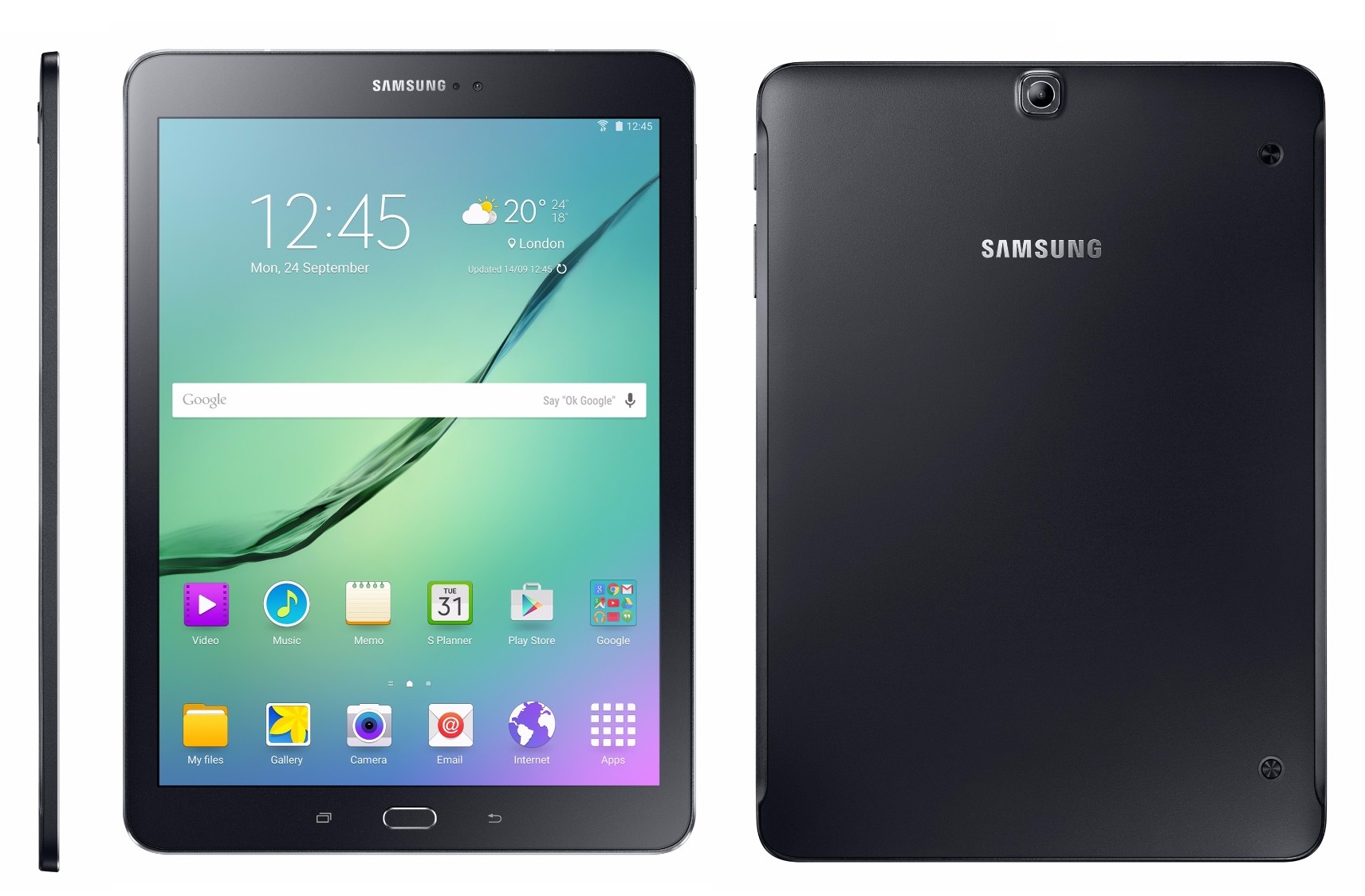
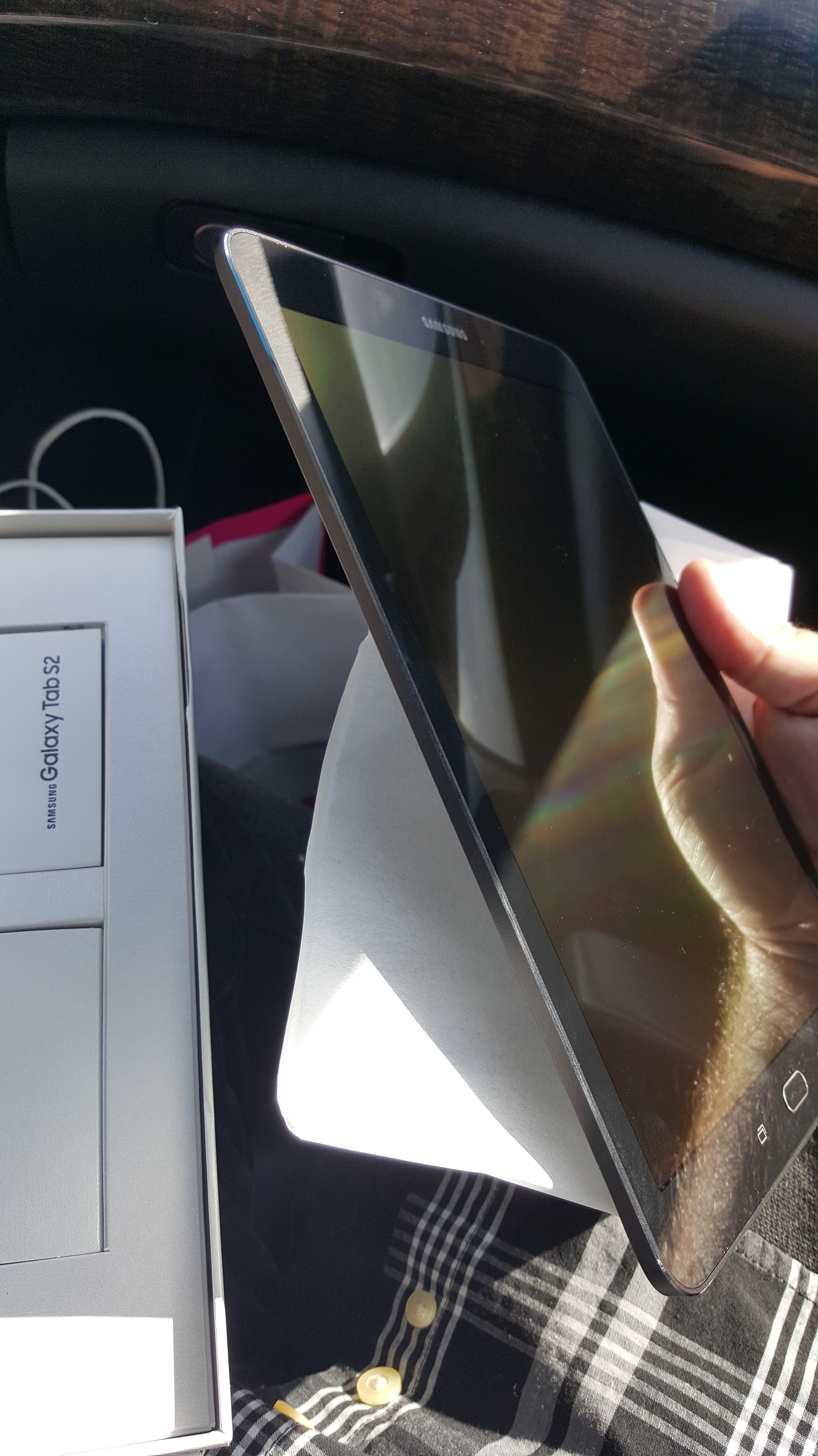
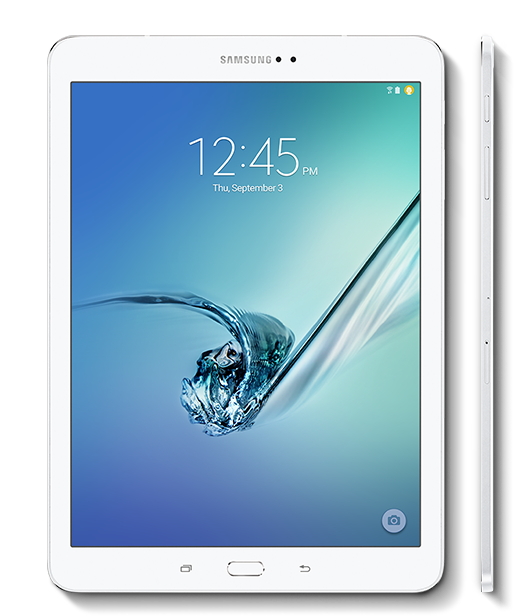
The Samsung Galaxy Tab S2’s first feature you will notice when opening the box is the form factor. This is the thinnest tablet I have ever seen, and it just looks so sleek and incredibly gorgeous. The tablet is a perfect rectangle shape with rounded edges but has a face that’s familiar to Samsung phone owners. The recent apps button and back button, with a physical home button sandwiched in between, are iconic. I was also surprised at how light this tablet was, at nearly 10″. The style is borrowed from the current Galaxy series phones, which have solid power and volume keys (not rockers) and a minimal design.
If you have a WiFi tablet, you won’t have to worry about this step, but inserting the SIM card for the 4G version was quite easy thanks to the little tool that was provided. Just pop the pin in and insert the card into its carriage, and off it goes. The SD card slot is also located just below that slot and works the same way. I was actually so grateful that this tablet came with expandable memory (up to 128GB), as I can now load it with movies, music, and comics while the internal space is used for apps and games. With my Nexus 7, it was a constant balancing act of games and apps over comics, with only 32GB to use. The 9.7″ Tab S2 comes with 32GB built-in, but that’s nothing to complain about thanks to the expandable memory.
Once I turned the device on, I was amazed at the screen quality. While it was expected, it just looked so beautiful in this size. Everything is clear and crisp, which is what you would expect from a Samsung display. I will say that the tablet is a typical Samsung Android experience, and that’s not really bad, but there are not many device-specific features. There is a fingerprint scanner, which is really nice, but I noticed the device lacked the themes that are present in the current Galaxy phones. Anyone new to a Samsung device will find everything quite convenient, but coming from using Samsung phones, I could just dive right in and start setting up the device.
The device ships with the latest version of Lollipop (5.1.1), and Marshmallow is currently in development for the device. There are several features I would like to mention that I love on this tablet, regardless of whether they are standard Android or Samsung features.
First off, the tablet has some great power-saving features as well as an ultra-power-saving mode that turns everything black and white and only allows minimal usage. The battery actually lasts quite a while for such a large device and power-hungry screen. I can go on a full charge for about a day before the device dies, which is great. I also like the palm mute feature that allows you to place your hand on the screen to mute whatever is going on. While there aren’t as many features as the phones from Samsung, I felt what was here was just right and didn’t feel too gimmicky or overbearing. The more features are added, the more the battery can drain. Another feature I liked was the private mode. Enable this, and whatever files or folders you select won’t show up but can still be accessed by apps. Hiding private photos and videos has never been easier. The Tab S2 also has a slew of security features for finding a lost or stolen device and encryption options. This is great for people with sensitive information on their devices.
Let’s talk about performance. The Tab S2 is the fastest tablet I have used. While the Nexus 7 2013 was fairly slow during KitKat and Lollipop 5.0–5.2, it did speed up with 5.1.1. However, the Tab S2 is as fast as my Note 5 and hasn’t stuttered at anything I have thrown at it. The tablet has some pretty beefy hardware under the hood for such a slim device. The device sports Samsung’s flagship CPU chip, which is the Exonys 5433, sporting a 1.9 GHz quad-core CPU and another Cortex-A93 chip at 1.3 GHz (quad-core). This provides ultra-fast processing and allows the buttery smooth operation that you experience. The device has 3GB of RAM, not 4 like the Note 5, which was a little bit of a surprise. I noticed no slowdown or chugging when switching and opening up a lot of apps. The tablet comes with the latest Mali GPU, the TMP760, at 700 MHz, to be exact. This will allow you to play the latest and greatest games without any slowdown.
The Tab S2 also has one of the best tablet cameras I have seen in a while. Now, tablet cameras have been notorious for being subpar to phones; mainly, this is due to tablets not being used for pictures quite as often as phones. To reduce production costs, the camera is cut down, usually to half as many megapixels as current phones, which can make the tablets thinner. The Tab S2 has a rear 8MP camera (no flash) and a 5MP front camera. Both take pictures very well, but the rear camera does not take 60 FPS video, which is a disappointment. But we do get Samsung’s newest camera software suite, which we have seen in the Galaxy S6 and Note 5. There are plenty of different ways to take photos, and the suite is quite powerful for a tablet. As a secondary source for a camera, I can say I’m pretty happy with what’s here.
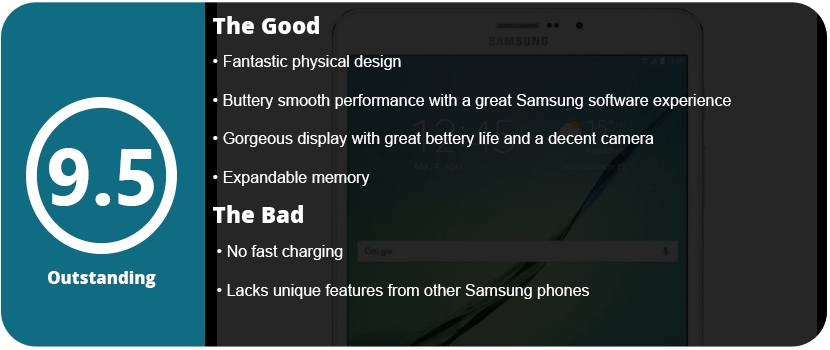
To conclude, the Tab S2 has brought tablets a long way. With super-fast speeds and an experience similar to their flagship phones, Samsung fans and Android fans will have one of the best tablets on the market in their hands. Of course, this isn’t a budget tablet, and the $500–$650 price range will drive most people away compared to sub-8-inch tablet prices. If you want the latest and greatest, a gorgeous display, and extremely fast performance, then look no further than the Samsung Galaxy Tab S2.
Gaming keyboards are just as important as mice; the buttons are probably the most important thing of all, and the gimmicks and extra stuff come last. The second most important thing in a gaming keyboard is ergonomics and how it’s designed physically. Some keyboards have large desktop footprints with giant wristpads, strange key shapes, and proprietary key layouts. I spent over a week shopping around for the right keyboard to replace my Alienware TactX keyboard. Not that it broke or I hated it; I absolutely love the TactX keyboard; I just wanted something new and different. First on my list was the key type. Did I want Cherry MX keys or a membrane? The TactX keyboard is an excellent Cherry MX keyboard, but it’s very loud and “clacky,” and the key height is very high. I loved how far apart each key was, but I was ready for something new.
Havit Lammergeier: My first choice but only available online
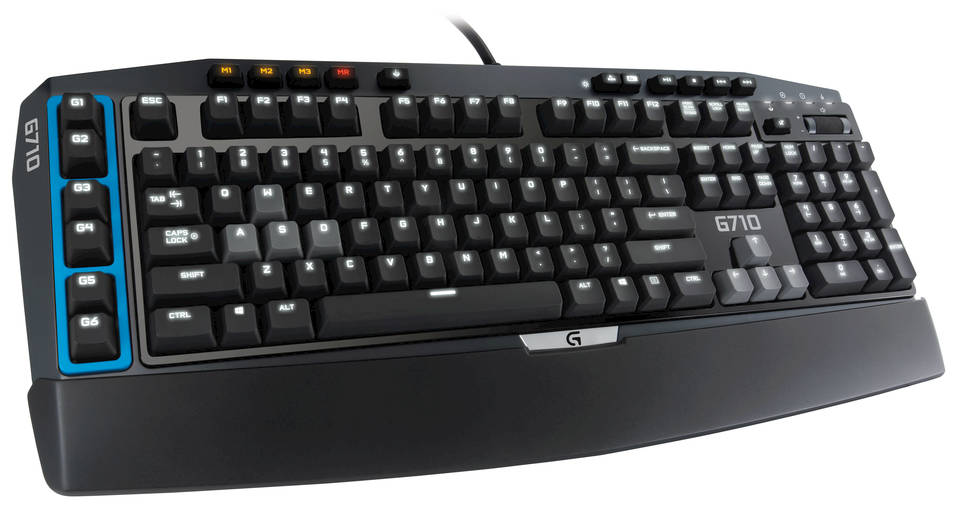
Logitech G710: A solid Cherry MX keyboard, but I didn’t like the design of the buttons
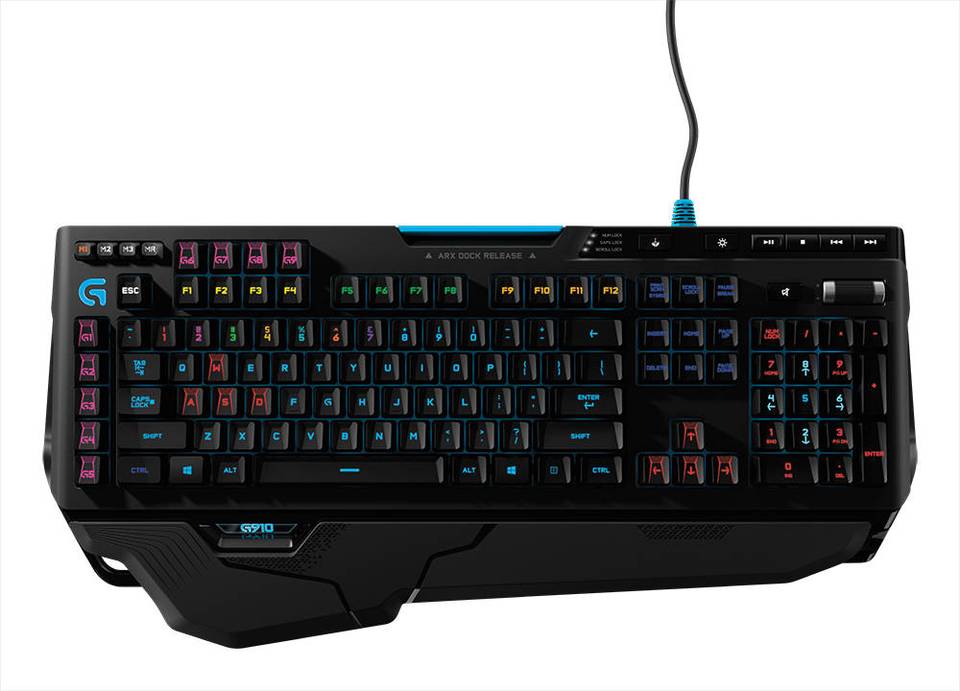
Logitech G910: A beast of a keyboard, but I still didn’t quite like the design.
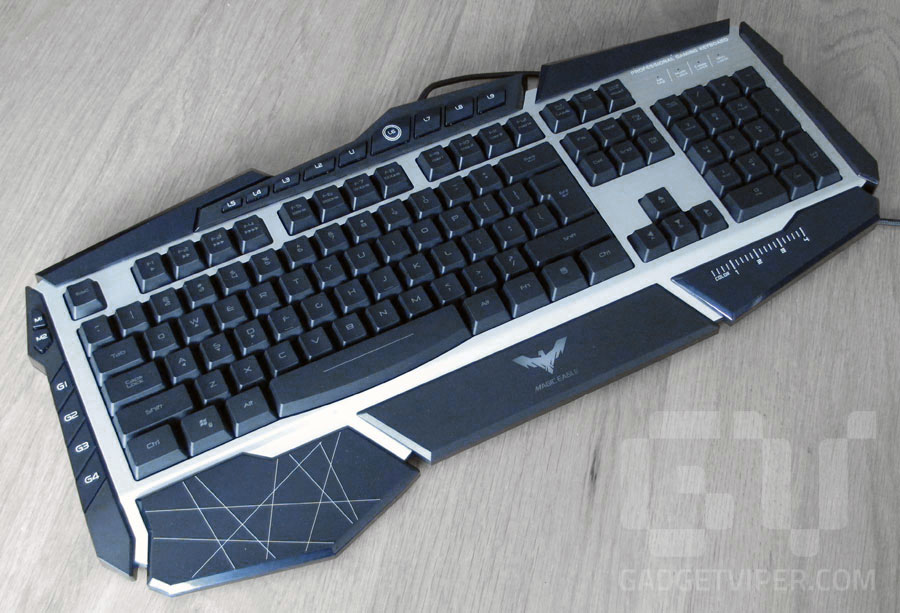
My first pick was the Havit Lammergeier, which had a wonderful design and Cherry MX keys, but it’s only available online. Remember, any decent gaming keyboard is going to start at around $100. I also thought about the Razer Deathstalker Ultimate, but at $250, it was ridiculously expensive, had a laptop-style keyboard setup, and the Razer touchscreen has been abandoned and hasn’t been updated in a while. My next thought was the Corsair Chroma series with its nice LED lighting, simple design, and Cherry MX keys. However, it was just too simple for me. I wanted something a little more flashy, something with a unique layout. I also looked at Logitech keyboards, but they were also very simple in design and seemed overpriced for what they didn’t offer. After this, I looked at Cyborg keyboards, as the S.T.R.I.K.E. 7 was nearly $300 and had a lot of amazing features. After testing it and looking up extensive reviews, I found that the software is shoddy and the hardware is cheap. I personally fiddled around with one, and it didn’t seem like it was made of $300 material.
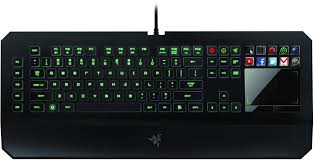
Razer Deathstalker Ultimate: One of the most expensive keyboards on the market, but has cheap feeling mechanical laptop keys and the touch screen has been abandoned.
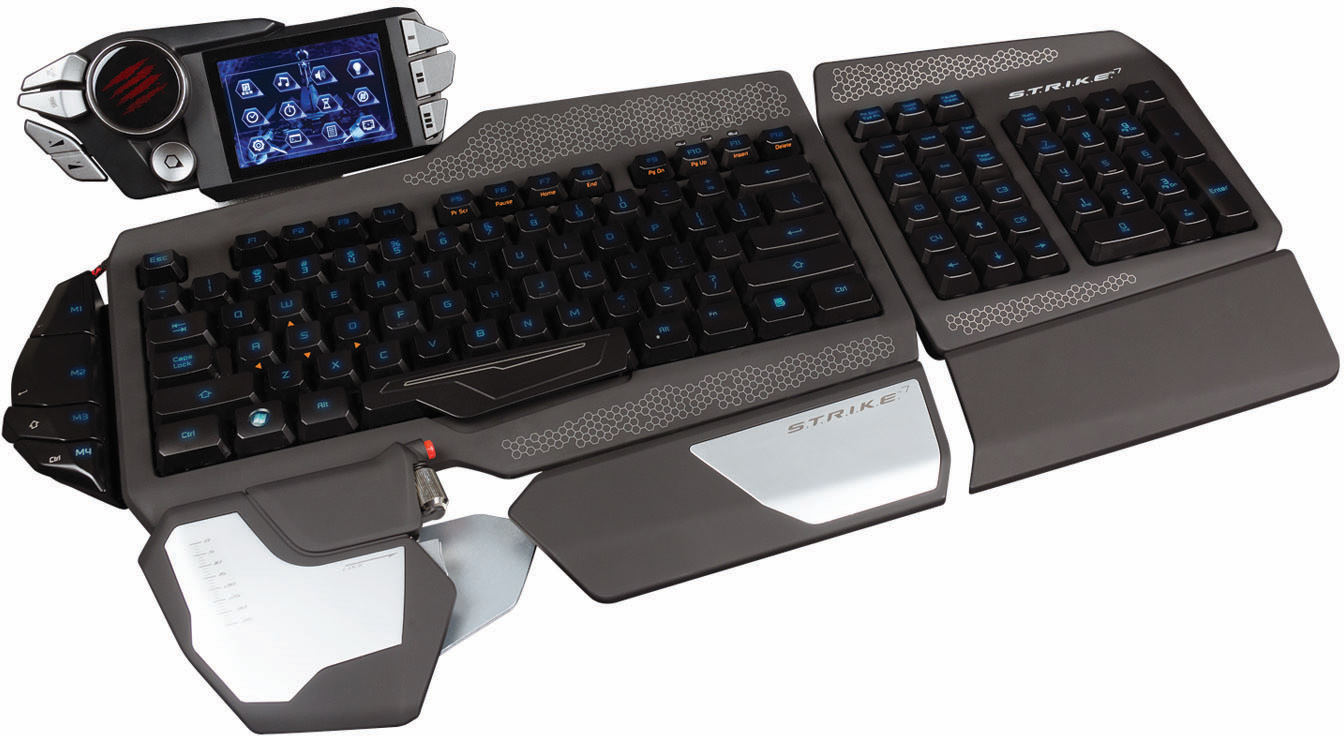
Cyborg S.T.R.I.K.E. 7: The most expensive and elaborate keyboard on the market. It feels cheap, the keys aren’t great, and the software is shoddy.
Corsair K70: A great feeling Cherry MX keyboard, but with a very simplistic design and a giant wristpad
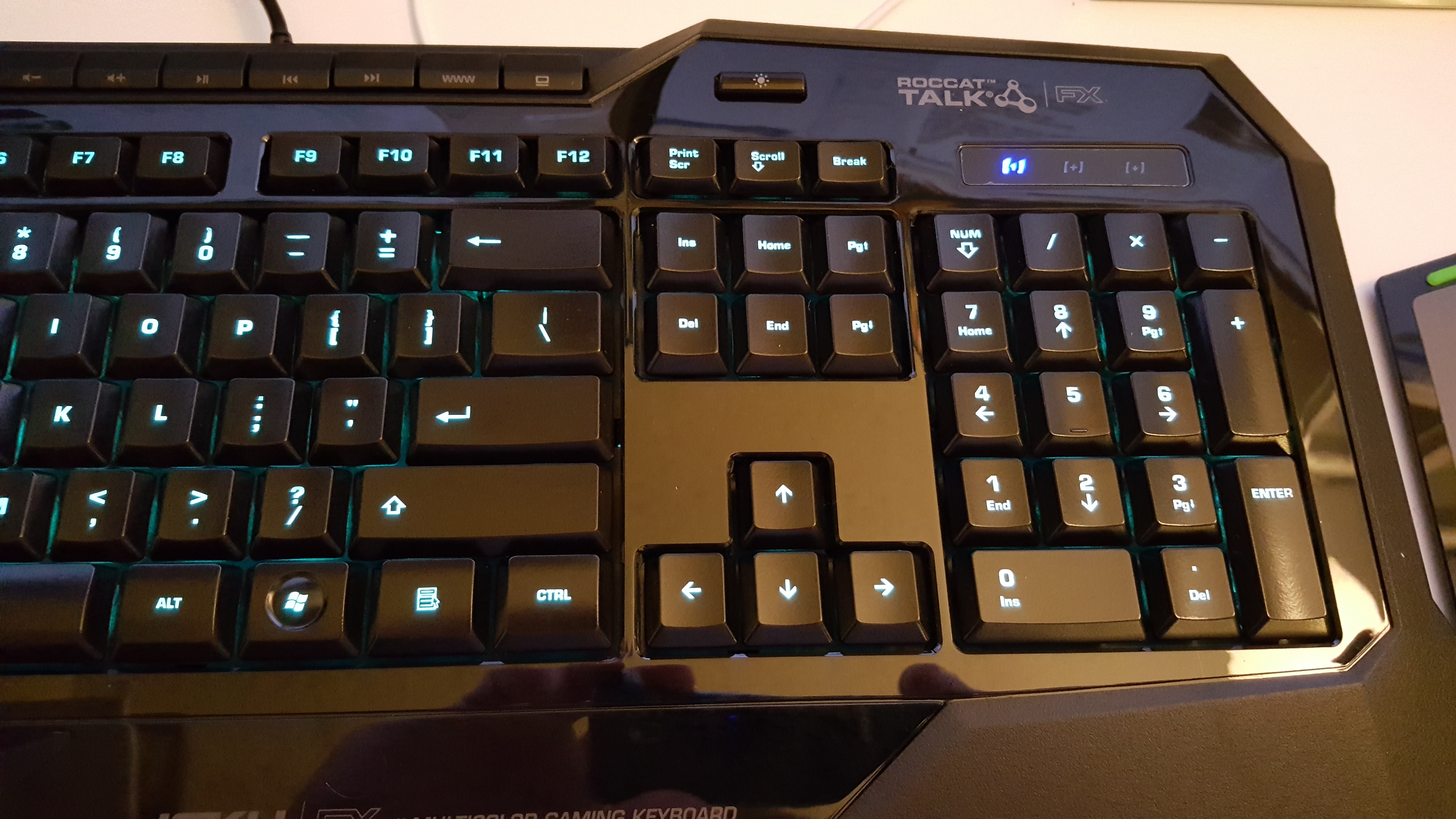
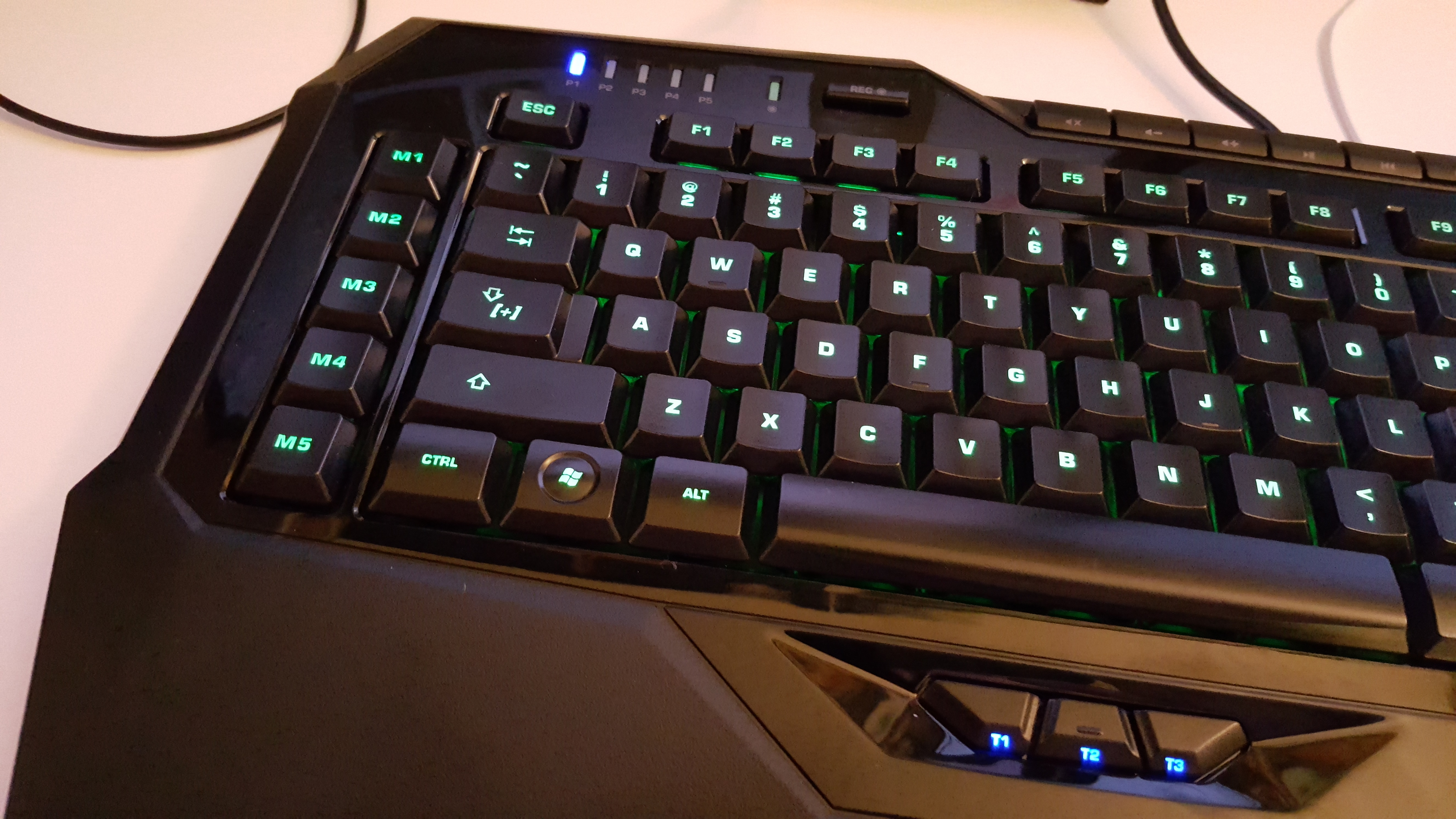
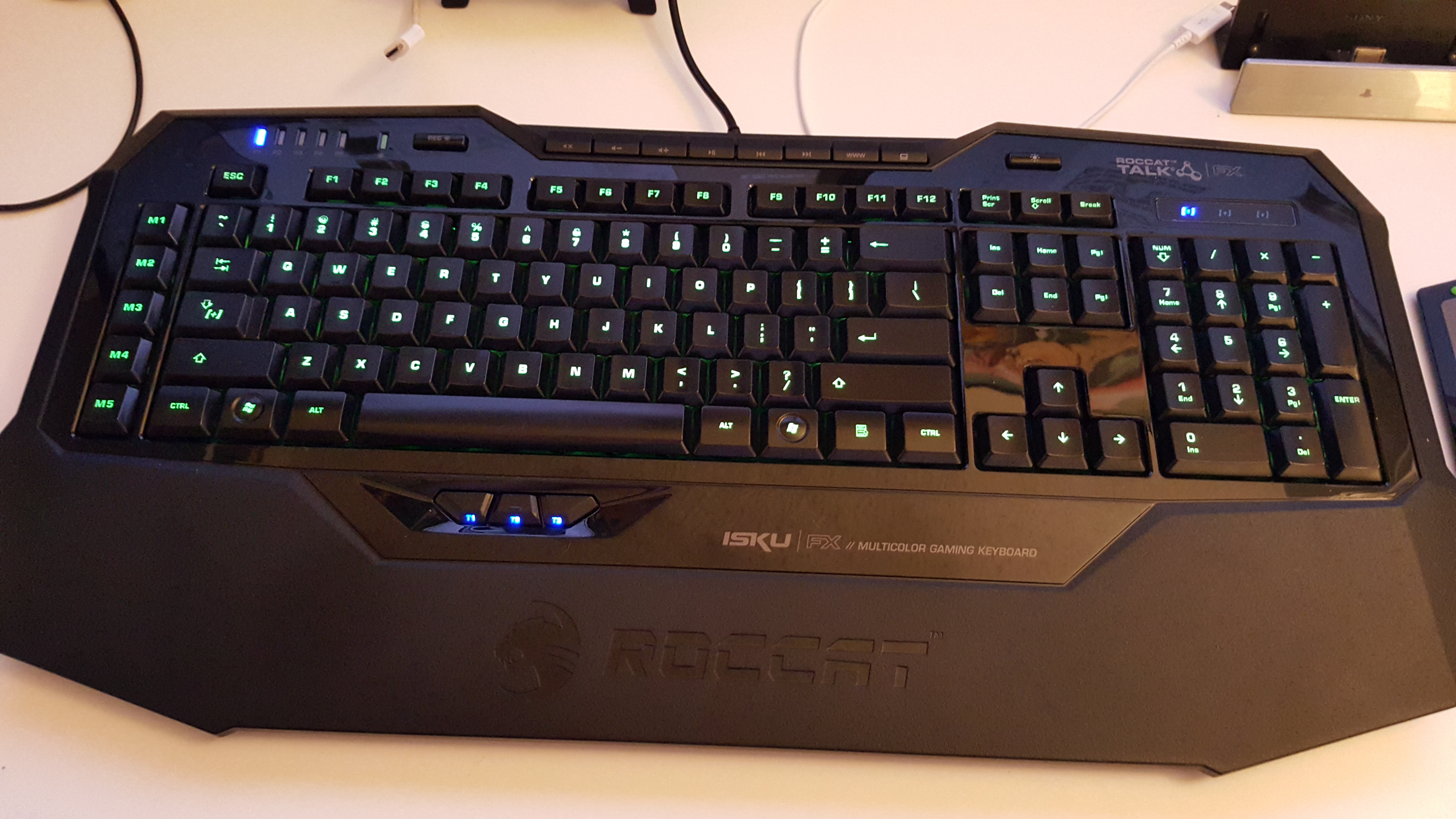
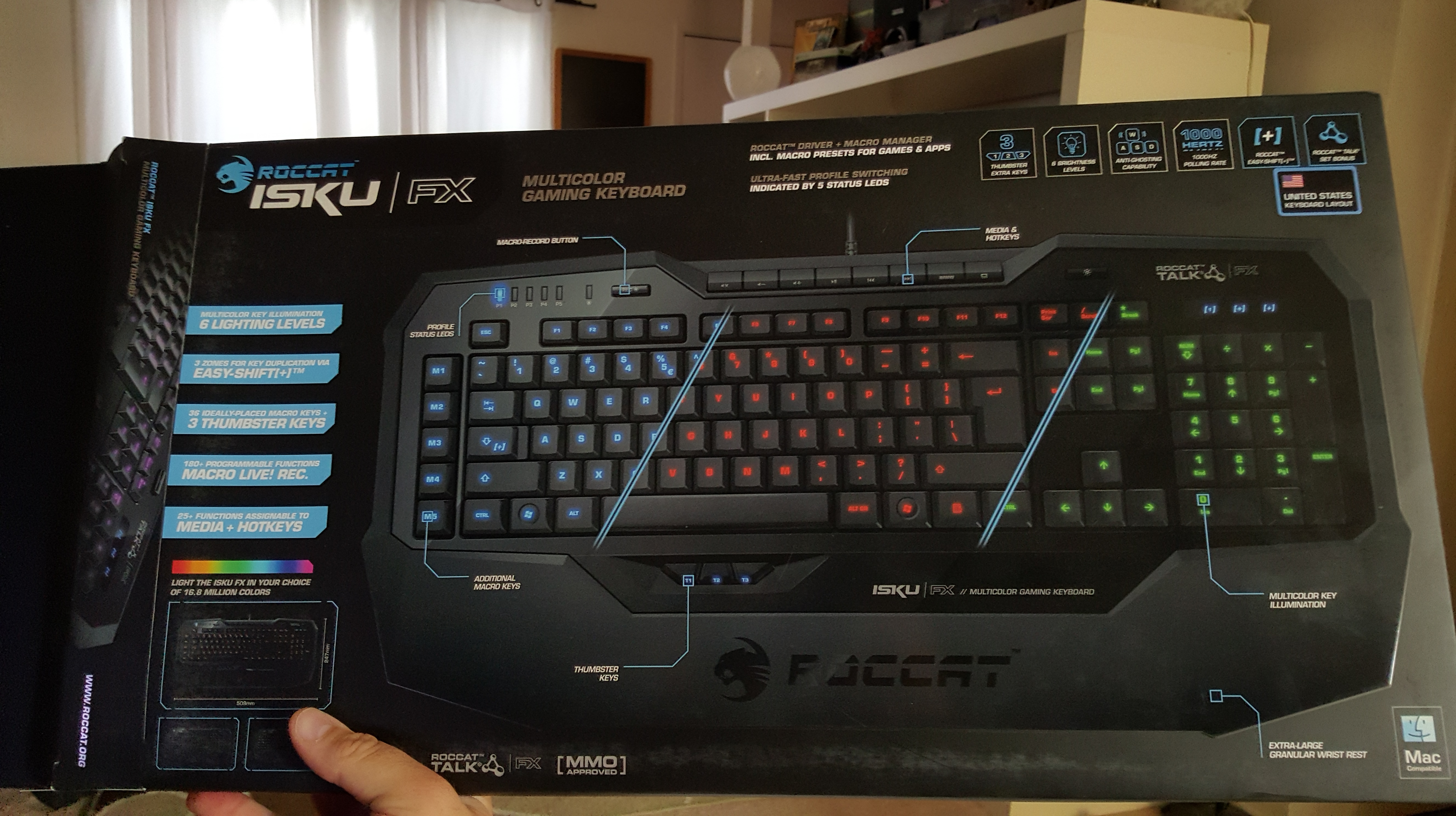
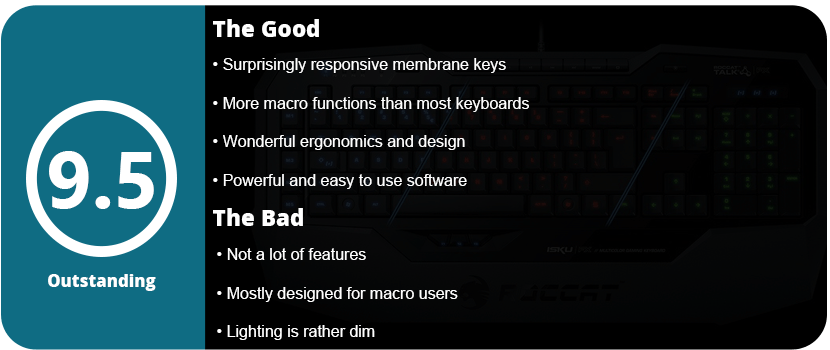
With the S.T.R.I.K.E. 7 being the most expensive keyboard on the market right now, I went and looked at some lesser-known brands such as Roccat, Gearhead, Mionix, Thermaltake, Azio, and TTe Sports. While these brands don’t make terrible products, they just aren’t the #1 brand that everyone knows, such as Razer, Logitech, Corsair, or Mad Catz/Cyborg. Several of these brands offered Cherry MX keyboards, but they just didn’t feel right; something about them felt cheap, loose, or just awkward. I then went over to the Roccat Isku keyboards, but they only offer membrane keyboards, and I was hesitant. I tapped away on a few keys and noticed how soft yet responsive they were. I continued tapping away at an Azio Levertron Mech5 keyboard right next to it with Cherry MX keys and realized how much better the Isku keyboard felt. The design was simple yet somehow unique and sleek, but all these Cherry MX keyboards looked crazy, futuristic, and had so many buttons, switches, and gizmos that it could make your head spin. With the $100 price tag, I grabbed the Isku FX keyboard specifically since it was compatible with AlienFX and had customizable LEDs.
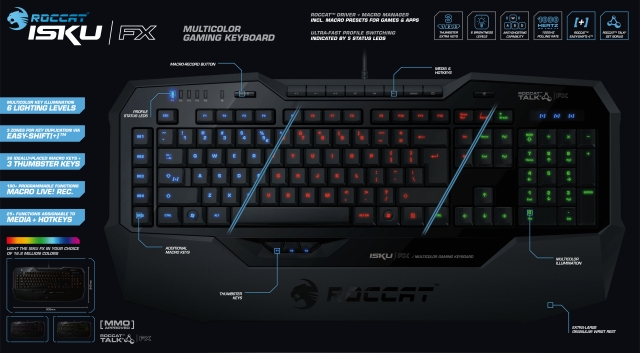
Right out of the box, the software was extremely easy to install. No CDs were included (who needs them these days?). So just a quick driver download was needed on the website. The software was installed on Windows 10 64-bit with no hitches at all; after I opened the software, it prompted me to do a firmware update on the keyboard, which went smoothly. This was probably the easiest hardware driver I have ever had to install; even Razer’s software can have problems from time to time. Once the software was opened, it looked overwhelming. The Isku is designed for people who love macros and keyboard shortcuts. There is a dedicated row of shortcuts on the far left, but the Isku has a special Easy Shift+ key function that can double all your shortcuts. On the bottom of the keyboard, there are three “Thumbster” keys that allow you to do whatever you want with them. These are great for reloading in games, crouching, or switching to your favorite weapons. They are located just right, but I feel you will need to have larger hands to reach them.
The Isku FX allows up to five profiles to be switched on the fly; this is for people who may have a lot of shortcuts for different games. Blue LEDs are at the top left to tell you which profile you are on, and no, there is no dedicated profile switch key; that’s what all these macro buttons are for. Next to the profile LEDs is a live recording button. Press the button, and a guy with a gravelly voice will walk you through the macro recording process. This is great and takes away those confusing menu screens to record macros; however, that option is still here. At the very top are your media keys, a browser button, and a button for My Computer, but again, you can change these if you want. Next to these is a button to turn the LED lights on and off, which is a nice feature. The rest of the keyboard is a pretty standard affair.
As for the rest of the software, the macro options are insane, and it even lets you program buttons by milliseconds of when they activate. It’s crazy. Another tab allows you to use the F keys as more macros if the 16 before weren’t enough. Another tab allows you to alter the “Easy Zone” keys, which are around WASD, to completely change what they do normally or add a secondary macro via the Easy Shift+ key. This is great if you are playing an MMO with a mouse and don’t want to use the top number keys or switch to the keypad. This is also useful if you are using a program that has a lot of shortcuts; now you can have them all right next to each other. The Advanced Control tab allows you to change the lighting effects, enable AlienFX, and select various other options. The Roccat software also comes with an achievement system, which is odd, but it’s here. There are 16 achievements in total; I have yet to unlock any, but it’s very interesting and kind of strange.
The keys feel fantastic, and I can’t stress this enough. Membrane keys are usually shoddy, but these click very quietly, have a lot of response, and don’t feel mushy. I felt the keys were a little closer together than most Cherry MX keys, but not by much, and I quickly got used to this and forgot all about it. I also like how I don’t have to press the keys down so far, as people with smaller hands tend to cramp up on Cherry MX keys.
Overall, the Roccat Isku FX keyboard is amazing, and surprisingly so for a membrane keyboard. If you are on the fence about membrane keyboards or are a hardcore Cherry MX fan, I suggest giving this keyboard a shot. Out of several membrane keyboards I tried, this was the only one that felt decent, so I understand the hate behind those kinds of boards. The software is some of the best out there for hardware, and there are so many customization options it will make you dizzy. Even if you don’t use macros, this is a wonderful keyboard, has great lighting effects, and is well worth the price.
NOTE: Controller was tested for 6 hours with Ryse: Son of Rome, Project Cars, and Resident Evil 6
I had my Xbox 360 controller for Windows for about 4 years, and I felt it was time to finally upgrade. I won’t lie, the Xbox 360 controller is fantastic and was the best controller of the last generation; it was sturdy and extremely ergonomic. My 360-degree controller for PC has been through absolute hell. It has traveled with me for nearly 5 years on my gaming laptop, and I have played dozens of games with it, from Batman: Arkham City to Need for Speed: The Run to Saints Row: The Third. It’s scratched up, the four bumps on each analog stick are completely worn down, and the left trigger squeaks like a mouse. The cable is split in one area; I have taken it apart to clean it; goop got stuck down in the buttons; you name it. However, the controller hasn’t failed on me and works just fine for nearly any game that supports a controller. Any game that has supported a controller since 2006 supports the controller. I have never had to use a third-party button mapper for this thing. It’s fantastic and just awesome. Again, it’s time to move on and upgrade to the next biggest thing.
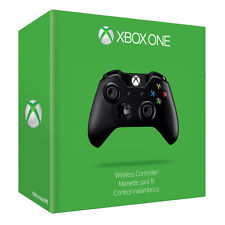
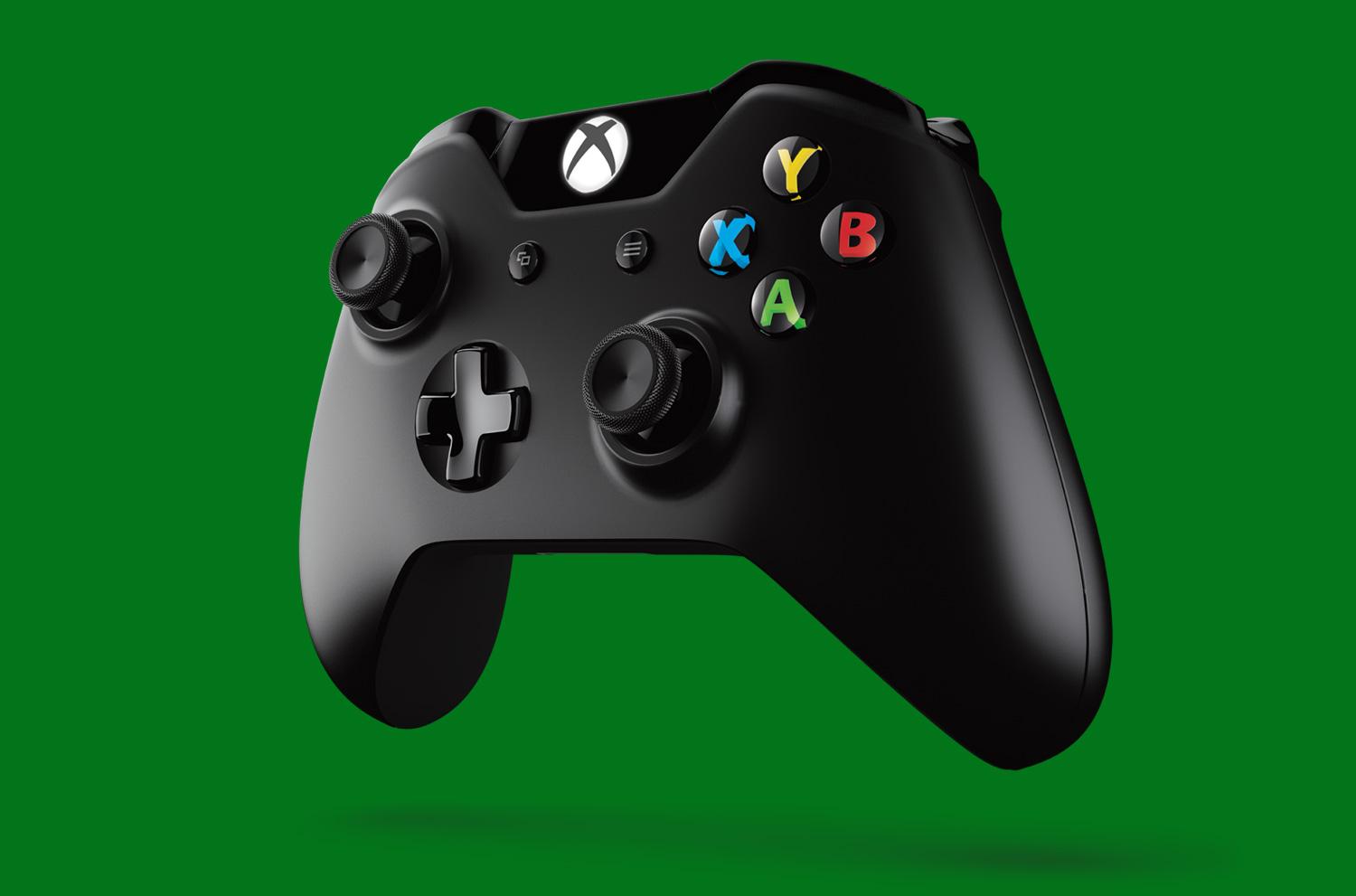
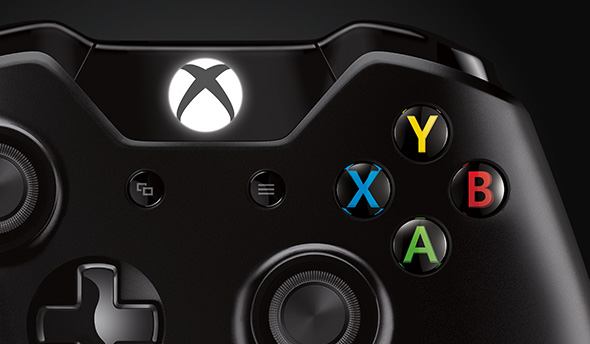
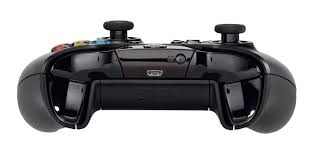
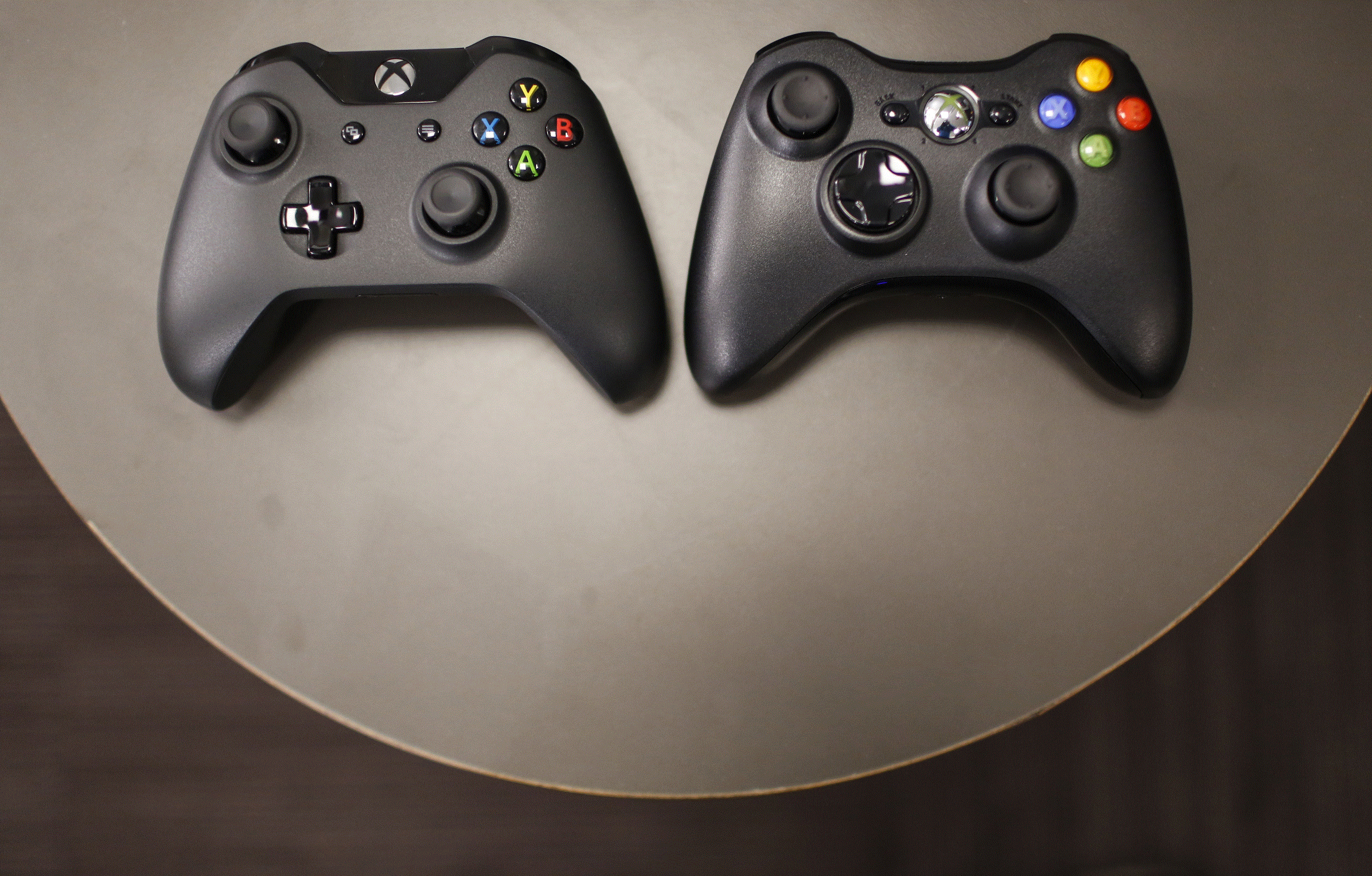
The Xbox One controller is actually better than the 360 one out of the box since you don’t need a specific controller for a PC. Just grab any Xbox One controller and plug it up via standard micro USB, install the drivers off Microsoft’s website, and you’re golden. Of course, these are $20 more than 360 controllers, but you’re getting a more advanced and better-feeling device. The XBONE controller is black, which is better than the 360’s off-white theme. The glowing white Xbox One logo helps the aesthetics compared to the glowing green one on 360. There’s a little glossy black piece that sticks out above the new menu buttons that hold the Xbox One logo. This is a great new design choice, as it makes the controller look sleeker. Of course, the button doesn’t do crap on PC, but it’s nice to press when you’re bored, I guess.
Holding the controller itself feels better than 360. The handles are tapered smaller at the bottom and are angular rather than round. This makes gripping the controller easier for people with smaller hands, and it just feels better. The triggers have been completely redesigned. They are softer yet glide much smoother and feel more responsive. They have a soft stop, so you’re not slamming the triggers into the controller. It just feels so much better. The LB and RB buttons are a little disappointing. They are much louder and are a little harder to press. However, the bumpers vibrate for minute sensations, and this is brand new for controllers. PS4 has the touchpad and speaker, and Xbox One has this new rumble feature. Honestly, I’ll take the speaker and touchpad over this any day, but it’s nice knowing Microsoft at least tried. Outside of that, the face buttons are much larger and flatter, which is awesome. They don’t look so cartoony and aren’t colored like the 360. They are clear black, but the letters are colored. So much better looking. Now, here’s the make-or-break part. The analog sticks and D-pad. The analog stick is actually wonderful. They are looser than the 360 sticks, but you have more controllers. Everything on the Xbox One controller is looser but much smoother, with a “glade” feeling that just feels natural and buttery in your hands. The D-pad is something I really like. It clicks with feedback, but not like your thing. This is a raised D-pad, like the horrible one on the 360. It’s an in-set D-pad that feels responsive and fast.
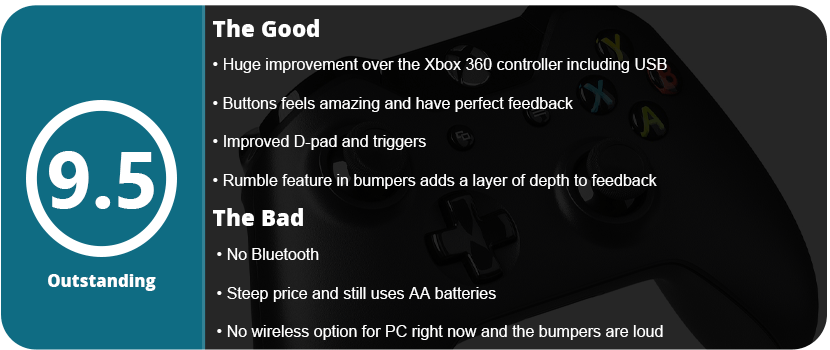
Here’s the dumbest part of the controller: It still needs AA batteries. 2015, and Microsoft is still making controllers like it’s 1995. Their theory is that you won’t run into half-life issues and have to buy a new controller. I call bullshit on that. My PS3 controller from 2009 has been charged who knows how many times, and I still get 15+ hours with it. This is just a money-making scam from MS to buy the $25 play-and-charge kit for the controller. The way around this is rechargeable AA batteries, which MS surprisingly doesn’t suggest. Gee, I wonder why. With rechargeables, you can keep two spares for a quick swap.
Here’s another downer: the controller can’t be used wirelessly on a PC, at least not yet. The wireless dongle is yet to be released and will only work with Windows 10. Another stupid roadblock. Thankfully, you can use any USB cable, so the 360’s extremely long and thick cable isn’t an issue here. All in all, the Xbox One controller is fantastic and the best one you can get for a PC. Just some stupid design choices get in the way of making it perfect.
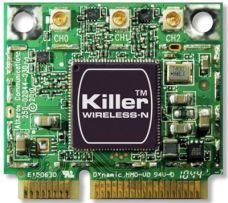
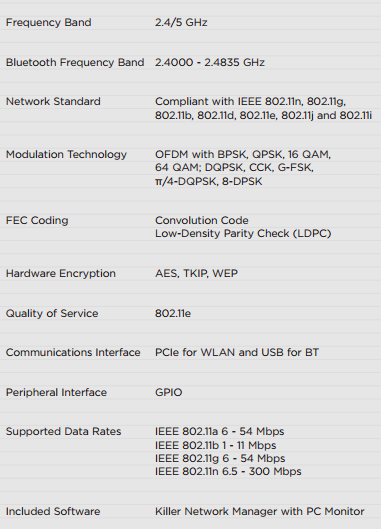
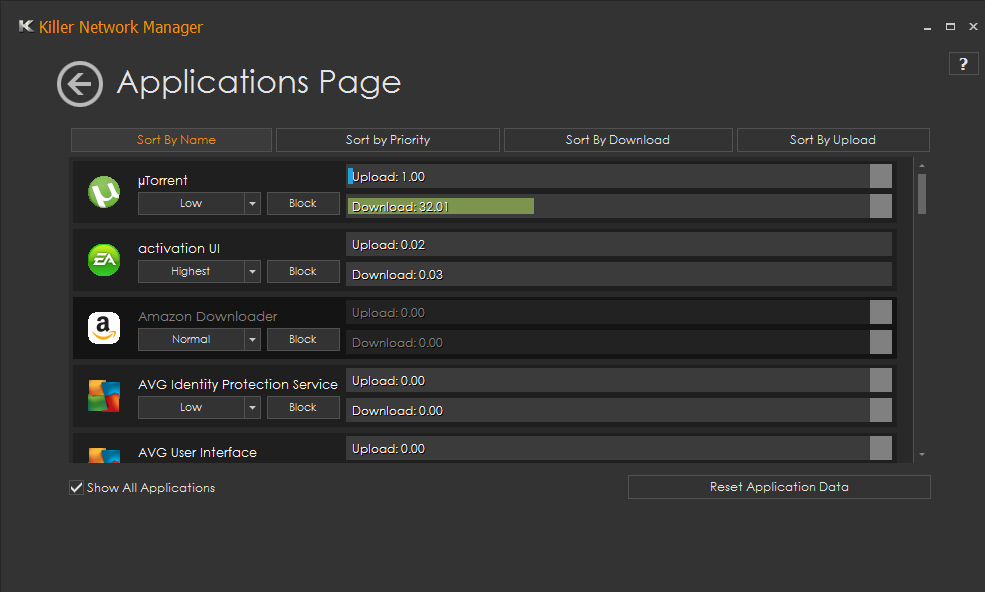
Killer Series wifi cards have been elite gaming cards for a long time. With the new Killer N series, smaller-sized WiFi cards are now powerful beasts. The Killer N1202 also packs in Bluetooth 4.0 and 2.4Ghz/5Ghz speeds. Killer Series cards are known for low jitter and smart data streaming. N1202 has a feature that will prioritize speeds for applications that need it the most, such as game clients, Chrome, torrent clients, and various other speed-hungry applications. You can manually set speed priority for other programs, such as Windows Update, anti-virus updates, or various other programs that don’t require much speed. This is an amazing tool that you notice within the first few hours of use. I can download a game on Steam and surf Chrome without slowing down my download. I tested the card on a 100 Mbps/s connection, and I rarely ever dipped below 10MB download speeds.
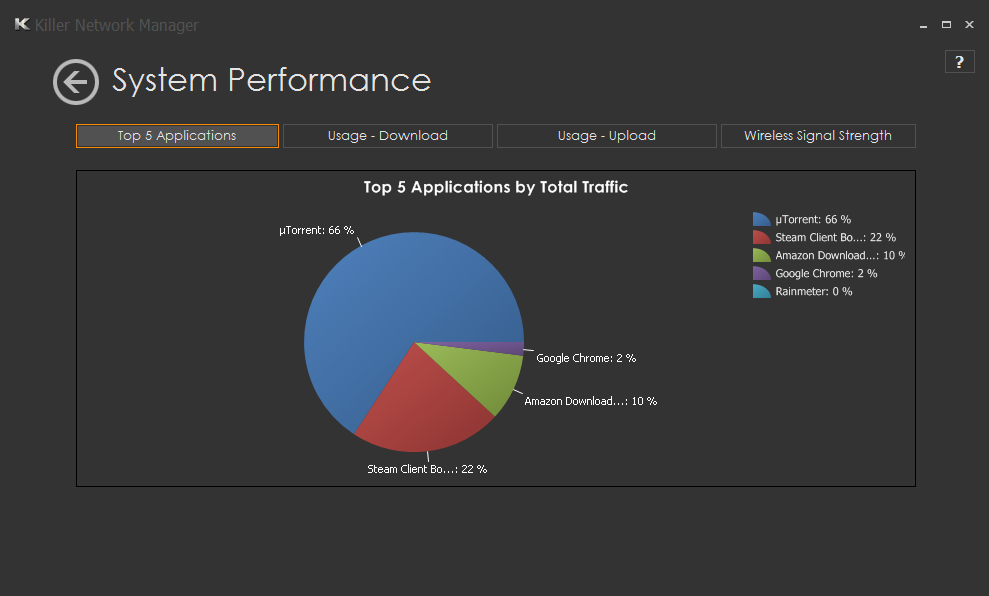
Various other tools in the software allow you to see other wifi connections that are nearby compared to yours. This can help you pick a more vacant channel. There’s also a pie chart available to let you know what apps are using the most data, and this can be reflected in the app control manager. The software even lets you put in your internet connection speed according to your ISP to help regulate and get the most speed out of your connection. Outside of the software, the drivers were extremely easy to download and install with zero problems or hiccups. Windows recognized the card as soon as it was installed and booted up. However, there is a separate driver for Bluetooth that I was unaware of and didn’t get until I needed to connect a device.
This is the best wifi card I have ever had. With the low $40 price point, it’s hard to pass up for people who don’t want to be wired. With the data control and smart streaming software, gamers, movie streamers, and heavy downloaders will love this card. If you have a rig that uses a half-mini card, I highly suggest ditching whatever is in your system and picking this guy up.
























 thebinarymessiah.com
Try multiplayer. A lot of fun !