It’s time to move on. I have used “gamer” or gaming keyboards since I started PC gaming back in 2009. Once I had adult money, I could buy the keyboards I wanted. I have had quite a few over time, and there was always something off about them. They either feature a gimmick that causes their price to be a “premium” price or they lack something somewhere. My last gaming keyboard was a Logitech G915, which I’m thrilled with; however, I don’t quite like the keys too much despite how clicky they are. My last-ditch effort was trying the latest offerings from Razer and SteelSeries, but I’m at a point in which RGB just isn’t a priority for keyboards anymore. I’m a touch typist; I always have been. I learned to type in the 3rd grade in computer class. I rarely look down at my keyboard unless I’m using a key I seldom use. My first custom keyboard was the 8bitdo NES keyboard, and I added my own switches and did a tape mod. That was my gateway keyboard for custom keyboards. The pre-manufactured gaming keyboards just lack any kind of personality or customization, even the newest keyboards that allow switch swapping.
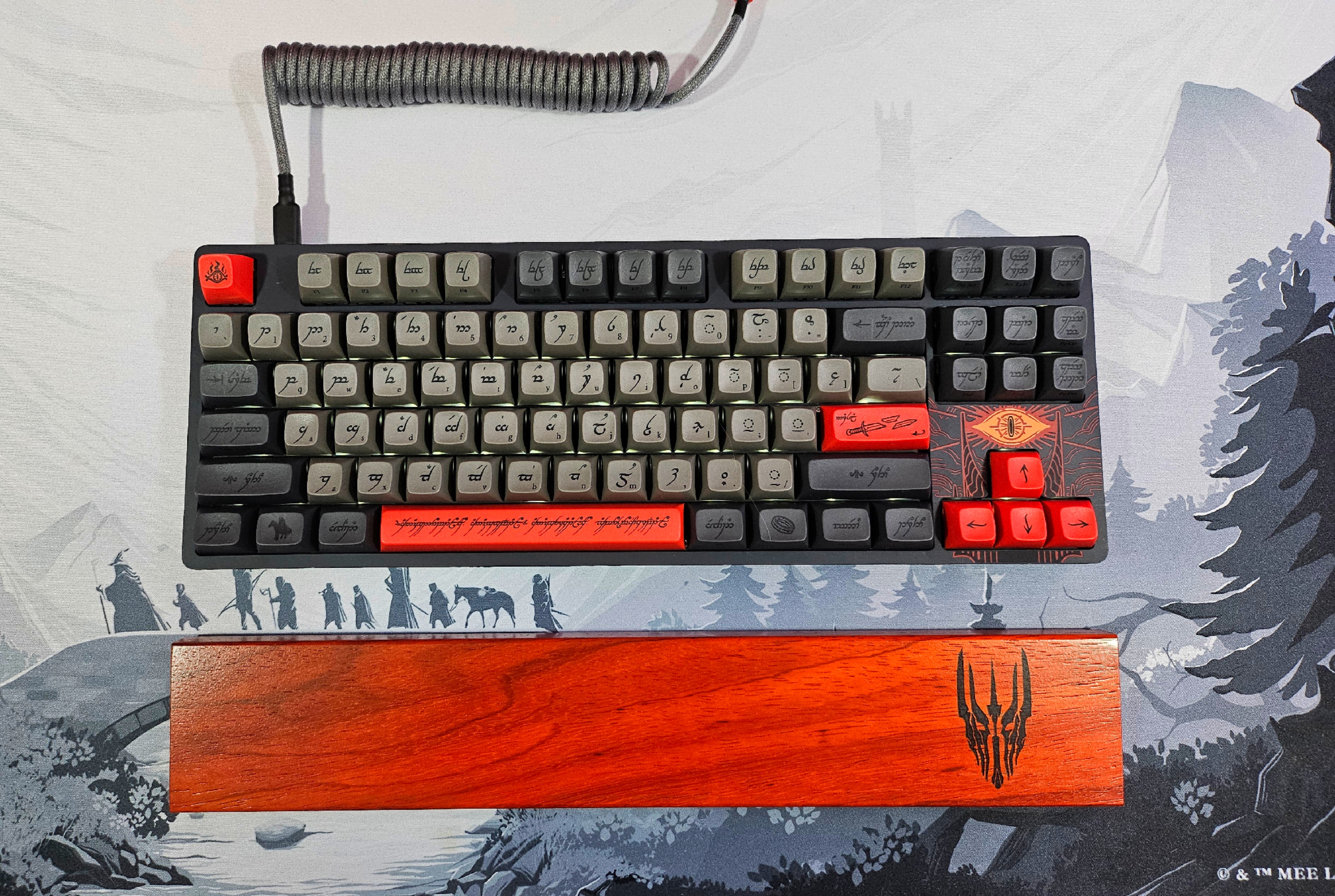
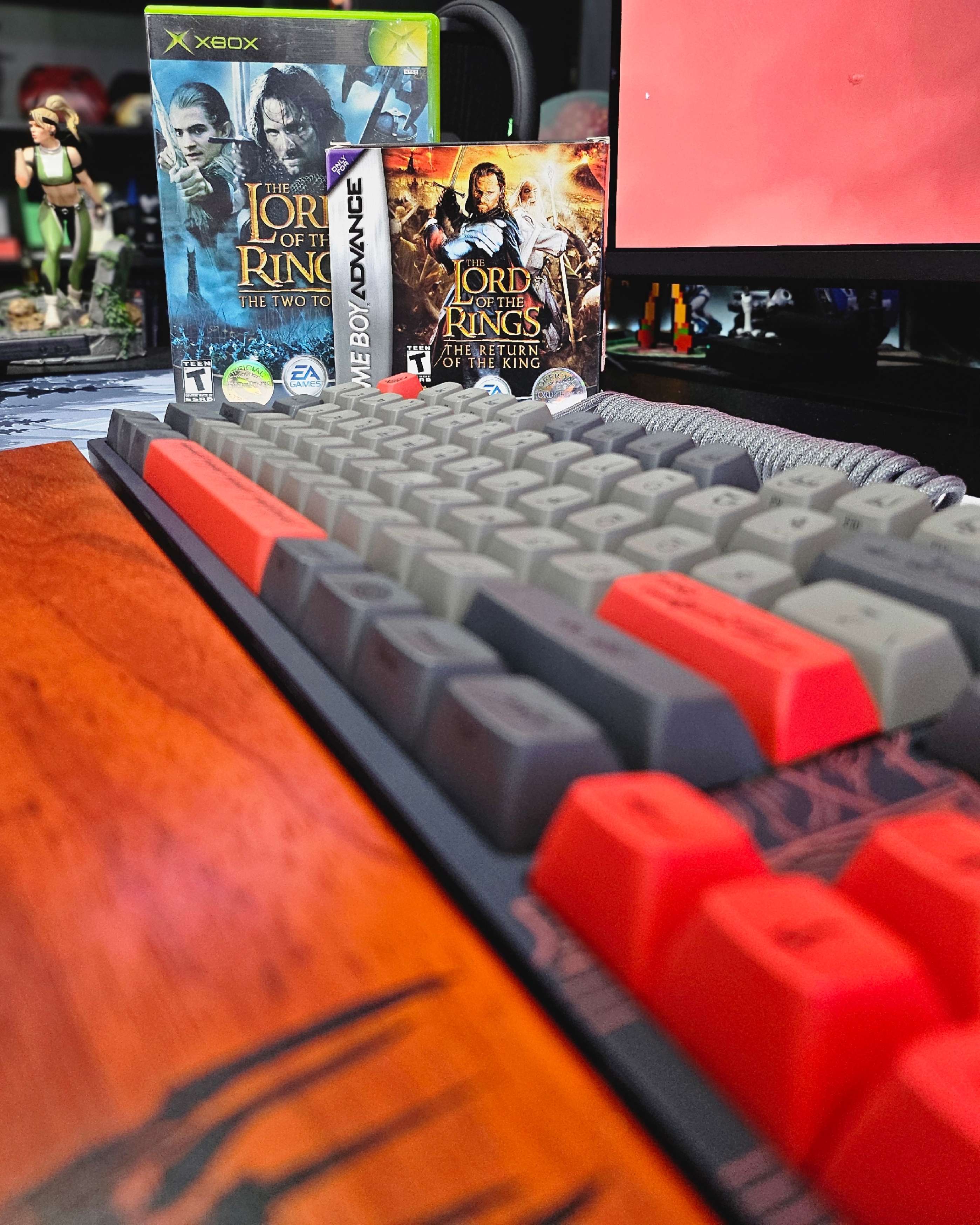
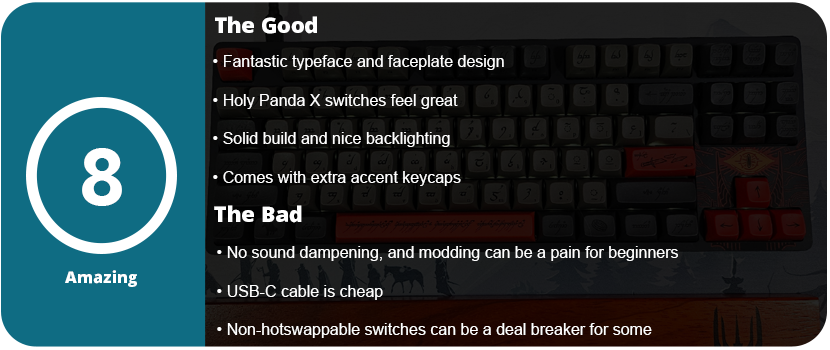
I love The Lord of the Rings. I loved the books as a teenager and was enamored by the movies growing up as a kid. When I saw this collaboration, I felt it was time to switch over to custom keyboards. While the ENTR housing is Drop’s entry-level non-hot swappable switch entry, you can still tell there was effort and quality put into the keyboard. If this is your first keyboard, the loud ping won’t bother you, as there is no pre-installed foam. I had to personally open the keyboard up myself and do a tape mod at the bottom of the bottom plate to reduce the loud ping. Although the switch stabilizers come pre-lubed, the quality of the lube is not optimal. I had to purchase my own and squeeze some down, but overall the stabilizers weren’t squeaky and felt good. Disassembling the keyboard presents a significant challenge. After removing all the caps, I had to undo 16 Torx screws, and the plastic faceplate required further removal. You need a guitar pick to loosen the edges and have to wiggle the center clips loose. Regrettably, the soldered nature of all the switches makes swapping them a laborious task. You’re better off just taking these caps and putting them on another keyboard, but this is an entry-level keyboard. It’s for beginners.
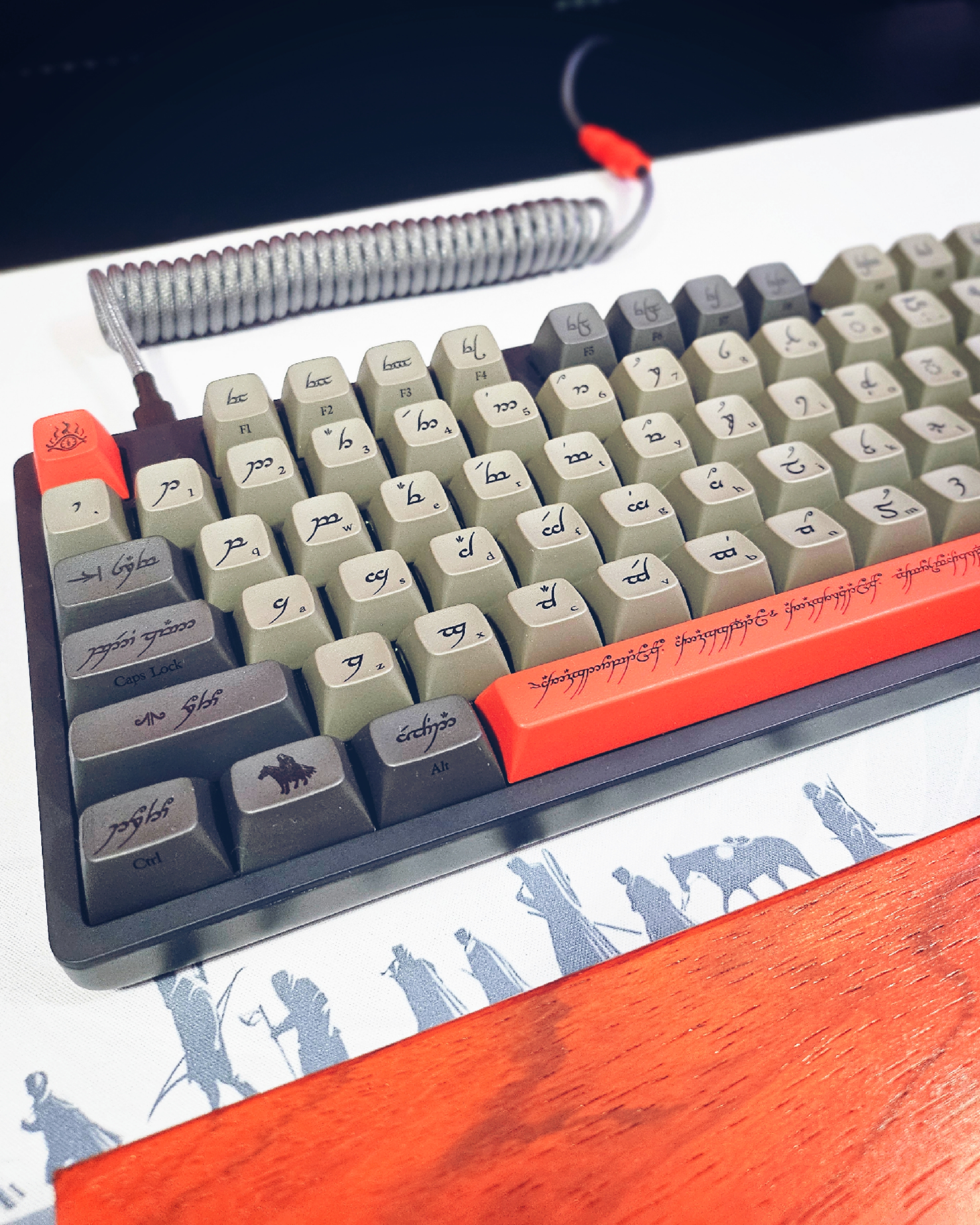
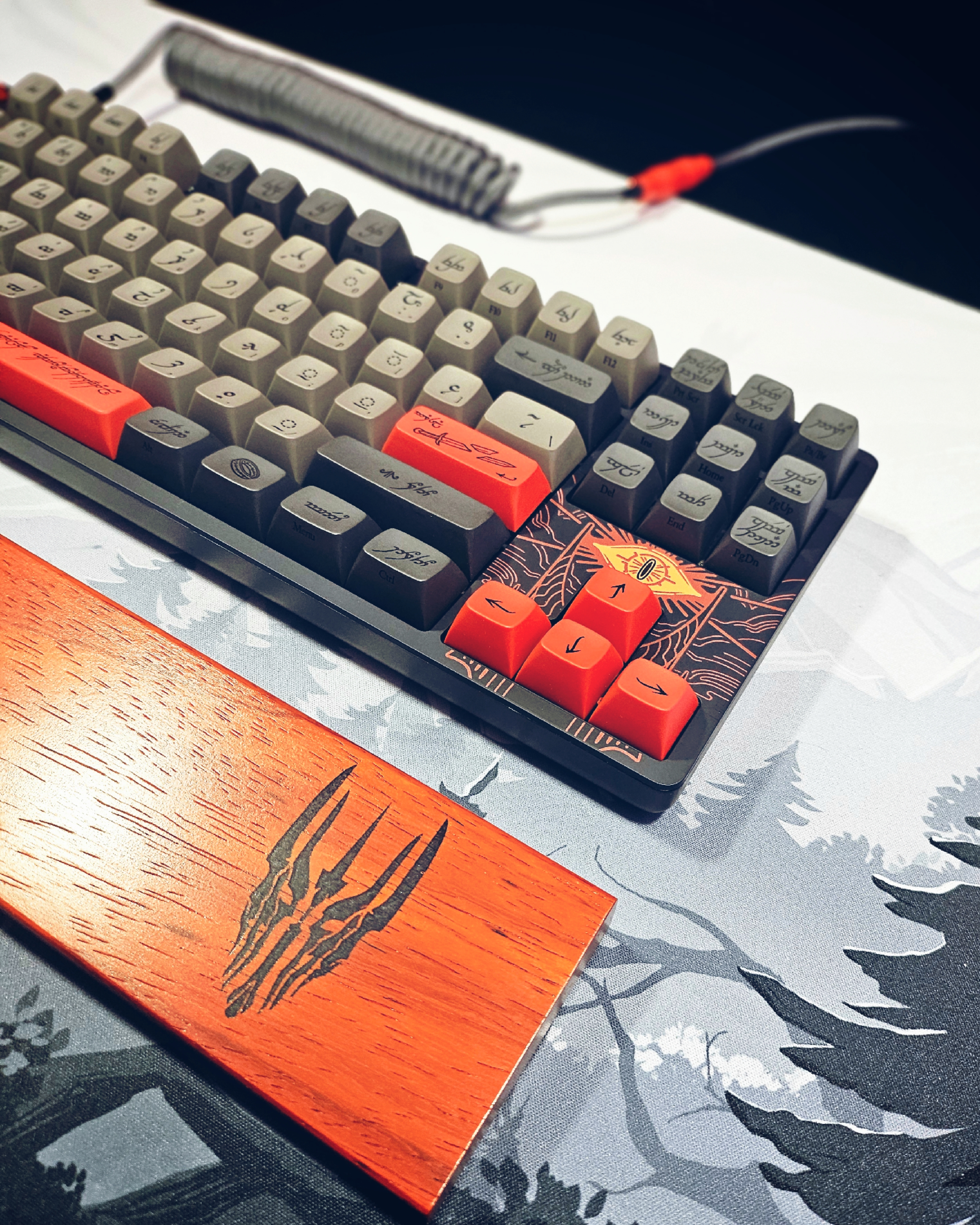
The keyboard’s backlighting surprised me. It does not advertise this anywhere on the box. These LEDs face north and have an off-white color. You can adjust the light or turn it off, making it visually pleasing. I found the Holy Panda X switches pretty satisfying. The keyboard profile is Cherry MX, and I found the keycaps to have quite a pleasing “bowl” shape, feeling them as my fingers were able to be pretty recessed in each key. Sadly, I do have to knock the keyboard down a bit for the loud pinging and no sound dampening. For $200, it should have had this pre-installed. I also found the standard USB-C cable to be pretty lame. The matching YC8 cable would have been nice, as it was available on the website. There is also a matching wooden wrist rest, which I picked up. I sincerely wish they had included this, considering the rest costs only $40. An entire full set would have been great. They also have the artisan keycaps matching each version of the LOTR set.
As for the way the keyboard looks, it’s gorgeous. The Black Speech symbols and typeface on the keys with the English version in small print on the bottom right side of the cap just look outstanding. The keyboard comes with optional accent caps that are red, ; unless you want an all-grey keyboard, these are a must. The addition of Sauron’s Eye to the faceplate near the arrow keys is a delightful touch. I matched this with a desk mat that complemented it, and the result is a sleek and elegant appearance. Drop did an amazing job with this keyboard in both the color scheme and the design of the caps themselves.
For the price, I would have at least expected sound dampening and a better USB cable. The keyboard is also not wireless, so don’t expect that. I did love the weight and feel of this keyboard. It’s not large and oversized like many “gaming” keyboards that are TKL. The bottom of the keyboard features a flip-out stand that allows it to be raised slightly at the back. I would have liked a two-step stand, as it may be too high for some. However, the gorgeous design of the keycaps and faceplate are just phenomenal and if you are a big LOTR fan than you can’t go wrong with this keyboard.
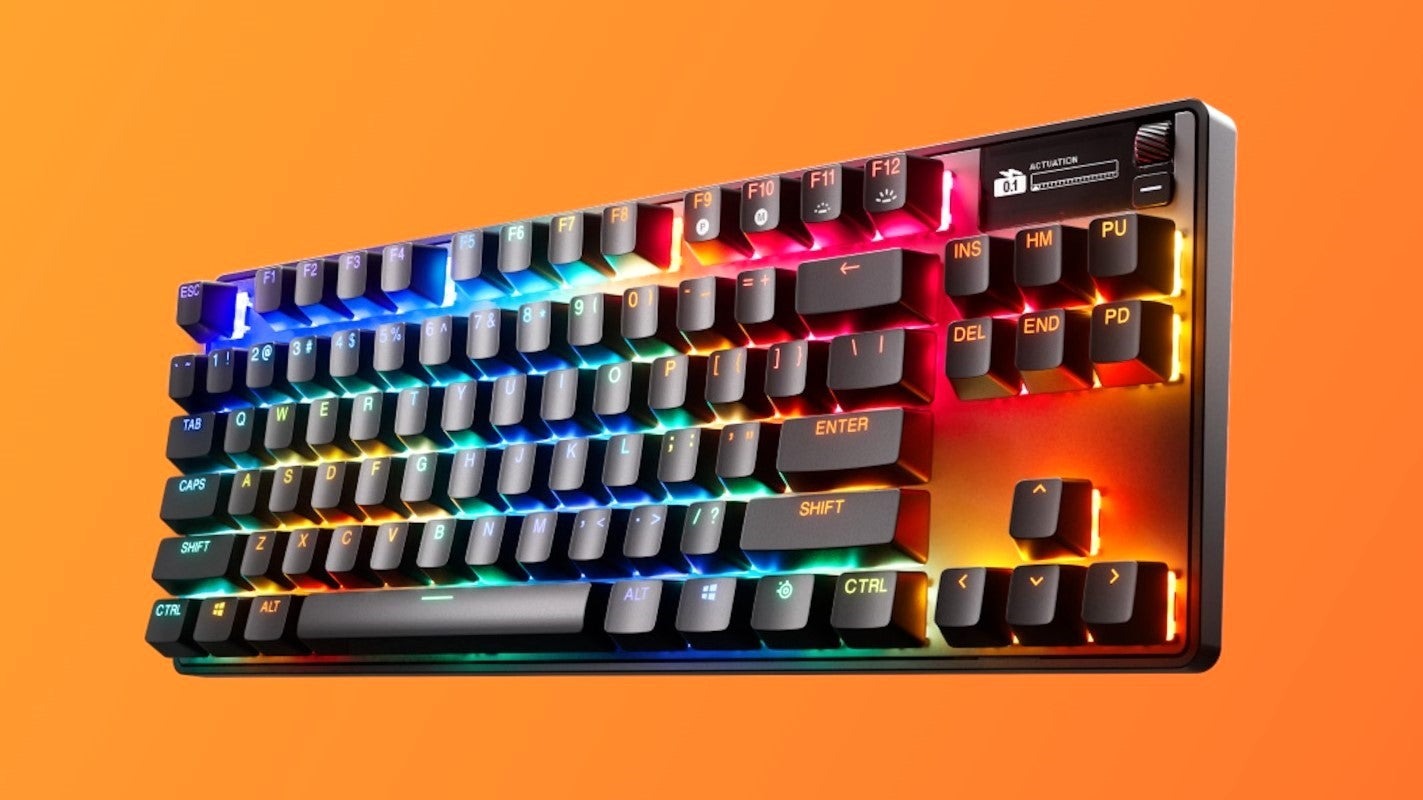
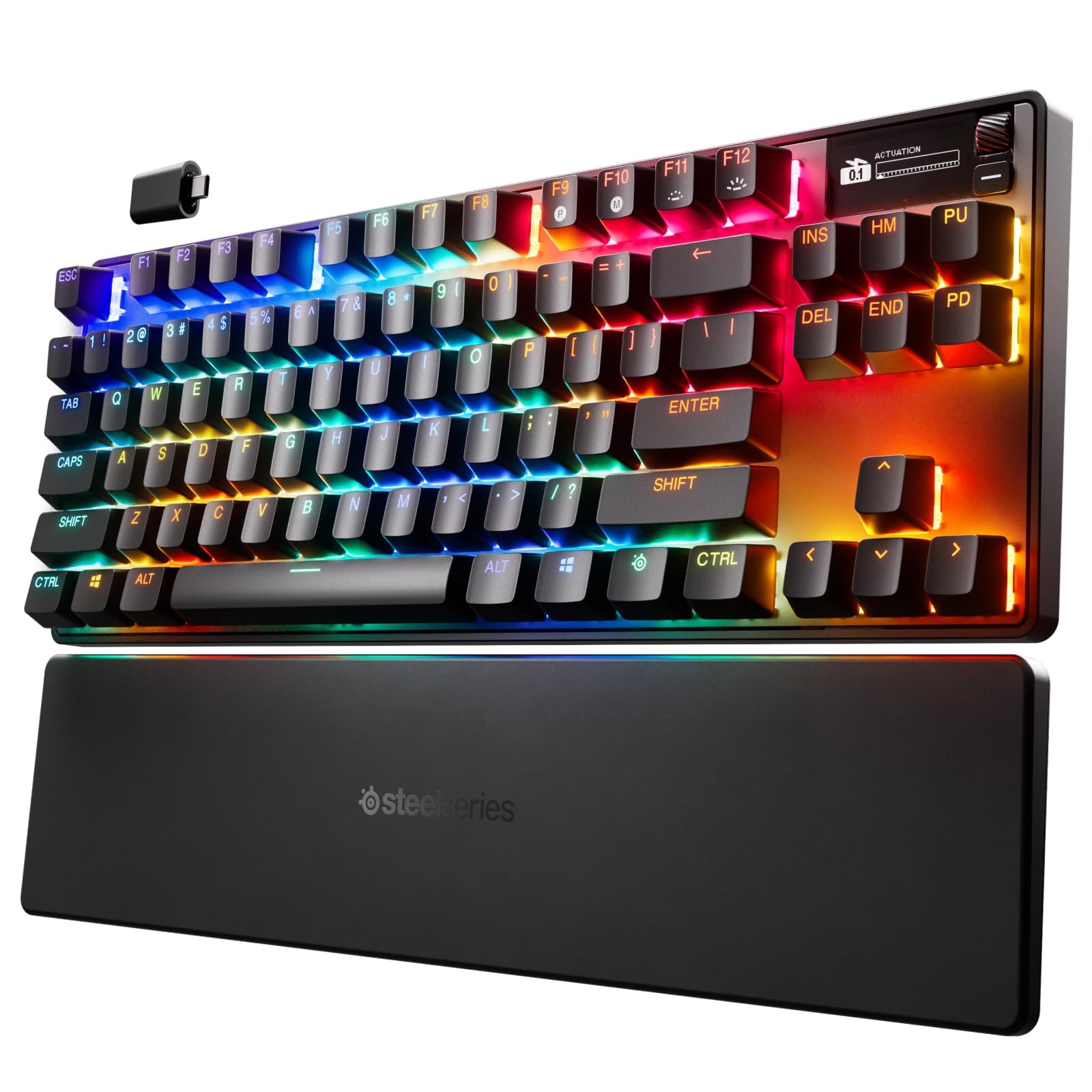
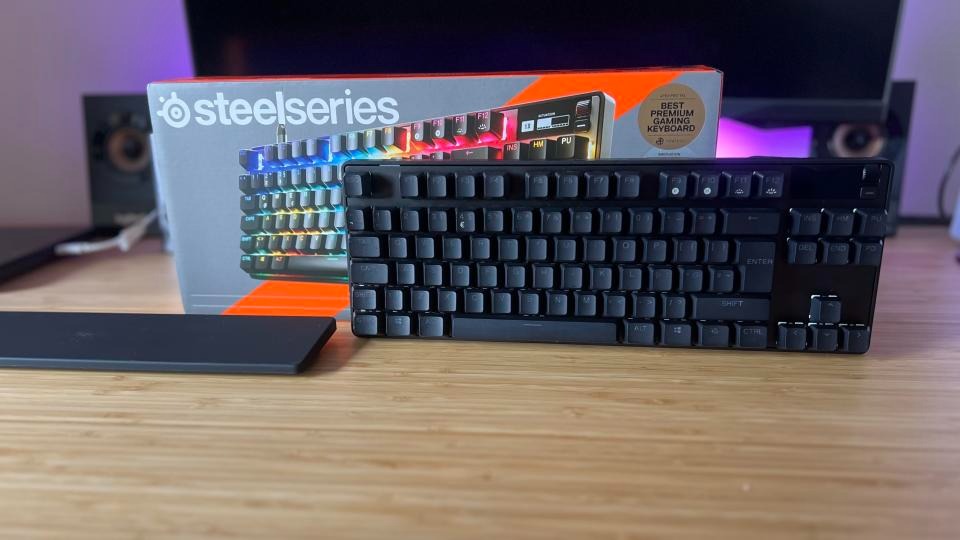
This keyboard features an additional OLED screen. There’s also a premium price tag for this as well as less customizability. I have never owned any SteelSeries products outside of an RGB mouse mat years ago. The packaging was decent, nothing special, and it came with a keycap puller, a USB-C cable, and a USB-C dongle, which was nice. The keyboard also works with Bluetooth, but the software has limitations in this mode. Once I got the keyboard out and the palm rest, I was surprised at how comfortable it was to type on. The biggest gimmick is the screen and their Omnipoint actuation adjustability to change the sensitivity of key presses. No, this isn’t like a DualSense controller in which your key switches get “harder,” but they just become more or less sensitive and register with a stronger keypress or light press. It’s a neat feature, but mostly unnecessary.
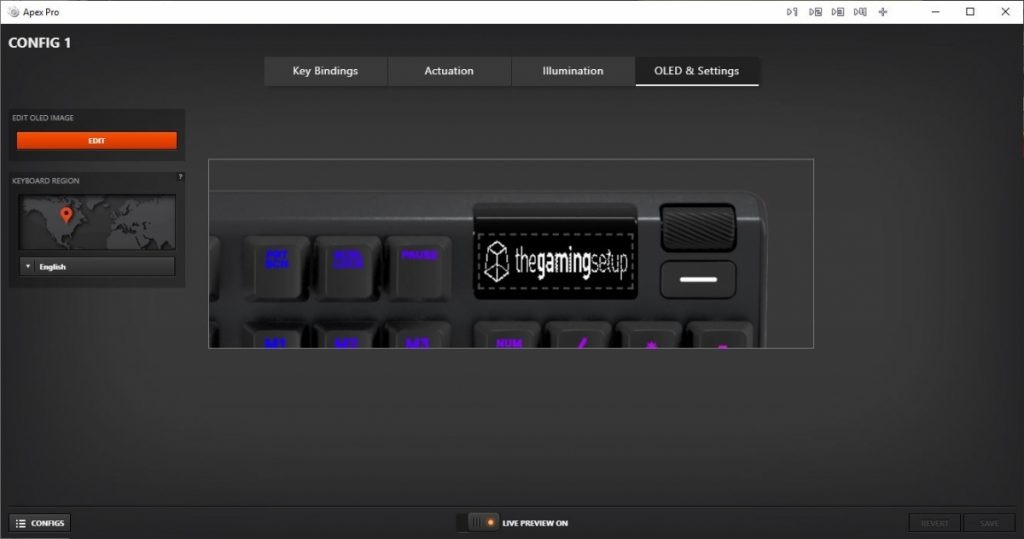
The Omnipoint 3.0 switches felt good to type on, and the foam mod at the bottom of the PCB prevents any ping. I did think the switches lacked a more tactile feel than I’d like, but that’s personal preference. The keyboard itself is unremarkable looks-wise. This keyboard appears to be a standard black “gamer” keyboard, complete with RGB illumination. The black and white two-line OLED display is the only feature that will draw your attention. The display is rather primitive for being OLED and honestly doesn’t do much. Outside of showing your actuation meter, PC temp, GIF animations, and a few app integrations like Tidal (not official Spotify support), there’s not much here. I had the most fun with the GIF animations, but the limited display can’t show anything with detail. You need very chunky 8- or 16-bit graphics for anything to show up well. There isn’t a dedicated repository for GIF animations, with the exception of an Imgur album containing approximately 60 animations that someone has created. Any other support requires using their GameSense SDK, which no one has really made anything for. One individual has created a GameSense Essentials app on GitHub, which merely displays Spotify artist and song information along with a clock. The lack of support is really sad.
I did like the power-saving features, such as the OLED and lights turning off after a certain amount of idle time. However, even with this, the battery went down to 50% in just a few hours of use. You’re lucky if you will get 8-10 hours before the battery dies. This was achieved while using the wireless mode, not Bluetooth. Sadly, the SteelSeries Engine app works fine but isn’t as flashy or robust as Logitech or Razer’s offerings, but at least it works. I found making macros and changing the settings of the actuation rather cumbersome due to flipping through so many screens. The OLED screen options are pitiful, and even just navigating the screen is a chore. There’s a tiny scroll wheel and a button. With the limited app support, this screen doesn’t offer much beyond being there just for the sake of it.
Sadly, this keyboard doesn’t support hot-swappable switches. They are soldered on and only support the Omnipoint switches thanks to the actuation and Rapid Trigger gimmick. This also supports only a select few keys. If you need different actuation on switches, you are better off just buying a custom keyboard with the switches you really want in them. Relying on software drive actuation just isn’t the same. It can come off as just unresponsive to some people. I honestly didn’t notice much of a difference outside of the hardest of key presses. There’s not much play in between. Adjusting individual key actuation is useful for WASD keys or harder keys. There is also a feature to prevent nearby keys from being accidentally pressed.
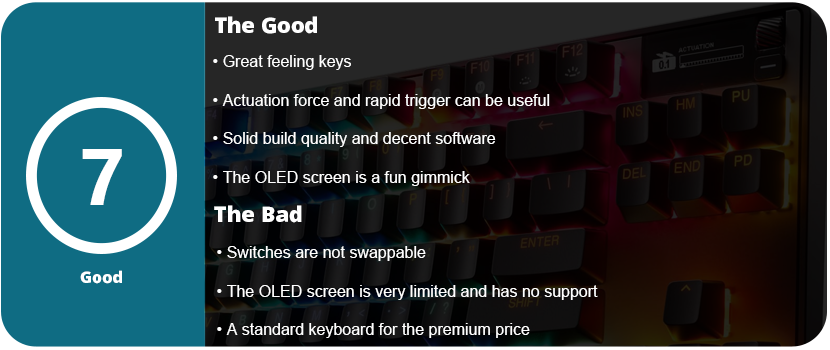
Overall, an underutilized OLED screen and gimmicky, non-replaceable switches contribute to the keyboard’s premium top-tier price. The keyboard’s overall design is a classic black “gamer” keyboard featuring RGB lighting. The software is decent and usable, but the actuation force and rapid triggers feel like gimmicks outside of specific use cases. The keys feel nice, and the sound is dampened, and the palm rest is nice, but overall, you’re better off spending the $270 on a custom keyboard.
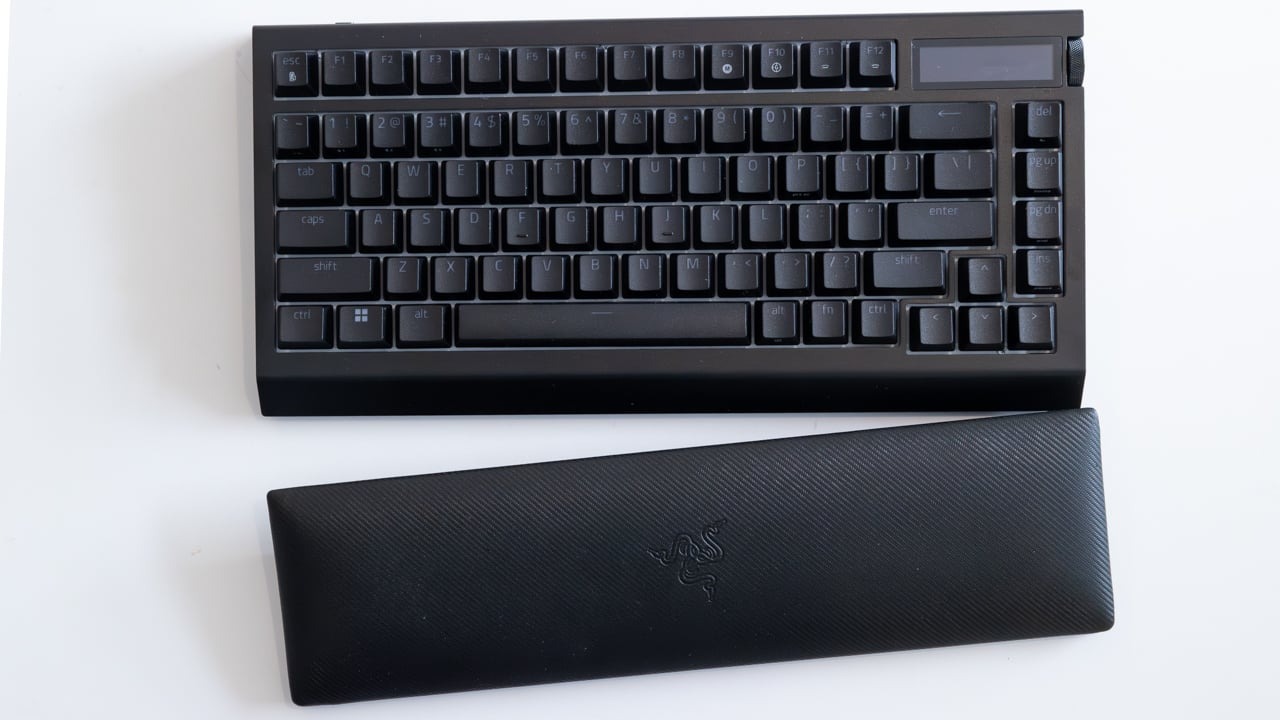
I took a long break from Razer products for a while. Razer’s quality has gone downhill over the years, and not to mention, their Synapse software has become bloated, buggy, and just plain awful. I only ever owned three Razer mice, and one was my first ever gaming mouse back in 2009. That mouse in question was the original Naga MMO. I also had the Razer Mamba 2012 and Ouroboros. They all had issues with the laser causing drift, the material wore down fast, and the Teflon feet became uneven in less than a year. I never went with a Razer mouse again. I then tried a headset, Man O’ War (awful after a few weeks), a keyboard, Blackwidow Chroma V2 (not too bad), and I was just never pleased with them. There’s something always off about Razer that just feels icky. If the product works fine out of the box, then the software has issues. If you don’t have software issues, you might have issues with the hardware somewhere down the road. Razer simply manufactures subpar products under the “Gamer” label and then moves on. For the insane premium price they charge, I would expect better.
To wit, I thought I’d give them another shot. At this point, I have mostly moved on from gaming keyboards, as I’m beginning to value key switch feel over aesthetics and RGB. Razer’s RGB is rather decent, and all of their products work with SignalRGB, which is a third-party RGB software I use to control everything. If SRGB doesn’t support it, I won’t use it. The OLED panel on the keyboard was very intriguing; however, I hesitate whenever gaming-branded keyboards have a gimmick. The last keybord I had with a massive gimmick was the Mad Catz Strike 5 keyboard. They are usually mostly useless or are never really supported by anyone or the community. I was also interested in the modularity of this keyboard. More mainstream gaming keyboard companies are trying to embrace the modding community, but it’s a hard community to win over. A lot of these keyboards just don’t have any personality or soul. They don’t feel unique or are too gaudy for the custom keyboard community.
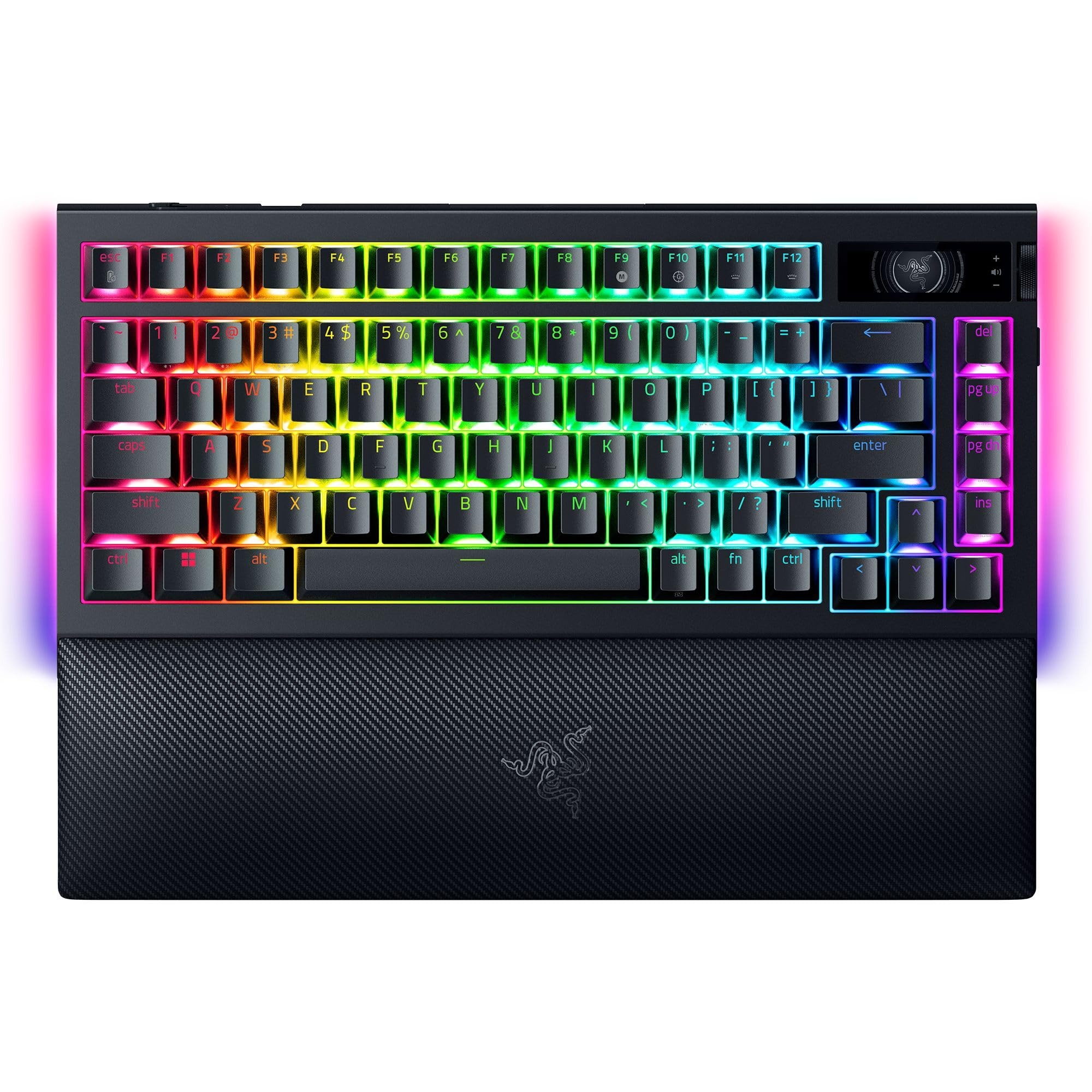
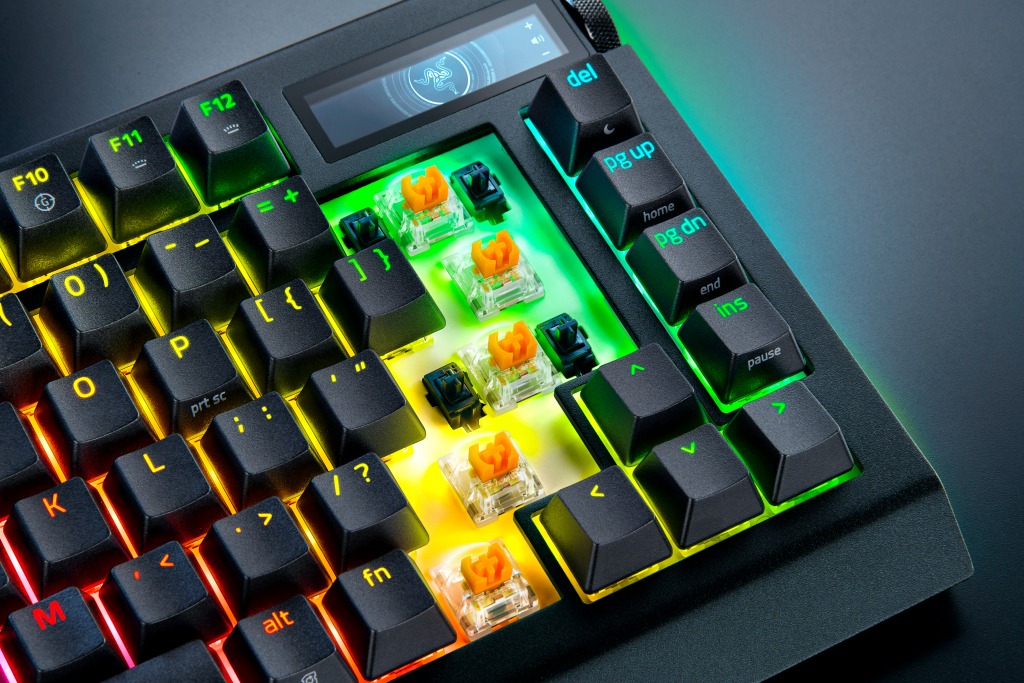
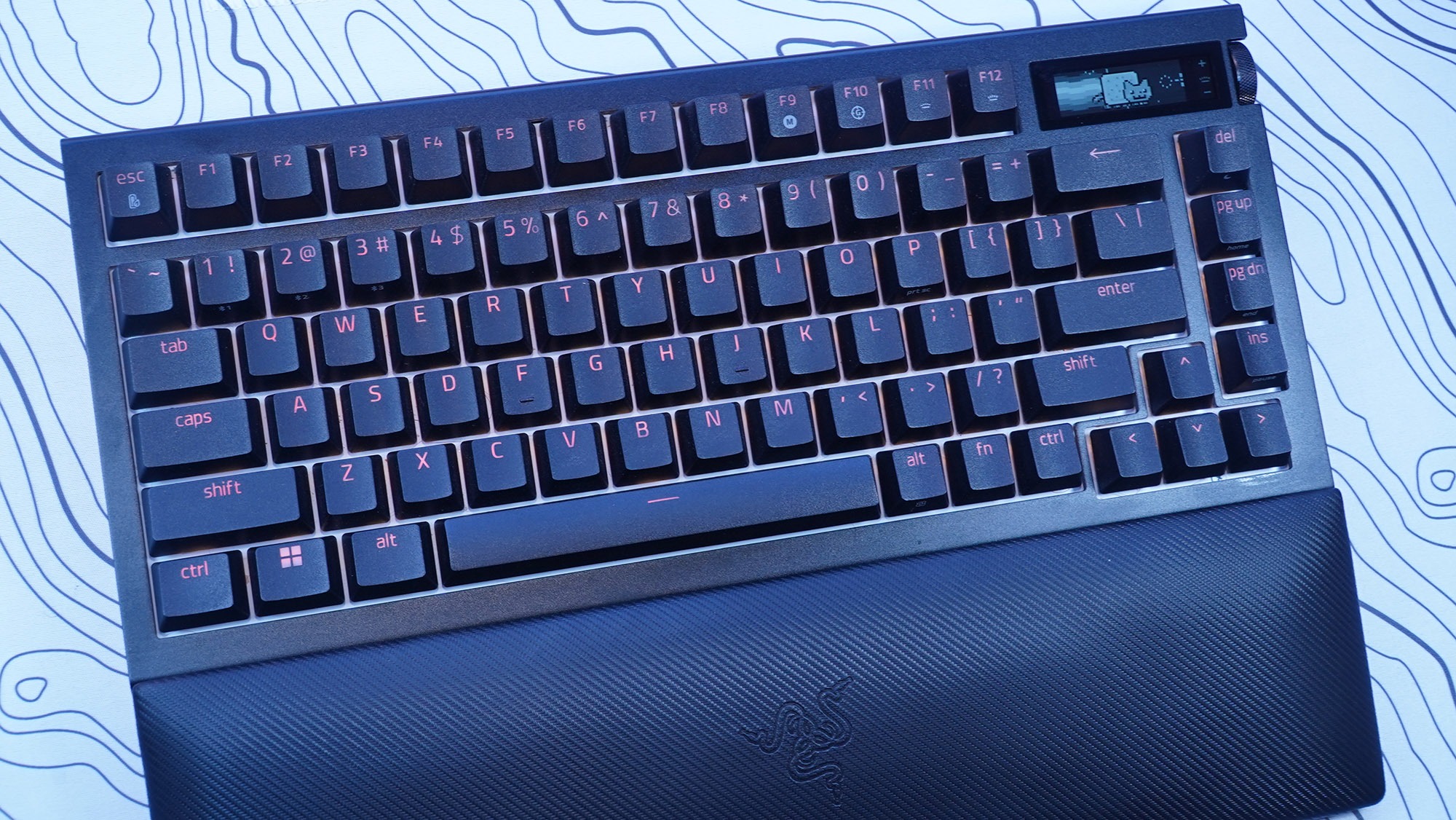
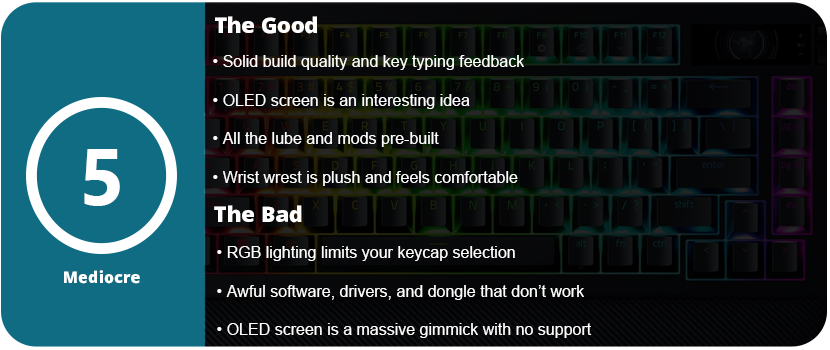
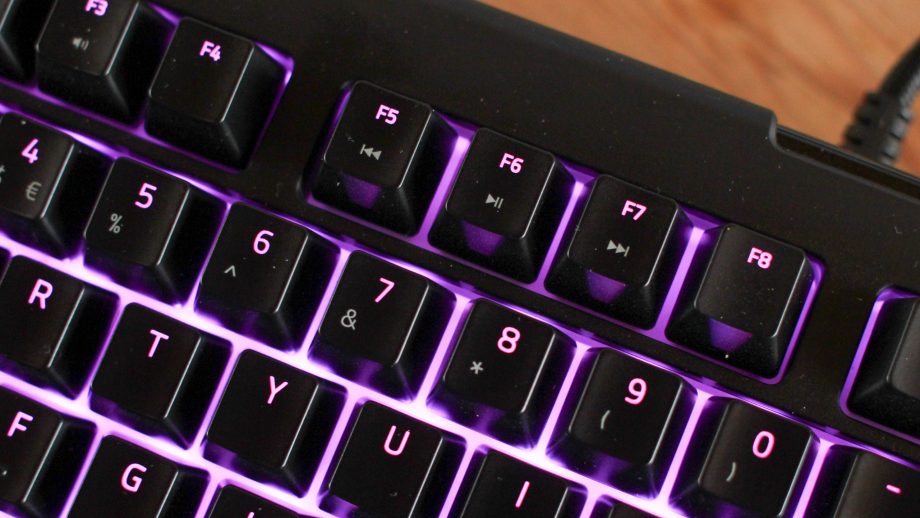
As always, Razer has premium packaging; I can’t fault them there. The keyboard itself has an aluminum body and feels solid and sturdy. It feels great to type on. The switches have a nice tactility, and the foam mod inside the keyboard reduces pinging and enhances the tactile feel of the keys. The Razer Orange Tactile Mechanical Switch Gen 3s aren’t bad. You can swap the switches out for any 3 or 5 pin switches, which is really nice, but with the RGB lighting, you are limited to the type of keycaps you can use. “Backlit” or “Shine-Through” caps are not very popular. You can disassemble and mod the keyboard, but the only benefit is the Razer branding and OLED screen. If you want to take a keyboard apart and mod it, you might as well get a better moddable keyboard for a third or half the price.
The palm rest is comfortable and plush, and it is magnetic so it won’t slide around on your desk; however, I know this material will wear over time. I’d rather have a harder rubber material instead of the plush. Over time it will fade, discolor from the acid in the oil from your skin, and eventually start tearing and becoming thin. Overall, the design of the keyboard is rather standard and unordinary. It has an all-black finish with black keycaps that looks rather standard. The entire keyboard is nothing special to look at. The OLED screen will catch most people’s eyes. I couldn’t find any specs or resolution on the OLED display, but it is black and white, not color, and has minimal customization and features. What probably accounts for at least $100 of the price tag is, at best, a simple gimmick.
The OLED screen is controlled with a wheel on the side of the keyboard next to the screen that also clicks in. There is also another button below this. You can change the “screensaver” animation and swap between “apps” such as volume control, media control, system info (such as CPU and GPU temperature), keyboard info, and an audio visualizer. This isn’t very impressive given the technology we have today, and it’s an OLED screen. You’re stuck with everything Razer branded. The animation and text banners are generic and all Razer logos. GIF animations can be uploaded to the keyboard, but resolution and size limit them. The keyboard saves only 150 frames. This was the coolest part of the screen, as switching between apps like media controls and the volume got annoying. It’s faster just to use dedicated keys for that. I also could not get the keyboard to read my system info. Overall, the OLED screen is a disappointing gimmick with no support from Razer and no way to customize anything outside of a scrolling text banner and GIF animations. There’s also the battery-eating part. With the OLED screen just on 50% brightness, the keyboard’s battery didn’t last a day. I also had issues with the OLED screen syncing and working on any wireless mode. Synapse would stop syncing things and it would crash. The transfer rate is also really slow for uploading GIFs and most of the time it would time out before an upload would finish.
My biggest issue with this keyboard isn’t the overall lack of impressive features that are already present in custom keyboards. Razer claims to have invented revolutionary features. The damn thing just doesn’t work. It works best in wired mode, but Synapse 4 is an awful piece of software. This keyboard is not compatible with the more stable Synapse 3 software. The keyboard also worked fine in Bluetooth mode, but SignalRGB does not work over Bluetooth due to the bandwidth limitations, and many Synapse features are not available in Bluetooth mode. I wanted to use the keyboard in wireless mode with the 4K Hyperpolling dongle. It never worked. It would continuously disconnect every 2–3 minutes. I spent 4 hours troubleshooting this. I tried reinstalling the Synapse software, deleting all devices in device manager, different USB ports, a USB hub, USB 2.0 and 3.0, front and rear USB ports, a different computer, and updating the dongle and keyboard firmware. If you think of it, I tried it. I also don’t understand how Razer can’t just give us a normal USB dongle. You need to attach a USB cable to this device, which then dangles and flops around on the desk or behind your PC. 8000 Hz polling is also a placebo effect. No one can type that fast or needs that kind of responsiveness. Most people are fine with 1000 Hz polling. 4K is even unnecessary.
This absolute garbage driver issue caused me to return the keyboard, and the fact that this expensive OLED screen is a mere gimmick with no third-party support or seemingly any support from Razer, for that matter. Synapse 4 is also an unwieldy, bloated piece of software trying to advertise so many other Razer software apps that it has acquired. I just cannot believe that the most expensive keyboard I have ever purchased is this bad. Razer really needs to overhaul their product line, fix their software issues, and stop offering gimmicks that most people won’t care about. Sure, you can set macros on the OLED screen and keyboard, but they are unwieldy, and using keyboard commands is much faster than flicking through a screen. Additionally, the keyboard lacks color and rapidly drains the battery. Overall, just stick with whatever keyboard you currently have, as I’m sure it works much better than this overpriced monstrosity.
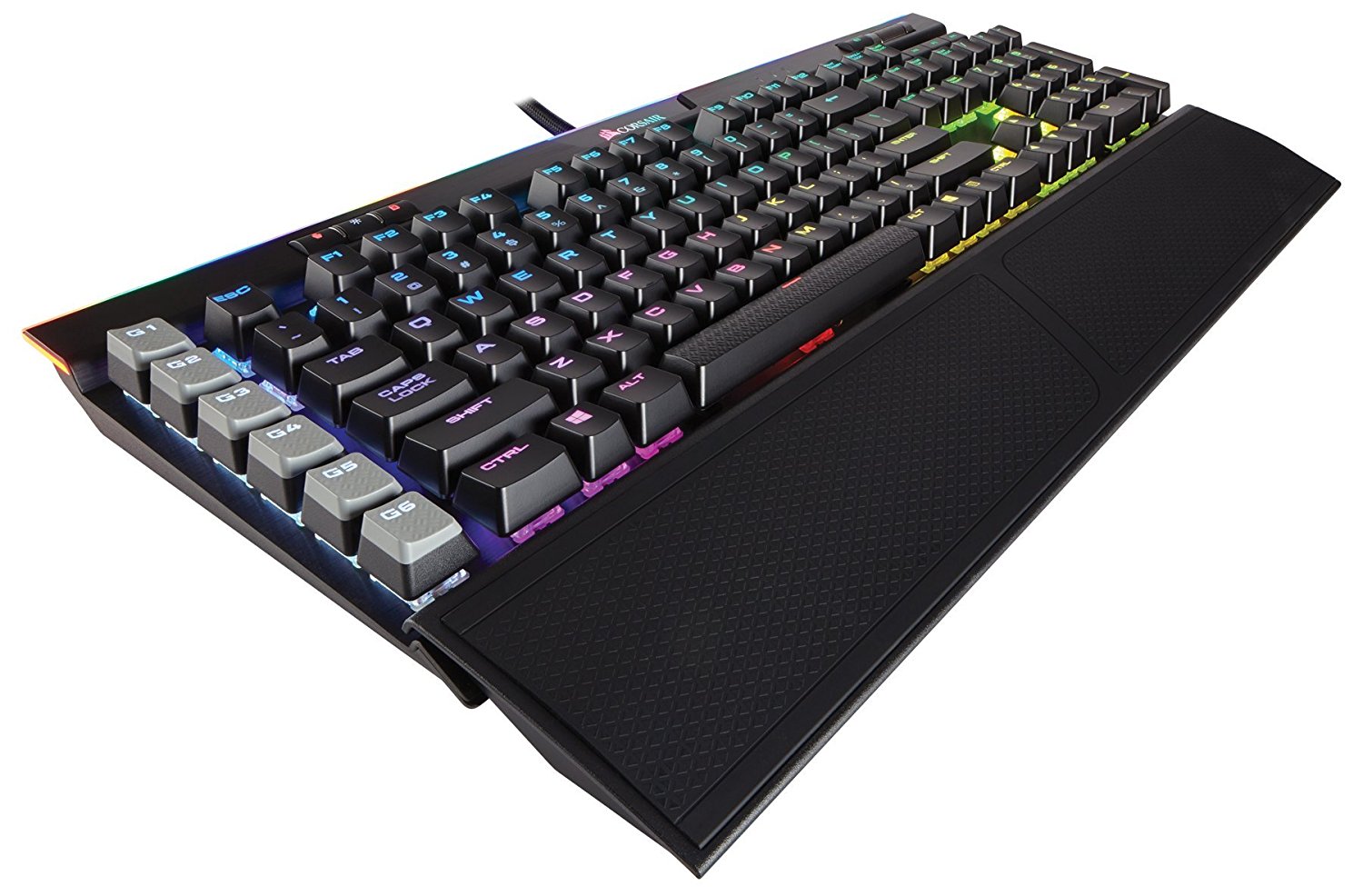
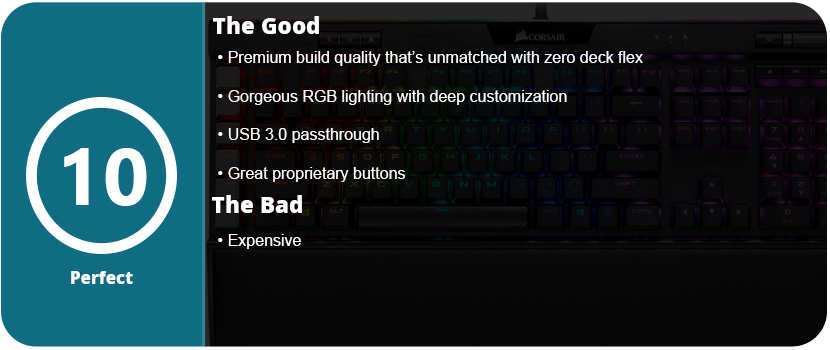
I’ve had various keyboards over the years, but there’s always something off about them. The keys don’t feel right; I never use the features on them; the software is horrible; or something along those lines. I’ve held off on Corsair keyboards for so long because they’re the most expensive ones on the market, but after 6 months with the K95 Platinum, I can see why, and it’s justified.
The K95 is one of the most solid keyboards I’ve ever used. Just holding it out of the box, you can feel the solid build with an aluminum body and very satisfying keycaps. From the sleek media buttons, the subtle yet useful proprietary keys up top, and the awesome wrist wrest. The K95 just oozes quality and style before you even plug it in. The K95 has a thick braided cable and also features a USB 3.0 passthrough, which I actually love and use myself.
I want to start with the proprietary buttons on this keyboard before talking about anything else. On the right side, you have six shortcut or macro keys, and I love the placement of these. They are out of the way enough to allow you to ignore them, or if you use them, they are easily accessible. Along the top, you have three buttons on the left that are used with Corsair iCUE. The little person icon allows you to flip through RGB profiles, while the sun icon has three brightness stages, and the lock button keeps the Windows button locked. Further right are three white LEDs for Scroll Lock, Caps Lock, and Num Lock. I love how small and minimal these are. They are just big enough to tell you what’s going on. To the far right are a volume wheel and a mute button. I honestly love these to death. An easy-to-use mute button and the volume wheel feel amazing as they have some weight, aren’t plastic, and feel good to use. I’ve never once had a useful volume adjustment option on my keyboard until now. Below that, just above the Numpad, are the four media keys. Again, it’s the best I’ve ever used. There is no need for a function button; just press the buttons, and they will work. I use these all the time when listening to music, and they feel solid and are actually shaped differently than the other buttons.
The keys themselves are nice and big and just feel right. I can’t do the keyboard justice by just describing it. This is the most satisfying keyboard I’ve ever used, as it just feels perfect. The actuation distance is perfect, the keycap size is perfect, and each key is spaced perfectly apart. I’ve spent 6 months with this keyboard, so I can really tell if it’s all that different from other premium keyboards. I don’t think I can use any other keyboard, as they all feel subpar compared to this one. The other major attraction is the RGB lighting, as Corsair has the best RGB in the business, and the K95 is beautiful. With a lightbar up top and bright, vivid lights underneath each key, I have never seen a better RGB keyboard. Nothing tops this. Corsair iCUE is the most versatile RGB software out there, and the customization options are endless. You can make scrolling logos and insane patterns, with endless possibilities. I have seen some of the craziest RGB setups on this thing, and it looks amazing with all of my other Corsair products.
The wrist rest actually has a magnetic, reversible rubber pad that sits inside the rest. It’s not adjustable, but I highly recommend using it. I also haven’t found the rubber to deteriorate over time like other products. It’s a very hard rubber material, and the rubber under my wrists is the same as it was when I bought it. Overall, the K95 Platinum is expensive but well worth the price, as you won’t get a better experience anywhere else. Corsair is a master in their class and has perfected the keyboard over the years, and it clearly shows.
Razer has been the spokesperson for PC gaming hardware for years now, and there seems to be a divide in their products. Some live and die under Razer, and some can’t stand them. I personally have mixed feelings. I’ve only ever used their wireless mice, and I had bad experiences with both. The Razer Mamba cut out constantly, and the material it was made out of slowly fell apart. The Ouroboros was a better-designed mouse, but the laser and software were just plain awful. I then acquired a Razer Firefly mousepad, only to have it die on me in a month. I also owned the Razer Kabuto and Vespula mousepads, only to have both of them slowly disintegrate over the course of a few months. I eventually gave in and bought a Man O’ War headset to be pleasantly surprised by the quality and durability of the product. So, it was time to buy another keyboard, and I realized I had never bought a Razer keyboard before. What could go wrong?
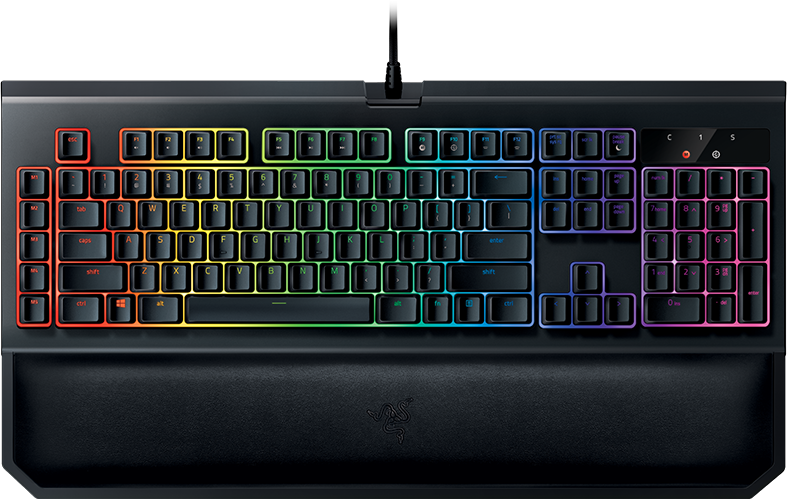
I felt a little lost choosing a Razer keyboard, as there are so many of them. There are the smaller Tournament Editions of the standard keyboards, membrane keyboards, and keyboards with their own version of Cherry keys. I saw mobile keyboards, Chroma keyboards, and licensed keyboards. I started off by knowing I wanted a Chroma keyboard that supported the latest Synapse 3, as I hate Synapse 2 as it is. I had a choice between Blackwidow X and Chroma V2. The Chroma V2 just seemed like a better keyboard all-around, had a wrist rest, and felt better ergonomically.
Once I plugged the keyboard up, I noticed it had three plugs. One for USB passthrough, and then a 3.5mm jack. I didn’t bother with the jack as I have a headset and a speaker and never used standard headphones, but the passthrough was nice. What I do like about Razer products is that you don’t have to go download drivers and firmware updates. Once you plug in your device, Synapse will recognize it and download everything for you. This is one thing Razer has above most other hardware companies.
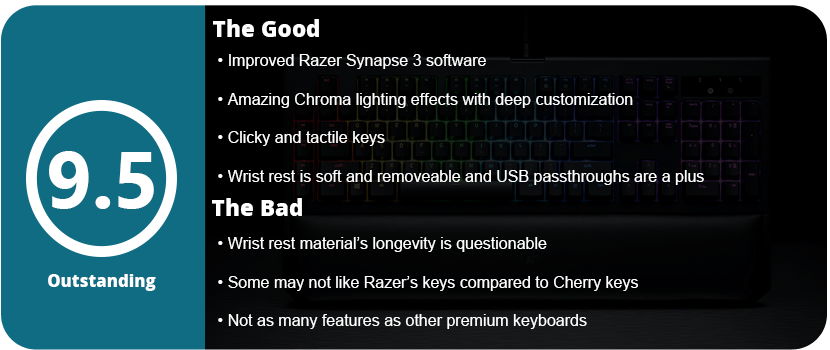
Once I plugged it in and started fiddling with Synapse 3, I was surprised at how much customization the Chroma lights have. You can literally change every key individually, which is amazing and something I have never seen before. Razer really has a leg up in the lighting department over all other keyboards. The standard effects were really nice, with fire being my favorite. Sadly, Synapse 3 is still in beta as of this review, and chromosome profiles cannot be imported. So, for now, you have to make your own. The Chroma V2 doesn’t have insane customization button-wise like other keyboards, but I bought this as I have learned my lesson, and gimmicks on keyboards are mostly useless and just drive up the price. There are 5 macro keys on the side, media controls, an on-the-fly macro recording feature, and a gaming mode that disables the Windows key.
These features are all fine and all I will ever really use. I prefer lighting on keyboards over other features, and this keyboard has all that. Now, as for actually using it, the keys are a little different than what I’m used to. While they are clicky, they don’t require as much force as Cherry keys, and the clearance is higher than standard membrane keys. They are clicky but feel a little soft, which is weird at first. The wrist rest feels nice and soft and is magnetic, so you can just remove it from the keyboard whenever you want. I am going to question the material of the pad, as it feels soft but seems like cheap vinyl that will crack and fade over time.
Overall, the Blackwidow Chroma V2 is a fantastic keyboard and the best one I have owned. It may not have as many gimmicks or features as other keyboards, but its quality and overall usefulness are at the top. From the amazing Chroma lighting to the magnetic wrist rest and great-feeling keys, as well as the USB and 3.5mm passthrough, the Chroma V2 has a few tricks, and I doubt anyone would be disappointed.
Mad Catz has an interesting history of trying to revolutionize the PC scene with interesting new devices that are unique and not seen anywhere else. It started with the RAT series of mice, which were modular and fully customizable to your hand. Later, they released the Strike series keyboards, which took that to a whole new level.
With the RAT 9 that I owned, I liked it a lot, but there were a lot of mechanical issues for me, and it failed twice. I skipped Mad Catz altogether for a while until I saw this keyboard on sale. The Strike 7 is the most expensive gaming keyboard ever made, and I didn’t want to spend $300 on it. The Strike 5 takes some of those features and creates an interesting piece of hardware. The box is huge and stands out from all other flat keyboard boxes. When you open it up, it has some very ugly packaging, with all the pieces in plastic bags and ugly pressed cardboard.
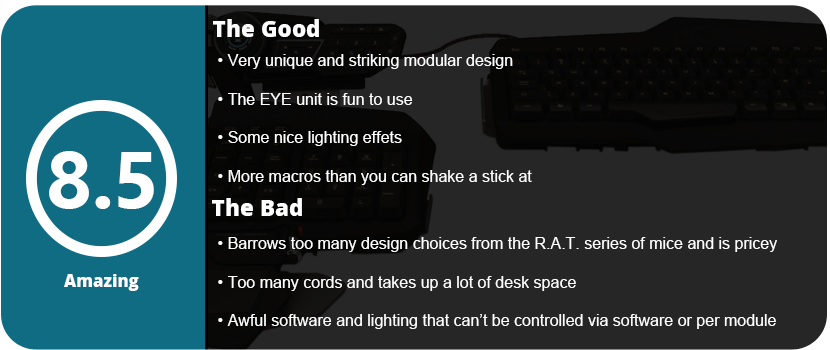
Once you get everything out, it seems overwhelming to put together, but in the end, it’s not really. There are about a half-dozen pieces to screw together. You can put them in any order, but it’s recommended that you put them together as instructed until you are familiar with the product. The main keyboard piece attaches to a side piece that holds the num pad and arrow keys. There are three wrist rest pieces. One is taken straight from the RAT series mice, which are the palm rests. With a scroll wheel and red button, as well as adjustable height and length. It looks like an oversized RAT palm rest on the keyboard, which was rather disappointing as I wanted to see something unique for this series of keyboards. There’s a macro sidebar, but the most interesting thing is the top EYE unit.
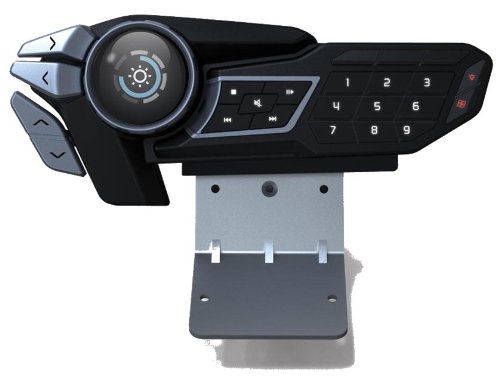
This unit has an OLED display and a scroll wheel. There are arrow buttons, macros, media controls, and profile selection for this piece. You can see the time, set timers and stopwatches, use the program shortcuts, and control backlight brightness and volume for speakers and mics. This is what makes the Strike keyboards so unique and why they cost so much. Using the Mad Catz software (which isn’t all that great), you can see the program icon on the display and just select it to open it. It’s actually very useful, and this whole top piece will be used quite a bit.
The software itself hasn’t changed much in nearly five years. I also don’t like how you can’t set windows or media functions to any other keys; you also can’t set them to open programs, which really stinks. After spending a week with the unit, I felt the keys were a tad too soft. The keys are made with Mad Catz’s own technology, but they have an actuation force similar to Cherry MX Blue keys. You won’t get the super clacky sounds of standard Cherry keys, but they feel mushy, and while you will get used to it, Cherry MX Brown and Red fans will find it too soft. One key I loved, in particular, was the space bar. It’s wider and comes down further, so people with longer fingers won’t cramp their thumbs. It’s a subtle detail, but one that could matter with extended use.
The arrow keys take getting used to because there are lowered command keys around them, so sometimes you will press a command key. Overall, the key layout is fantastic, and I don’t really have huge issues with any part of it. The overall disappointment stems from identity issues, as the keyboard borrows too much from the Mouse series and doesn’t quite stand out on its own. While all this is great, it all comes down to price. For $200, it’s hard to say if this keyboard is worth it for most people. If you are looking for something unique to stand out from your command station, then go for it, but recently the keyboard has been on sale in stores for under $100, and if you can find it at that price, swipe it up.
Gaming keyboards are just as important as mice; the buttons are probably the most important thing of all, and the gimmicks and extra stuff come last. The second most important thing in a gaming keyboard is ergonomics and how it’s designed physically. Some keyboards have large desktop footprints with giant wristpads, strange key shapes, and proprietary key layouts. I spent over a week shopping around for the right keyboard to replace my Alienware TactX keyboard. Not that it broke or I hated it; I absolutely love the TactX keyboard; I just wanted something new and different. First on my list was the key type. Did I want Cherry MX keys or a membrane? The TactX keyboard is an excellent Cherry MX keyboard, but it’s very loud and “clacky,” and the key height is very high. I loved how far apart each key was, but I was ready for something new.
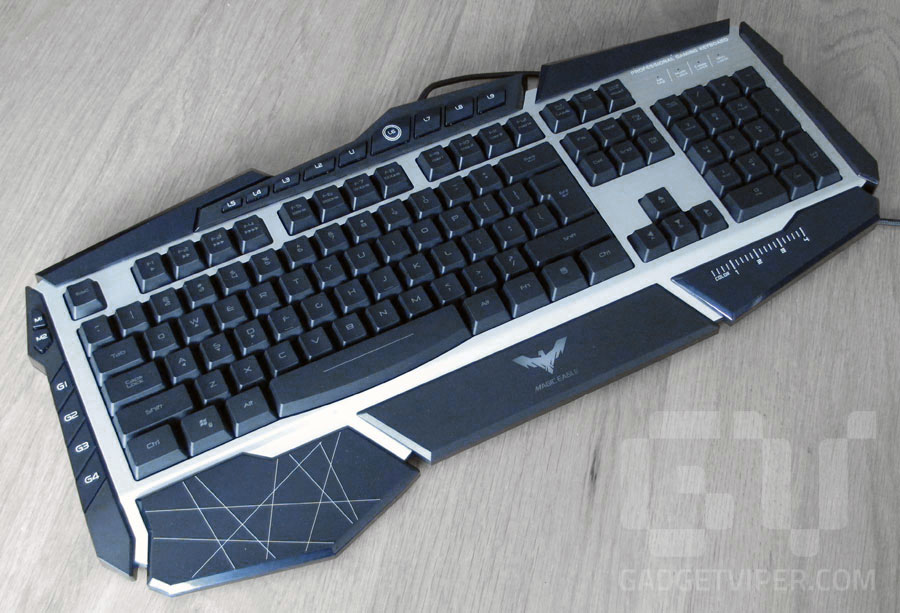
Havit Lammergeier: My first choice but only available online
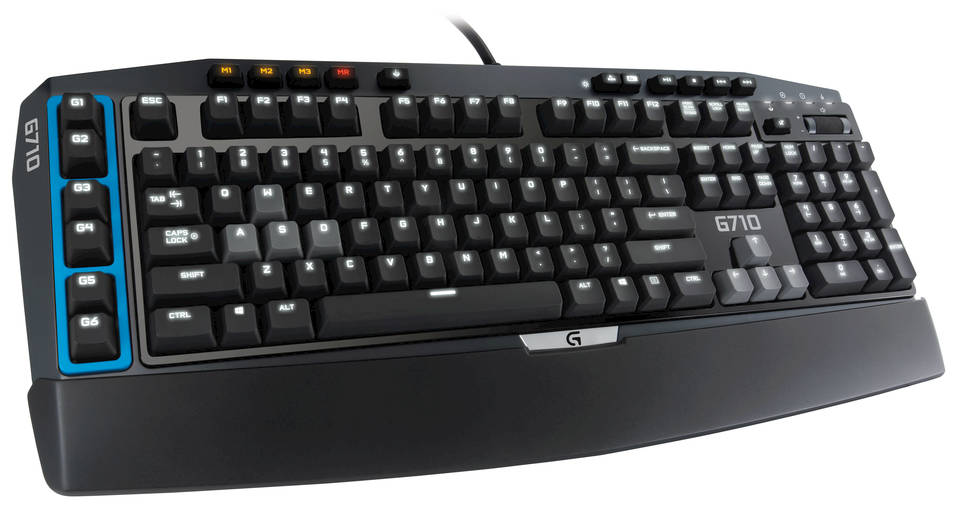
Logitech G710: A solid Cherry MX keyboard, but I didn’t like the design of the buttons
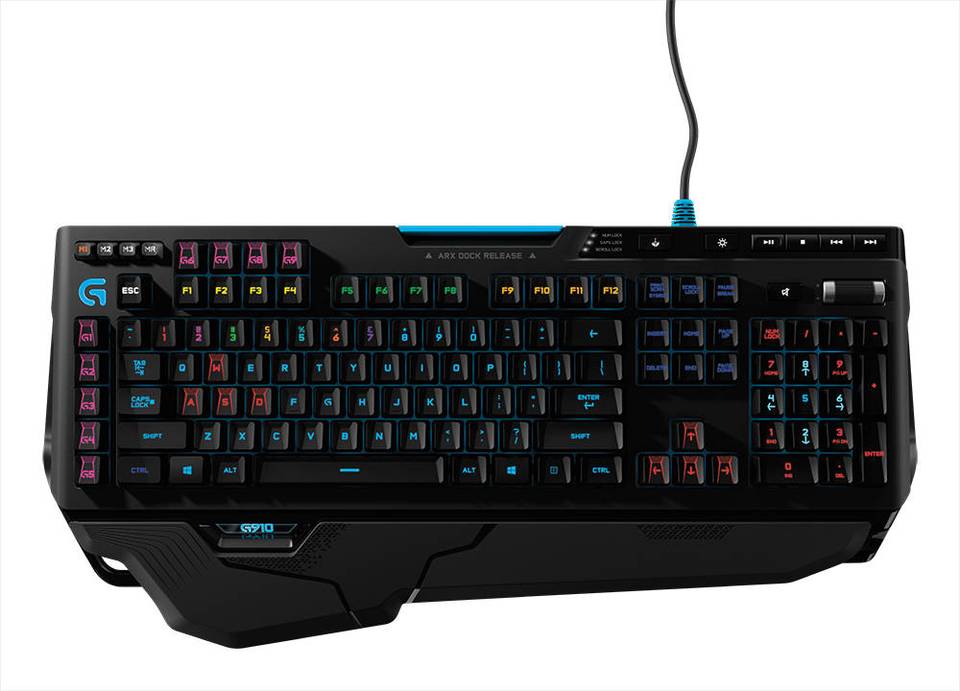
Logitech G910: A beast of a keyboard, but I still didn’t quite like the design.
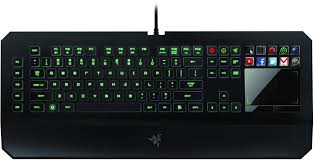
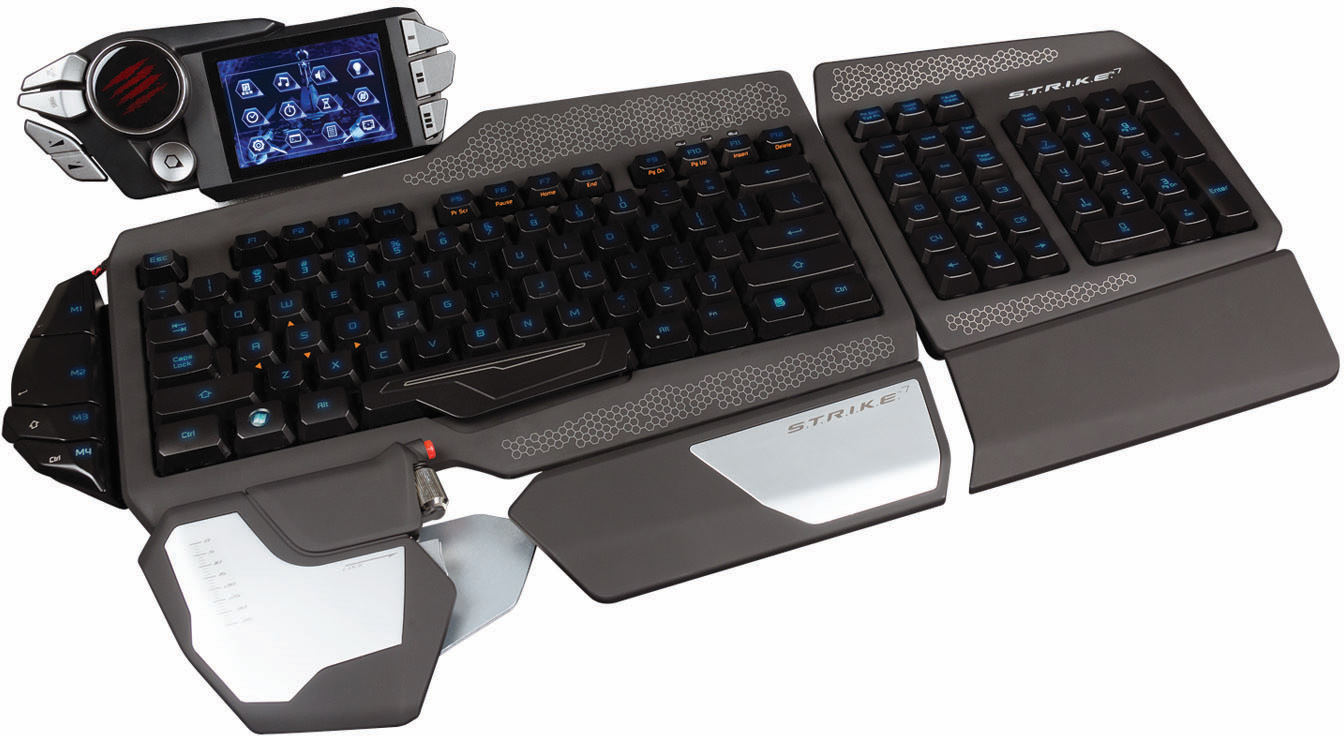
My first pick was the Havit Lammergeier, which had a wonderful design and Cherry MX keys, but it’s only available online. Remember, any decent gaming keyboard is going to start at around $100. I also thought about the Razer Deathstalker Ultimate, but at $250, it was ridiculously expensive, had a laptop-style keyboard setup, and the Razer touchscreen has been abandoned and hasn’t been updated in a while. My next thought was the Corsair Chroma series with its nice LED lighting, simple design, and Cherry MX keys. However, it was just too simple for me. I wanted something a little more flashy, something with a unique layout. I also looked at Logitech keyboards, but they were also very simple in design and seemed overpriced for what they didn’t offer. After this, I looked at Cyborg keyboards, as the S.T.R.I.K.E. 7 was nearly $300 and had a lot of amazing features. After testing it and looking up extensive reviews, I found that the software is shoddy and the hardware is cheap. I personally fiddled around with one, and it didn’t seem like it was made of $300 material.
Razer Deathstalker Ultimate: One of the most expensive keyboards on the market, but has cheap feeling mechanical laptop keys and the touch screen has been abandoned.
Cyborg S.T.R.I.K.E. 7: The most expensive and elaborate keyboard on the market. It feels cheap, the keys aren’t great, and the software is shoddy.
Corsair K70: A great feeling Cherry MX keyboard, but with a very simplistic design and a giant wristpad
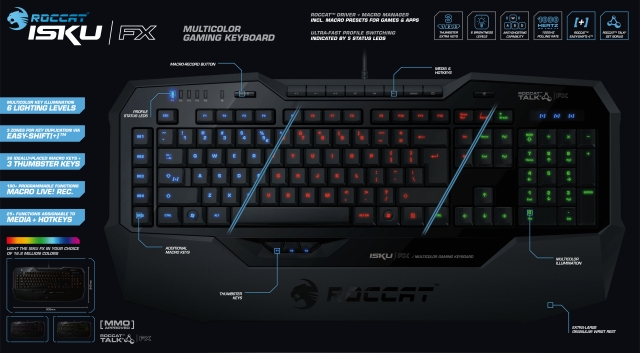
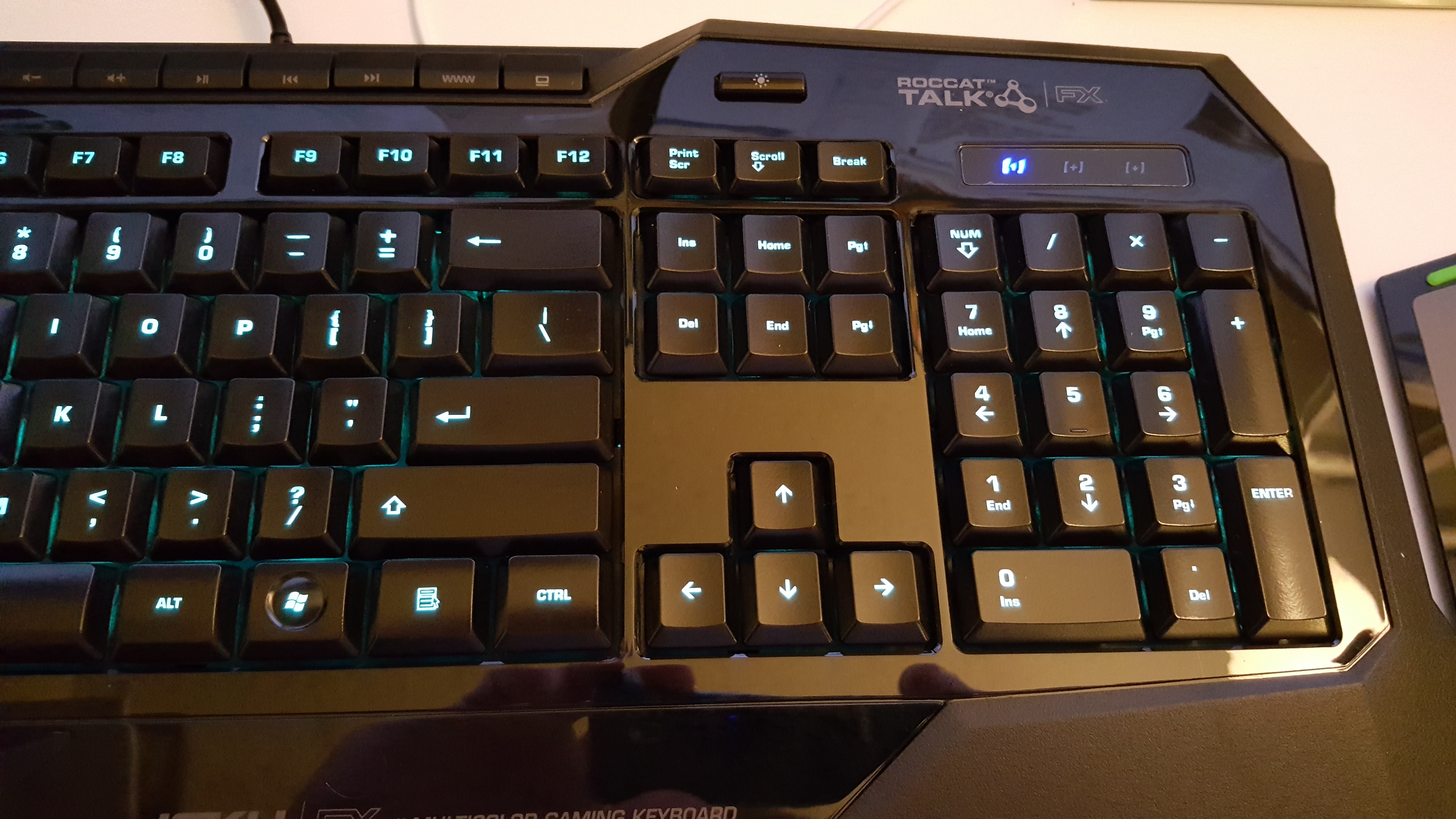
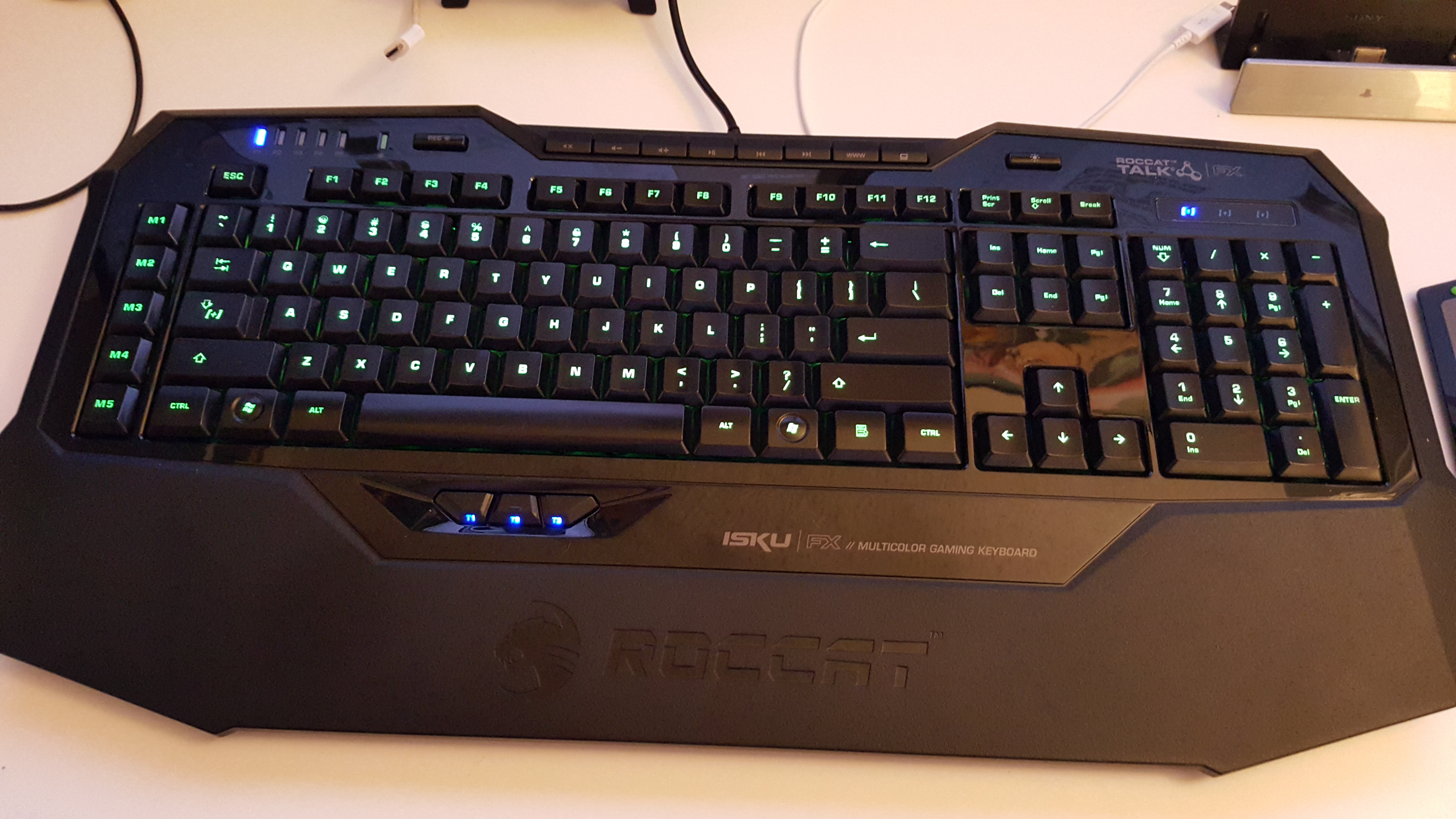
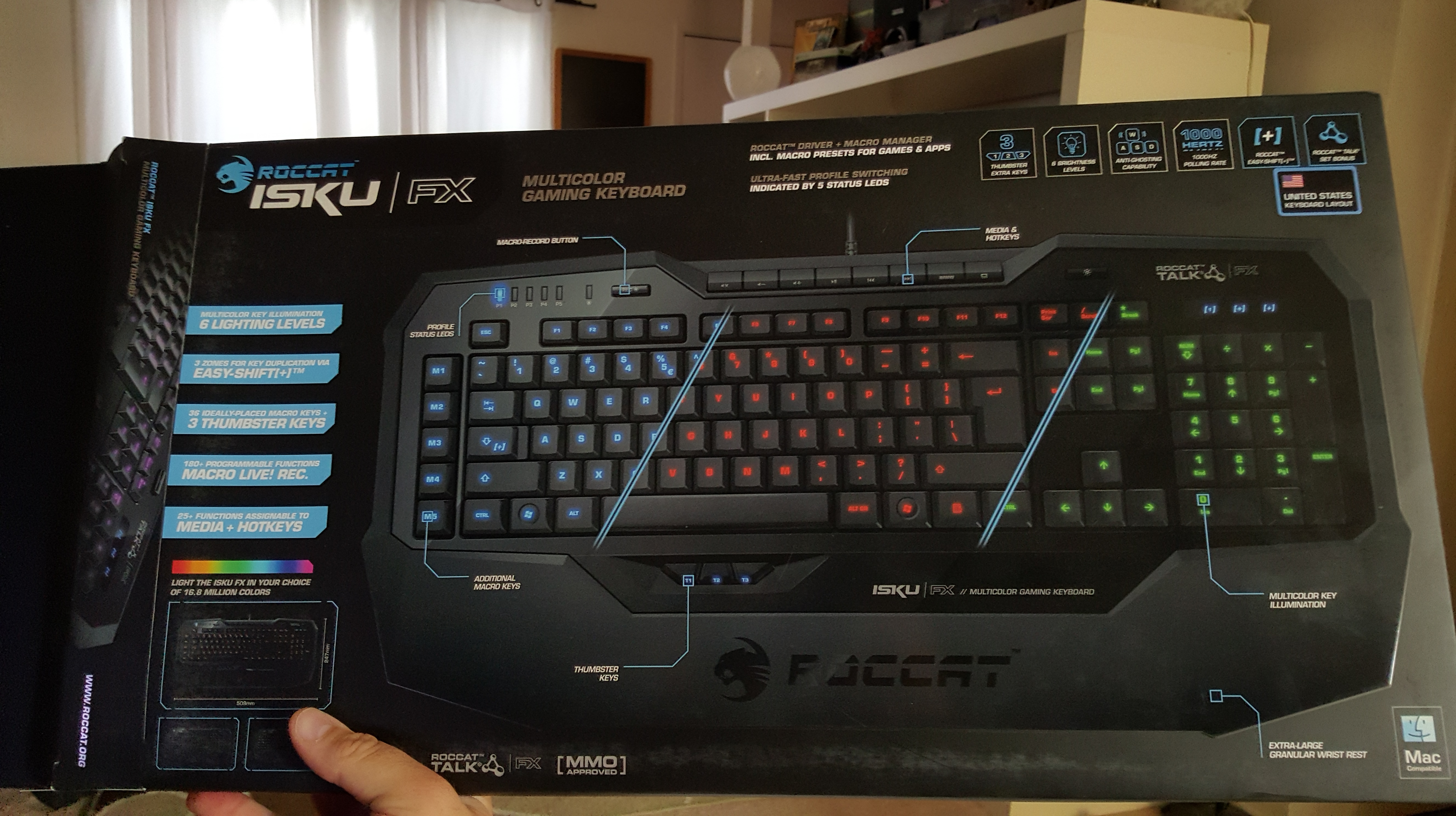
With the S.T.R.I.K.E. 7 being the most expensive keyboard on the market right now, I went and looked at some lesser-known brands such as Roccat, Gearhead, Mionix, Thermaltake, Azio, and TTe Sports. While these brands don’t make terrible products, they just aren’t the #1 brand that everyone knows, such as Razer, Logitech, Corsair, or Mad Catz/Cyborg. Several of these brands offered Cherry MX keyboards, but they just didn’t feel right; something about them felt cheap, loose, or just awkward. I then went over to the Roccat Isku keyboards, but they only offer membrane keyboards, and I was hesitant. I tapped away on a few keys and noticed how soft yet responsive they were. I continued tapping away at an Azio Levertron Mech5 keyboard right next to it with Cherry MX keys and realized how much better the Isku keyboard felt. The design was simple yet somehow unique and sleek, but all these Cherry MX keyboards looked crazy, futuristic, and had so many buttons, switches, and gizmos that it could make your head spin. With the $100 price tag, I grabbed the Isku FX keyboard specifically since it was compatible with AlienFX and had customizable LEDs.
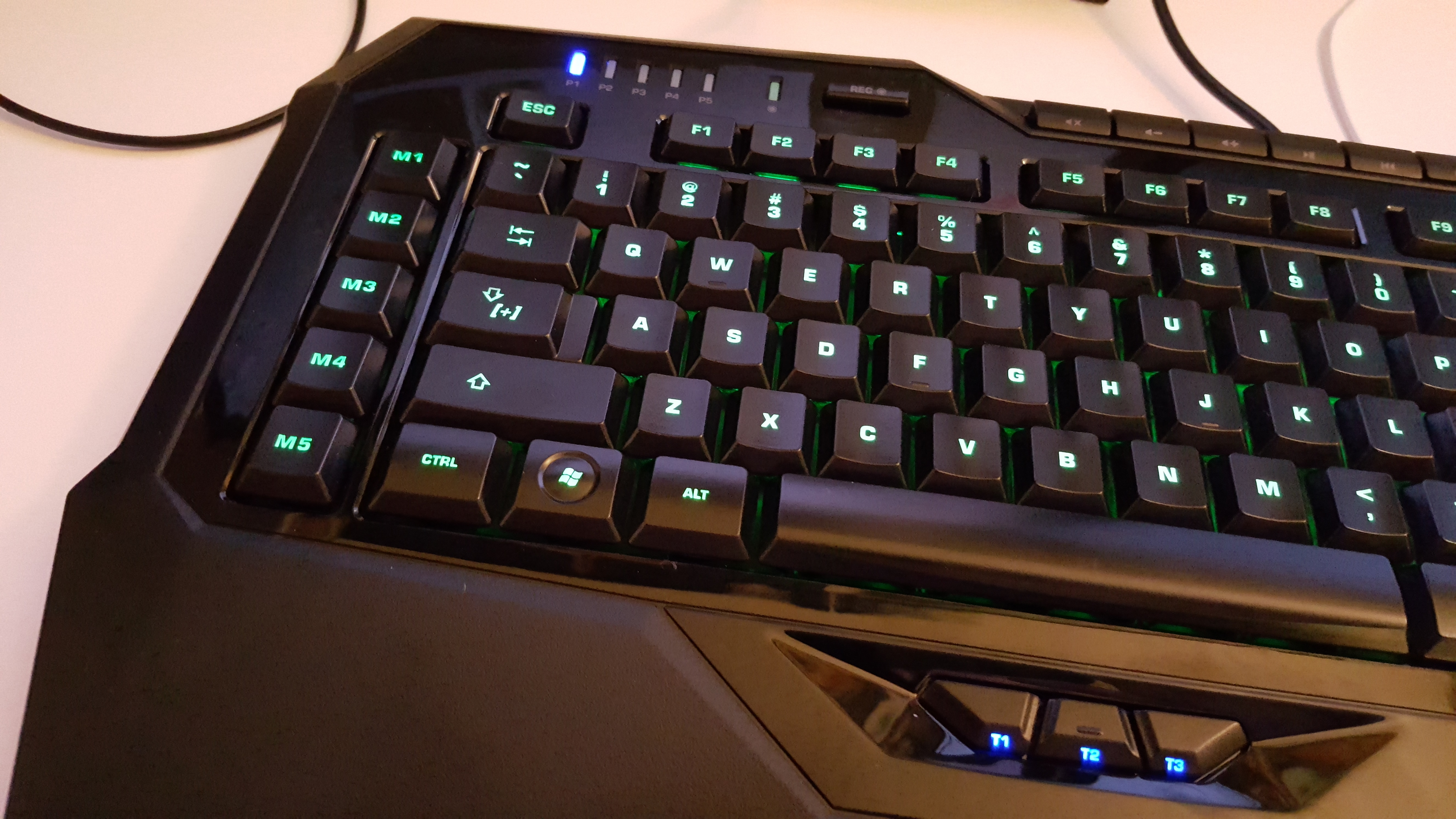
Right out of the box, the software was extremely easy to install. No CDs were included (who needs them these days?). So just a quick driver download was needed on the website. The software was installed on Windows 10 64-bit with no hitches at all; after I opened the software, it prompted me to do a firmware update on the keyboard, which went smoothly. This was probably the easiest hardware driver I have ever had to install; even Razer’s software can have problems from time to time. Once the software was opened, it looked overwhelming. The Isku is designed for people who love macros and keyboard shortcuts. There is a dedicated row of shortcuts on the far left, but the Isku has a special Easy Shift+ key function that can double all your shortcuts. On the bottom of the keyboard, there are three “Thumbster” keys that allow you to do whatever you want with them. These are great for reloading in games, crouching, or switching to your favorite weapons. They are located just right, but I feel you will need to have larger hands to reach them.
The Isku FX allows up to five profiles to be switched on the fly; this is for people who may have a lot of shortcuts for different games. Blue LEDs are at the top left to tell you which profile you are on, and no, there is no dedicated profile switch key; that’s what all these macro buttons are for. Next to the profile LEDs is a live recording button. Press the button, and a guy with a gravelly voice will walk you through the macro recording process. This is great and takes away those confusing menu screens to record macros; however, that option is still here. At the very top are your media keys, a browser button, and a button for My Computer, but again, you can change these if you want. Next to these is a button to turn the LED lights on and off, which is a nice feature. The rest of the keyboard is a pretty standard affair.
As for the rest of the software, the macro options are insane, and it even lets you program buttons by milliseconds of when they activate. It’s crazy. Another tab allows you to use the F keys as more macros if the 16 before weren’t enough. Another tab allows you to alter the “Easy Zone” keys, which are around WASD, to completely change what they do normally or add a secondary macro via the Easy Shift+ key. This is great if you are playing an MMO with a mouse and don’t want to use the top number keys or switch to the keypad. This is also useful if you are using a program that has a lot of shortcuts; now you can have them all right next to each other. The Advanced Control tab allows you to change the lighting effects, enable AlienFX, and select various other options. The Roccat software also comes with an achievement system, which is odd, but it’s here. There are 16 achievements in total; I have yet to unlock any, but it’s very interesting and kind of strange.
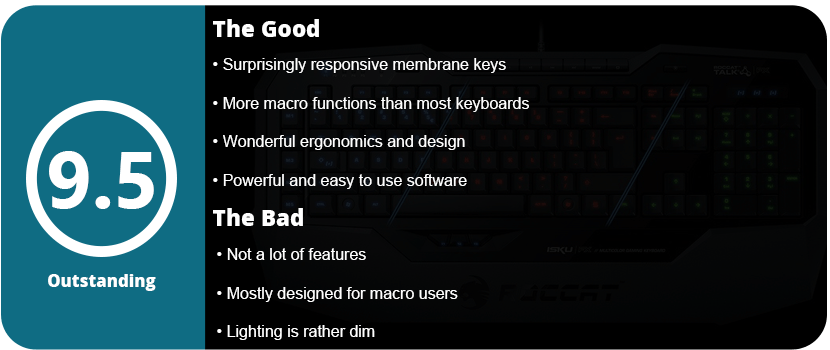
The keys feel fantastic, and I can’t stress this enough. Membrane keys are usually shoddy, but these click very quietly, have a lot of response, and don’t feel mushy. I felt the keys were a little closer together than most Cherry MX keys, but not by much, and I quickly got used to this and forgot all about it. I also like how I don’t have to press the keys down so far, as people with smaller hands tend to cramp up on Cherry MX keys.
Overall, the Roccat Isku FX keyboard is amazing, and surprisingly so for a membrane keyboard. If you are on the fence about membrane keyboards or are a hardcore Cherry MX fan, I suggest giving this keyboard a shot. Out of several membrane keyboards I tried, this was the only one that felt decent, so I understand the hate behind those kinds of boards. The software is some of the best out there for hardware, and there are so many customization options it will make you dizzy. Even if you don’t use macros, this is a wonderful keyboard, has great lighting effects, and is well worth the price.
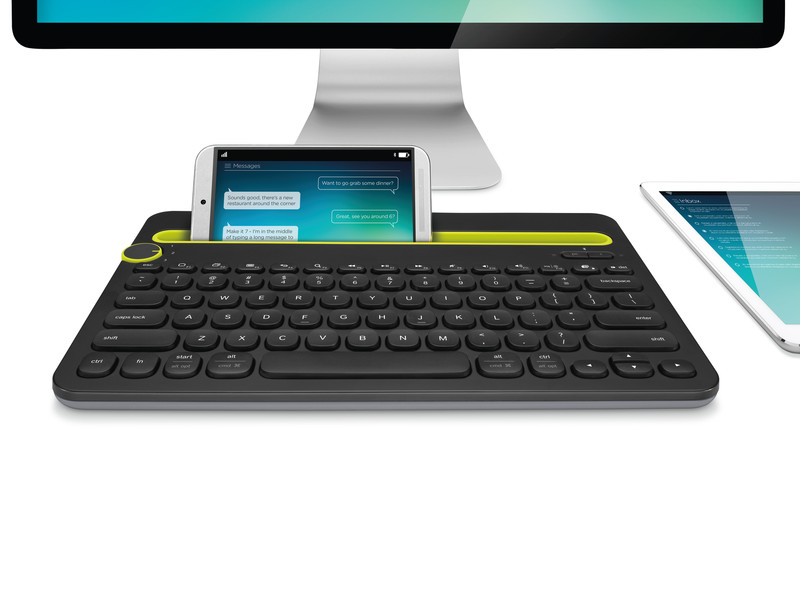
Logitech makes some pretty fantastic products, and it doesn’t surprise me that they make the first Bluetooth keyboard that actually interests me or seems useful. Most are too small, too big, or just don’t feel right. The K480 is perfect for anyone with big hands or multiple devices.
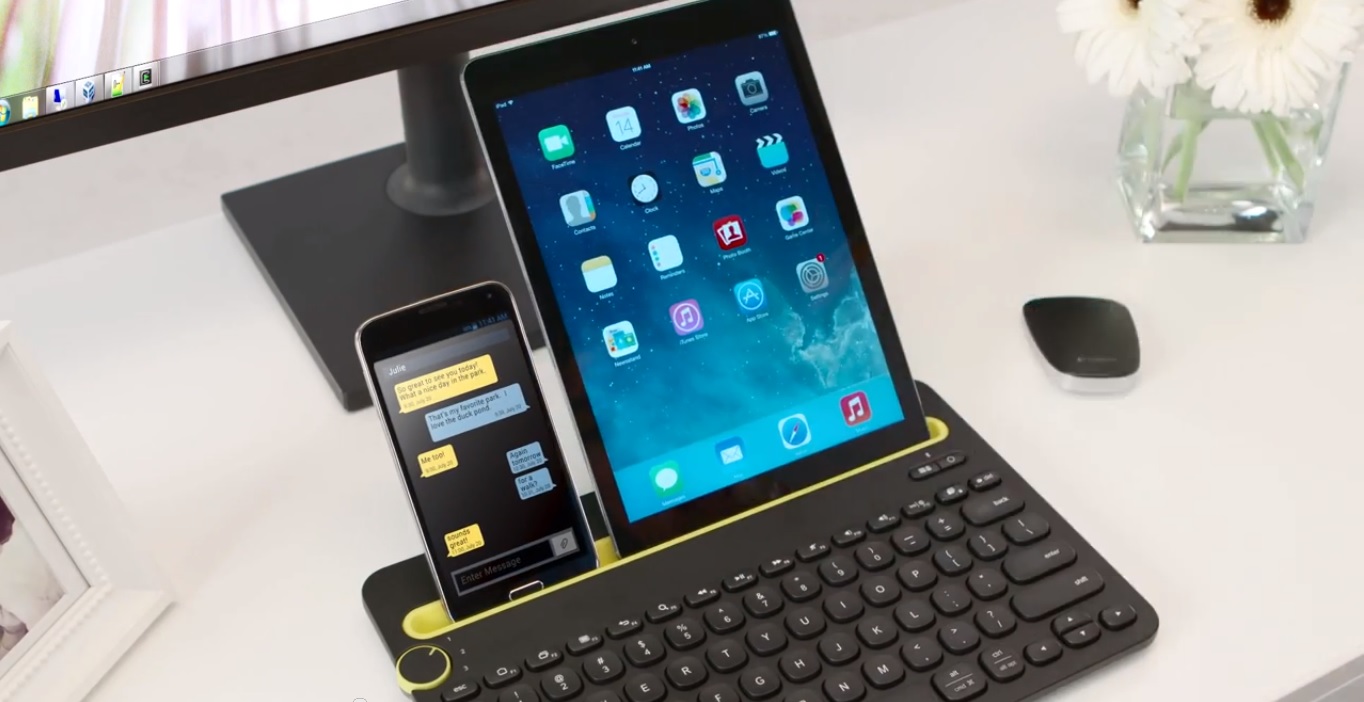
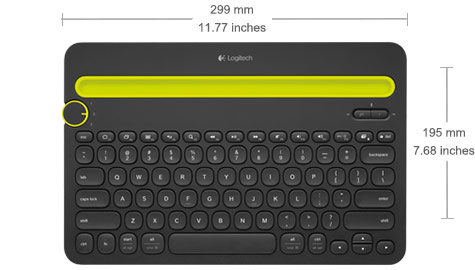
While the keyboard isn’t exactly portable and won’t fit into any small carry-on bags, it doesn’t need to. What got my attention right away was being able to switch between three devices on the fly. The turn dial on the left allows switching between a tablet, phone, and computer all at the same time. Why would you need to do this, you ask? Well, you may be using your computer like normal while texting a friend or typing up a report on your tablet, or vice versa. You can do your research on your computer while you type on the tablet and still chat with a friend. Some people may not need to multitask like this, so having three channels is great to have without having to re-sync your keyboard with every device you use every time.
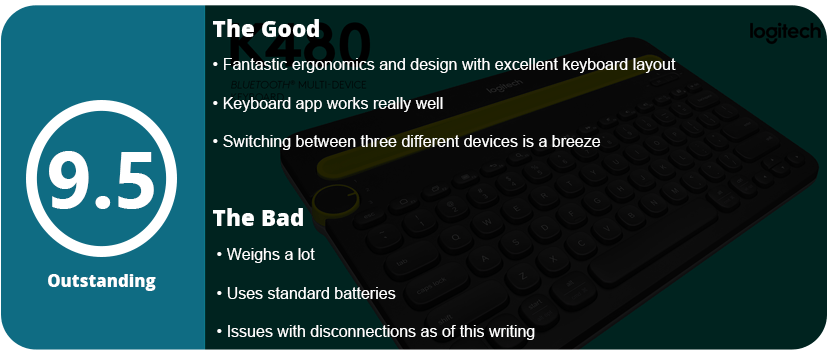
With that said, you can fit a 7″ tablet laying sideways with a 4″ wide phone next to it, or a 10″ tablet by itself. You can also have the 7″ tablet standing up with a 6″ phone laying sideways. It’s up to you. The keys feel great and click just right. The keyboard looks “bubbly” and sleek, with the keys concaved just right. The actual layout makes sense and works with Macs, iOS devices, and Android. With the FN key, you can use the top row as F keys on a PC, and without it, they are your regular functions on a touch device, such as a menu, home screen, recent apps, media keys, screenshot, volume, etc. It’s a smart layout and one of the best I’ve ever seen on a compact keyboard.
Actually, getting this thing to function with a device isn’t that hard, but Android users may find switching between devices a little annoying when having to select the default keyboard. Using the Logitech app to allow you to type without touching the keyboard is needed. This is actually an issue with the Android OS and not the keyboard itself.
The PC and Mac have their own software that allows you to use the shortcuts on the desktop. It’s fairly easy to connect and use without much hassle. Now the biggest issue with this keyboard is that it uses standard AAA batteries, which blows my mind. In this day and age, most of these gadgets should have internal batteries, but maybe this will cut the price down? I don’t know. Just make sure you have rechargeable AAA batteries handy. The other downside was the weight. This thing is pretty heavy by itself, and even more so if you have a tablet and phone on it. It’s meant to sit on a desk or table, so don’t expect it to be comfortable on your lap.
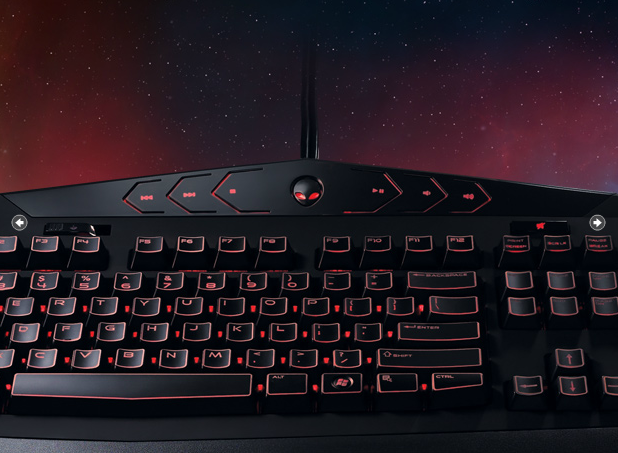
There are better keyboards out there, I won’t lie. However, if you have an Alienware computer, this keyboard is perfect. It mainly has to do with AlienFX. You can sync your FX with your laptop or desktop along with the keyboard; non-Alienware owners may not care for this. With that aside, this keyboard is great. The keys are nice and deep, the ergonomics are very comfortable, and the keys are fairly quiet. The design is just so appealing, but any keyboard has a few flaws.
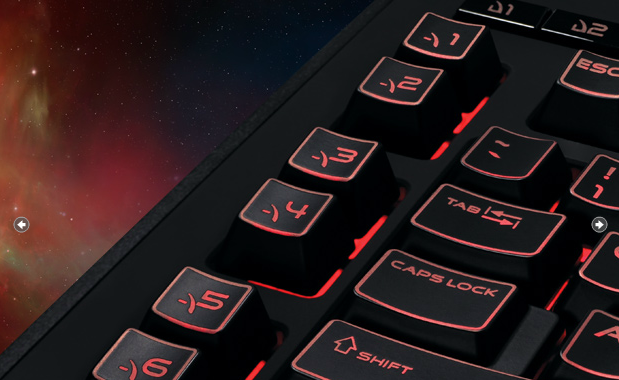
Firstly, the keyboard isn’t separated into zones like the Alienware laptops are. There are only two: the keys and the media bar up top. I also hate that the alien head logo doesn’t do anything. I was hoping it would open the Command Center before I got it, but alas, it’s just a logo. There’s a dedicated mute button that sits above the print screen button and a gaming lock switch that disables the Windows key and menu key during gaming. Some may find this useless, but it’s there for those who need it. The big thing about this keyboard is the TactX keys. There are 18 in total. You can switch between three different profiles. With these, you can open programs, set weblinks, and set macros. There’s even a macro recording button! They are lined upright on the left side of the keyboard, which is a nice and neat line. The optional palm rest is really nice, and there are feet standing underneath as well.
The key placement is just perfect. I tested it playing Battlefield 3 and Max Payne 3, and I didn’t have to look down once. My fingers fell right on the keys they needed in the heat of the battle, and that’s the important thing. The keys are much deeper than most keyboards and even laptops, but it feels nice because you get responsive to feedback. While the complaints are minor, I would have liked to see other features, like an LCD screen of some sort for shortcut applications. For $80, you are getting a pretty sweet keyboard, but that may be just me being picky. You also need two USB ports; this may be a deal-breaker for some who are limited. Those with desktops probably won’t care, but laptop owners may. You need one for the lights and one for power.
Alienware fans should be perfectly happy with this board, and even non-fans can enjoy this thing. I just love the key placements and how nice they are to press. I haven’t had a keyboard this nice before. The software is simple and easy to use, and it gets the job done well. It also comes with a command center for non-Alienware owners.
Google has been known for revolutionizing the internet, and now they are with their Android phones. The Motorola DROID (A855) is the newest and most advanced phone on the market right now, and this bad boy does an awful lot. A lot of people are going to compare this phone to the iPhone, but the DROID trumps the iPhone in features and freedom. I will discuss, first, the tech specs and compare them to the iPhone head-to-head so you can see how powerful the DROID truly is.
Techno Babble
The DROID has a 550 MHz processor, specifically the Arm Cortex A8 processor that is also present in the iPhone 3GS by Samsung. The 3GS is clocked only 50 MHz higher and can be overclocked to 800 MHz. To compare, the original Xbox has a 733 MHz processor. So can the drug be overclocked to this as well? Most likely. With a monster processor, the DROID can multitask and has one of the first actual mobile OSs (besides Windows Mobile 7). This also means maintaining processes running in the background to gain battery life, uninstalling apps (not just deleting them), and a lot more, but we’ll get to that later. The iPhone, however, cannot multitask due to the OS running on it, and the processor is only used in games.
When it comes to graphics, the DROID still hasn’t been pushed to its limits. There are very few 3D games on the Android Market, but as of right now, the iPhone stomps the DROID in the graphics department. The DROID has a 200 MHz PowerVR SGX 530 GPU. The iPhone has the same, but due to its slightly better CPU, it can currently outperform the DROID. The iPhone has been on the market for quite some time, so there are bigger, better games available. The DROID should start getting the same quality soon. They both have 256MB of RAM, so under the hood, they are pretty much the same.
The DROID has a slightly bigger screen, sizing in at 3.7″ and the iPhone at 3.5″. Do 2 millimeters matter? Yes, it does. There are a good 2 millimeters on the top of the iPhone that could be a screen, but for some unknown reason, it’s not. The DROID has a higher resolution of 854 x 480 and 265 PPI (pixels per inch). The 3GS has a 320×480 resolution with only 163 PPI, so the DROID has double the resolution of the iPhone. That is great for people wanting to watch high-res movies on their devices.
Both devices have the same inputs, such as the 3-axis accelerometer (tilt sensor), digital compass, multi-touch display, proximity, ambient light sensors, etc. The DROID is a bit heavier than the 3GS, but only by 1.2 oz. The drone wipes the floor with the 3GS camera. The DROID camera is 5 MP compared to the 3GS’s 3 MP. The DROID has dual LED flash and geotagging, and it can even run higher than 30 FPS. The 3GS has all this except the dual-LED flash, which is a huge plus.
When it comes to storage, the DROID wins with its external memory option. You can insert up to a 32GB microSD card, but you’re stuck with the 3GS internal memory and have to pay a huge price for more. The DROID even comes with a 16GB microSD card when you buy the phone. So when it comes to comparing junk under the hood, they both have the same hardware, but the DROID has the extra tidbits that push it over the edge.
GUI: Graphical User Interface
The DROID has an excellent GUI, and the whole marketplace is run by the community. There are programs such as PandaHome, OpenHome, GDEHome, etc. that allow you to change “themes” for a small price or for free. These also change icons, clock widgets, etc. The DROID has a great interface that is more like a computer that gives you a desktop, then a slide-up menu where all your apps are stored. You can drag and drop as you see fit. The iPhone, however, is plagued with the mundane Apple OS that only shows apps in a grid format with a black background. Sure, you can change your “wallpaper,” but this is only when the phone comes out of sleep mode, so it’s rarely seen. This makes every iPhone look the same, so the DROID wins in customization by a long shot. There are four touch buttons located at the bottom of the screen: your back button, menu, home, and search. You will use these buttons a lot, so Motorola and Google were smart to put them here.
Apps: Who’s Better?
It all comes down to the apps. Who has more rights? Well, the iTunes marketplace has hundreds of thousands of apps that the DROID doesn’t have, so the iPhone wins there. However, the Android market is ever-growing, and thanks to the user-run community, a lot of great apps are showing up that the iPhone can’t run. These include a lot of customization apps and loads more. Apps are easier to run on the DROID since there is no iTunes-type program. The app store is run off the phone and downloaded from the phone as well. If you don’t want an app anymore, you go to your settings and uninstall it. Google also allows you to refund anything you buy within 24 hours, and Apple does not support this. While iTunes may have more stuff, Android has better customer service, a better community, and a better setup. There are really no “hardcore” games for the DROID like there are for the iPhone, but it’s getting there. You do not want to get a DROID for a gaming system just yet, for sure; stick with your iPod or phone.
Features: Welcome to Google Town
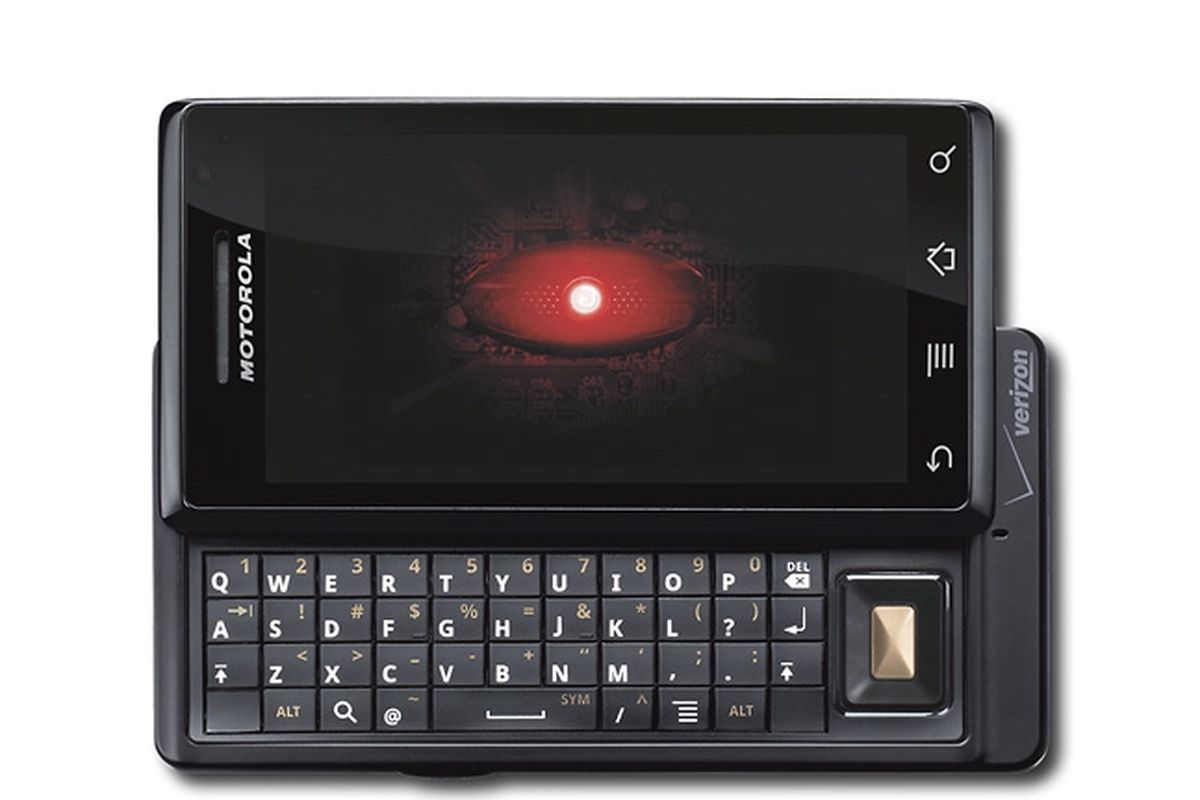
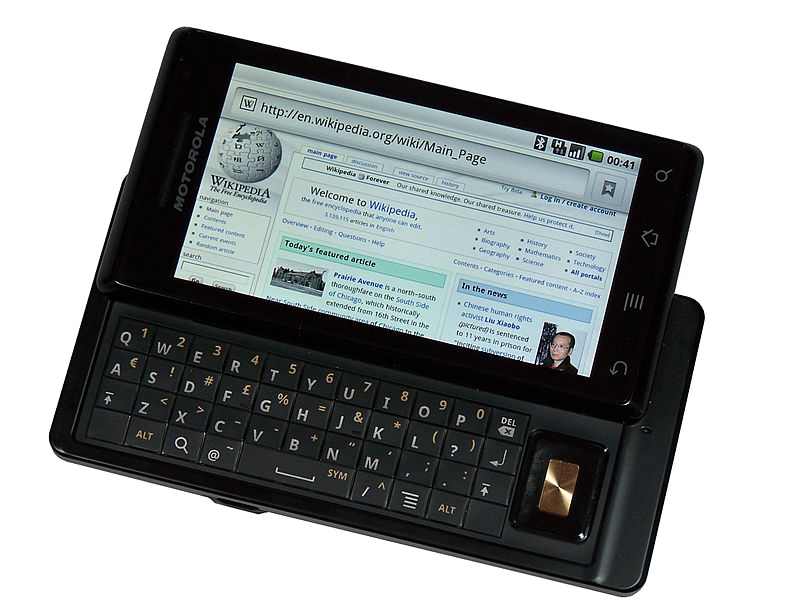
The DROID has a lot of little things going on in it. You can do everything a touch-screen phone can do, but it also has a slide-out QWERTY keyboard. The buttons were a little flat, and the top row is hard to get at if you have big fingers, but it works well. If you tilt the phone sideways, you can type with a landscape keyboard or use Google text-to-speech. I found this feature extremely useful when typing long messages or writing reviews for apps. Since this is a Google phone, you get all their awesome apps, such as Google Earth (yes, it’s in 3D and you can see every detail) and Google Maps. Switch to your “car app” and press navigation. Speak your selection (i.e., Phoenix, Arizona), and Google will give you directions for a car, bus, or walk (God forbid you to walk that far!). Press Get to Navigate, and the phone will give you the directions. It doesn’t update in real-time, but it does update as you drive down each block.
Google Sky is a fun app that lets you point your phone in the sky, and it will show you, in real-time, where each constellation and the planet are. You get plenty of excellent Google apps, such as Gmail, YouTube (yes, Google owns YouTube), and Google Goggles, which allow you to take pictures of products or objects, and the phone will scan and search them for you. There’s even a Google search bar on the desktop with a text-to-speech button next to it. Brilliant. There are plenty of other apps, such as the Amazon store, eBay, Bank of America, MLIA, FML, and even ShopSavvy. This app allows you to scan a barcode, and it will tell you where you can find it cheaper online or locally. Of course, you have all your social networking apps, like Twitter, Facebook, and MySpace, which run great.
When it comes to things like ringtones, pictures, and videos, the DROID delivers. You can store any MP3 or picture and set them as wallpapers, notifications, or just ringtones. Mount your SD card via USB and just create the folders. There is no need to sync with a program on the PC. Total freedom is what Google gives you, and this is what I love.
Problems: It’s Not Perfect
There are some issues with the drug, but not many, and they are minor. The biggest one is the running processes in the background that can kill your battery even in sleep mode. You have to get the Advanced App Killer app and every so often check everything you don’t want running and kill the apps. Another problem I ran into was that since most of the apps are user-made, they can be glitchy and screw up your phone, so watch out and read reviews before downloading anything. You could say that the major issue is the app store. There are a lot of apps, but some of them are junk. There aren’t any excellent games available, and the app store doesn’t have any sort of feature except Top Paid, Top Free, and Just In.
For a $550 phone (if you pay for it without a plan), the DROID delivers and trumps the iPhone in every direction except the apps. The DROID is a very advanced phone and is for people who love using their phones constantly and want to make them a part of their everyday lives. With a sleek design, excellent features, sturdy hardware, and monster processing power, the DROID should be the #1 phone in 2010.
Update: 10/15/2011
Now that I have had this phone for 18 months, I don’t like it as much. The phone started having issues with serious lag, slowing down, and just hardly responding anymore. The touch screen lost sensitivity after about a year, plus the hardware is ancient compared to what is out now. Due to that, all the apps are now optimized for higher-end phones, so the Droid is left in the dust.
Overall, the phone just doesn’t really work anymore internally. It won’t come out of sleep mode sometimes, won’t answer calls, turns off randomly, and the internet is just impossible to surf due to the now weak processor. Hardware-wise, it has stood the test of time with many drops, slides, fumbles, and kicks. Not a single crack or anything, but thankfully this phone is now discontinued. If you have the original Droid, you are probably finding the same problems even after a factory reset. The phone was great 22 months ago, but now I just absolutely hate this thing. If I were to amend my score, I would give it a 4/10 now, but of course, that’s unfair and should be remembered for how great it was at the time of release. Did I also mention that the appraisal price for the phone is about $20 nowadays?






















 thebinarymessiah.com
Try multiplayer. A lot of fun !