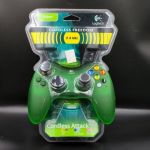
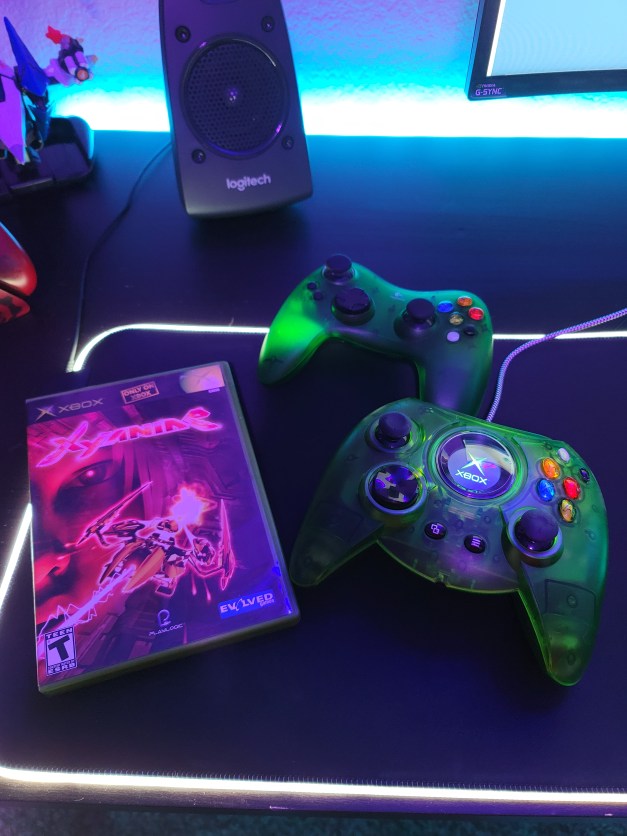
After loving the Cordless Precision Controller for PS2, I had to get something similar for the Xbox. Now, the Xbox controller is great, but I don’t like cords strung across my house. Back in the day, wireless controllers were expensive, and there weren’t many good ones. After picking up a generic wireless controller a couple of weeks ago, I ditched it in the trash. It lagged, was constantly cut out, had to be reconnected from the receiver end, and was just glitchy and cheap. The Logitech controller feels solid, literally melts away in your hands, and has a nice weight to it.
The arms of the controller are bent out more and are a bit longer, so you have a more solid grip. The black and white back and start buttons are closer to your thumbs and are a bit bigger. The triggers aren’t really better than the OEM controller, but they still feel nice and are a little less stiff. The analog sticks feel great, and just like the PS2 version, they are a tad loose, so it takes getting used to.
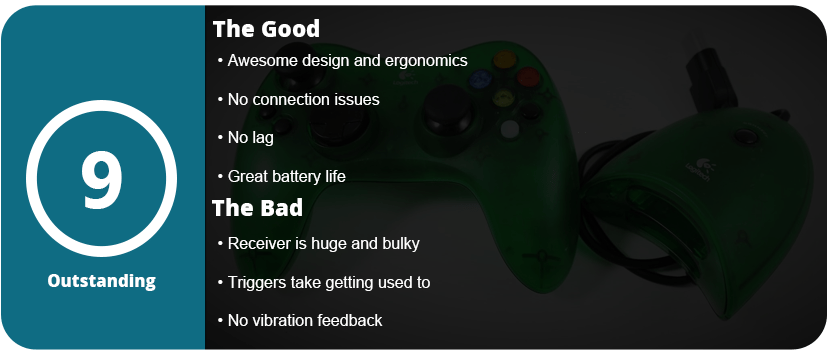
I found it puzzling to have memory card slots on the receiver end as it makes it big and bulky, and the Xbox has an HDD, so why do we need memory cards? I understand transferring saves to a friend’s system, but it couldn’t have been built into the system. Anyway, the controller connects without a hitch and never needs to be repaired. Just press a face button and it connects with zero hassle, and this is why I absolutely love these Logitech controllers.
The back door to the batteries is much easier to get off than the PS2 version, and you get 50 hours of battery life off of two AAs. Overall, this is the go-to wireless controller for Xbox, as it feels better than the OEM one and is just a seriously solid and amazing product. They tend to be a bit cheaper than the PS2 versions, as there was only one version released. However, a new controller will still cost you over $100.
I have to note that this is the older, and better, model of the Cordless Precision Controller for PS2. The newer one doesn’t feel as nice but is more widely available. Besides the official DualShock 2, there isn’t a better controller out there. There were so many third-party controllers for the PS2, and they were all mostly terrible. From poor ergonomics to bad wireless technology or lame button placement, Some controllers opted for the Xbox-style analog stick layout or were just poorly built. Logitech was the king of accessories back in the day, and while they were more expensive, they were worth the money. I had this controller last for over 10 years until it pretty much died on me recently, and I had to buy a new one. That’s a long time for an accessory, and it went through several moves, was stashed in storage for a couple of years, and was dropped, kicked, thrown, and smashed over and over again growing up.
What makes this controller the best wireless option for PS2 is that it just feels good and is more solid than the official controller. There’s more bulk, and it feels heavier and more solid in your hands. The controller fits so nicely with shorter arms and a thicker back with larger top buttons. The D-pad is much improved and works well with fighters as it’s a rolling D-pad over the standard plus D-pad. My only complaint would be that the analog sticks are too loose for my taste, and they take some getting used to.
The controller connects to the receiver easily with just a press of a button, and there is no need to repair it. I never once had to pair the controller over the 10 years I owned it. It shuts off after 5 minutes of inactivity; there’s a mode button for switching from digital to analog, and that’s all you need. It lasts nearly 50 hours on 2 AAs, so get some rechargeables and you’re golden. I also have to mention that the battery cover is a pain to get off, but you can’t have everything.
Overall, this is the best controller option for the PS2 bar none. Sadly, it’s not made anymore and can be upwards of $50–60 used, and new controllers run over $100. If you can nab one, these are worth the investment tenfold. Just another side note: the black version is the most common, with the silver being second and the blue one being nearly impossible to find. The silver ones pop up here and there, but I have yet to ever see the blue one.
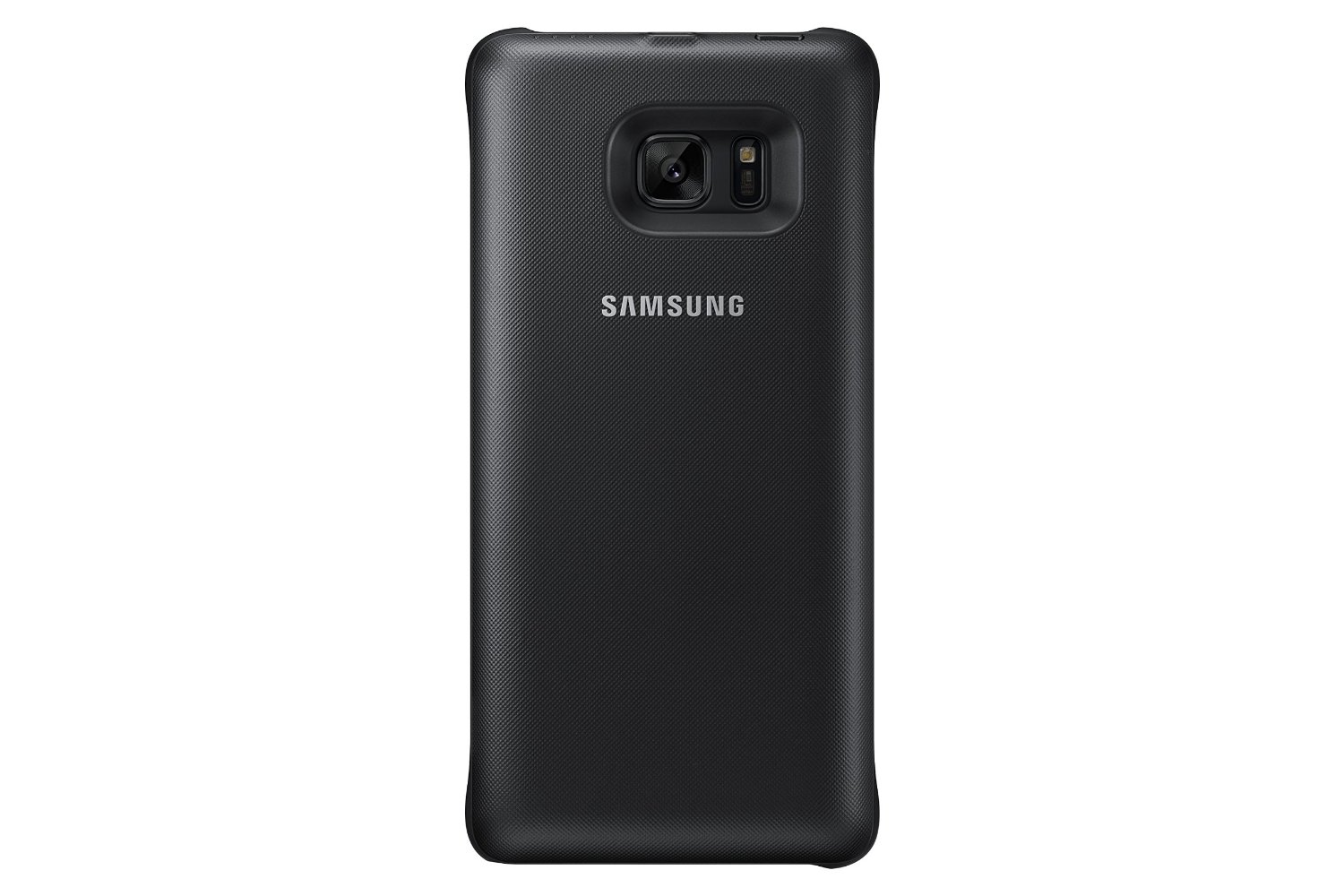
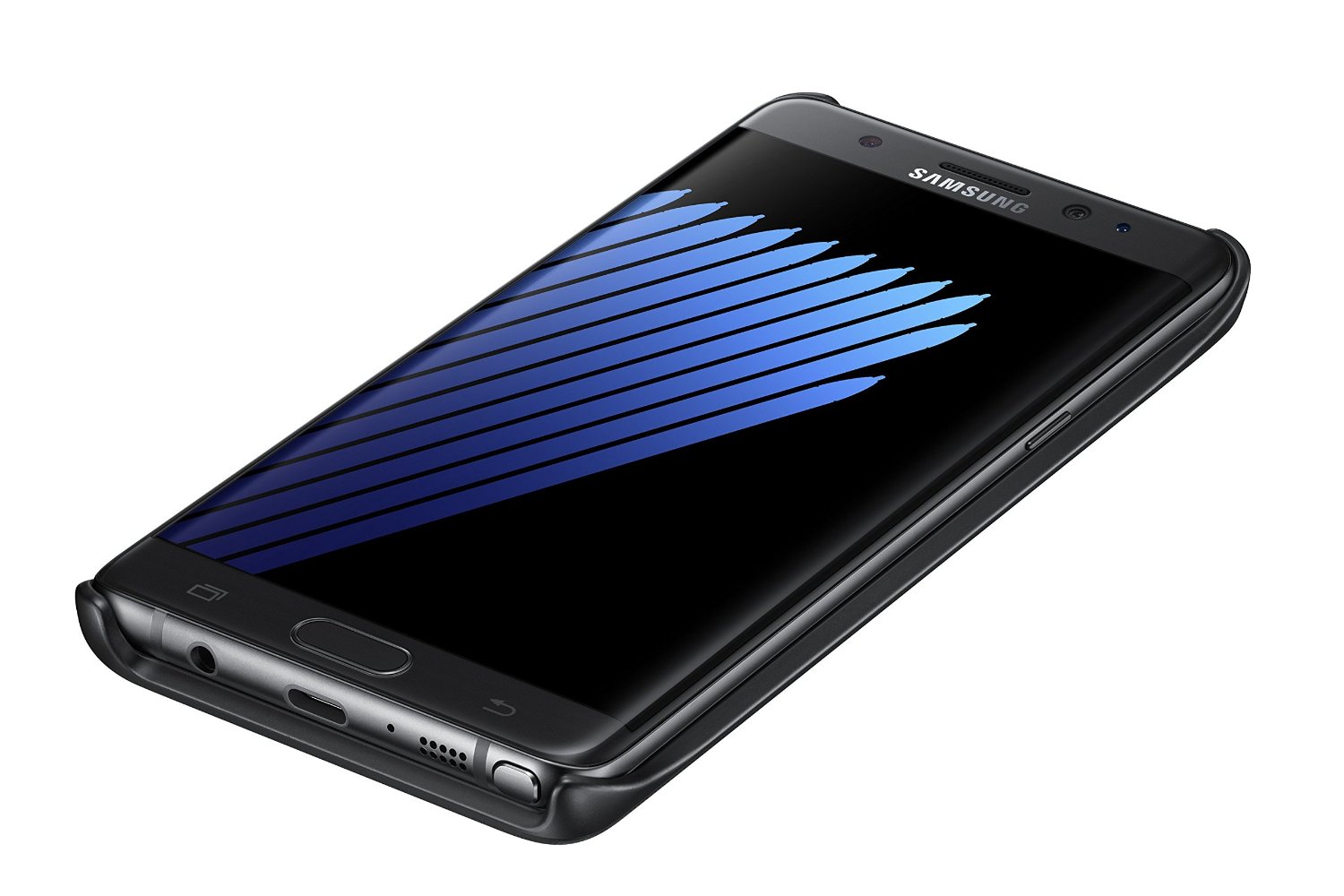
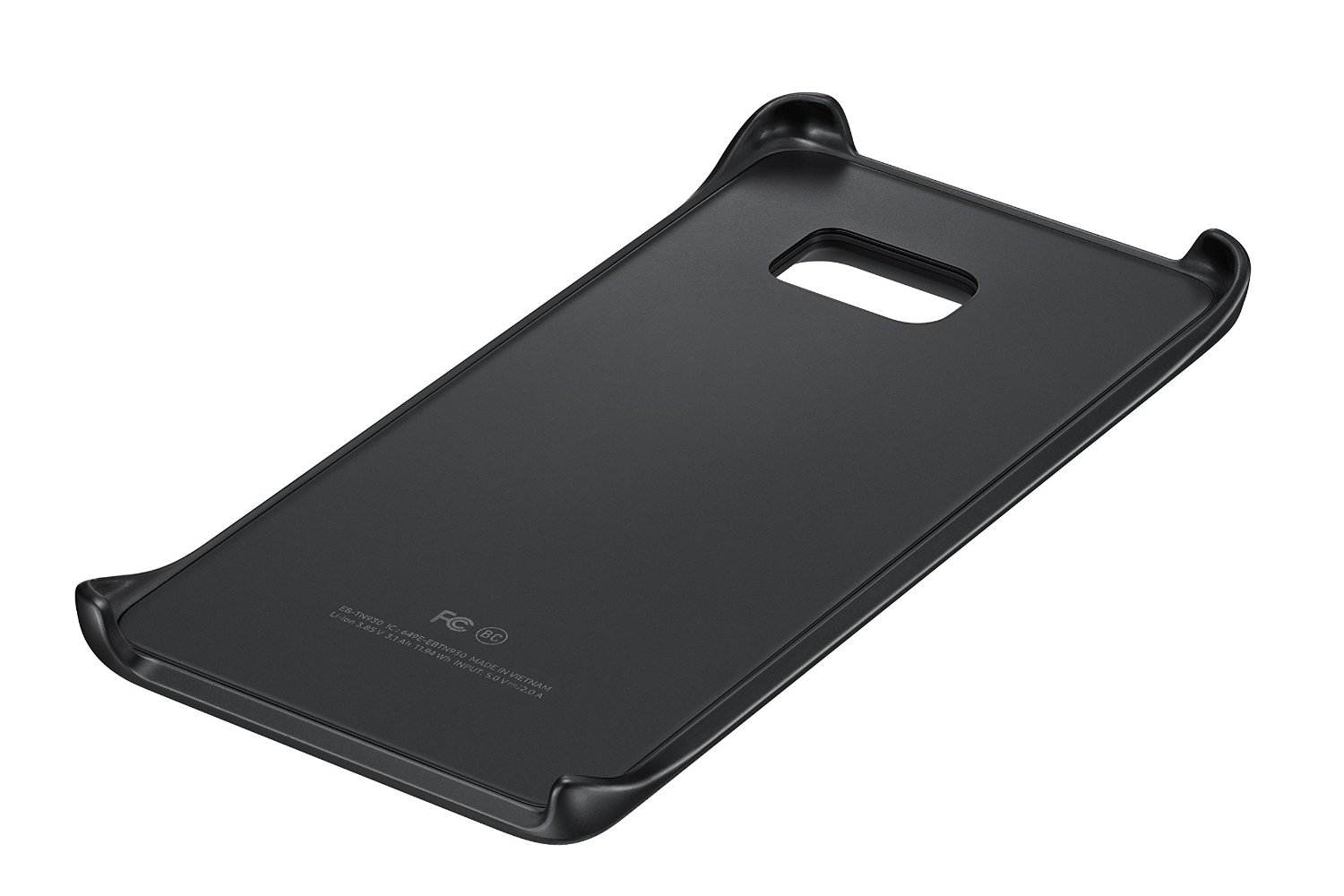
I love the wireless charging features of the new Galaxy phones, but you’re still tethered to a cable at work, in the car, or on the go. Samsung finally thought about bringing about a wireless charging snap-on cover to keep your cord-free. The cover looks sleek, is ultra-light, and complements the design of the Note 7, but it’s not perfect and almost not worth a purchase.
The battery pack itself is perfect design-wise, but for practical use, it’s for emergencies only. It says right on the packaging that it doesn’t charge the phone all the way but “about 1/2 charge,” meaning 40–50%, which is fine. It does support a pass-through charge, meaning the cover will charge your phone and then charge itself if you have the cover plugged in. The other big issue is that this isn’t fast charging. It takes about 1 hour to charge the phone 50%, and if you use the phone, you’re lucky if you get a 35–40% charge. This also isn’t a huge issue, as you can snap the cover on when it’s 100% and keep it there for a couple of hours. I honestly only see this as useful if your phone actually died or is within 30% of dying and you’re away from a charger.
If this cover was fast charging, I could forgive it a lot more, but for the asking price, this is very hard to recommend. I love the convenience, but it’s got a smaller battery than the Note 7 itself. If you find yourself always killing your phone when you’re out or you take long trips, this is for you, as it doesn’t take up much room. If you can always access a charger, then skip this entirely.
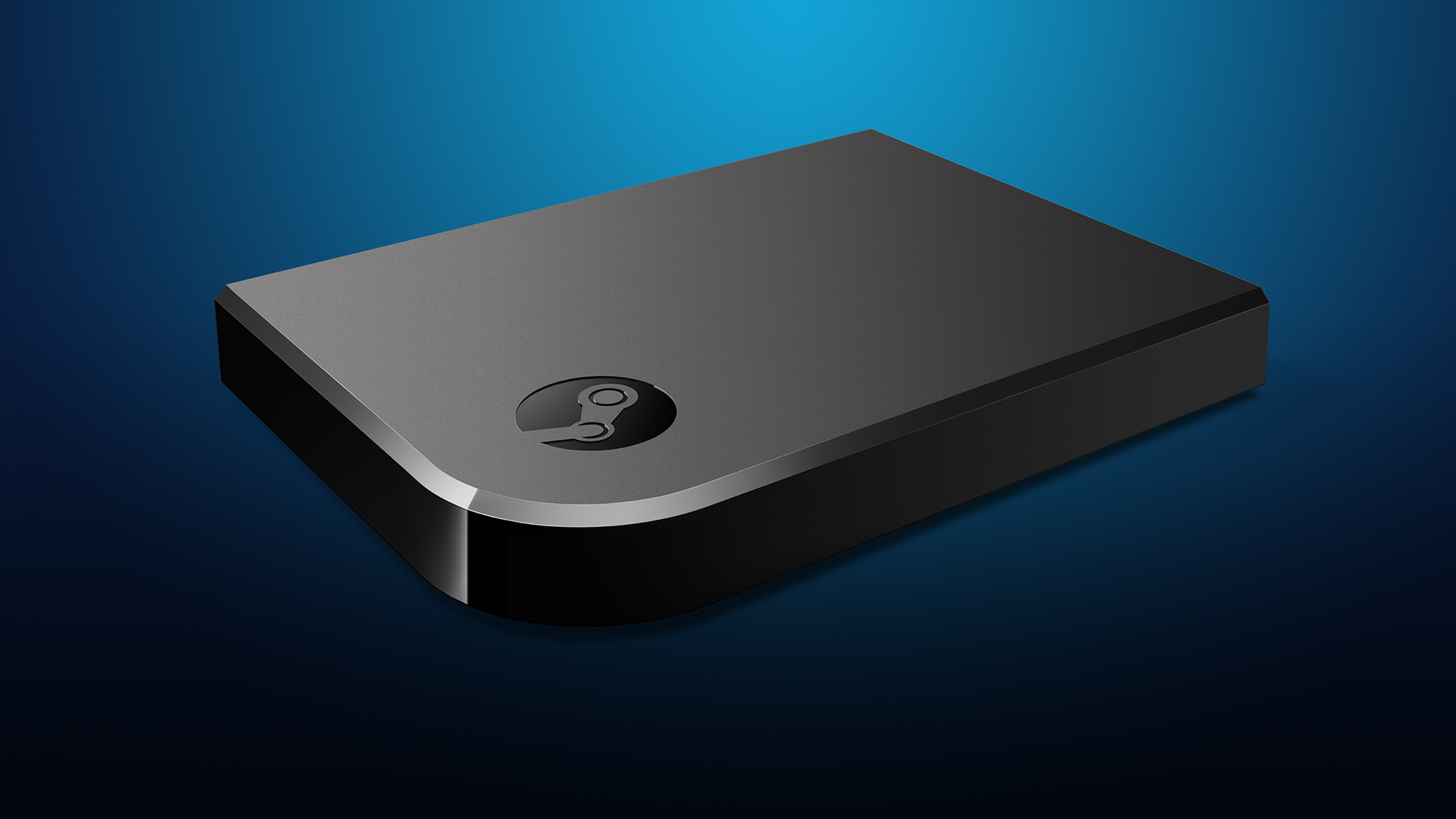
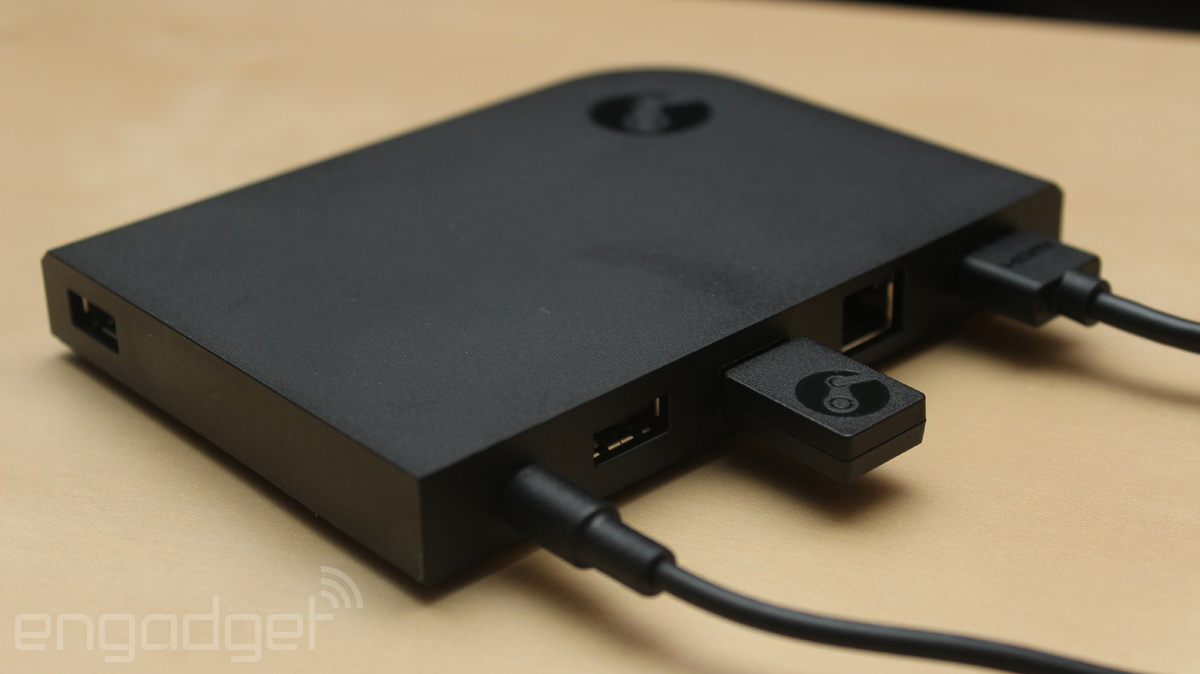
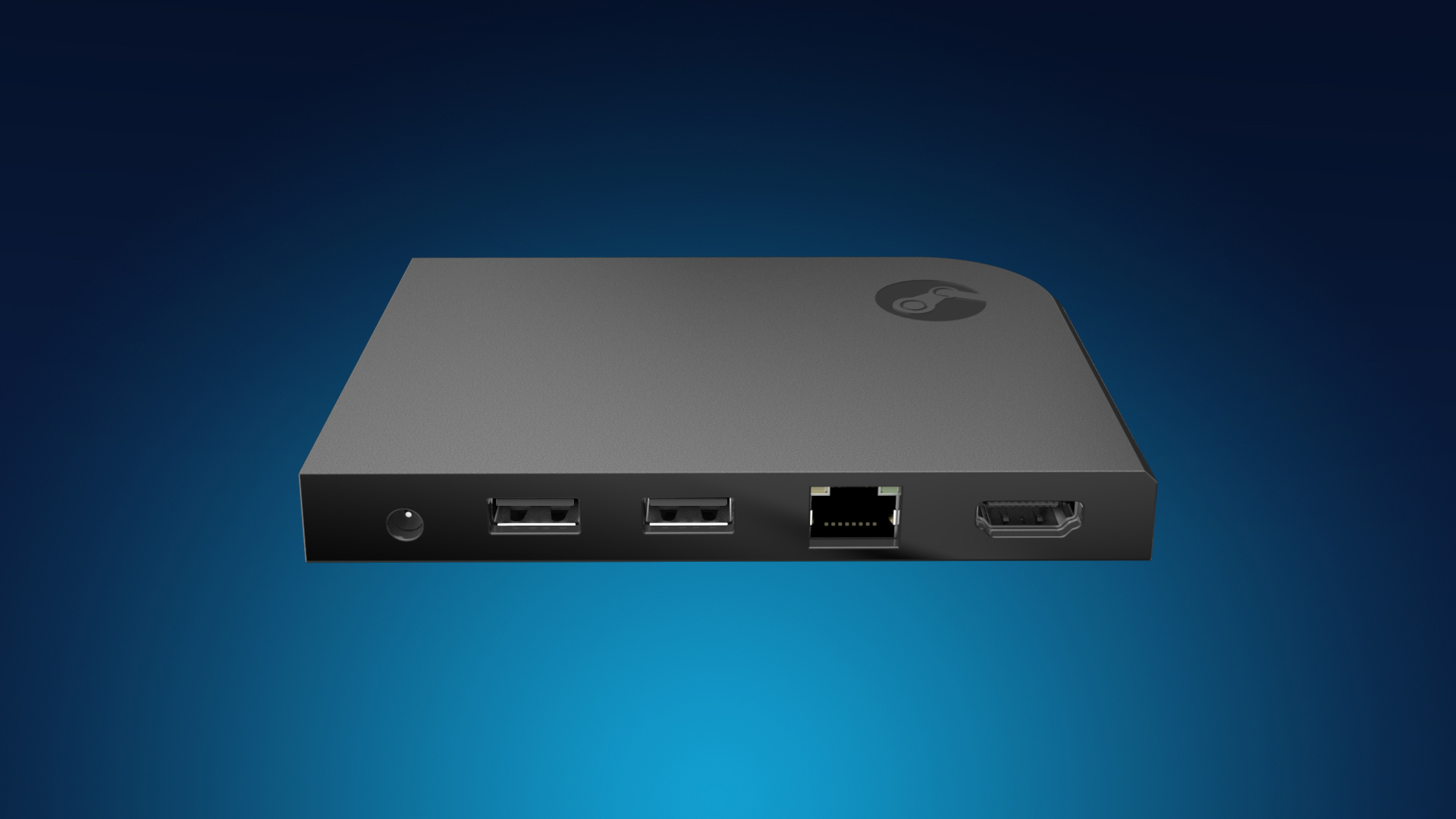
Video game streaming hasn’t really been a big option until the last couple of years, thanks to Steam. In-home streaming was possible for other computers, as this allowed computers or laptops that weren’t all that powerful to stream from a computer that was. This was great for families but didn’t have much practical use for anyone else. Now, thanks to Steam Link, anyone can stream their PC games right to their TV, but it isn’t without issues.
The Steam Link is a little confusing to set up at first. There’s a wired and wireless option, but the quick guide (the only instructions in the box) says that the PC should be connected through Ethernet to the router and then through Ethernet to the Link box. You don’t HAVE to have everything set up wired, but it can all be wireless as well. This requires an extremely fast internet speed, a 5GHz router, and a modern modem/router setup. Even then, you will experience latency issues. The box includes power adapters for different parts of the world, which is, I guess, good if you travel a lot; otherwise, it won’t matter. A 6′ Ethernet and HDMI cable are also included, which is a nice plus. Once I had everything set up, the Steam Link just kind of turned on; there’s no on or off switch. I then realized I needed a controller, so I used a wired Xbox One controller, but I realized I needed a longer USB cable, so I had to use a USB extension cord. Finally, I was ready to play.
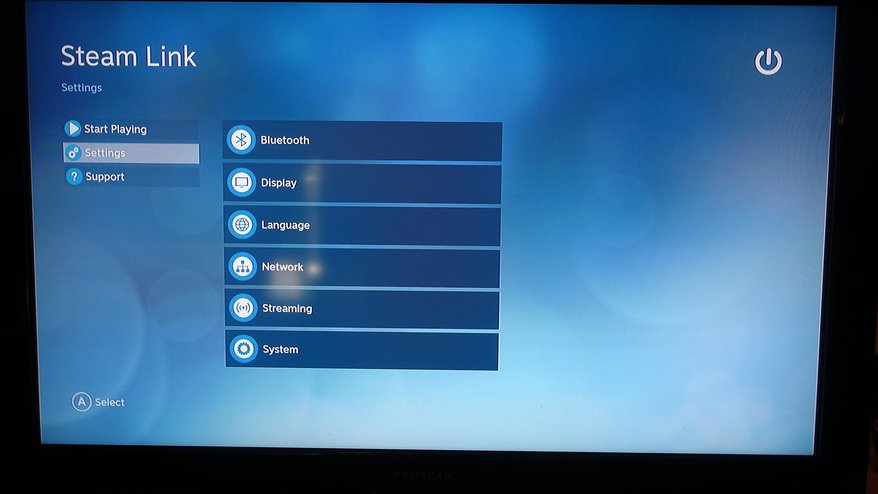
The software setup was pretty quick; the Steam Link had a software update, and after about 5 minutes, I was ready to go. I set up the Steam Link through WiFi via a 5 GHz connection and 100 mbit/s. Steam on my computer launched in Big Picture Mode, and I set the streaming quality to “Beautiful.” I then launched Fallout 4 and had my first issue. Unless you have a Bluetooth keyboard and mouse and/or a Steam Controller, there is no mouse emulation. I had to walk over to my computer and press play from the game launcher before it would boot. That was really annoying.
After playing the game for about 10 minutes, I noticed there wasn’t any video latency but only audio latency. There were pops and crackles in the audio, and it would cut in and out a lot. Every so often, the picture would compress a bit, and the whole picture would look pixelated. This wasn’t going to be feasible, so I ran an Ethernet cable from my router, under my rug, and up to the entertainment center, and then the audio cutouts stopped. However, the stream from my PC to the router was still wireless, but that didn’t seem to be an issue. I’m sure a software update could fix the latency for wireless streaming on the actual Link box.
Using Steam itself was a breeze in Big Picture Mode; it felt like a highly streamlined console UI (in fact, better than Sony, Nintendo, and Microsoft have ever come up with), and I could easily access the store, friends chat, and my library without a fuss. Another plus is being able to access your own music and various other Steam features. This is actually the best way to get a Steam machine experience without actually having to buy one.
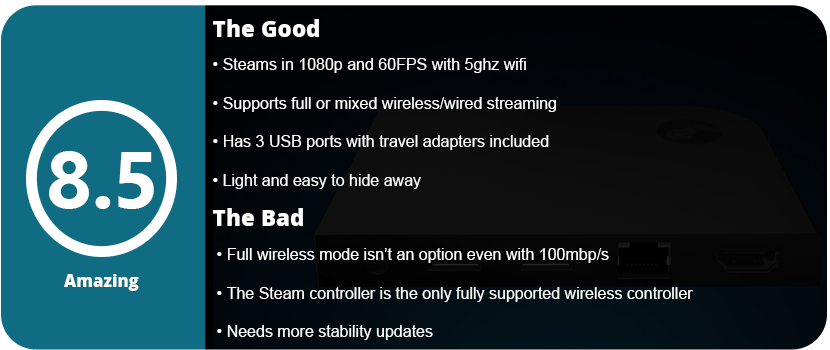
In the end, the Steam Link is a great buy, but you must have the right setup before bothering. Have a wired setup, or make sure you have a 5 GHz router and at least a 100 Mbit/s connection before even thinking about wireless streaming. A Steam Controller is the best way to go here, as it will connect to the actual Steam Link box directly; otherwise, your only other wireless controller option is the Xbox 360 controller with the wireless adapter. Once the Xbox One wireless adapter releases, it will be much easier, and we need some more stability updates from Valve before this is seen in everyone’s living room. For $50, you don’t really have much to lose here.
Sound systems for TVs are pretty expensive, and when I was wandering the aisles of Fry’s Electronics, I honestly didn’t know what to look for. I’m more of a video guy, so the sound was new to me. I was tired of hearing everything from my plasma screen’s speakers and wanted something to bring my games and movies to life. After looking at the PC speakers, I found out that they aren’t really designed for digital audio, despite being much cheaper. The other route was to get a receiver box and then buy expensive speakers that go into that. What was I to do? These things caught my eye, and it was one of the best purchases I ever made.
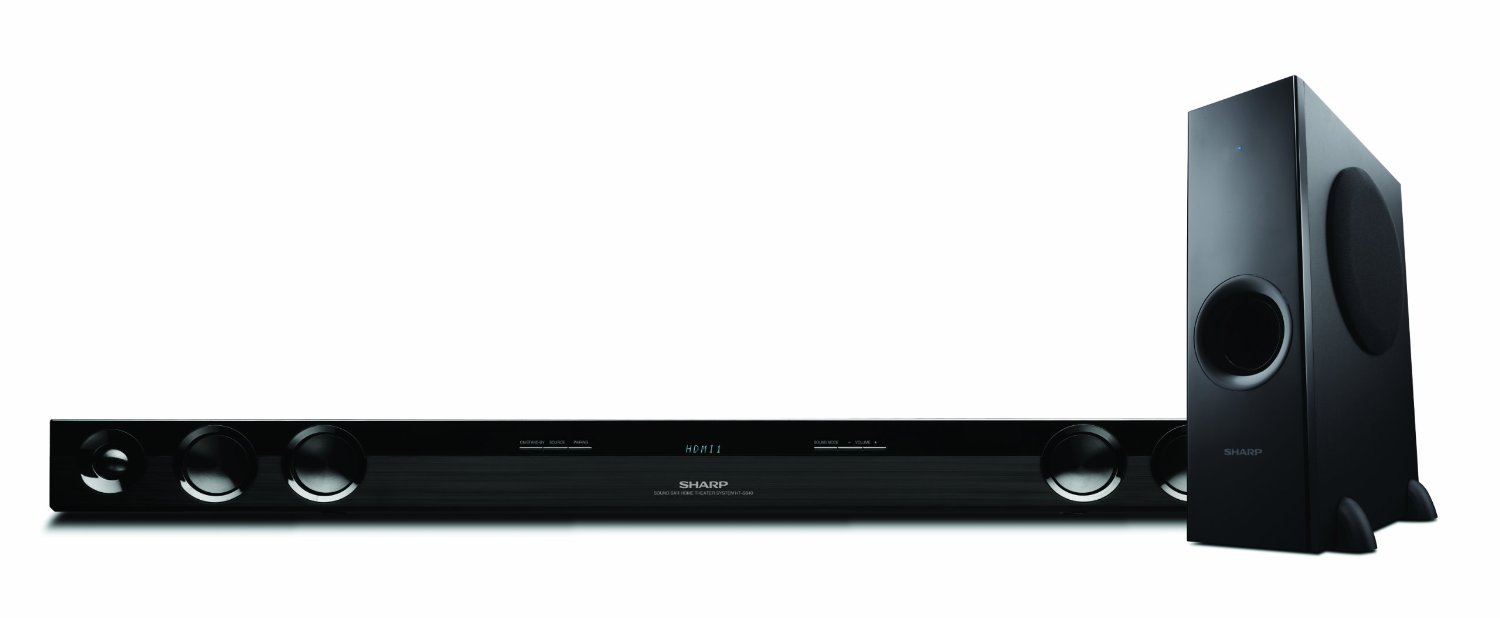
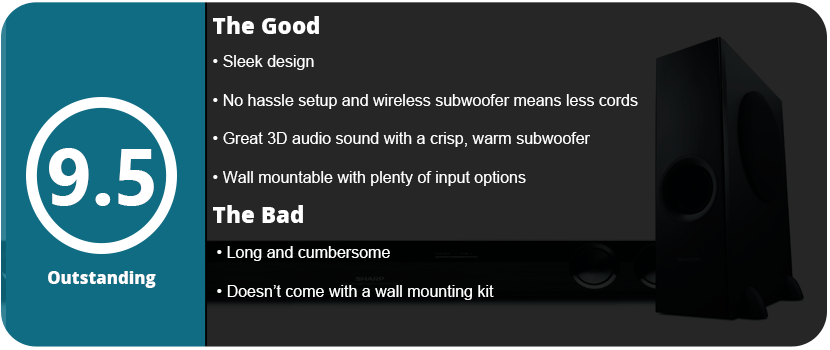
Soundbars emulate surround sound and 3D audio. It’s not as great as a 5.1 or 7.1 system, but the average person won’t notice a difference. First things first, don’t ever buy a soundbar with the subwoofer built-in. It distorts the sound and drops the quality of the audio significantly. These tend to be the lower-budget soundbars that are in the $150 range. The Sharp HT-SB40 has a separate subwoofer that’s made out of wood and not plastic. It gives the bass a rich and vibrant sound rather than being tinny. The 310-watt speaker is plenty and enough to blow anyone out of your house. Compared to the average TV speakers, which are about 20–25 watts, The sound is crystal clear, and there are some nice features here.
The whole system is easy to set up. If you don’t want to constantly swap cables, just buy a separate optical audio cable and plug it into the back of your TV. The power bar has 2 HDMI inputs and 1 HDMI output, which is actually quite a lot for a soundbar. There is an aux jack as well for plugging up MP3 players and other devices. Thankfully, the subwoofer is wireless, so there’s no hassling around with cables and keeping them close together. I didn’t even have to pair anything. I plugged everything up, and I was ready to go.
There’s not much to fiddle around with once you start using it. The bass is very loud and booming. Even with the subwoofer and bass turned all the way down, it was still pretty bassy. People who live with whiny neighbors in apartments need to watch out for this. The sound coming out of the bar itself was rich, and some of the best audio I heard made it sound just like you’re in a theater. Speaking of which, on the remote, there are many audio presets like cinema, gaming, night, sports, news, etc. Cinema really sounds the best because the others sound too tinny. I also love the 3D audio button. There are two presets, and the speakers don’t sound very good with them off.
There’s also an option for AV sync, which lower-budget soundbars don’t have. If you hear stuff before you see it (video delay), then you can turn it up to adjust the delay. You can even dim the display on the power bar and put it in standby mode.
With all that said, this was worth every penny. The power bar is even wall-mountable, which is nice. This thing is long, and you don’t want it on the floor. My only complaint would be that it doesn’t come with screws to mount it on the wall, and it’s very cumbersome and big. Other than that, I don’t think I’d want any other system.
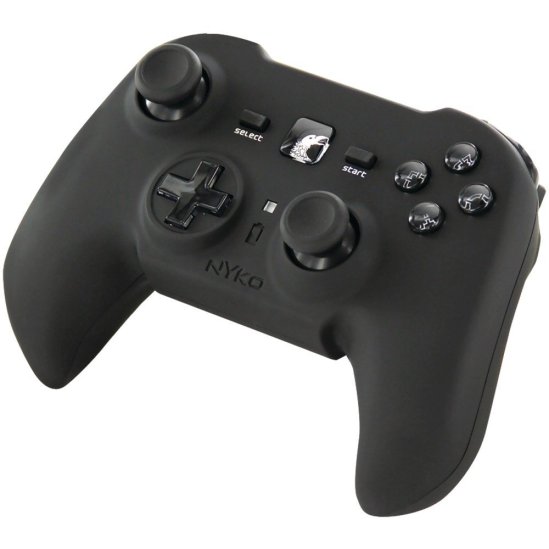
I saw this little guy on a shelf at Fry’s one day, and it looked very sleek and ergonomic. I was surprised at seeing something so well made from a third-party peripheral company like Nyko, which is notorious for making crappy products. I love collecting controllers, so I kept this guy on my radar. I finally got it as a Christmas gift, and I am very pleased. It has become my favorite PS3 controller thus far. When you put the thing in your hands, your fingers just mold to the controller. It is more square in shape than a rectangle like the OEM controller. The texture of the controller feels great and is made of very smooth, silky rubber. The triggers are designed more like the Xbox 360 controllers and are much better than the OEM controller, which I found my fingers slipping on a lot. The controller is slightly heavier than the OEM one, but it just feels so much nicer. The analog stick orientation is set up like the Xbox 360, so your thumbs don’t bump into each other during frantic movement. The sticks are much smaller, and the tops have a pretty deep dip, so your thumbs stay nice and snug. I love how tight the sticks are—not too tight, but not as loose as the OEM controller. They click very nicely, and the D-pad is small and gives a great response when using it.
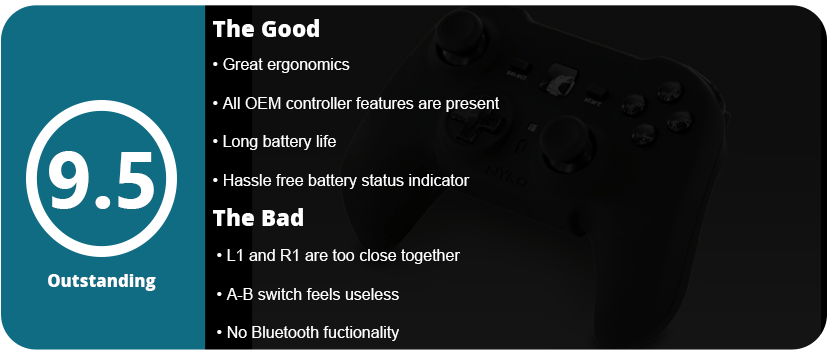
The overall look of the controller is great. It is all black and sleek, with the PS Home button being a large square in the middle with a picture of a raven. The face buttons are clear, with nice designs set inside. However, there is one useless feature that this controller has that I have no idea why anyone would use. On the back, there is an A-B switch that will swap the functionality of the shoulder buttons. I have no idea why this would be used, but it’s there if anyone needs to use it, I guess. The controller has a nice USB dongle (no Bluetooth, unfortunately) and comes with a USB charging cable, which is rather short. There is a square LED right below the home button that will stay solid when charging, flash fast when charged, and slowly flash when low. This is a great, hassle-free way of telling what status your battery is in. The controller lasts quite a while, with a whopping 25 hours of battery life per charge. The larger battery may be why the controller is slightly heavier.
My only real issue is that the L1 and R1 buttons are a little too close together because of the controller’s square shape. It takes a while to get used to this, and you have to force your fingers into the right position, but after about 4-5 hours of playing, it starts to feel natural. Other than that, this is a very nice, well-made controller that doesn’t feel like cheap plastic. For the low price, I was surprised at how well made this was, especially being wireless, having rumble, and having SixAxis control built-in. This is probably one of the best wireless controllers I have ever used and will be one I recommend to everyone.
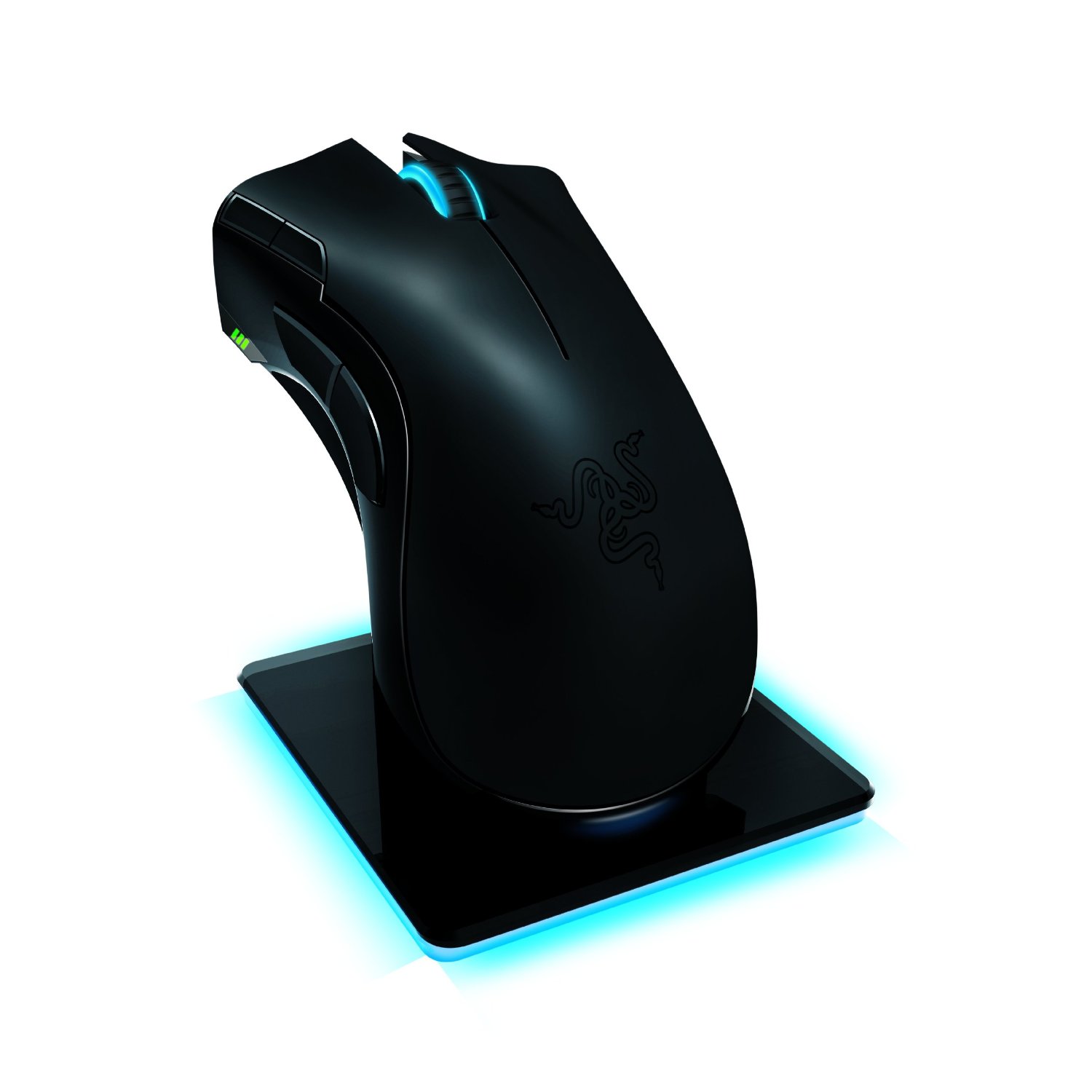
I loved my Razer Naga MMO mouse, and it has lasted almost two years without a hitch. I also love my Cyborg R.A.T. 9 mouse, but I am getting bored with it and want to move on. The Razer Mamba is the other high-performance, high-tech gaming mouse out there. Bottom line: This is the best money you can buy. While being cheaper than the R.A.T. 9 by $20, it does more hardware-wise but less software-wise in a way. I don’t want to turn this into a Razer Mamba vs. Cyborg R.A.T. 9 review, but I can’t help but compare two of the best gaming mice out right now.
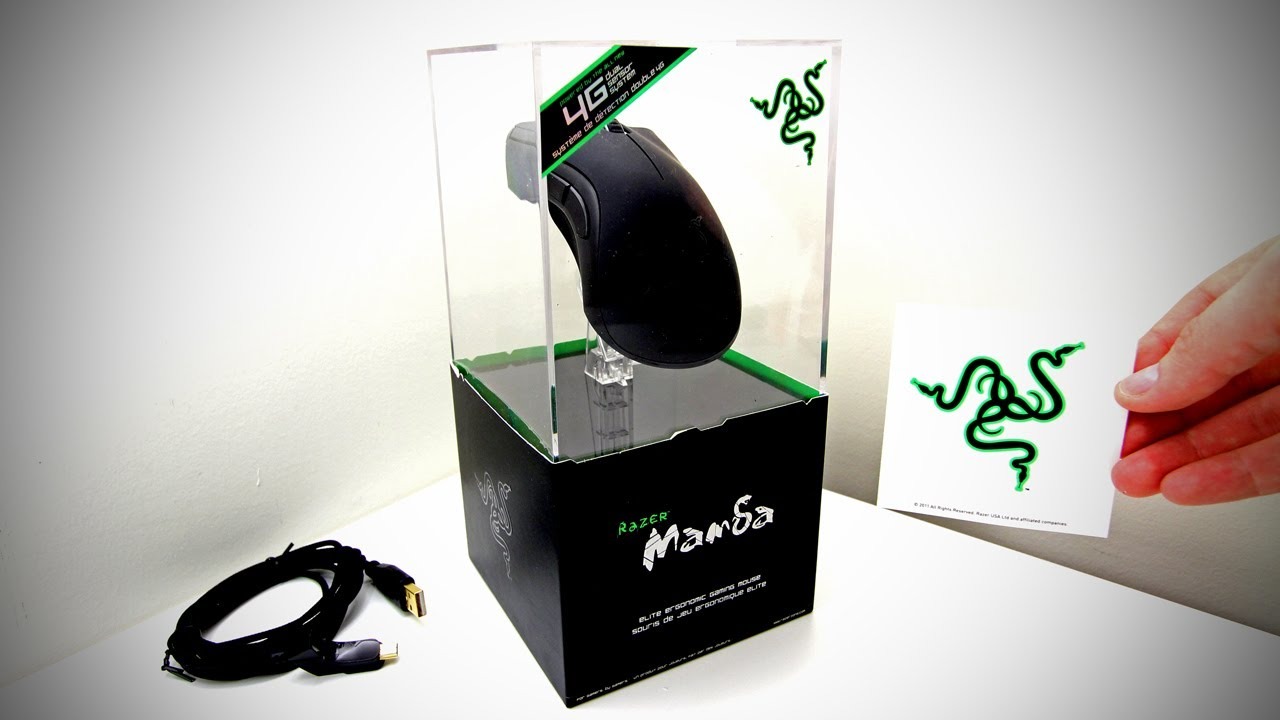
The first thing you will notice is the epic box the mouse comes in. It’s on a stand like a holy relic, and inside are drawers with your cord, charger base, manuals, battery, and cover. It’s a slick-looking box and is just asking you to buy it, and hey! You get a free sticker. When you plug it in, you need to download the firmware updater and software, which is easy. Once your firmware is updated on both the base and the mouse, you can check out the beefy software. But first, let’s see what this mouse does hardware-wise.
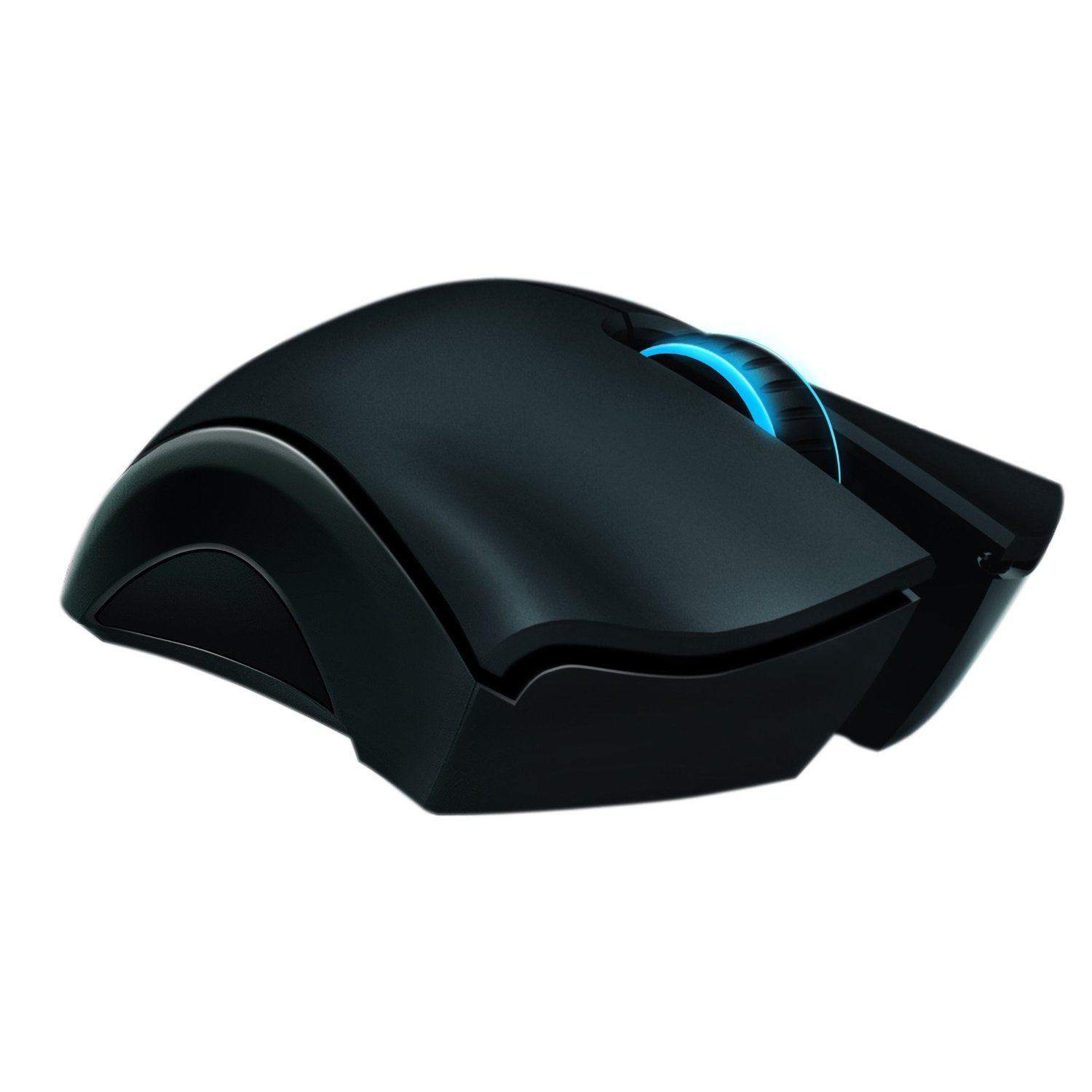
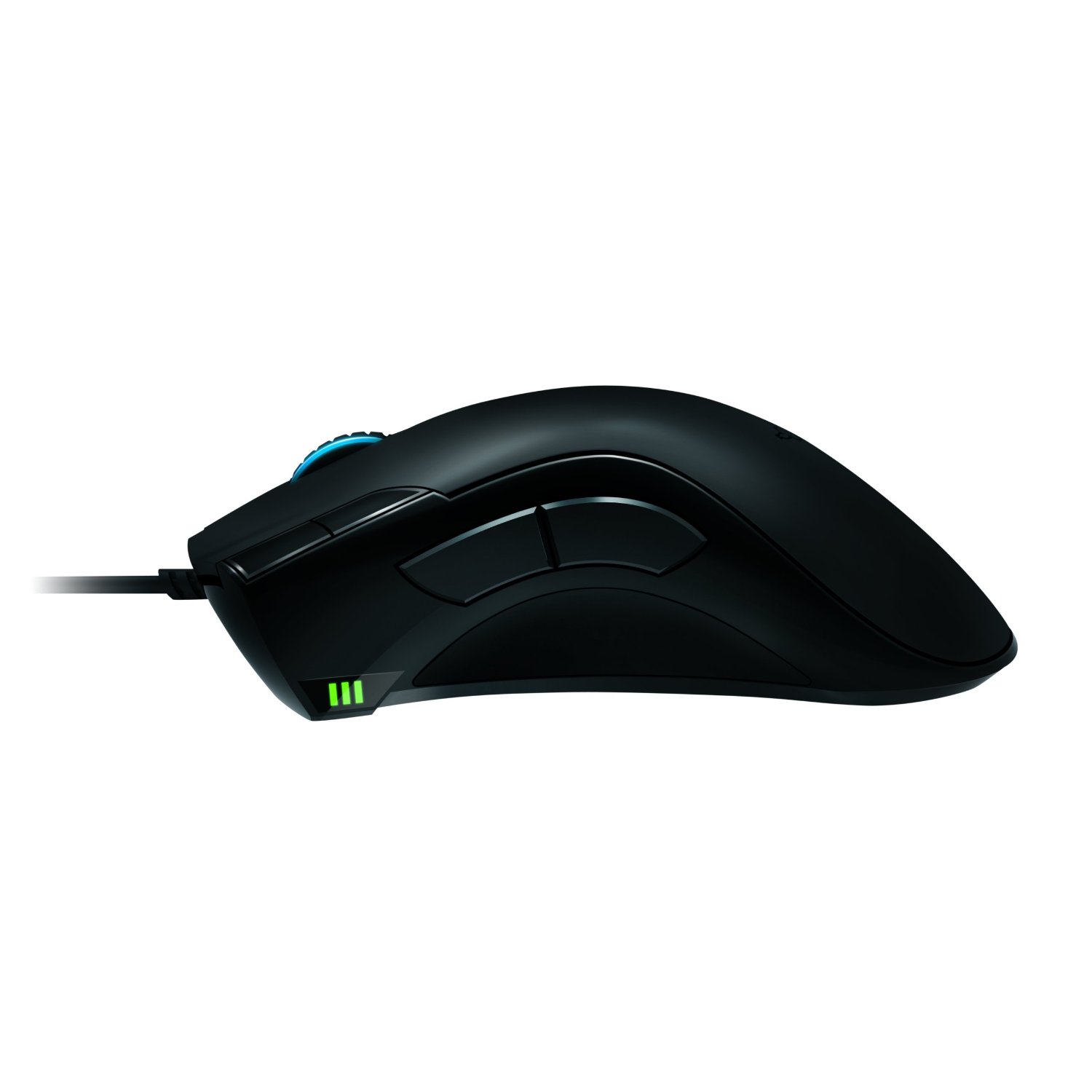
The mouse has the usual Razer ergonomics that you’re used to with the Naga or the DeathAdder, but it feels concave just right on the thumb side. There are two big buttons just above your thumb for easy access, as well as two others near your left-click button. Below that, you have a battery indicator as well as a sensitivity indicator (they are the same), which wireless mice do not have. Underneath, there is a lot going on with a battery, wireless switch, connectivity button, and USB release button. Thankfully, none of this interferes with the smooth glide of the mouse.
This mouse has a 4G dual sensor that detects the type of surface you are on and can adjust on the fly. It also has lift detection for gamers that use low DPI and like to lift their mouse constantly (which is annoying to watch, by the way). You will also notice the wheel lights up, which is nice, but sadly, the Razer logo does not light up. What makes up for it is the awesome charging base that does light up, and this mouse uses a full-color spectrum that you can rotate or just use one color. In the dark, the base looks amazing and has a nice ambient effect.
My favorite feature of the mouse is that it can go from wired to wireless by just unplugging the cable from the dock to the front of the mouse. The 6′ braided cable is sturdy and gives you great length, but you can also charge while in wired mode. There isn’t an easily swappable battery, so once it dies in wireless, you have to stop and plug it in, which I find pretty annoying, but you get used to it. The battery lasts 16 hours when all the performance features are off, like the mouse light, polling, and the calibration sensor. With everything on, you get about 7-9 hours, which isn’t too bad.
The software is a great suite that allows you to use macros, profiles, adjust performance, and fine-tune your mouse. This mouse has a whopping 6400 DPI, which is ultra-sensitive, but you can change this on the fly in several ways. Press a button and use the mouse wheel to adjust, or use buttons for preset DPI. Acceleration and a 1000 Mhz polling rate give you ultimate silky smooth precision for both low DPI gamers and high DPI gamers.
Overall, the mouse performs like silk, and I played a shooter with ease and was a lot better using this mouse. I do have a few complaints about not being able to use Windows functions like volume control and media playback via macros. The software is slow and unresponsive in wireless mode and will sometimes freeze and crash. This can probably be fixed with a patch, but it shouldn’t happen at all. I couldn’t even get On-the-Fly Sensitivity to work in wireless mode. Like I stated earlier, the battery life is low unless you turn most features off and only have one battery. The charging base is huge and not very portable, so if you need something on the go, you will probably choose wired. Other than that, this is an excellent mouse, and gamers, as well as Razer fans, should own it.
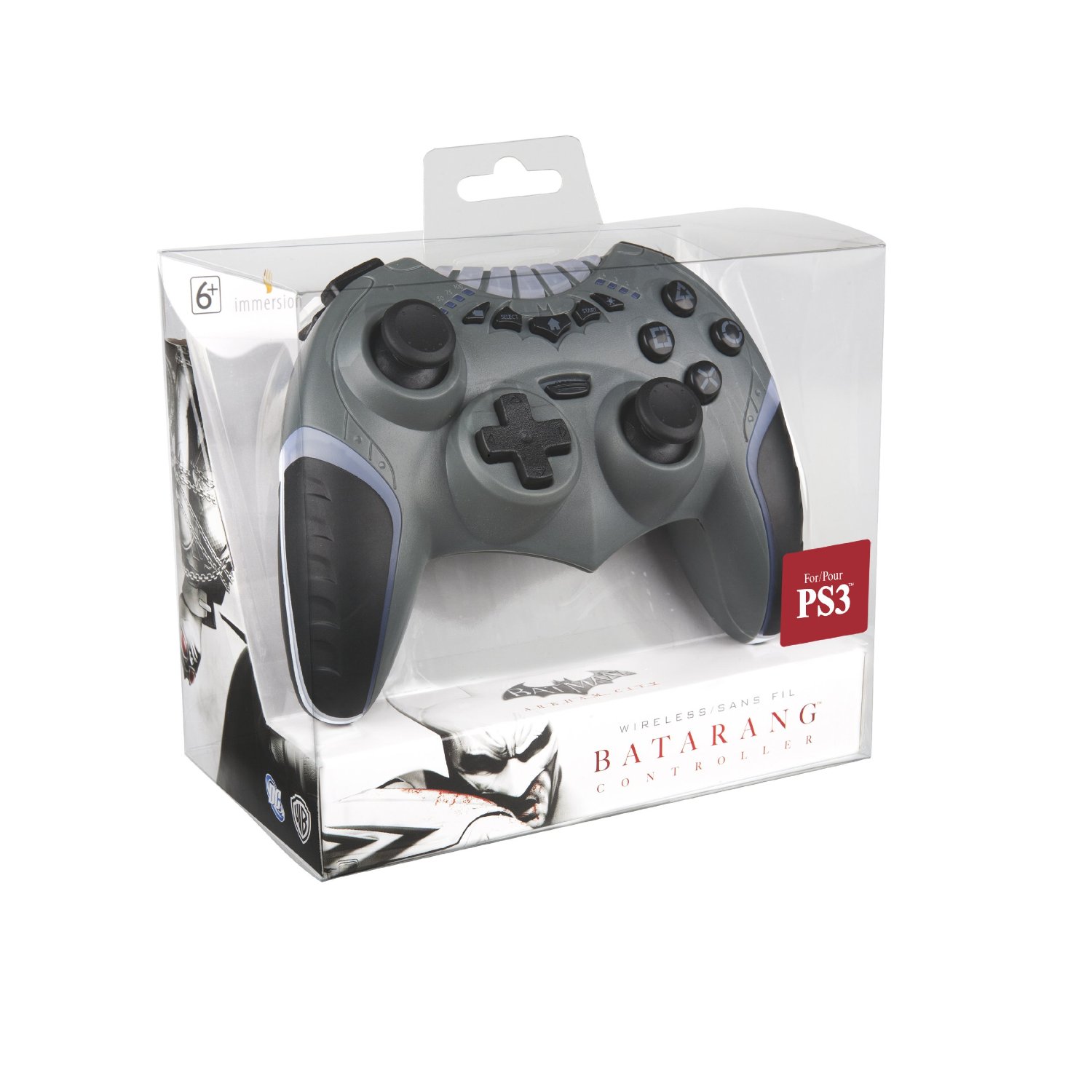
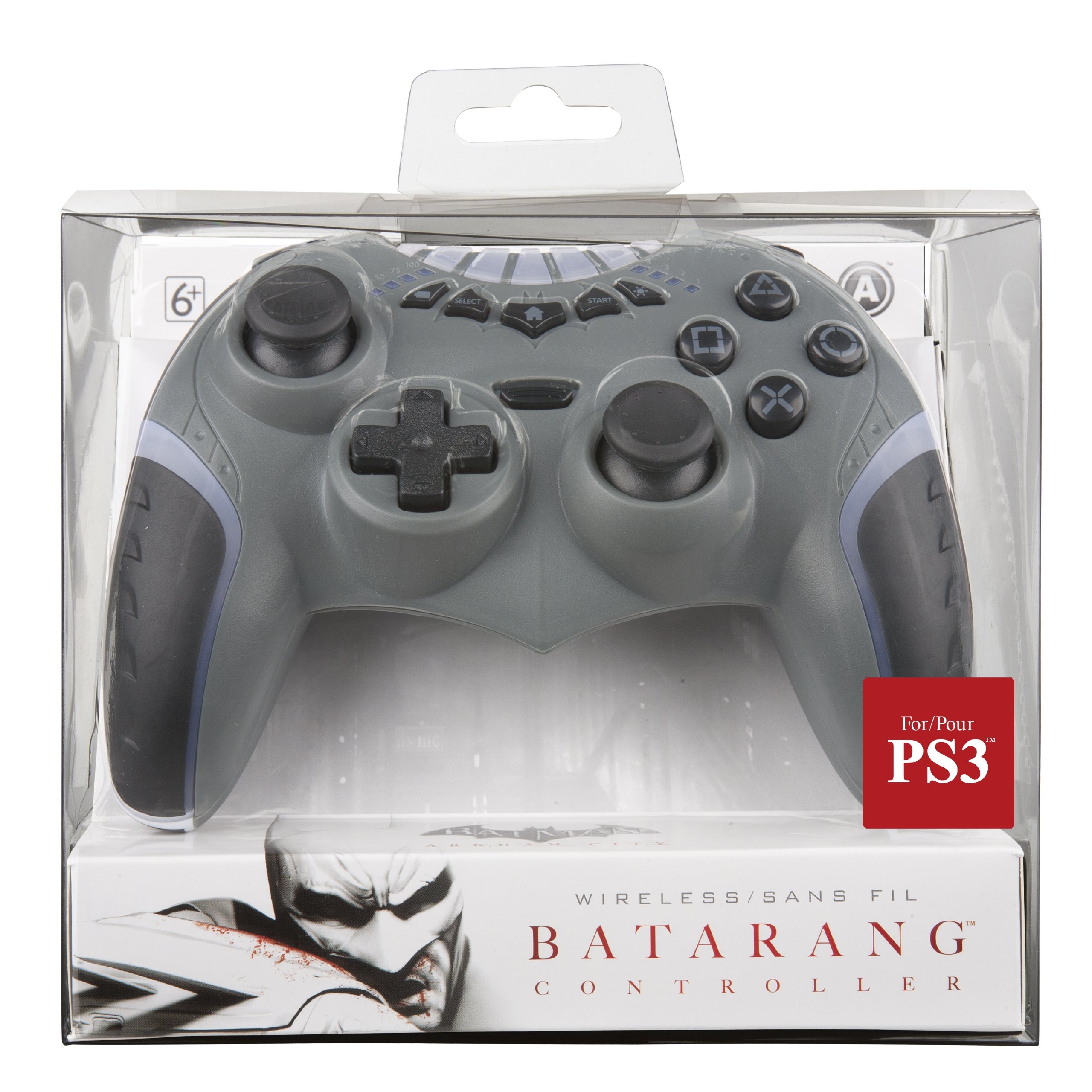
Most third-party controllers are usually never good. Power A did a great job with this officially licensed (by DC anyways) PS3 controller. While it looks a bit cheap, with some areas not coming together smoothly and seeing a few uneven gaps, the controller feels good and has a few nice features. For one, the thing lights up with seven different colors that you can change with a push of the button. All the regular PS3 buttons are here, including the Home button, plus there is a battery indicator button that lights up the quadrants to the left of the top row of buttons.
The overall feeling in your hands is great, except that the shoulder buttons are a bit closer together. People with huge hands will not like this. It has kind of a triangle shape, and the ergonomics are great when wrapping your fingers behind the controller to grip it. The sticks are laid out like the Xbox 360, which I prefer, and they are just tight enough for the perfect sensitivity range (which is really important for shooters).
Overall, there are a few problems, such as the top buttons being too close to each other, so you have to look down to press Start and Select. Several times I didn’t look and hit the color change button instead of starting. I also like how it’s wireless, but it doesn’t use Bluetooth, so you have to use a dongle in the PS3 USB slot. That also means no turning on the console with the controller, but it does have an on/off switch to kind of make up for it. The battery lasts a long time, so no issue there, but if the controller didn’t look as cheap as it does, the top buttons were spread out more, and this thing used Bluetooth, I would say it was perfect. For what you get, this is a great controller for Batman fans.
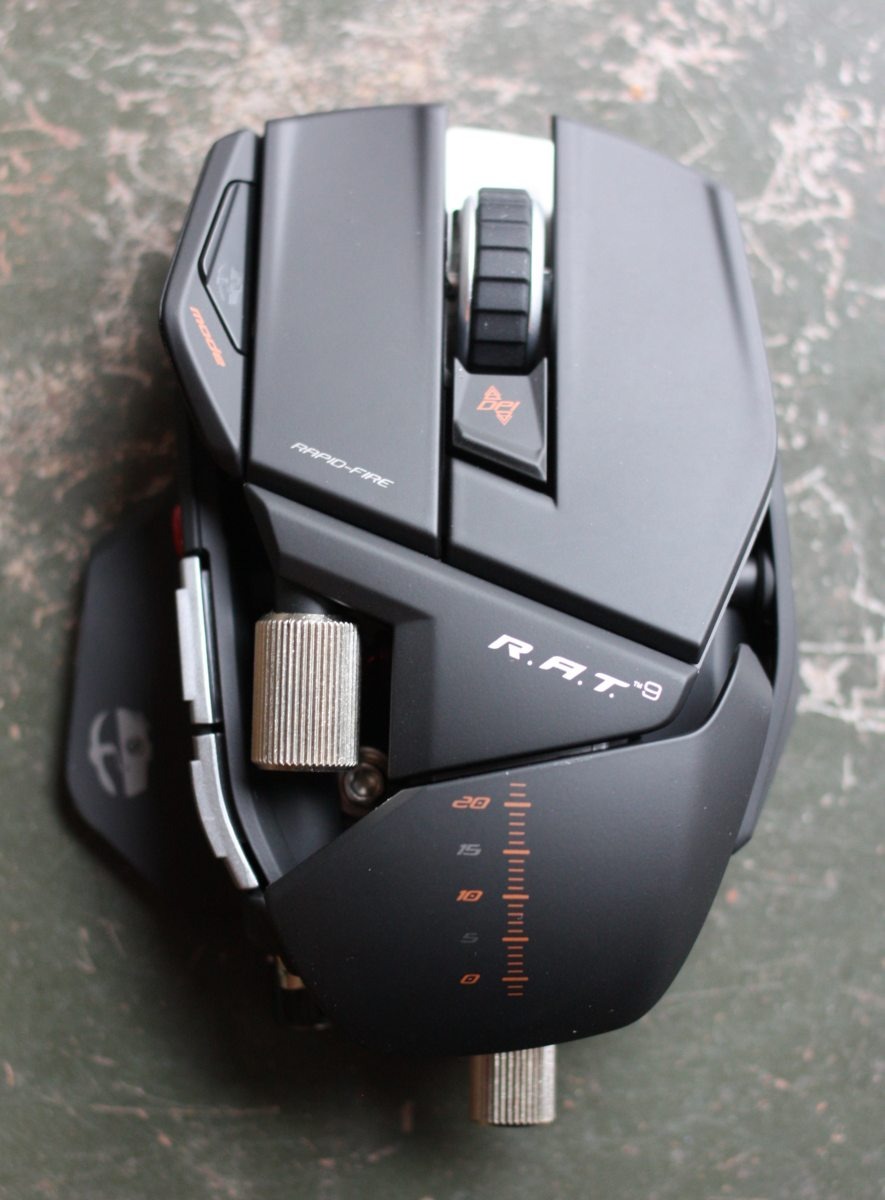
Gamers are probably the pickiest people on the planet, especially PC gamers, who want everything contorted and shaped to their needs and comfortability. Cyborg got the message and said, “Hey, how about you build your own mouse?” That’s kind of what we got here with the R.A.T. series of gaming mice, and although you may not actually build it, you can customize everything on it.
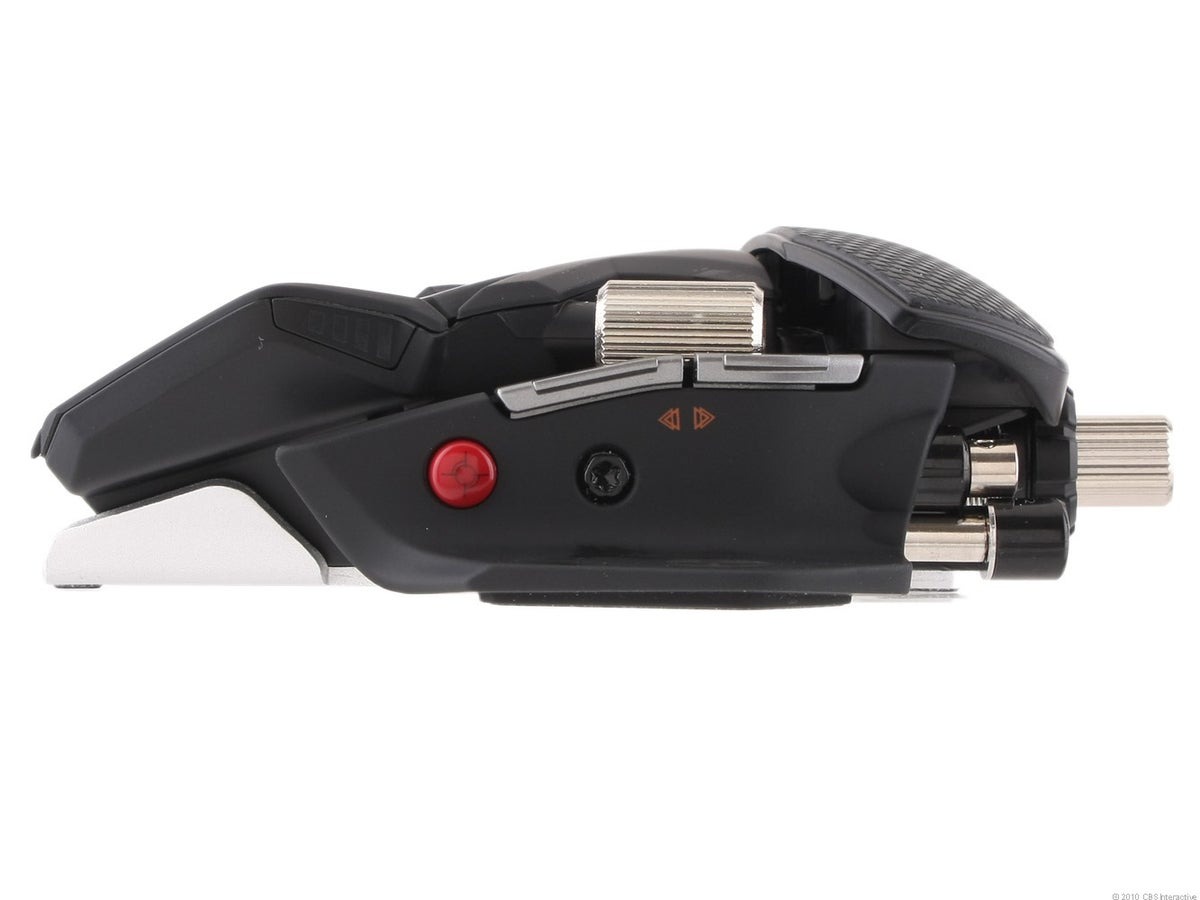
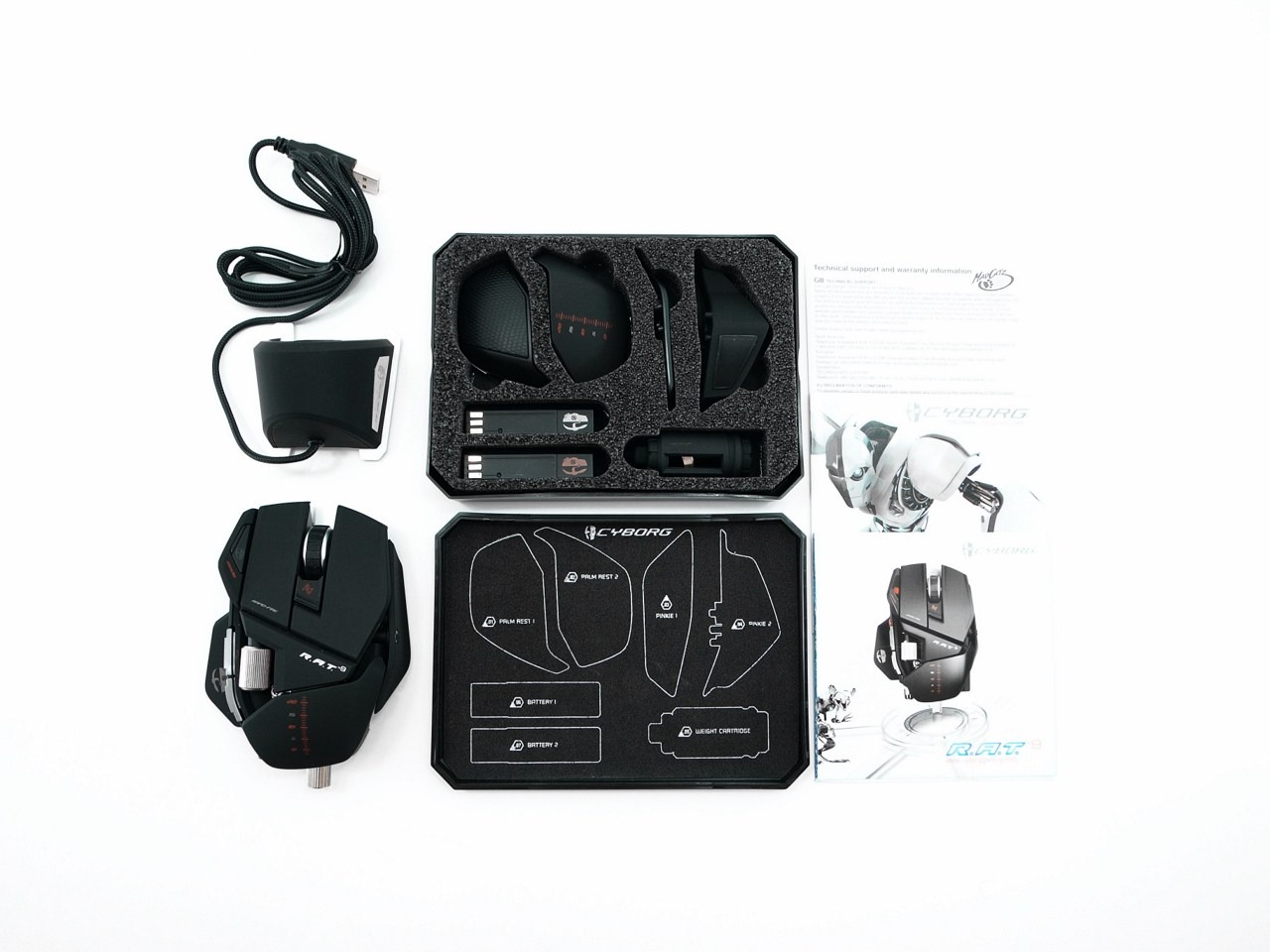
The mouse may look ugly to some and slick to others. It has a lot of sharp angles and exposed metal, so it looks kind of like a robot. There are a lot of buttons on this thing, but what’s most interesting is how well the mouse is designed despite having a tool, weights, and a lot of other things in it. You adjust everything via a tool that screws out of the back, and this lets you adjust two things. First is the thumb rest, which is where most things happen. There’s the sniper button (more on that later), a back and forward button, and a side scroll wheel (that doesn’t work in browsers, unfortunately). You can move this piece from side to side and up and down for maximum comfort. Second, you can change out the pinky rest for a textured grip one or a pinky “scoop.” This reduces pinky drag and lifts it off the table.
They could have stopped here, and those are huge issues gamers have with mice. But how about the palm rest? Sure, with an easy button press, you can adjust the length of the palm rest or swap it out for a textured one. Is the mouse too light or too heavy? Add some weights to the bottom via 1-gram discs that sit right behind the tool. The mouse is already heavy enough for most people without weights, but people who don’t like their mice flying everywhere or getting lift-off during frantic shootouts can add up to 8 grams, so it makes it pretty heavy. While the adjustability stops there, it pretty much solves every problem that PC gamers scream about.
The mouse itself is super sturdy, with nice, hard plastic that feels smooth. The bottom is an aluminum track with Teflon feet, so this baby glides like butter across any surface. It also just fits so nicely in your hand after fine-tuning that you don’t even notice it’s there half the time. Both the left and right buttons are very wide and long, so people with different lengths of fingers won’t have to contort their fingers. The middle scroll wheel is very big with thick grips, so it never slips. I found the wheel a tad too far forward compared to most mice, but after a few hours, you won’t notice.
Now for features on the mouse, there is a mode button. You can switch between three different button configuration profiles (from the software), and the LED changes colors. There is also a button to change DPI on the fly from four levels. Each level can be adjusted in the software, but there is an LED light on the side that shows which level you have selected. My favorite feature is the sniper button. Hold it down, and it slows down the DPI so you can get awesome headshots or increase accuracy for whatever reason you need. You can adjust the sensitivity in the software, but I use this all the time in games.
The mouse also comes with not one but two rechargeable batteries. They are about 3 inches long and are tiny little cartridges that slide in right next to the pinky rest, and you never even notice it. It is a bit of a pain to pull out, so some people may need to remove the pinky rest or palm rest every time to get to it. The other battery charges in the receiver, and your weighted cartridge holder sits in there as well. The battery takes about three hours to charge and lasts for about nine hours. I also noticed no lag in the mouse at all, and it is extremely responsive, so wireless mouse naysayers don’t have to worry about this.
The software is pretty standard, and it lets you program macros, shortcuts, etc. I have very few complaints about the mouse, such as not being able to move the pinky rest forward or back. I also don’t like that the side scroll wheel doesn’t work in browsers, and you can’t program it to work like that. This mouse may also be too heavy (even without weights) for people with weaker or smaller hands. The receiver is also very light; anyone with a movable laptop tray may have to tape it down. Like I mentioned above, the battery is a bit hard to get out, and I wish it would last longer than only 9 hours, but thanks to the second battery, this alleviates that otherwise major problem. The mouse also has a steep price point of $150. It’s more expensive than even some other top-tier wireless mice, but it’s worth every penny once you get it in your hand.















 thebinarymessiah.com
Yeah, it's pretty damn awful. Notoriously one of the worst games on the PSP. A 4 was actually being generous.…